
1. Увод
This user manual provides detailed instructions for the installation, operation, and maintenance of the ISEEVY 8ch HDMI 1080P H.265 H.264 Video Encoder. This device is designed to convert HDMI video signals into IP streams, supporting various protocols for live streaming, IPTV, and broadcast applications. Please read this manual thoroughly before using the product to ensure proper functionality and to prevent damage.
2. Производ је готовview
2.1 Кључне карактеристике
- Supports 8 channels of 1080P HDMI video input.
- Advanced H.265 and H.264 video encoding (high/main/baseline profile).
- AAC/MP3 audio encoding.
- Supports multiple streaming protocols: RTMP, RTMPS, RTSP, UDP, RTP, HTTP, FLV, HLS, TS, Multicast, Unicast, SRT.
- Each channel supports up to 2 streams, with resolutions up to 1920x1080P at 60fps.
- Customizable logo, text, or fly text watermark for each channel.
2.2 Изглед производа
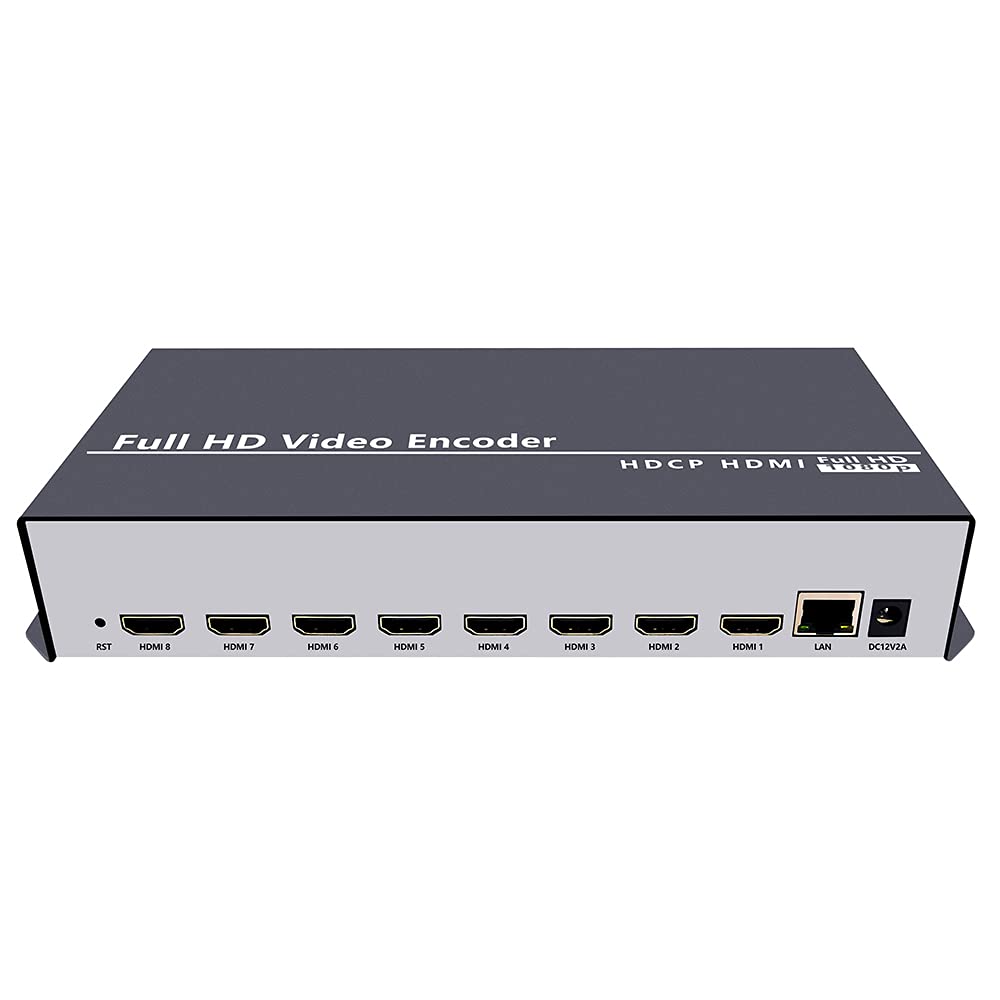
Слика 2.2.1: Предња страна view of the ISEEVY 8ch HDMI Video Encoder, showing the 'Full HD Video Encoder' label and the HDMI input ports.

Слика 2.2.2: Задња страна view of the ISEEVY 8ch HDMI Video Encoder, displaying eight HDMI input ports, a LAN port, and a DC 12V power input.
2.3 Садржај пакета
- ISEEVY 8ch HDMI Video Encoder Unit
- Адаптер за напајање (ДЦ 12В)
- Кориснички приручник (овај документ)
- Етхернет Цабле
3. Подешавање
3.1 Физичке везе
- Повежите ХДМИ изворе: Connect up to eight HDMI video sources (e.g., cameras, DVD players, computers) to the HDMI input ports on the rear of the encoder using standard HDMI cables.
- Повежите се на мрежу: Connect the encoder's LAN port to your network router or switch using the provided Ethernet cable. Ensure your network provides DHCP or assign a static IP address later.
- Прикључите напајање: Plug the DC 12V power adapter into the encoder's DC 12V input port and then into a power outlet. The device will power on automatically.
3.2 Network Configuration Overview
The encoder requires a network connection to stream video. It can obtain an IP address automatically via DHCP or be configured with a static IP. For initial setup, it is recommended to connect it to a network with DHCP enabled.

Figure 3.2.1: Typical network setup for the ISEEVY HDMI Encoder, illustrating its connection to a router and various playback devices and platforms.
4. Упутство за употребу
4.1 Web Приступ интерфејсу
- Find IP Address: If your network has DHCP, the encoder will automatically obtain an IP address. You can find this IP address using an IP scanner tool on your network or by checking your router's connected devices list. The default IP address is often 192.168.1.169 if DHCP is not available.
- Приступ Web Интерфејс: Отвори а web browser (e.g., Chrome, Firefox) on a computer connected to the same network as the encoder. Enter the encoder's IP address into the browser's address bar and press Enter.
- Пријава: Подразумевано корисничко име је админ а подразумевана лозинка је админ. It is highly recommended to change the password after the first login for security.
4.2 Configuring Input and Stream Settings
Једном када сте пријављени у web interface, you can configure each HDMI input and its corresponding output streams.
Слика 4.2.1: Web interface 'Status' page for Input Port 1, displaying current input resolution, frame rate, and stream URLs.
- Изаберите унос: On the left navigation panel, select the desired input port (e.g., "Input Port 1").
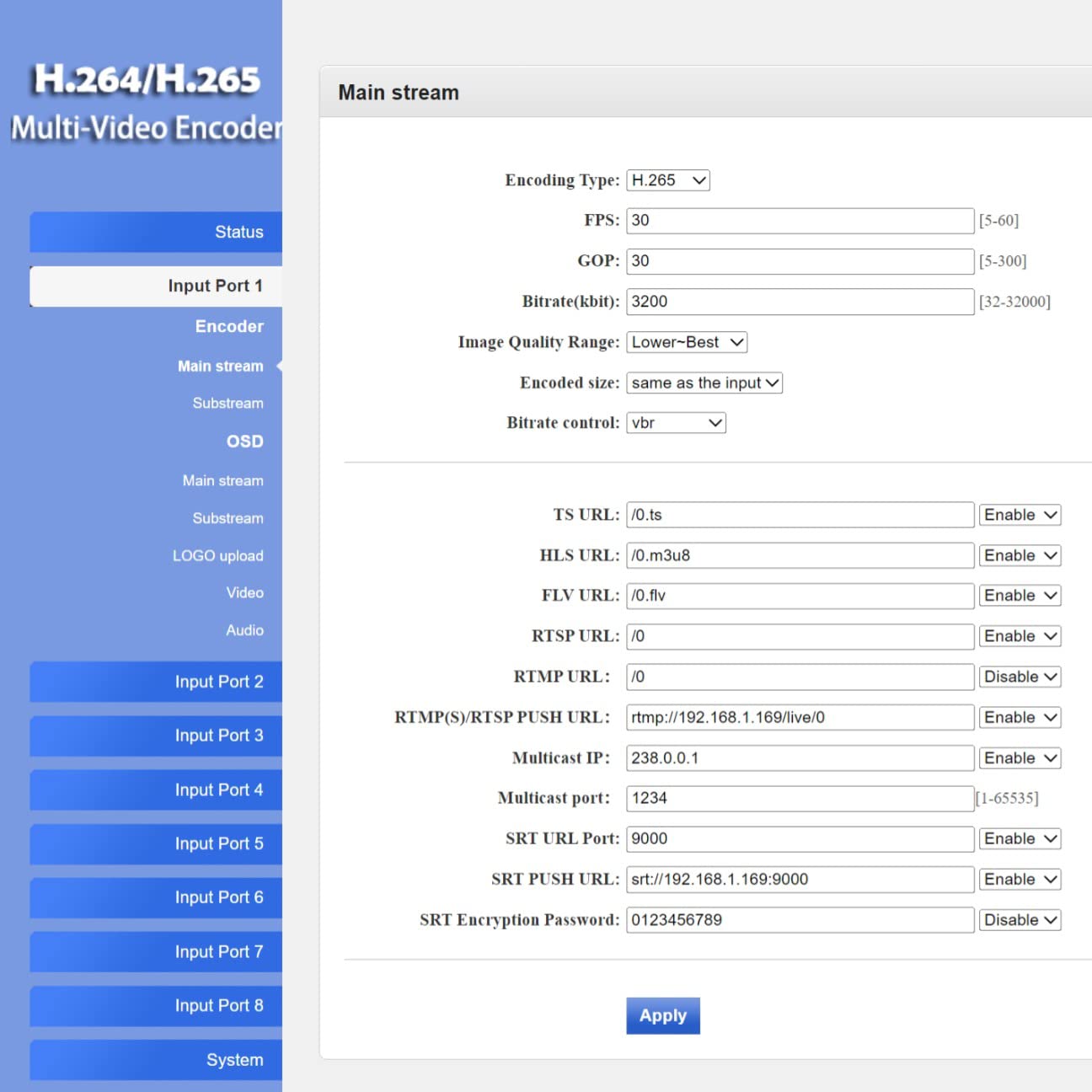
- Подешавања кодера: Navigate to the "Encoder" or "Main stream" section for the selected input. Here you can adjust:
- Тип кодирања: H.265 or H.264.
- FPS (Frames Per Second): Typically 30 or 60.
- Bitrate (kbit/s): Adjust based on desired quality and network bandwidth.
- Резолуција: Output resolution for the stream.
- Протокол URLs: Configure RTMP, RTSP, HLS, FLV, TS, and SRT URLс за стримовање.

Слика 4.2.2: Web interface 'Main stream' configuration page, allowing adjustment of encoding parameters like FPS, Bitrate, and various protocol URLs.
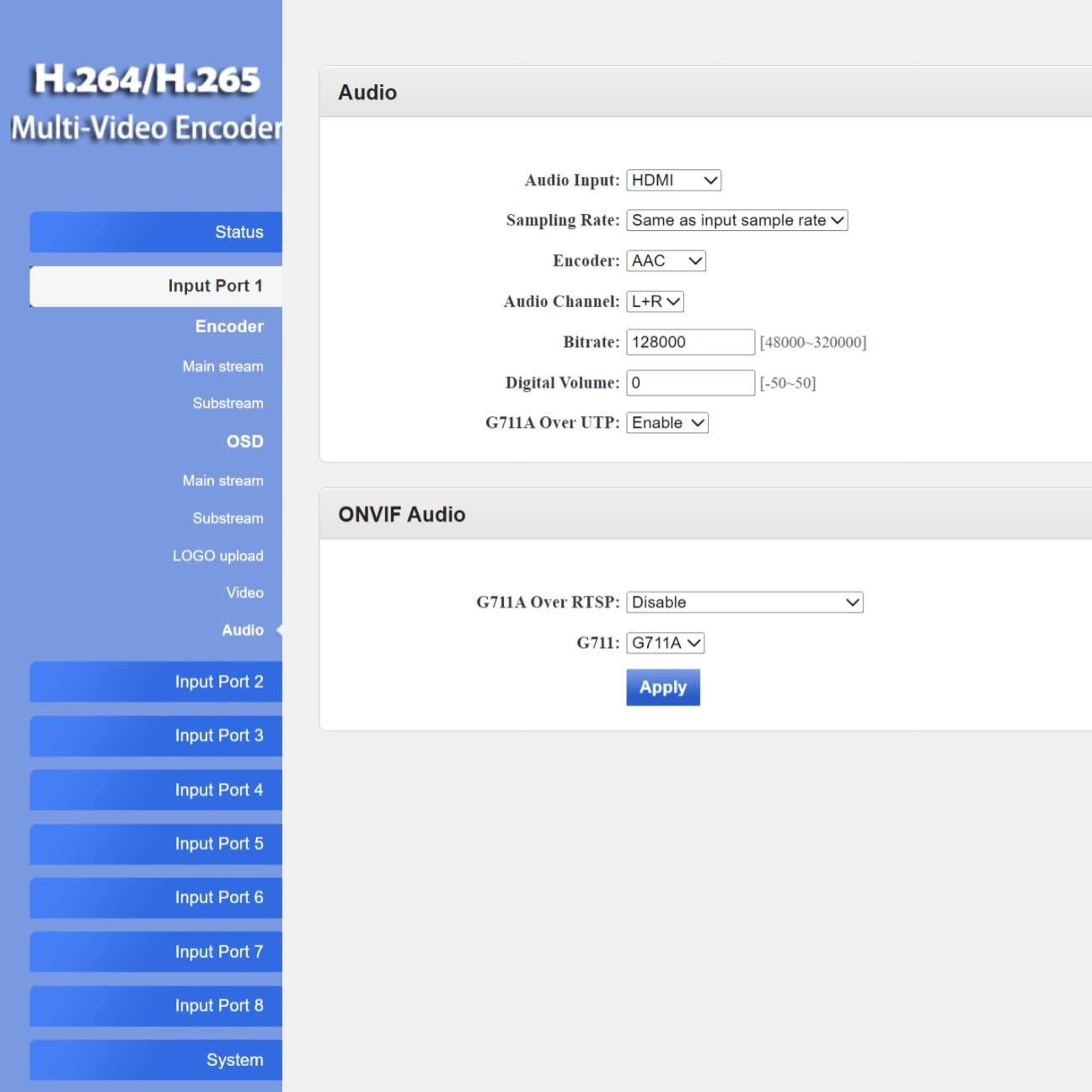
- Аудио подешавања: Navigate to the "Audio" section to configure audio input, sampling rate, encoder type (AAC/MP3), and bitrate.
- ОСД (приказ на екрану): In the "OSD" section, you can enable and configure text or image overlays (watermarks) for your streams.
- Напредна подешавања: The "System" > "Advanced" section provides fine-tuning options for video processing, network settings, and more.
Слика 4.2.3: Web interface 'Advanced' settings page, offering detailed configuration options for video, network, and system parameters.
4.3 Live Streaming Platforms and Software Compatibility
The encoder supports various protocols, making it compatible with a wide range of streaming platforms and playback software.

Слика 4.3.1: Прamples of compatible live streaming platforms, including Twitch, Facebook Live, YouTube, and Vimeo.

Слика 4.3.2: Прamples of compatible playback and streaming software, such as OBS, VLC Player, and FFmpeg.
5. Одржавање
5.1 Чишћење
- Уверите се да је уређај искључен и искључен пре чишћења.
- Use a soft, dry cloth to wipe the exterior of the encoder.
- Не користите течна средства за чишћење, аеросоле или раствараче, јер могу оштетити уређај.
5.2 Ажурирања фирмвера
Периодично проверавајте произвођачеве website for firmware updates. Firmware updates can provide new features, performance improvements, and bug fixes. Follow the instructions provided with the firmware update package carefully to avoid damaging the device.
5.3 Складиштење
When not in use for extended periods, store the encoder in a cool, dry place away from direct sunlight and extreme temperatures. Keep it in its original packaging or a protective case to prevent dust accumulation and physical damage.
КСНУМКС. Решавање проблема
This section addresses common issues you might encounter with the ISEEVY 8ch HDMI Video Encoder.
| Проблем | Могући узрок | Решење |
|---|---|---|
| No video output/stream | Нема ХДМИ улазног сигнала | Check HDMI cable connections and ensure the source device is powered on and outputting video. |
| No video output/stream | Incorrect stream settings | Verify encoding type, resolution, and bitrate settings in the web interface. Ensure protocol URLс су тачне. |
| Није могуће приступити web интерфејс | Incorrect IP address or network issue | Ensure the encoder is connected to the network. Verify the IP address using an IP scanner. Check network cable. Try resetting the encoder. |
| Stream buffering or poor quality | Insufficient network bandwidth or high bitrate | Reduce the stream bitrate in the web interface. Check your network's upload speed. Ensure no other devices are saturating the network. |
| Audio issues (no audio, distorted audio) | Incorrect audio settings or source issue | Verify audio input and encoding settings in the web interface. Ensure the HDMI source is providing audio. |
7. Спецификације
Detailed technical specifications for the ISEEVY 8ch HDMI Video Encoder.
| Феатуре | Детаљ |
|---|---|
| Бранд | исееви |
| Модел | 8ch HDMI 1080P H.265 H.264 Video Encoder |
| Инпут | 8 x HDMI (1080P) |
| Видео Енцодинг | H.265, H.264 (High/Main/Baseline Profile) |
| Аудио Енцодинг | ААЦ, МП3 |
| Резолуција излаза | Up to 1920x1080P @ 60fps |
| Стреаминг Протоцолс | RTMP, RTMPS, RTSP, UDP, RTP, HTTP, FLV, HLS, TS, Multicast, Unicast, SRT |
| нетворк интерфаце | 1 x RJ45 Ethernet port |
| Повер Суппли | ДЦ 12В |
| Димензије производа | 9.06 к 5.91 к 1.73 инча (23 к 15 к 4.4 цм) |
| Тежина | 1.72 фунти (0.78 кг) |
| Произвођач | ISEEVY Limited |
8. Гаранција и подршка
ISEEVY products are designed for reliability and performance. For warranty information and technical support, please refer to the official ISEEVY website or contact your authorized reseller. Keep your purchase receipt as proof of purchase for warranty claims.
For the latest drivers, firmware, and support resources, please visit the official ISEEVY support page.