
1. Увод
Welcome to the user manual for your new ZZB ZB10 10.1-inch Android 14 Tablet PC. This guide provides essential information for setting up, operating, maintaining, and troubleshooting your device. Please read this manual thoroughly to ensure optimal performance and longevity of your tablet.

Слика 1: Предња страна view of the ZZB ZB10 Tablet.
2. Шта је у кутији
Upon opening your ZZB ZB10 Tablet PC package, please verify that all the following items are included:
- ZZB ZB10 10.1-inch Android 14 Tablet PC
- Кабл типа Ц
- Кориснички приручник (овај документ)

Figure 2: The ZZB ZB10 Tablet and its packaging.
3. Производ је готовview
Familiarize yourself with the physical components of your ZZB ZB10 Tablet.
3.1 Физичке компоненте
- Приказ: IPS екран од 10.1 инча.
- Предња камера: Located above the screen.
- Задња камера: Налази се на задњем панелу.
- Дугме за напајање: Обично на бочној или горњој ивици.
- Дугмад за јачину звука: Подесите нивое звука.
- УСБ Типе-Ц порт: За пуњење и пренос података.
- Утор за мицроСД картицу: За прошириви простор за складиштење.

Слика 3: Задња страна view of the ZZB ZB10 Tablet, highlighting the camera and model information.
4. Подешавање
4.1 Пуњење таблета
Before first use, fully charge your tablet. Connect the provided Type-C cable to the tablet's charging port and the other end to a compatible USB power adapter (not included) or a computer's USB port. The battery indicator on the screen will show charging status.
4.2 Укључивање/искључивање
- За укључивање: Притисните и држите дугме за укључивање док се екран не укључи.
- За искључивање: Press and hold the Power button until a menu appears, then select 'Power off'.
- Рестартовати: Press and hold the Power button until a menu appears, then select 'Restart'.
4.3 Почетно подешавање
Upon first power-on, the tablet will guide you through the initial setup process. This typically includes:
- Избор језика.
- Повезивање на Ви-Фи мрежу.
- Подешавање вашег Google налога (или прескакање за касније).
- Reviewи прихватање услова и одредби.
5. Упутство за употребу
5.1 Основна навигација
The ZZB ZB10 Tablet runs on Android 14, offering an intuitive touch interface.
- Додирните: Изаберите ставку или отворите апликацију.
- Превуците: Крећите се кроз екране или скролујте садржај.
- Зумирање штипкањем прстију: Увећајте или смањите садржај на екрану.
- Дуго притисните: Приступите контекстуалним менијима или померите иконе.
5.2 Повезивање на Ви-Фи
- Иди на Подешавања > Мрежа и интернет > Ви-Фи.
- Укључи/искључи Wi-Fi On.
- Изаберите жељену мрежу са листе.
- Унесите лозинку ако се то од вас затражи, а затим додирните Повежите се.
5.3 Блуетоотх упаривање
- Иди на Подешавања > Повезани уређаји > Блуетоотх.
- Укључите Блуетоотх On.
- Ensure the device you wish to pair is in pairing mode.
- Select the device from the 'Available devices' list and follow on-screen prompts.
5.4 Употреба камере
Таблет има предњу камеру од 2 МП и задњу камеру од 8 МП.
- Отворите Камера апп.
- Додирните дугме затварача да бисте снимили фотографију.
- Пребацујте се између предње и задње камере помоћу иконе камере.
- Изаберите видео режим за снимање видео записа.

Figure 4: Using the tablet's camera for photos or video calls.
5.5 Управљање складиштем
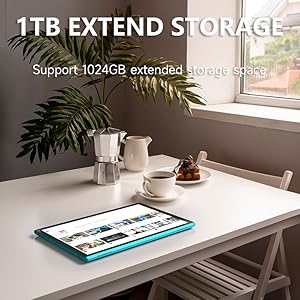
The tablet comes with 32GB of internal storage and supports up to 1TB expandable storage via a MicroSD card.
- To insert a MicroSD card, locate the card slot on the side of the tablet.
- Gently insert the MicroSD card until it clicks into place.
- You can manage storage in Подешавања > Складиштење.

Figure 5: The tablet supports extended storage up to 1TB.
5.6 Reading Mode
The tablet features a reading mode designed to reduce eye strain by adjusting screen colors and brightness. This mode can typically be activated from the quick settings panel (swipe down from the top of the screen) or within the display settings.
6. Одржавање
6.1 Чишћење
Use a soft, lint-free cloth to clean the screen and body of the tablet. Avoid using harsh chemicals or abrasive materials, which can damage the device.
6.2 Одржавање батерије
- Избегавајте излагање таблета екстремним температурама.
- Не дозволите да се батерија често потпуно празни.
- Користите само приложени Type-C кабл за пуњење.
Слика 6: Таблет има батерију од 6000 mAh за дуже коришћење.
6.3 Ажурирања софтвера
Периодично проверавајте системска ажурирања како бисте били сигурни да ваш таблет има најновије функције и безбедносне закрпе. Идите на Подешавања > Систем > Ажурирање система.
КСНУМКС. Решавање проблема
Ако наиђете на проблеме са таблетом, погледајте следећа уобичајена решења:
| Проблем | Могуће решење |
|---|---|
| Таблет се не укључује | Ensure the battery is charged. Connect to a power source for at least 30 minutes. |
| Екран не реагује | Restart the tablet by holding the power button for 10-15 seconds. |
| Проблеми са Ви-Фи везом | Restart your Wi-Fi router. Forget the network in tablet settings and reconnect. |
| Апликације се руше или замрзавају | Clear the app's cache (Settings > Apps > [App Name] > Storage > Clear cache). If the problem persists, uninstall and reinstall the app. |
| Споро перформансе | Затворите непотребне апликације у позадини. Обришите кеш и привремене files. Consider a factory reset if issues persist (backup data first). |
8. Спецификације
Key technical specifications for the ZZB ZB10 Tablet PC:
- Модел: ЗБ10
- Оперативни систем: Андроид 14
- Приказ: 10.1-inch IPS, 1280 x 800 pixels
- РАМ: 6GB (including 4GB virtual memory)
- Интерна меморија: 32ГБ РОМ
- Прошириво складиште: До 1 ТБ преко MicroSD картице
- Задња камера: 8 МП
- Предња камера: 2 МП
- Бежична повезаност: Wi-Fi 802.11ac, Bluetooth
- батерија: 6000mAh, up to 12 hours average life
- Димензије: 12 к 7 к 0.3 инча
- Тежина: 1 фунта
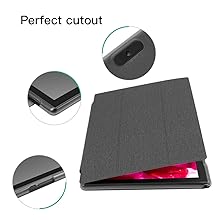
Figure 7: The tablet's 10.1-inch IPS display.
9. Гаранција и подршка
For warranty information and customer support, please refer to the documentation provided with your purchase or visit the official ZZB webсајт. Сачувајте доказ о куповини за потребе гаранције.