
WYRESTORM HALO-COM-MIC
User Manual for WYRESTORM Halo-COM-MIC
360° Omnidirectional Stereo Conference USB Microphone
1. Увод
The WYRESTORM Halo-COM-MIC is an advanced 360° omnidirectional stereo conference USB microphone designed to enhance audio pickup in various meeting environments. It features Acoustic Echo Cancellation (AEC), Automatic Gain Control (AGC), and noise suppression technologies to deliver clear and consistent audio. This microphone can also be cascaded up to three times with the APO-60-UC for extended voice pickup range in larger spaces. This manual provides essential information for setting up, operating, maintaining, and troubleshooting your Halo-COM-MIC.
2. Производ је готовview
2.1 Кључне карактеристике
- Built-in MEMS Microphone Array: Incorporates AEC (Acoustic Echo Cancellation), AGC (Automatic Gain Control), and noise-cancelling for superior sound pickup.
- Cascade Functionality: Allows cascading up to 3 units for extended voice pickup range when used with the APO-60-UC.
- Easy and Flexible Installation: Compact design with minimal footprint, supporting various cable routing options.
- One-button Mute: Convenient mute toggle button with an LED indicator for quick control.
- 360° Voice Pickup: Round design with 4 microphones ensures comprehensive sound capture within a 10-16ft radius.
2.2 Компоненте производа
The Halo-COM-MIC package includes the microphone unit and a 3M USB cable.
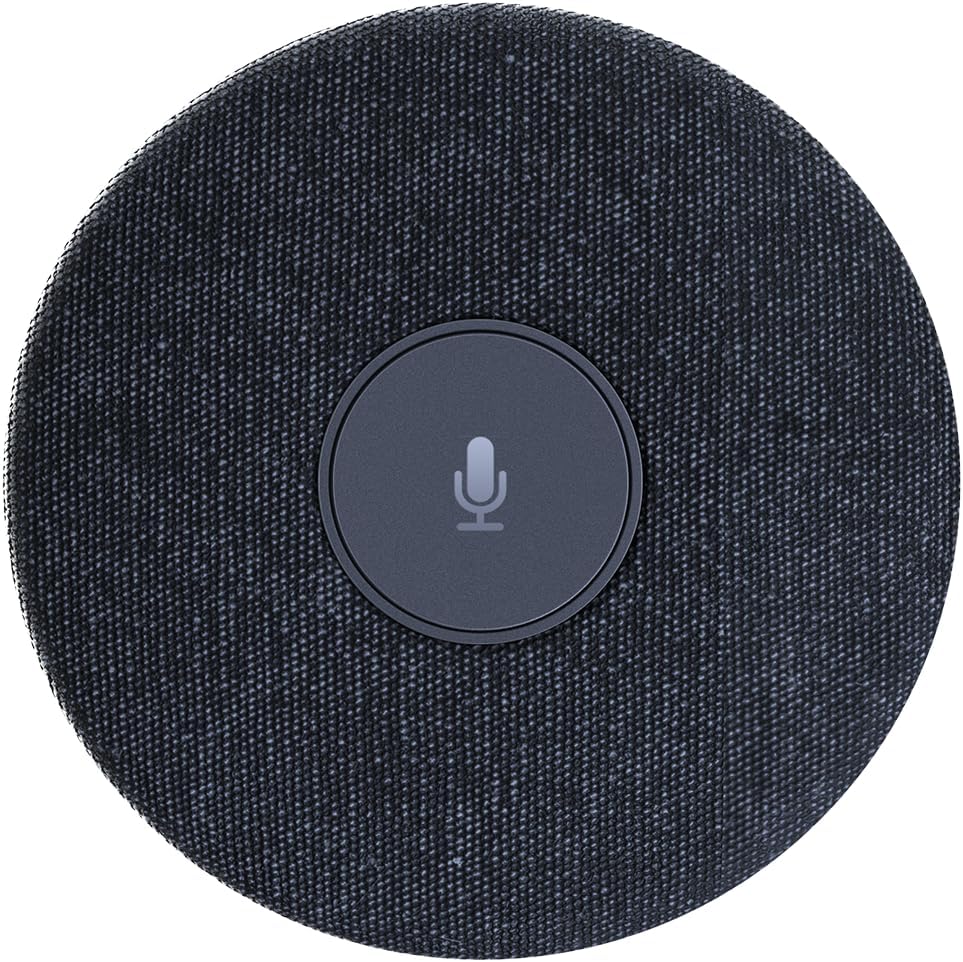
Слика 2.2.1: Одозго надоле view of the WYRESTORM Halo-COM-MIC microphone, showing its compact, circular design with a central mute button.

Figure 2.2.2: Illustration demonstrating the 360-degree voice pickup capability of the Halo-COM-MIC, covering a 16.4ft (approximately 5-meter) radius in a conference setting.

Слика 2.2.3: Крупни план view of a finger pressing the central mute/unmute button on the Halo-COM-MIC, which features an LED indicator.
3. Подешавање
3.1 Повезивање микрофона
- Place the Halo-COM-MIC on a flat surface in the center of your meeting area for optimal 360° voice pickup.
- Connect the provided 3M USB cable to the USB Type-A port on the Halo-COM-MIC.
- Plug the other end of the USB cable into an available USB port on your computer (laptop or personal computer).
- Микрофон је „plug-and-play“ и ваш оперативни систем би требало да га аутоматски препозна.
3.2 Daisy-Chaining Multiple Microphones
For larger conference rooms or extended voice pickup, multiple Halo-COM-MIC units can be daisy-chained using the WyreStorm APO-60-UC. Up to three Halo-COM-MIC units can be connected in a cascade configuration.
- Connect the first Halo-COM-MIC to the APO-60-UC using a USB cable.
- Connect subsequent Halo-COM-MIC units to each other using their respective USB ports, forming a chain.
- Ensure proper cable routing to avoid interference and maintain a tidy setup. The microphone supports both same-direction and opposite-direction cable output.

Figure 3.2.1: Schematic diagram illustrating various configurations for daisy-chaining multiple Halo-COM-MIC units with an APO-60-UC for expanded coverage in large conference rooms.
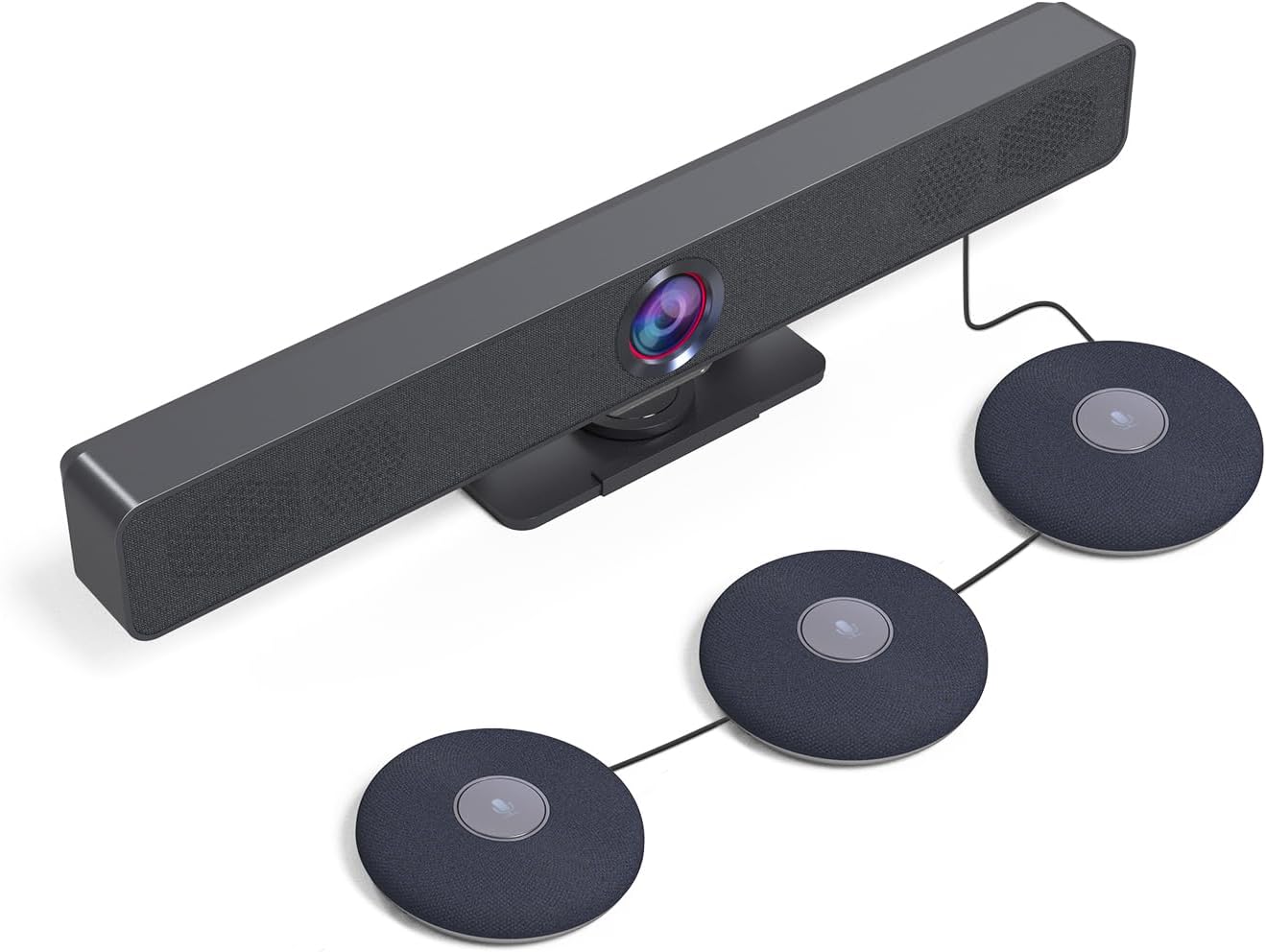
Слика 3.2.2: Бивample setup showing a WyreStorm video bar connected to three cascaded Halo-COM-MIC microphones, demonstrating a typical conference room integration.
4. Операција
4.1 Basic Use
Once connected to your computer, the Halo-COM-MIC functions as a standard USB audio input device. Select it as your primary microphone in your communication software (e.g., Zoom, Microsoft Teams, Google Meet) settings.
4.2 Функција искључивања звука
The central button on the microphone serves as a mute toggle. Press the button once to mute the microphone. The LED indicator will change color (typically red) to indicate that the microphone is muted. Press the button again to unmute the microphone, and the LED will return to its active state (typically blue or green).
4.3 Audio Enhancement Technologies
- Acoustic Echo Cancellation (AEC): Eliminates echoes that can occur when microphone picks up audio from speakers in the same room, ensuring clear two-way communication.
- Аутоматска контрола појачања (АГЦ): Automatically adjusts the microphone's sensitivity to ensure consistent volume levels for all participants, regardless of their distance from the microphone.
- Потискивање буке: Reduces background noise, such as keyboard clicks, air conditioning hum, or general room ambiance, to focus on speech.
5. Одржавање
5.1 Чишћење
To maintain the appearance and functionality of your Halo-COM-MIC, follow these cleaning guidelines:
- Disconnect the microphone from the power source (USB port) before cleaning.
- Користите меку, суву крпу која не оставља влакна да обришете спољашње површине.
- За тврдокорне трагове, благо дampИсперите крпу водом. Избегавајте употребу јаких хемикалија, абразивних средстава за чишћење или растварача.
- Не дозволите да течности уђу у било који отвор.
5.2 Складиштење
When not in use for extended periods, store the microphone in a cool, dry place, away from direct sunlight and extreme temperatures. Protect it from dust and physical damage.
КСНУМКС. Решавање проблема
6.1 Уобичајена питања и решења
| Проблем | Могући узрок | Решење |
|---|---|---|
| No sound pickup / Microphone not detected | USB cable loose or disconnected; Incorrect audio input selected; Driver issue. |
|
| Poor sound quality / Background noise | Microphone too far from speakers; Excessive ambient noise; Software settings. |
|
| Mute button LED not responding | Привремени софтверски квар; Проблем са напајањем. |
|
| Daisy-chaining not working | Incorrect connection order; Faulty cable; APO-60-UC not detected. |
|
7. Спецификације
| Феатуре | Детаљ |
|---|---|
| Назив модела | HALO-COM-MIC |
| Фактор форме микрофона | Table Array, Boundary |
| Полар Паттерн | Омнидирецтионал |
| Опсег преузимања гласа | 10-16 feet (360°) |
| Посебне карактеристике | 4 Noise-canceling Mics, Acoustic Echo Cancellation (AEC), Automatic Gain Control (AGC), Built-in Microphone |
| Технологија повезивања | УСБ |
| Тип конектора | УСБ тип-А |
| Компатибилни уређаји | Лаптоп, лични рачунар |
| Извор напајања | Електрични са каблом (напајање преко УСБ-а) |
| Број канала | 2 |
| Димензије артикла (Д к Ш к В) | 4 к 4 к 0.86 инча (10.16 к 10.16 к 2.18 цм) |
| Тежина артикла | 1.1 фунте (0.5 кг) |
| Укључене компоненте | 3М УСБ кабл |
| Произвођач | WYRESTORM |
| Земља порекла | Хонг Конг |
8. Гаранција и подршка
8.1 Гаранција на производ
WYRESTORM products are manufactured to high standards and are designed for reliable performance. Specific warranty terms and conditions may vary by region and retailer. Please refer to the warranty information provided at the time of purchase or visit the official WYRESTORM webсајт за детаљне информације о гаранцији.
8.2 Техничка подршка
For technical assistance, troubleshooting beyond this manual, or inquiries regarding your WYRESTORM Halo-COM-MIC, please contact WYRESTORM customer support. Contact information can typically be found on the official WYRESTORM webсајту или на паковању вашег производа.
Повезани документи - HALO-COM-MIC
 |
WyreStorm Apollo Series Conference Speakerphone & Presentation Switcher Quickstart Guide Quickstart guide for the WyreStorm Apollo Series Integrated Conference Speakerphone and Presentation Switcher (APO-100-UC, APO-200-UC, APO-210-UC), covering specifications, setup, wiring, software integration, and troubleshooting. |
 |
Упутство за употребу за WyreStorm Apollo APO-200-UC и APO-210-UC Детаљно корисничко упутство за конференцијске звучнике WyreStorm Apollo APO-200-UC и APO-210-UC, које обухвата подешавање, повезивање, бежично емитовање, интеграцију BYOD и Zoom Room, као и напредне функције. |
 |
WyreStorm HALO VX10 v2 Quickstart Guide Quickstart guide for the WyreStorm HALO VX10 v2 all-in-one video bar, covering mounting, connection, software setup for Zoom and Teams, and troubleshooting. |
 |
WyreStorm APO-DG1 USB-C Casting Dongle Quickstart Guide Quickstart guide for the WyreStorm APO-DG1 USB-C Casting Dongle, providing setup instructions for pairing with Apollo and Presentation Switchers, panel descriptions, troubleshooting, and specifications. |
 |
WyreStorm APO-VX20-UC Apollo Series Conference Video Bar & Switcher Quickstart Guide Quickstart guide for the WyreStorm APO-VX20-UC Apollo Series Conference Video Bar & Switcher, covering installation, Bluetooth pairing, software setup, and troubleshooting. |
 |
WyreStorm HALO 30 and HALO 60 Conference Speakerphone Quickstart Guide Official quickstart guide for the WyreStorm HALO 30 and HALO 60 portable conference speakerphones. Includes setup instructions, Bluetooth pairing, software configuration for Zoom and Microsoft Teams, and technical specifications. |
Ask a question about this manual
Ask about setup, troubleshooting, compatibility, parts, safety, or missing instructions. Manuals+ will review the question and use this page’s manual context to help answer it.