
Увод
This manual provides detailed instructions for the safe and effective use of your Dylanto Kids Instant Print Camera, Model BLL2. Please read this manual thoroughly before operating the device and retain it for future reference.
Производ је завршенview
The Dylanto Kids Instant Print Camera is designed for children aged 3-12, offering both digital photography and instant black-and-white printing capabilities. It features a 2.4-inch screen, 1080P video recording, 16x digital zoom, and various creative functions.

Figure 1: Dylanto Kids Instant Print Camera and included accessories.
Садржај пакета:
- Dylanto Kids Instant Print Camera (Model BLL2)
- 3 Rolls of Thermal Printing Paper
- Меморијска картица од 32 ГБ
- Ланиард
- УСБ Типе-Ц кабл
- Кориснички приручник (овај документ)
Безбедносне информације
- Ensure the camera is fully charged before first use and after each use to prolong battery life.
- The thermal printing paper is BPA-free.
- Do not expose the camera to extreme temperatures or moisture.
- Supervise young children during use to prevent accidental damage or misuse.
- Keep small parts, such as the memory card, out of reach of very young children to prevent choking hazards.
Сетуп
1. Пуњење камере
Before initial use, fully charge the camera. Connect the provided USB Type-C cable to the camera's charging port and the other end to a compatible USB power adapter (not included) or computer USB port. The charging indicator will show the charging status.
The camera has a 2000 mAh battery capacity, providing approximately 3-4 hours of continuous use after a full charge.
2. Инсталирање меморијске картице
Locate the memory card slot on the camera. Insert the provided 32GB memory card into the slot until it clicks into place. Ensure the card is inserted in the correct orientation.
3. Loading Printing Paper
Камера користи термални папир за штампање. Пратите ове кораке да бисте убацили нову ролну:
- Gently push up the part with the lens to open the paper slot.
- Insert a roll of thermal printing paper into the slot. Ensure the paper feeds from the bottom of the roll and the end of the paper is facing upwards, ready to be pulled out.
- Close the two parts of the camera until they click securely.
- To avoid blank prints, pull the paper out by approximately 1 inch before the first print.

Figure 2: Steps for loading thermal printing paper.

Figure 3: Detailed instructions for paper installation, including a tip for blank prints.
Упутство за употребу
Укључивање/искључивање
Притисните и држите дугме за напајање да бисте укључили или искључили камеру.
Навигација и мени
Use the directional buttons and the OK/Shutter button to navigate through the camera's menu and select options on the 2.4-inch IPS screen.

Figure 4: Camera interface showing main functions.
Снимање фотографија
In photo mode, frame your shot using the screen. Press the shutter button to capture a photo. The camera supports 16x digital zoom.
The camera can capture color photos digitally and simultaneously print black-and-white thermal photos.
Режими штампања:
The camera offers three printing modes for thermal prints: Low, Middle, and High, which likely refer to print density or quality.

Figure 5: Available printing modes.
Снимање видео записа
Switch to video mode. Press the shutter button to start recording 1080P video. Press it again to stop recording.

Figure 6: Video recording capabilities and storage.
Video 1: Demonstration of the camera's instant print and video recording features. This video highlights the camera's ability to capture moments and print them instantly.
Посебне карактеристике
- Тиме-Лапсе фотографија: Set intervals for automatic photo capture (e.g., 2s, 5s, 10s).
- Континуирано снимање: Снимите више фотографија у брзом низу.
- игре: The camera includes built-in puzzle games for entertainment.
- Filter Frames & Stickers: Apply various frames and stickers to photos before printing or saving.
- МП3 плејер: The camera supports MP3 playback.
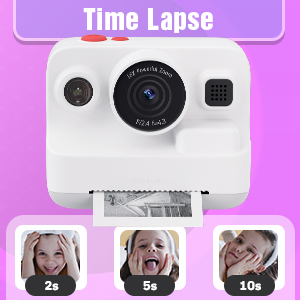
Figure 7: Time-lapse settings.

Figure 8: Built-in games and DIY photo features.

Figure 9: Creative frame and sticker options.
Одржавање
- Чишћење: Use a soft, dry cloth to clean the camera body and screen. Do not use liquid cleaners or abrasive materials.
- Складиштење: Чувајте камеру на хладном и сувом месту, заштићено од директне сунчеве светлости када се не користи.
- Одржавање батерије: Fully charge the camera regularly, even if not in frequent use, to maintain battery health.
- Складиштење папира: Store thermal paper rolls in a cool, dark place to prevent premature fading or damage.
Решавање проблема
| Проблем | Могући узрок | Решење |
|---|---|---|
| Камера се не укључује. | Ниска батерија. | Charge the camera fully using the provided USB Type-C cable. |
| Printed photos are blank. | Thermal paper installed incorrectly (wrong side up). | Open the paper slot, rotate the paper roll 180 degrees, and re-install it correctly. Ensure the paper feeds from the bottom of the roll and the end is facing upwards. |
| Лош квалитет штампе. | Low battery; paper quality; print mode setting. | Ensure camera is fully charged. Use recommended thermal paper. Check print mode settings (Low, Middle, High) and adjust to High for better quality. |
| Не могу да сачувам фотографије/видео записе. | Memory card full or not inserted correctly. | Check if the 32GB memory card is properly inserted. Delete unnecessary files to free up space or replace the card if full. |
| Camera freezes or is unresponsive. | Софтверски квар. | Press and hold the power button for 10-15 seconds to force a restart. If the issue persists, contact customer support. |
Спецификације
| Феатуре | Детаљ |
|---|---|
| Назив модела | БЛЛ2 |
| Дисплаи Сцреен | IPS екран у боји од 2.4 инча |
| Пхото Ресолутион | Up to 12 MP Effective Still Resolution |
| Видео Ресолутион | 1080P (AVI format) |
| Оптицал Зоом | 16к дигитални зум |
| Стабилизација слике | Дигитал |
| Технологија фото сензора | CMOS (1/4-inch sensor size) |
| Подржано File Формат | JPEG (photos) |
| Капацитет батерије | 2000 мАх литијум-јонски |
| Трајање батерије | Approx. 3-4 hours continuous use |
| Интерфејс за пуњење | УСБ Типе-Ц |
| Мемори Стораге | 32 ГБ (укључено) |
| Повезивање | УСБ, Ви-Фи |
| Фласх | Built-In, Automatic |
| Континуирано снимање | 30 фпс |
| Аге Ранге | Kid (3-12 years old recommended) |
| Димензије (приближно) | 3.9 инча (ширина) к 3.1 инча (висина) |

Figure 10: Camera dimensions and included accessories.
Информације о гаранцији
The Dylanto Kids Instant Print Camera comes with a 6-месечна гаранција од датума куповине. Ова гаранција покрива производне недостатке и кварове при нормалној употреби. Не покрива штету насталу услед злоупотребе, незгода, неовлашћених поправки или нормалног хабања.
Сачувајте доказ о куповини за гаранцијске захтеве.
Корисничка подршка
For any questions, technical assistance, or warranty claims, please contact Dylanto customer support through the retailer where you purchased the product or visit the official Dylanto brand store on Amazon: