
1. Производ је готовview
The HIMOJO Zigbee Wireless Smart Scene Switch is designed to enhance your smart home experience by providing convenient control over your Tuya Zigbee smart devices. This wireless switch allows you to create and activate custom scenes with a single touch, integrating seamlessly into your smart home automation system. It operates wirelessly and is powered by batteries, offering flexible placement without complex wiring.

Image 1.1: The HIMOJO Zigbee Wireless Smart Scene Switch, a 4-gang device, shown alongside its product packaging.
2. Подешавање и инсталација
2.1. Gateway and Battery Requirements
This smart scene switch requires a Tuya ZigBee Hub (sold separately) for operation. It cannot function independently. Additionally, the device is powered by a ЦР2430 3В батерија, which is not included and must be purchased separately.

Image 2.1: Visual representation highlighting the need for a CR2430 3V battery and a Zigbee gateway for the smart switch to function.
2.2. Физичка инсталација
The HIMOJO wireless switch is designed for easy installation without complex wiring. It can be mounted on a wall using the included stickers. Ensure the chosen location is within range of your Zigbee hub for optimal performance.
2.3. Повезивање апликације
- Ensure your Tuya ZigBee Hub is set up and connected to the Tuya Smart app.
- Open the Tuya Smart app on your Android or iOS device.
- Follow the app's instructions to add a new Zigbee device.
- Put the HIMOJO Smart Scene Switch into pairing mode (refer to the specific pairing instructions in the included user manual for button press sequences).
- Once detected, complete the pairing process within the app.

Image 2.2: A smartphone screen displaying the Tuya Smart app interface, illustrating the process of adding new scenarios or intelligence to control smart devices.
3. Упутство за употребу
3.1. Creating Smart Scenes
The HIMOJO Smart Scene Switch allows you to create custom automation scenarios within the Tuya Smart app. Each of the four buttons on the switch can be assigned multiple functions based on different press actions.
- Један клик: A quick press and release.
- Дупли клик: Два брза притиска заредом.
- Дуго притисните: Притисните и држите дугме неколико секунди.
With three pairing modes per button, the 4-gang switch can achieve up to 12 unique scenes. Examples include 'away mode', 'home mode', or 'movie mode'.

Image 3.1: A visual guide demonstrating the three distinct interaction types (single click, double click, long click) available for each button on the multi-functional scene switch.
3.2. Activating Preset Scenes
Once scenes are configured in the Tuya Smart app, simply press the corresponding button on the HIMOJO Smart Scene Switch to activate the desired scenario. For instance, a single click might adjust brightness and color temperature of lights, or close smart curtains.
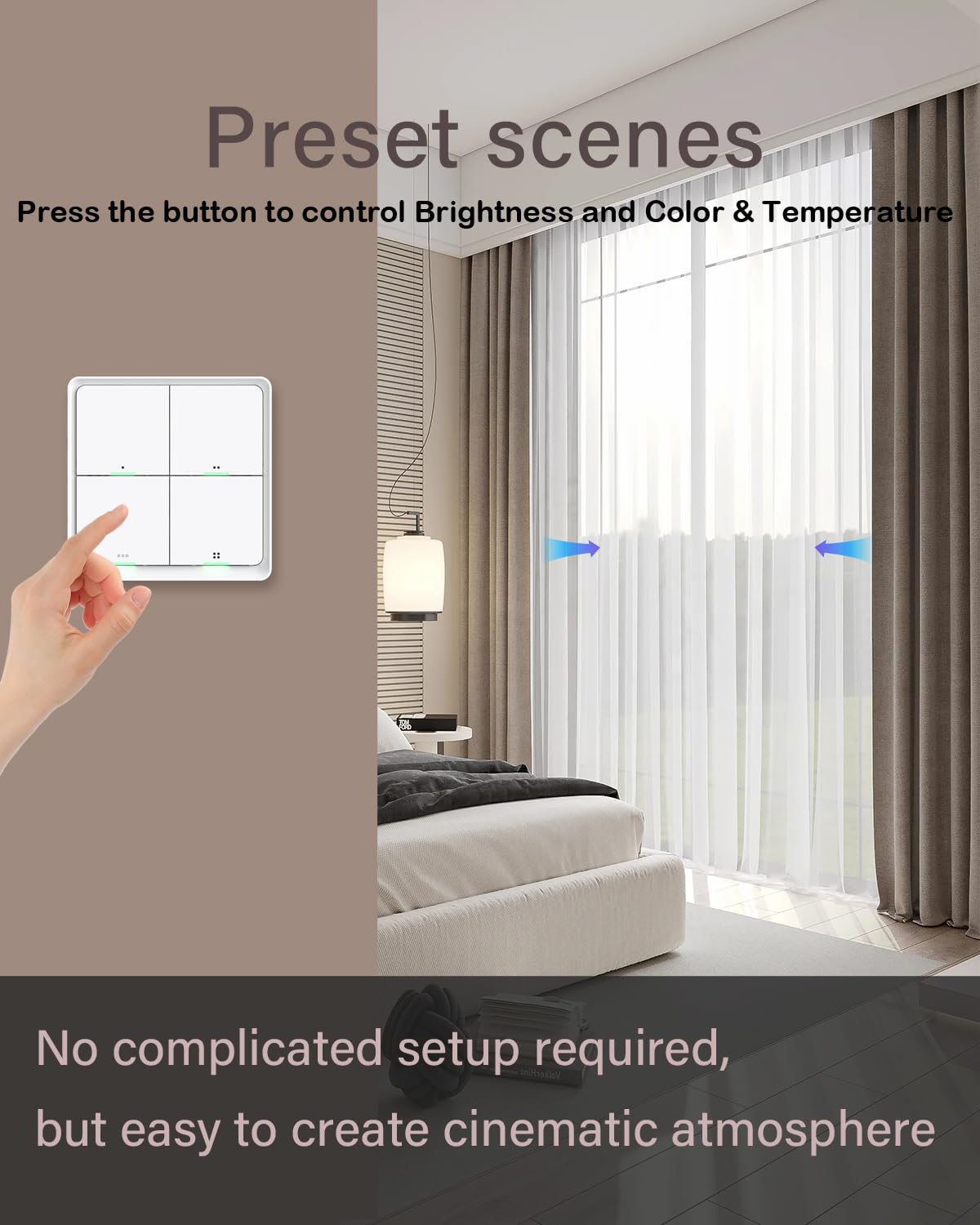
Image 3.2: A hand interacting with the smart scene switch to control preset room conditions, such as adjusting lighting brightness and color, and operating smart curtains.
4. Одржавање
4.1. Замена батерије
The HIMOJO Smart Scene Switch is powered by a CR2430 3V battery. When the battery level is low, the device's indicator light may signal this condition (refer to the specific indicator behavior in the included user manual). To replace the battery:
- Gently pry open the back cover of the switch.
- Remove the old CR2430 3V battery.
- Insert a new CR2430 3V battery, ensuring correct polarity.
- Добро затворите задњи поклопац.
КСНУМКС. Решавање проблема
- Уређај не реагује: Check battery level and replace if necessary. Ensure the device is within range of the Zigbee hub. Verify the Zigbee hub is powered on and connected to the network.
- Unable to pair with app: Ensure the Zigbee hub is correctly set up in the Tuya Smart app. Confirm the switch is in pairing mode. Try resetting the switch (refer to the included user manual for reset procedure).
- Scenes not activating: Verify that the scenes are correctly configured in the Tuya Smart app. Check the connectivity between the switch, hub, and target smart devices.
6. Спецификације
| Феатуре | Спецификација |
|---|---|
| Бранд | ХИМОЈО |
| Модел | B0C7Z6B5LM |
| Оперативни режим | ОН-ОФФ |
| Тип конектора | Бежични |
| Цирцуит Типе | 4-ваи |
| Тип монтаже | Валл Моунт |
| Ацтуатор Типе | Притисните дугме |
| Контакт материјал | Copper, Brass, Stainless Steel |
| Оцена међународне заштите | ИП54 |
| Број позиција | 4 |
| Тип контролера | Андроид, иОС |
| Контролни метод | Апликација, даљински, глас |
| Цоннецтивити Протоцол | ЗигБее |
| Боја | ВХИТЕ |
| Димензије производа (ДкШкВ) | 8.53 к 8.59 к 1.3 цм |
| Тежина артикла | 68 г |
| Извор напајања | CR2430 3V Battery (not included) |
7. Шта је у кутији
- HIMOJO Smart Switch
- Налепница к 2
- Упутство за употребу
8. Гаранција и подршка
HIMOJO provides dedicated customer support. If you have any questions or concerns regarding your Smart Scene Switch, a support team is available to assist you. Please refer to the contact information provided in the included user manual or on the official HIMOJO webсајт за детаље подршке.