
1. Увод
Хвала вам на куповиниasing the ELECOM EX-G M-XGM30UBSKWH Wired USB Ergonomic Mouse. This manual provides detailed instructions for setting up, operating, and maintaining your mouse to ensure optimal performance and comfort. This mouse is designed for right-hand use, featuring a silent click mechanism, 2000 DPI optical sensor, and five customizable buttons.

Image: The ELECOM EX-G M-XGM30UBSKWH wired ergonomic mouse in white, viewed from the top-right angle, showcasing its contoured shape and USB cable.
2. Карактеристике производа
- Ергономски облик: Designed to fit the natural contours of the right hand, reducing wrist and arm strain.
- Silent Click Switch: Utilizes Panasonic silent switches for quiet operation, suitable for various environments.
- Жична USB веза: Provides a stable, plug-and-play connection without the need for batteries.
- 2000 DPI Optical Sensor: Offers precise tracking on various surfaces.
- 5 Customizable Buttons: Enhance productivity with programmable buttons using the ELECOM Mouse Assistant software.
3. Упутства за подешавање
The ELECOM EX-G mouse features a simple plug-and-play wired connection, requiring no complex installation.
- Пронађите слободан USB-A порт на рачунару (PC или Mac).
- Insert the USB connector of the mouse cable into the USB-A port.
- The operating system will automatically detect and install the necessary drivers. The mouse will be ready for use within a few moments.

Image: A white ELECOM EX-G mouse connected to a laptop via its 1.5m USB cable, illustrating the plug-and-play wired connection.
4. Ergonomic Design and Hand Fitment
The EX-G mouse is engineered for comfort, focusing on the natural hand position to minimize strain during extended use.
4.1 Ergonomic Shape
The mouse's design considers the skeletal structure and muscles of the hand and fingers. Its angled shape reduces stress on the wrist, and concave nests are provided for each finger, promoting a relaxed posture from the palm to the wrist and arm.

Image: A hand gripping the ergonomic mouse, highlighting how the angled shape reduces wrist stress and provides a concave nest for fingers.

Image: Diagram illustrating the skeletal structure of the hand and how the ergonomic mouse supports the natural alignment of bones and joints.
4.2 Hand Fitment Chart
To determine the ideal mouse size for your hand, measure your hand from the base of your palm to the tip of your middle finger. Compare your measurement to the chart below:

Image: A hand fitment chart showing how to measure hand length using credit cards for reference, categorizing sizes as Small, Medium, Large, and X-Large.
| Величина | Hand Length (cm) | Hand Length (inch) |
|---|---|---|
| Мала | <17цм | <6.7 инча |
| Средње | 17-18.5цм | 6.7-7.3 инча |
| Велики | 18.5-20цм | 7.3-7.9 инча |
| Кс-Ларге | >20цм | >7.9 inch |
5. Упутство за употребу
5.1 Основни рад
Once connected, the mouse functions as a standard pointing device. Use the left button for primary clicks, the right button for secondary clicks, and the scroll wheel for vertical scrolling.
5.2 Функција тихог клика
The mouse is equipped with Panasonic silent switches, ensuring that clicks are nearly inaudible. This feature is beneficial in quiet environments, such as offices, libraries, or during late-night work.

Слика: Интерна view of the mouse highlighting the Panasonic silent switches, alongside a user working quietly with the mouse.
5.3 ДПИ подешавање
The mouse operates with a 2000 DPI optical sensor, providing comfortable and precise cursor movement. While the physical mouse does not have a dedicated DPI switch, sensitivity can be adjusted via your computer's operating system settings or through the ELECOM Mouse Assistant software for finer control.

Image: A hand using the mouse, with a graphic indicating the 2000 DPI setting for comfortable and precise operation.
6. Customizing Buttons with Mouse Assistant Software
The ELECOM Mouse Assistant software allows you to customize the functions of the mouse's five buttons and adjust other settings for enhanced productivity.
6.1 Downloading the Software
The software can be downloaded from the official ELECOM webсајту. Молимо посетите ELECOM's official download page and search for 'Mouse Assistant' compatible with your operating system (Windows or Mac).

Image: A laptop displaying the ELECOM Mouse Assistant software interface, with an ELECOM mouse positioned next to it.
6.2 Инсталација и конфигурација
- Download the appropriate version of the Mouse Assistant software for your operating system.
- Покрените инсталатер и пратите упутства на екрану да бисте довршили инсталацију.
- Once installed, launch the Mouse Assistant application.
- Within the software, you can assign various functions to each of the five buttons, adjust cursor speed, and configure other mouse behaviors.
- Ensure to save your settings after making changes.
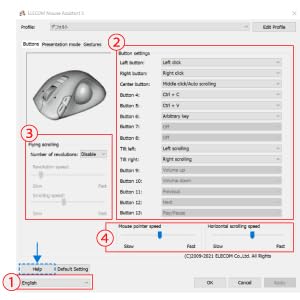
Image: A screenshot of the ELECOM Mouse Assistant software interface, showing options for button assignment, scrolling settings, and pointer speed adjustment.
7. Спецификације
| Феатуре | Детаљ |
|---|---|
| Број модела | M-XGM30UBSKWH |
| Димензије производа | 4.72 к 3.11 к 0.04 инча |
| Тежина артикла | 4.1 унци |
| Технологија повезивања | УСБ Виред |
| Технологија детекције покрета | Optical (BlueLED) |
| ДПИ | 2000 ДПИ |
| Дугмад | 5 (Left, Right, Scroll Wheel Click, Forward, Back) |
| Посебна карактеристика | Soundless (Silent Click) |
| Боја | Бела |
| Цабле Ленгтх | 1.5м |
| Компатибилност | PC, Mac, laptop |
8. Одржавање
To ensure the longevity and optimal performance of your ELECOM EX-G mouse, follow these simple maintenance guidelines:
- Чишћење: Regularly wipe the mouse surface with a soft, dry cloth. For stubborn dirt, slightly dampОперите крпу водом или благим, неабразивним средством за чишћење. Избегавајте употребу јаких хемикалија или растварача.
- Брига о сензорима: Одржавајте оптички сензор на доњој страни миша чистим и без прашине или прљавштине. По потреби користите памучни штапић или компримовани ваздух.
- Управљање кабловима: Избегавајте оштра савијања или прекомерно повлачење USB кабла како бисте спречили оштећења.
- Складиштење: Када се не користи, чувајте миш на чистом и сувом месту, даље од екстремних температура.
КСНУМКС. Решавање проблема
If you encounter issues with your ELECOM EX-G mouse, refer to the following common troubleshooting steps:
- Миш не реагује:
- Уверите се да је USB кабл безбедно прикључен у исправан USB порт на рачунару.
- Покушајте да прикључите миш на други УСБ порт.
- Поново покрените рачунар.
- Неправилно кретање курсора:
- Очистите оптички сензор на доњој страни миша.
- Ensure you are using the mouse on a clean, non-reflective surface. Mouse pads are recommended.
- Check for any software conflicts or outdated drivers. Reinstalling the Mouse Assistant software might help.
- Дугмад не раде:
- Verify that the Mouse Assistant software is correctly configured and that button assignments are as expected.
- Тестирајте миш на другом рачунару да бисте искључили проблеме специфичне за систем.
10. Гаранција и подршка
This ELECOM product comes with a 2-year warranty. In the event of a product defect or quality issue, ELECOM offers a return or exchange within 2 years of purchase. For warranty claims or further support, please visit the official ELECOM USA webсајт (елецомуса.цом) and use the provided return/exchange request form.
For additional assistance, you may also refer to the support section on the ELECOM webсајту.