
1. Увод
This manual provides detailed instructions for the UBOTIE Wireless Green Keyboard. This full-size keyboard features scissor-switch keys for a quiet and responsive typing experience, round keycaps, and dual-mode connectivity (Bluetooth and 2.4GHz wireless) for versatile use across multiple devices.
2. Садржај пакета
- UBOTIE Wireless Green Keyboard
- УСБ нано пријемник
- Кориснички приручник (овај документ)
3. Производ је готовview
The UBOTIE Wireless Green Keyboard is designed for comfort and efficiency. It features a full-size layout with a numeric keypad, round keycaps, and a slim profile. The keyboard supports connection to up to three devices simultaneously via its dual-mode wireless capabilities.

Слика 3.1: Врх view of the UBOTIE Wireless Green Keyboard, showcasing its full-size layout and round keycaps.

Слика 3.2: Завршеноview of the keyboard's dimensions, power switch, battery compartment, and USB receiver storage.
Кључне карактеристике:
- Тастери са маказицама за пребацивање: Provides a smooth, responsive, and quiet typing experience.
- Round Keycaps: Unique design for comfortable typing and reduced noise.
- Двоструко повезивање: Connects via 2.4GHz USB receiver or Bluetooth (BT1, BT2).
- Танак и лаган дизајн: Easy to transport and saves desk space.
- Прекидач: Located on the back to conserve battery life.
4. Подешавање
4.1 Инсталација батерије
- Пронађите одељак за батерију на доњој страни тастатуре.
- Отворите поклопац батерије.
- Insert one AAA battery, ensuring correct polarity.
- Добро затворите поклопац батерије.
4.2 Укључивање/искључивање
Slide the power switch, located on the back of the keyboard, to the 'ON' position to power on the device. Slide it to 'OFF' when not in use to conserve battery.

Figure 4.1: Location of the independent power switch on the keyboard.
4.3 Connecting via 2.4GHz USB Receiver
- Уверите се да је тастатура укључена.
- Извадите УСБ нано пријемник из његовог слота за складиштење у одељку за батерију.
- Plug the USB Nano Receiver into an available USB port on your computer or compatible device.
- Притисните тастер 2.4Г key on the keyboard. The corresponding indicator light will illuminate red, indicating a successful connection.
4.4 Повезивање преко Блуетоотх-а
Тастатура подржава две одвојене Bluetooth везе (BT1 и BT2).
- Уверите се да је тастатура укључена.
- Притисните и држите тастер БТ1 or БТ2 key for 3-5 seconds until the corresponding indicator light (green for BT1, blue for BT2) starts flashing rapidly. This indicates the keyboard is in pairing mode.
- On your device (PC, Mac, smartphone, tablet), open Bluetooth settings and search for new devices.
- Select "UBOTIE Keyboard" (or similar name) from the list of available devices.
- Follow any on-screen prompts to complete the pairing process. The indicator light will stop flashing and remain solid when connected.
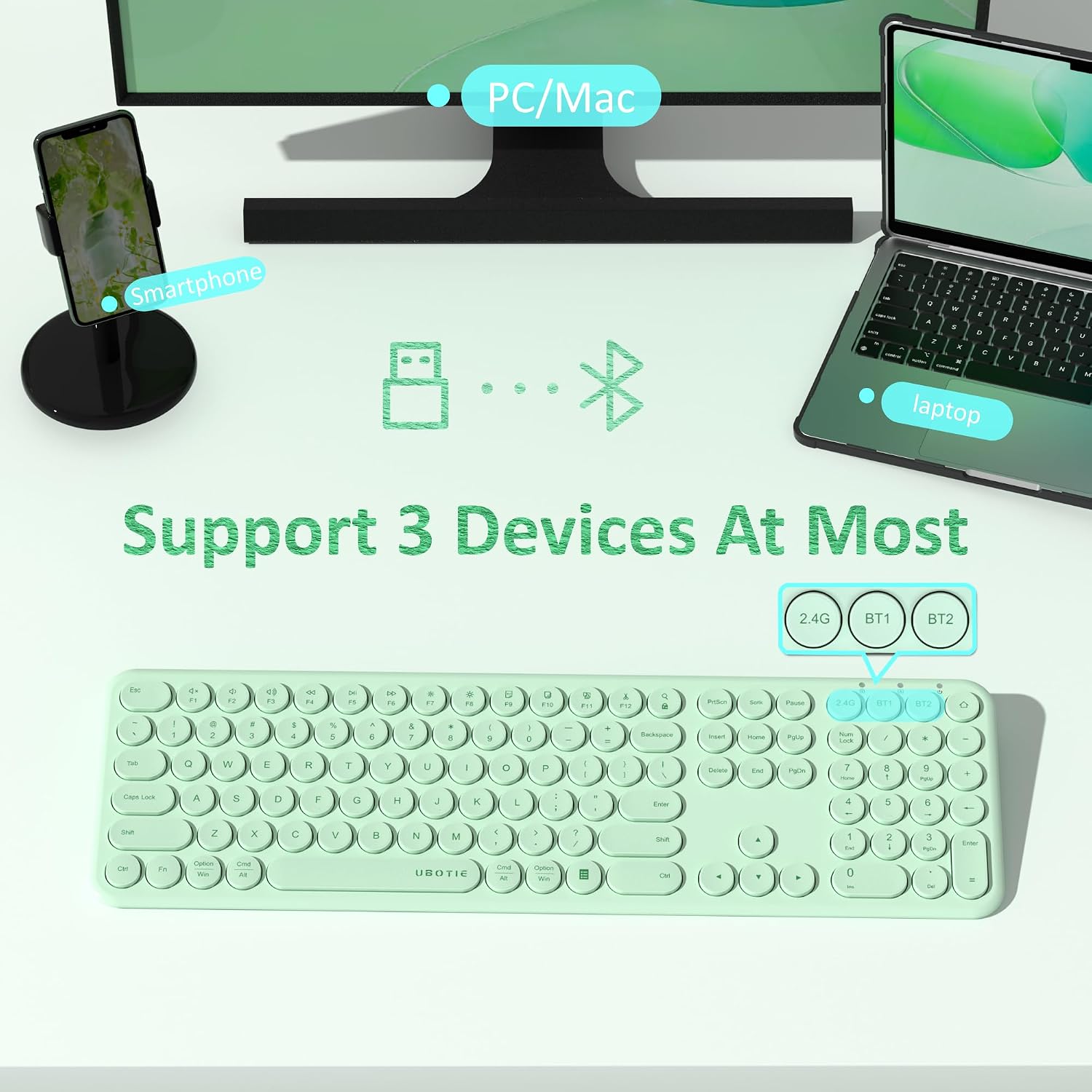
Figure 4.2: Keyboard keys for 2.4G, BT1, and BT2 connections.

Figure 4.3: Indicator lights for 2.4G (red), BT1 (green), and BT2 (blue) connection modes.
4.5 Пребацивање између повезаних уређаја
Once multiple devices are paired, you can switch between them by pressing the corresponding connection key:
- Притисните 2.4Г да бисте прешли на уређај повезан преко УСБ пријемника.
- Притисните БТ1 to switch to the first Bluetooth-connected device.
- Притисните БТ2 to switch to the second Bluetooth-connected device.
5. Упутство за употребу
5.1 Основно куцање
The keyboard functions as a standard QWERTY keyboard. Simply type as you normally would. The scissor-switch mechanism ensures a comfortable and quiet typing experience.
Video 5.1: Demonstration of the keyboard's quiet typing experience. The video shows a user typing on the keyboard, highlighting the minimal sound produced by the keys.
Video 5.2: Further demonstration of the quiet key presses, emphasizing the low noise level during use.
5.2 Функцијски тастери
The top row of keys includes various function keys (F1-F12) that can perform multimedia controls and system functions. These functions may vary slightly depending on your operating system (Windows, Android, iOS, Mac OS).

Figure 5.1: The keyboard is compatible with Windows, Android, iOS, and Mac OS devices.
6. Одржавање
6.1 Чишћење тастатуре
- Power off the keyboard before cleaning.
- Користите меку крпу која не оставља длачицеampнатопљен водом или благим раствором за чишћење.
- Избегавајте прекомерну влагу и не прскајте средства за чишћење директно на тастатуру.
- За остатке између тастера користите компримовани ваздух.
6.2 Замена батерије
When the keyboard's performance degrades or it stops responding, it may be time to replace the AAA battery. Follow the battery installation steps in Section 4.1.
КСНУМКС. Решавање проблема
7.1 Тастатура не реагује
- Уверите се да је тастатура укључена.
- Проверите ниво батерије и замените ако је потребно.
- Verify the correct connection mode (2.4G, BT1, or BT2) is selected.
- For 2.4GHz connection, ensure the USB receiver is securely plugged into your device. Try a different USB port.
- For Bluetooth connection, ensure Bluetooth is enabled on your device and the keyboard is paired. Try re-pairing the keyboard.
- Поново покрените уређај.
7.2 Повремена веза
- Приближите тастатуру уређају да бисте смањили сметње.
- Avoid placing the keyboard near other wireless devices that may cause interference (e.g., Wi-Fi routers, other Bluetooth devices).
- Уверите се да је батерија довољно напуњена.
8. Спецификације
| Феатуре | Опис |
|---|---|
| Бранд | УБОТИЕ |
| Модел | B0CB82ZFW9 |
| Технологија повезивања | Bluetooth, 2.4GHz Wireless |
| Опис тастатуре | Wireless and Bluetooth Slim Quiet keyboard |
| Компатибилни уређаји | Gaming Console, Laptop, PC, Projector, Smartphone |
| Број кључева | 111 |
| Тип прекидача | Сциссор-свитцх |
| Распоред тастатуре | КВЕРТИ |
| Извор напајања | Battery Powered (1x AAA) |
| Материјал | Plastic or Plastic-Aluminum Composite |
| Боја | Зелена |
9. Гаранција и подршка
9.1 Информације о гаранцији
This UBOTIE Wireless Green Keyboard comes with a 1-year warranty from the date of purchase. The warranty covers manufacturing defects and malfunctions under normal use. It does not cover damage caused by misuse, accidents, unauthorized modifications, or normal wear and tear.
9.2 Корисничка подршка
For any questions, technical assistance, or warranty claims, please contact UBOTIE customer support. Refer to the product packaging or the official UBOTIE webсајт за најновије контакт информације.