
1. Увод
This manual provides detailed instructions for the setup, operation, and maintenance of your INPHIC M6Pro Wireless Tri-Mode Ergonomic Mouse. Please read this manual thoroughly before using the product to ensure proper functionality and longevity.
2. Производ је готовview
The INPHIC M6Pro is a versatile wireless mouse designed for comfort and efficiency. It features multiple connectivity options, customizable performance, and smart features to enhance your computing experience.
Кључне карактеристике:
- Двоструко повезивање: Supports both 2.4G wireless and Bluetooth 5.0 connections for flexible device pairing.
- Ергономски дизајн: Right-handed design with a 39mm height, wide thumb rest, and non-slip grips for enhanced comfort and stability during extended use.
- Customizable Performance: Offers 5-speed DPI adjustment ranging from 800 to 2400 DPI, allowing you to tailor cursor sensitivity. Features silent click buttons for quiet operation.
- Паметне карактеристике: Includes RGB lighting effects, a stepped battery indicator, and optimized three-dimensional side buttons designed to prevent accidental clicks.
- Енергетска ефикасност: Equipped with a 500mAh rechargeable battery and a convenient Type-C charging port for prolonged use.
3. Садржај пакета
- INPHIC M6Pro Wireless Mouse
- USB Receiver (stored in the mouse)
- УСБ-Ц кабл за пуњење
- Упутство за употребу
4. Подешавање
4.1 Пуњење миша
Before first use, fully charge the mouse. Connect the provided USB-C charging cable to the Type-C port on the front of the mouse and to a USB power source.

Image: The INPHIC M6Pro mouse being charged via its Type-C port. The battery indicator lights are visible, showing charging status.
The battery indicator lights will flash in a cycle while charging. Once fully charged, all battery indicator lights will remain steadily lit.
Video: Demonstrates the mouse charging process, showing the battery indicator lights flashing during charging and remaining solid when fully charged.
4.2 2.4G бежична веза
- Пронађите УСБ пријемник који се налази у одељку на дну миша.
- Укључите УСБ пријемник у слободан УСБ порт на рачунару.
- Turn on the mouse using the ON/OFF switch located at the bottom.
- Ensure the mode switch at the bottom is set to the '2.4G' position (red light will be on). The mouse should automatically connect to your device.
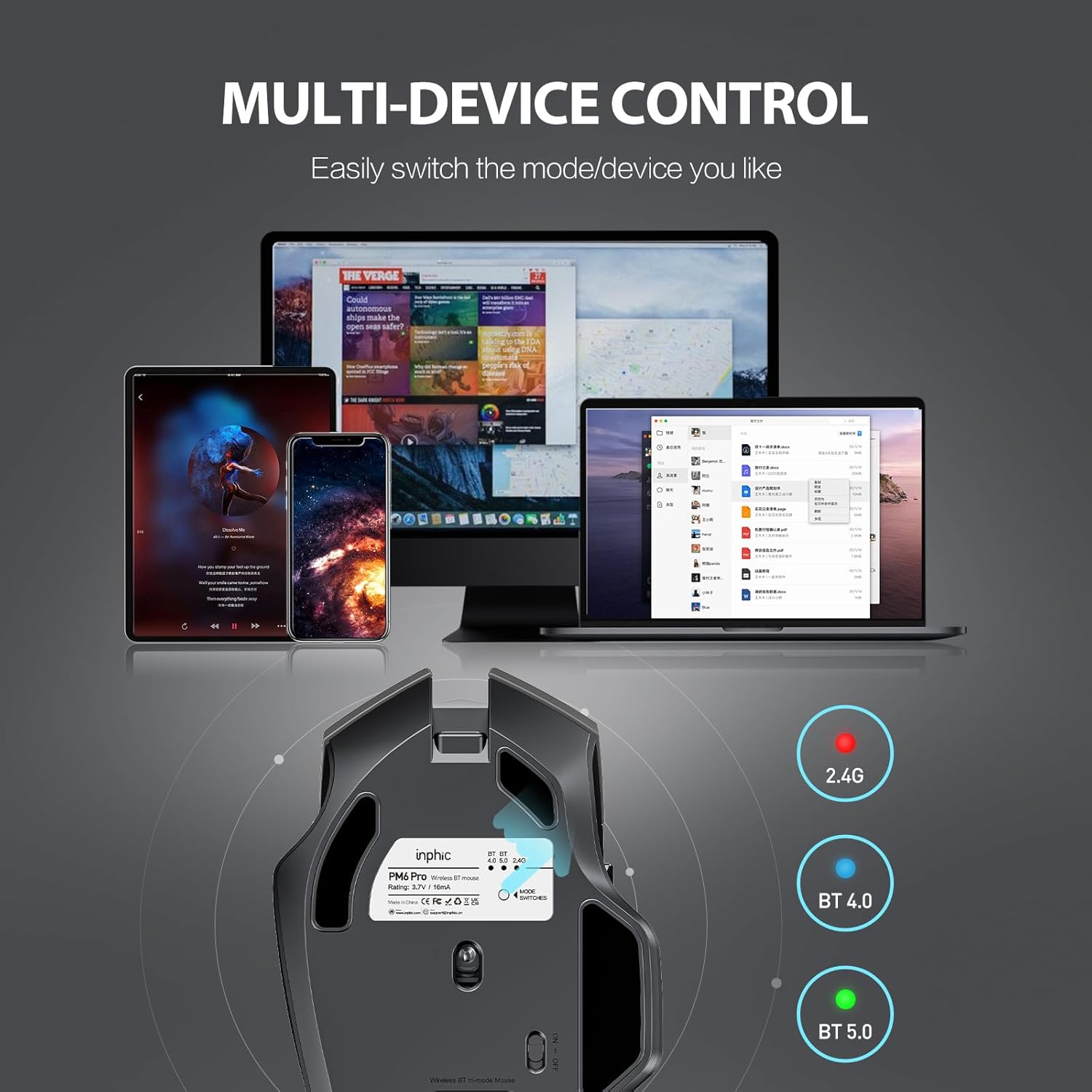
Image: The underside of the mouse, highlighting the USB receiver storage and the mode switch for 2.4G, BT 4.0, and BT 5.0 connections.
4.3 Bluetooth Connection (BT 5.0 / BT 4.0)
- Turn on the mouse using the ON/OFF switch at the bottom.
- Short-press the 'MODE SWITCHES' button at the bottom to cycle through connection modes until the desired Bluetooth indicator (BT 5.0 or BT 4.0) lights up.
- For pairing, long-press the 'MODE SWITCHES' button until the selected Bluetooth indicator light flashes rapidly. This indicates the mouse is in pairing mode.
- On your device (computer, tablet, etc.), go to Bluetooth settings and search for new devices. Select 'INPHIC M6Pro' (or similar name) to pair.
Video: Demonstrates how to switch between 2.4G and Bluetooth modes (BT 4.0, BT 5.0) and enter pairing mode by pressing the mode switch button on the mouse's underside.
5. Упутство за употребу
5.1 ДПИ подешавање
The mouse features a DPI switch button located behind the scroll wheel. Press this button to cycle through 5 DPI settings (800, 1200, 1600, 2000, 2400 DPI) to adjust cursor sensitivity to your preference.

Image: A diagram illustrating the location of the DPI switch button and other buttons on the mouse.
5.2 Функције дугмета
The INPHIC M6Pro mouse is equipped with 6 buttons:
- Леви тастер: Стандардна функција левог клика.
- Десни тастер: Стандардна функција десног клика.
- Точак за померање: Scrolls up/down, and acts as a middle-click button.
- ДПИ прекидач: Подешава осетљивост курсора (DPI).
- Дугме за напред: Навигација напред у web претраживачи или file истраживачи.
- Дугме за назад: Навигација уназад web претраживачи или file истраживачи.

Слика: Детаљна view of the mouse's underside, showing the power switch, LED indicator, and USB receiver slot.
5.3 Ergonomic Design and Silent Operation
The mouse features a curved, skin-like material design for a comfortable grip, reducing hand strain during prolonged use. The widened thumb rest further enhances comfort and control.
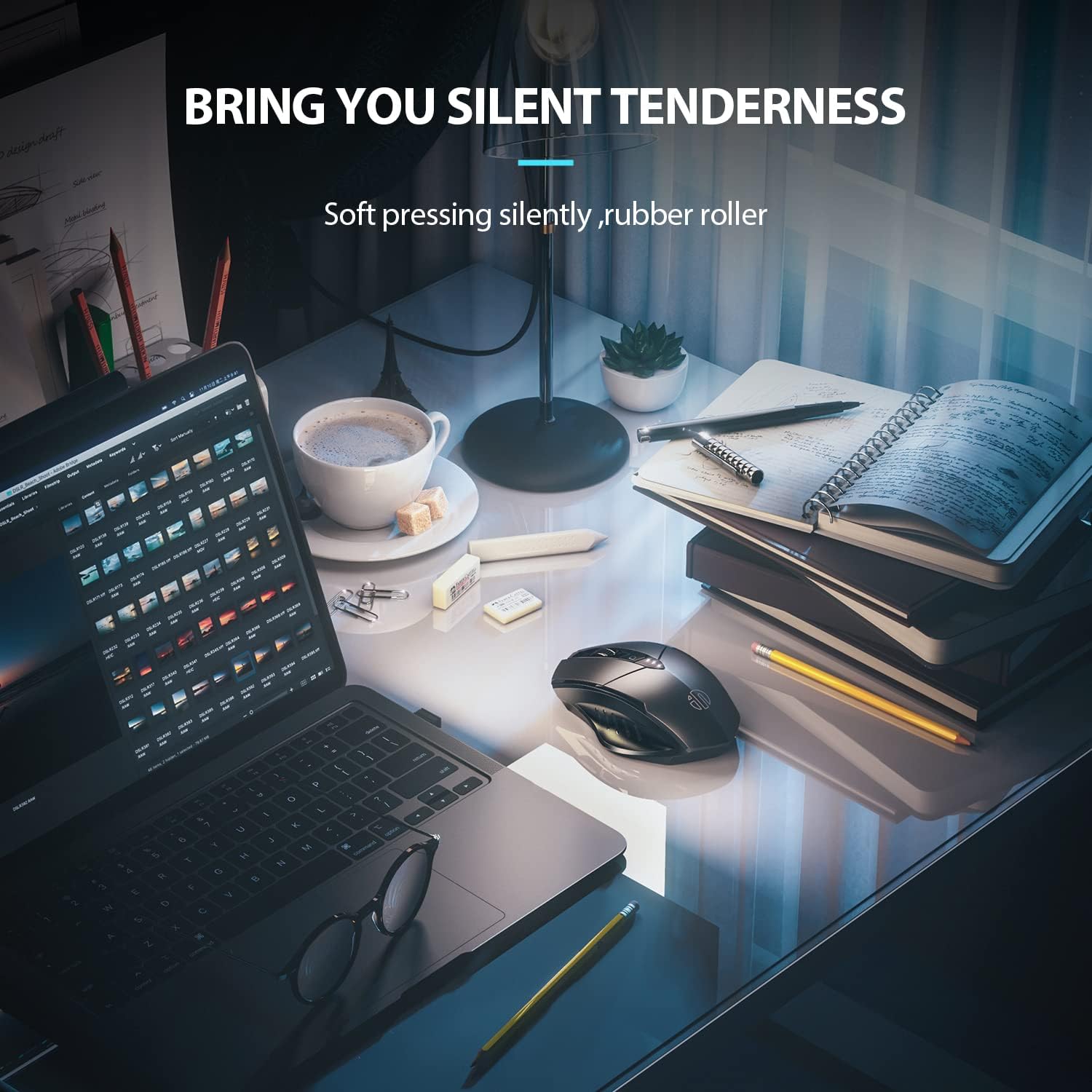
Image: The ergonomic shape of the mouse, designed for a comfortable user experience.

Image: A close-up showing the widened thumb rest for a more comfortable grip.
The left and right click buttons are designed for silent operation, allowing you to work without disturbing others.

Image: Illustrates the silent click feature of the mouse, ideal for quiet environments.
6. Одржавање
To ensure the longevity and optimal performance of your INPHIC M6Pro mouse, follow these maintenance guidelines:
- Чишћење: Use a soft, dry cloth to wipe the mouse. For stubborn dirt, slightly dampОбришите крпу водом или благим раствором за чишћење. Избегавајте јаке хемикалије или абразивне материјале.
- Складиштење: Када се миш не користи дуже време, искључите га да бисте уштедели батерију. Чувајте га на хладном и сувом месту, даље од директне сунчеве светлости и екстремних температура.
- Одржавање батерије: Avoid fully discharging the battery frequently. Charge the mouse when the battery indicator shows low power.
- УСБ пријемник: Keep the USB receiver in its designated storage slot at the bottom of the mouse when traveling to prevent loss.
КСНУМКС. Решавање проблема
If you encounter issues with your INPHIC M6Pro mouse, refer to the following common solutions:
| Проблем | Могући узрок | Решење |
|---|---|---|
| Миш не реагује (2.4G) | USB receiver not properly connected or mouse is off. | Ensure the USB receiver is securely plugged into a USB port. Turn on the mouse and ensure the mode switch is set to 2.4G. Try a different USB port. |
| Миш не реагује (Блутут) | Not paired, out of range, or incorrect Bluetooth mode selected. | Ensure the mouse is in the correct Bluetooth mode (BT 5.0 or BT 4.0) and in pairing mode (flashing light). Re-pair the mouse with your device. Ensure the mouse is within 10 meters of your device. |
| Покрет курсора је неправилан или спор | Low battery, incorrect DPI setting, or dirty sensor. | Charge the mouse. Adjust the DPI setting using the DPI button. Clean the optical sensor at the bottom of the mouse with a soft cloth. |
| Buttons not clicking or unresponsive | Слаба батерија или проблем са везом. | Charge the mouse. Re-establish the connection (2.4G or Bluetooth). |
| Батерија се не пуни | Неисправан кабл или извор напајања. | Try a different USB-C cable and a different USB power source. Ensure the cable is properly connected to the mouse's Type-C port. |
8. Спецификације
| Феатуре | Детаљ |
|---|---|
| Број модела | М6Про |
| Технологија повезивања | 2.4G Wireless, Bluetooth 5.0, Bluetooth 4.0 (Tri-Mode) |
| Технологија детекције покрета | Оптицал |
| ДПИ подешавања | 800, 1200, 1600, 2000, 2400 |
| Дугмад | 6 (лево, десно, точкић за скроловање, DPI прекидач, напред, назад) |
| Тип батерије | Пуњива литијум-полимерска батерија (500 mAh) |
| Порт за пуњење | Типе-Ц |
| Димензије производа | 4.65 к 1.57 к 0.04 инча |
| Тежина артикла | 3.35 унци |
| Компатибилни оперативни системи | Windows Vista/7 and above, Mac OS X 10.10 and above, iOS 13 and above, Android 5.0 and above, Linux kernel 2.6+, Chrome OS |
9. Гаранција и подршка
INPHIC products are designed for reliability and performance. For warranty information or technical support, please refer to the contact details provided with your product packaging or visit the official INPHIC webсајт. Сачувајте рачун као доказ о куповини за потребе гаранције.