
1. Увод
This manual provides essential information for setting up, operating, maintaining, and troubleshooting your Beelink SER5 5500U Mini PC. Please read it carefully before using the product to ensure optimal performance and longevity.
The Beelink SER5 5500U is a compact and powerful Mini PC featuring an AMD Ryzen 5 5500U processor, designed for various applications from office work to multimedia entertainment and light gaming. It supports dual 4K display output and offers robust connectivity options.
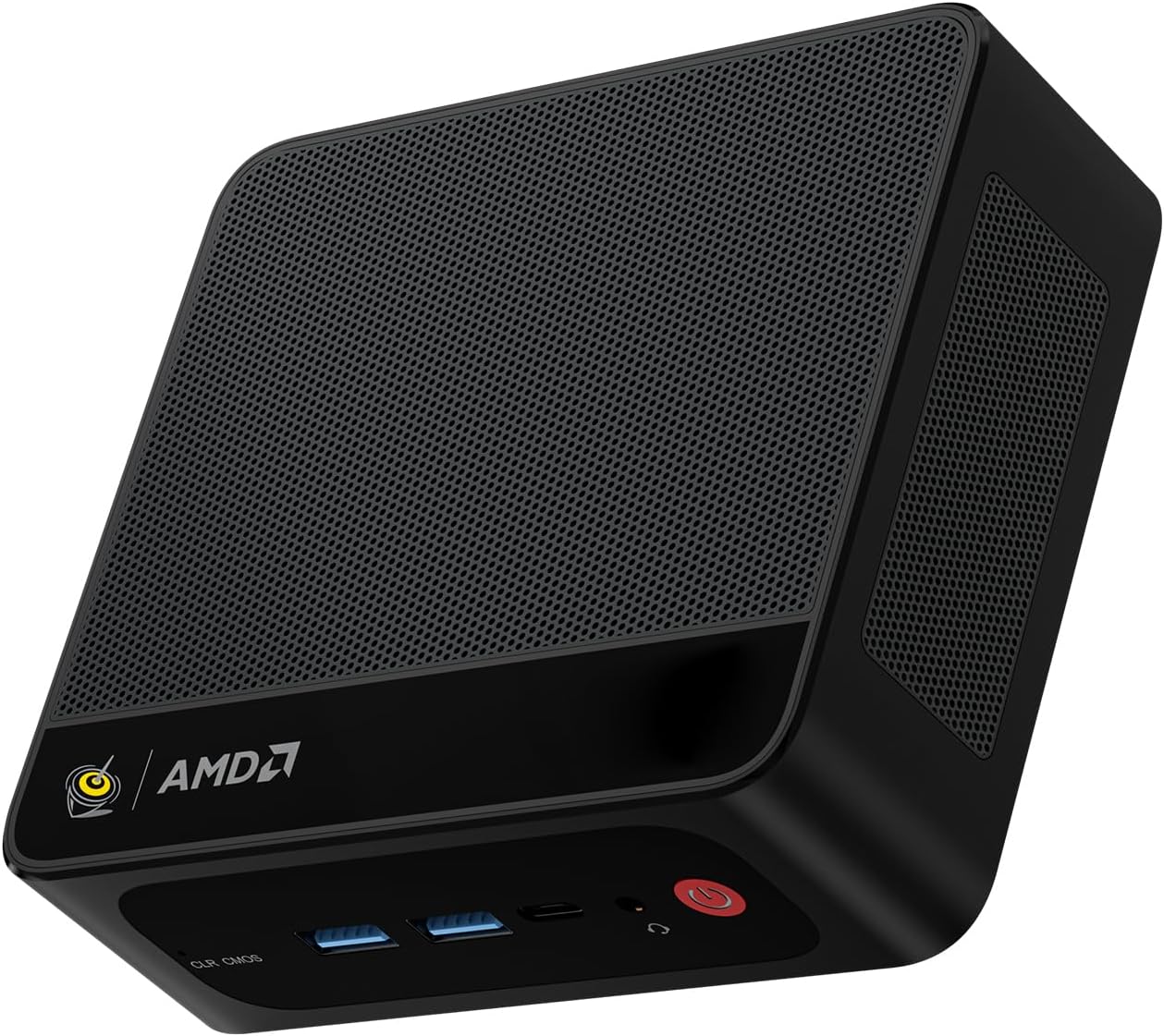
Figure 1: Beelink SER5 5500U Mini PC
2. Садржај пакета
Проверите да ли су све ставке присутне у пакету:
- Beelink SER5 5500U Mini PC (x1)
- HDMI Cable (100cm) (x1)
- Power Adapter (19V/3.42A) (x1)
- Wall-Mounted Bracket (x1)
- Кориснички приручник (овај документ)
3. Упутства за подешавање
3.1 Повезивање периферних уређаја
- Повежи екран: Use the provided HDMI cable to connect your monitor to the HDMI port on the Mini PC. Alternatively, use a DisplayPort cable for DP connection.
- Повежите тастатуру и миш: Plug your USB keyboard and mouse into the available USB ports.
- Прикључите напајање: Прикључите адаптер за напајање на DC-in порт на Mini PC-ју, а затим укључите адаптер у утичницу.
- Мрежна веза (опционо): For a wired connection, connect an Ethernet cable to the 2.5G LAN port. For wireless, ensure your WiFi network is available.

Figure 2: Front and Rear Ports
3.2 Почетно покретање
Press the power button on the front of the Mini PC. The system will boot up, and you will see the Windows 11 Pro setup screen. Follow the on-screen instructions to complete the initial Windows setup.
4. Упутство за употребу
4.1 Укључивање/искључивање и поновно покретање
- Укључено: Притисните дугме за напајање.
- Искључивање: Click the Start button in Windows, then select Power > Shut down. Alternatively, press and hold the power button for 5 seconds to force a shutdown (not recommended for regular use).
- Поново покрени: Кликните на дугме Старт у оперативном систему Windows, а затим изаберите Напајање > Поново покрени.
4.2 Dual Display Setup
The Beelink SER5 5500U supports dual 4K display output via its HDMI and DisplayPort interfaces. Connect two monitors to these ports. Windows will automatically detect the displays. You can configure display settings (extend, duplicate, etc.) via Windows Display Settings.

Figure 3: Dual Display Configuration
4.3 Бежично повезивање
- Ви-Фи 6: The Mini PC supports Wi-Fi 6 (802.11ax) for high-speed wireless internet. Connect via Windows network settings.
- Блуетоотх КСНУМКС: Pair Bluetooth devices such as keyboards, mice, or headphones through Windows Bluetooth settings.
4.4 Проширење складишног простора
The Mini PC includes a 500GB M.2 PCIe NVME 2280 SSD. For additional storage, a 2.5-inch HDD/SSD (not included) can be installed in the dedicated slot. Refer to the internal hardware guide for installation steps.
5. Одржавање
5.1 Чишћење
Regularly clean the exterior of the Mini PC with a soft, dry cloth. Use compressed air to gently clear dust from the ventilation openings to maintain optimal airflow and cooling performance. Do not use liquid cleaners directly on the device.
5.2 Ажурирања софтвера
Keep your Windows operating system and device drivers updated. Windows Update will handle most OS updates. For graphics drivers (AMD Radeon Graphics), visit the AMD official webсајт за најновије верзије.
5.3 Систем хлађења
The Beelink SER5 5500U features a high-speed cooling fan. Ensure the Mini PC is placed in a well-ventilated area and that the air vents are not obstructed to prevent overheating.

Figure 4: Internal Cooling Fan
КСНУМКС. Решавање проблема
6.1 Нема напајања
- Уверите се да је адаптер за напајање безбедно повезан и са Мини рачунаром и са исправном утичницом.
- Проверите да ли је утичница функционална тако што ћете укључити други уређај.
- Пробајте други адаптер за напајање ако је доступан и компатибилан.
6.2 Нема дисплеја
- Verify that the HDMI or DisplayPort cable is securely connected to both the Mini PC and the monitor.
- Ensure the monitor is powered on and set to the correct input source (HDMI/DP).
- Тестирајте са другим монитором или каблом ако је могуће.
- If the issue persists, try resetting the CMOS by pressing the CLR CMOS button (refer to Figure 2 for location).
6.3 Проблеми са мрежном повезивањем
- Жична (LAN): Check the Ethernet cable connection and your router/modem.
- Wireless (Wi-Fi/Bluetooth): Ensure Wi-Fi and Bluetooth are enabled in Windows settings. Restart your router/modem.
- Update network drivers if necessary.
6.4 Успоравање система
- Затворите непотребне апликације које раде у позадини.
- Проверите и инсталирајте све чекајуће надоградње за Windows.
- Ensure the cooling vents are clear of obstructions.
- Покрените чишћење и дефрагментацију диска (за HDD, није неопходно за SSD).
7. Спецификације

Слика 5: Спецификација производа изнадview
| Феатуре | Детаљ |
|---|---|
| Бранд | Беелинк |
| Модел | SER5 5500U |
| Оперативни систем | Виндовс 11 Про |
| ЦПУ | AMD Ryzen 5 5500U (6 Cores/12 Threads, 2.1GHz Base, up to 4.0GHz Boost) |
| Графика | AMD Radeon Graphics (7 Cores, 1800 MHz) |
| РАМ | 16GB DDR4 (Dual Channel, expandable up to 64GB) |
| Складиштење | 500GB M.2 PCIe NVME 2280 SSD (expandable with 2.5-inch HDD/SSD) |
| Видео Оутпут | 1x HDMI (4K@60Hz), 1x DisplayPort (4K@60Hz) |
| УСБ портови | 3x USB 3.2 Gen2, 1x USB 2.0, 1x Type-C (Data) |
| Мрежа | Wi-Fi 6 (802.11ax), Bluetooth 5.2, 2.5G LAN (RJ45) |
| Аудио | Audio Jack (HP&MIC) |
| Димензије | 12.6 к 11.3 к 4.2 цм |
| Хлађење | Ваздушно хлађење |
| Повер Адаптер | 19В/3.42А |
8. Гаранција и подршка
8.1 Информације о гаранцији
Your Beelink SER5 5500U Mini PC comes with a Двогодишња гаранција произвођачаМолимо вас да сачувате доказ о куповини за потребе гаранције.
8.2 Product Key Retrieval
If you received your product without a physical product key, you can contact Beelink support to obtain it. Please provide the SN code located on the bottom of your product when contacting support.
8.3 Корисничка подршка
For technical assistance, warranty claims, or any other inquiries, please contact Beelink customer support through the official Beelink store or website. Support is typically available within 24 hours for messages.