
Beetronics 19VG7M
Beetronics 19VG7M 19-Inch Full HD IPS Monitor User Manual
Professional Industrial-Grade Display
Увод
This manual provides comprehensive instructions for the installation, operation, and maintenance of your Beetronics 19VG7M 19-Inch Full HD IPS Monitor. Designed for professional and continuous use, this industrial-grade display offers exceptional visual clarity, versatile connectivity, and robust construction. Please read this manual thoroughly before using the monitor to ensure proper setup and optimal performance.

Слика 1: Предња страна view of the Beetronics 19VG7M Monitor.
Садржај пакета
Пре него што наставите са подешавањем, проверите да ли су све компоненте присутне у пакету:
- Beetronics 19VG7M Monitor
- Напајање и кабл
- Ремоте Цонтрол
- Flush Mounting Brackets (if applicable)
- Desktop & Surface Mounting Stand
- Кориснички приручник (овај документ)
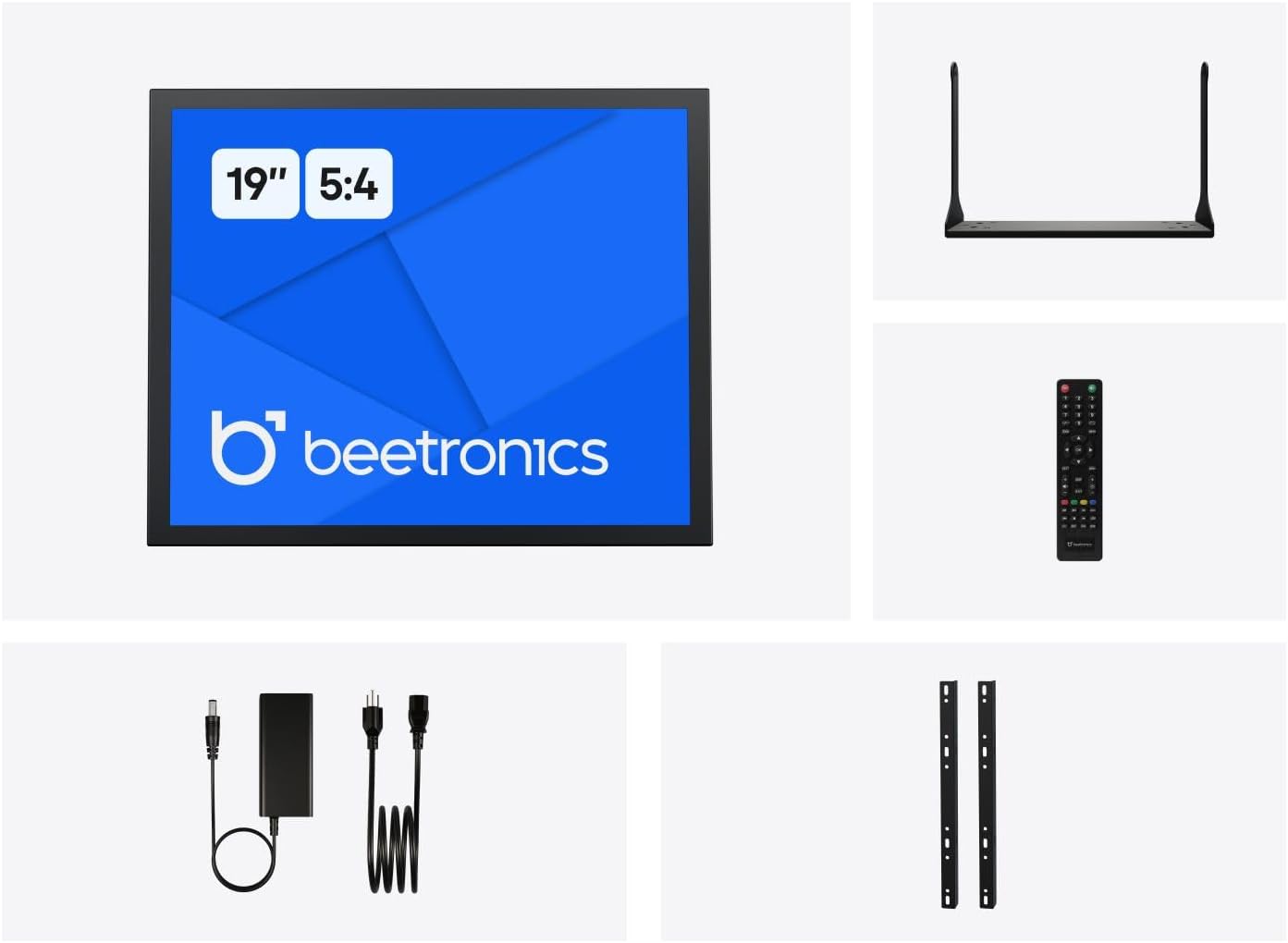
Figure 2: Included accessories with the Beetronics 19VG7M Monitor.
Сетуп
1. Опције монтаже
The 19VG7M monitor offers flexible mounting solutions, including a collapsible desktop stand and VESA 100mm compatibility for wall or arm mounting.
Desktop Stand Installation:
- Пажљиво поставите монитор лицем надоле на меку, чисту површину како бисте спречили огреботине.
- Attach the desktop stand to the designated mounting points on the rear of the monitor using the provided screws. Ensure it is securely fastened.
- Поставите монитор на стабилну, равну површину.
VESA Wall/Arm Mounting:
- If the desktop stand is attached, remove it.
- Align the VESA 100mm mounting holes on the back of the monitor with your VESA-compatible wall mount or arm.
- Secure the monitor to the mount using appropriate VESA screws (M4 x 10mm recommended, not always included with monitor).

Figure 3: Monitor dimensions with desktop stand.
2. Повезивање каблова
The 19VG7M monitor features a variety of input ports located on the rear, facing downwards for neat cable management. Ensure the monitor and all connected devices are powered off before making connections.

Figure 4: Downward-facing input ports.
- ДВИ: Connect an HDMI cable from your source device (e.g., computer, media player) to the HDMI port on the monitor.
- ВГА: Connect a VGA cable from your source device to the VGA port on the monitor.
- БНЦ: For professional video applications, connect a BNC cable to the BNC input.
- RCA (AV): Use RCA cables for composite video and stereo audio input. Connect the yellow plug for video, and red/white for audio.
- УСБ: (If applicable for touch functionality or specific peripherals, consult product specifications for exact USB function).
- Снага: Connect the provided power supply to the DC input port on the monitor, then plug the power cord into a wall outlet. The monitor supports a wide input voltage range of 9-36 Volts.

Слика 5: Задњи панел прекоview with control buttons and ports.
Упутство за употребу
1. Укључивање/искључивање
Притисните тастер ОН/ОФФ button located on the rear panel or on the remote control to power the monitor on or off. The power indicator light will illuminate when the monitor is on.
2. Избор улаза
To switch between different video inputs (HDMI, VGA, BNC, RCA):
- Притисните тастер АУТО button on the rear panel or the ИНПУТ дугме на даљинском управљачу.
- Користите + or - buttons to navigate through the available inputs.
- Притисните тастер МЕНУ button or wait a few seconds to confirm your selection.
3. Он-Сцреен Дисплаи (ОСД) мени
The OSD menu allows you to adjust various display settings. To access and navigate the OSD menu:
- Притисните тастер МЕНУ button on the rear panel or remote control to open the OSD menu.
- Користите + or - дугмад за навигацију кроз опције менија.
- Притисните тастер МЕНУ button again to enter a sub-menu or confirm a setting.
- To exit the OSD menu, navigate to the "Exit" option or press the МЕНУ button repeatedly until the menu disappears.
Уобичајена подешавања на екрану (OSD):
- слика: Adjust brightness, contrast, color temperature, and aspect ratio (e.g., 5:4).
- аудио: Control volume and mute settings.
- ОСД подешавања: Подесите језик OSD-а, транспарентност и време чекања.
- Ресетовати: Вратите фабрички подразумеване поставке.
The monitor also supports a fully dimmable backlight, which can be adjusted via the OSD menu or dedicated dimmer controls if available.
Одржавање
Proper maintenance ensures the longevity and optimal performance of your Beetronics monitor.
Чишћење монитора:
- Увек искључите монитор и извуците га из утичнице пре чишћења.
- Екран: Користите меку крпу која не оставља длачицеampened with water or a non-abrasive, monitor-specific cleaning solution. Do not spray liquid directly onto the screen.
- Casing: Wipe the metal housing with a soft, dry cloth. Avoid using harsh chemicals, abrasives, or solvents, as they may damage the finish.
Општа нега:
- Избегавајте стављање тешких предмета на монитор или његове каблове.
- Не блокирајте вентилационе отворе на монитору.
- Држите монитор даље од директне сунчеве светлости, прекомерне топлоте и високе влажности.
- If the monitor will not be used for an extended period, it is recommended to unplug it from the power source.
Решавање проблема
Ако наиђете на проблеме са монитором, погледајте следеће уобичајене проблеме и решења:
| Проблем | Могући узрок | Решење |
|---|---|---|
| Нема слике на екрану |
|
|
| Слика је превише тамна/светла или боје нису тачне |
|
|
| Нема звука |
|
|
| Monitor flickering or unstable image |
|
|
If the problem persists after trying these solutions, please contact Beetronics customer support.
Спецификације
Key technical specifications for the Beetronics 19VG7M 19-Inch Full HD IPS Monitor:
| Број модела | 19VG7M |
| Величина екрана | 19 инча |
| Аспецт Ратио | 5:4 |
| Резолуција | 1280 к 1024 (Фулл ХД) |
| Панел Типе | ИПС |
| Viewинг Англе | 178° (хоризонтално/вертикално) |
| Осветљеност | 470 Цандела |
| Улазни волtage | 9-36 волти (једносмерна струја) |
| Улазни портови | HDMI, VGA, BNC, RCA (AV), USB |
| Димензије производа (Д к Ш к В) | 1.6 x 16.1 x 15.2 инча (без постоља) |
| Тежина артикла | 3.3 фунти |
| Произвођач | Beetronics |
| Површина екрана | Мат |

Figure 6: Internal components and key features.
Гаранција и подршка
Информације о гаранцији
The Beetronics 19VG7M monitor comes with a solid 2 година гаранције, ensuring reliability and peace of mind. This warranty covers defects in materials and workmanship under normal use. Please retain your proof of purchase for warranty claims.
For detailed warranty terms and conditions, please refer to the official Beetronics webсајту или контактирајте корисничку подршку.
Корисничка подршка
If you require technical assistance, have questions about your product, or need to initiate a warranty claim, please contact Beetronics customer support:
- Webсајт: Visit the official Beetronics webсајт за често постављана питања, ресурсе за подршку и контакт форме. www.beetronics.com
- Емаил: Refer to the Beetronics webсајт за најновију адресу е-поште за подршку.
- Телефон: Refer to the Beetronics webсајт за регионалне бројеве телефона за подршку.
When contacting support, please have your monitor's model number (19VG7M) and purchase information readily available.
Ask a question about this manual
Ask about setup, troubleshooting, compatibility, parts, safety, or missing instructions. Manuals+ will review the question and use this page’s manual context to help answer it.