
Производ је завршенview
This manual provides essential information for the installation and maintenance of your new 15.6" LED LCD Replacement Screen. This screen is designed for HP laptops, specifically compatible with models like HP HQ-TRE 71025 and 15-AY082NA, featuring a HD 1366x768 glossy display with a 30-pin connector.
Our screens are brand new, tested, and safely packaged to ensure they arrive in perfect condition. We dispatch compatible brand screens with the exact same resolution and specifications as advertised.

Слика 1: Предња страна view of the 15.6 inch LED LCD replacement screen, showing the display area and the bottom edge with the connector.

Слика 2: Позади view of the replacement screen, featuring the EU-SOURCING logo.
Important Considerations Before Purchase/Installation
- Компатибилност: Similar laptop models can use different types of screens and fittings. Always verify the specifications of the screen and match them with your old screen before purchasing. If you are unsure, please contact us for confirmation.
- Број дела: If an exact screen part number is not available in stock, we will provide a 100% compatible part number.
- Политика пиксела: This screen adheres to ISO 13406-2 standards, which dictate an acceptable range of 2-5 dead pixels.
- Geographical Service Limitations: Please note that we do not offer service to the following locations: Balearic Islands (Mallorca, Menorca, Ibiza, Formentera), Canary Islands (Tenerife, Gran Canaria, Lanzarote, Fuerteventura, La Palma), Ceuta, Melilla, Santa Cruz (Tenerife), French Polynesia, New Caledonia, Reunion, Corsica, Martinique, Guadeloupe, Mayotte, and Saint Pierre and Miquelon. We recommend checking service availability in your region before making a purchase.
Подешавање и инсталација
Installing a laptop screen requires careful handling and some technical knowledge. If you are not comfortable performing the installation yourself, it is highly recommended to seek professional assistance.
Мере предострожности:
- Always disconnect the laptop from power and remove the battery before starting any installation.
- Use anti-static precautions (e.g., an anti-static wrist strap) to prevent damage from electrostatic discharge.
- Handle the screen by its edges; avoid touching the display surface or the circuit board.
Кораци инсталације (општи водич):
- Припремите лаптоп: Power off the laptop, disconnect the AC adapter, and remove the battery.
- Уклоните завртње оквира: Carefully remove any rubber screw covers on the laptop bezel and unscrew the underlying screws.
- Уклоните оквир: Gently pry off the plastic bezel surrounding the screen.
- Одврните стари екран: Unscrew the mounting brackets holding the old screen in place.
- Искључите каблове: Lay the old screen face down on the keyboard. Carefully peel back the tape holding the video cable (30-pin connector) and disconnect it.
- Prepare New Screen: Before connecting the new screen, ensure to peel off the protective film from the display surface.
- Connect New Screen: Connect the 30-pin video connector to the new screen, ensuring it is firmly seated. Secure it with tape if necessary.
- Монтирај нови екран: Position the new screen and screw it into the mounting brackets.
- Поново причврстите оквир: Snap the plastic bezel back into place and reinsert the screws.
- Тест: Reinsert the battery and connect the AC adapter. Power on the laptop to test the new screen.

Figure 3: Illustration of peeling off the protective film from the screen before installation.

Слика 4: Крупни план view of the 30-pin video connector located at the bottom right of the screen.
Упутство за употребу
Once installed, the replacement screen operates identically to the original screen. No special drivers or software are typically required beyond your laptop's existing display drivers.
- Подешавање осветљености: Use your laptop's function keys (e.g., Fn + F5/F6) to adjust screen brightness.
- Подешавања резолуције: Ensure your operating system is set to the native resolution of 1368x768 for optimal display quality. This can usually be adjusted in your display settings.
Одржавање
Proper maintenance will extend the lifespan of your screen.
- Чишћење: Користите меку крпу која не оставља влакна, посебно дизајнирану за електронику. За тврдокорне мрље, лагано обришитеampen the cloth with distilled water or a screen-cleaning solution. Avoid harsh chemicals, abrasive materials, or spraying liquid directly onto the screen.
- Руковање: Avoid applying pressure to the screen surface. When closing the laptop lid, ensure no objects are left on the keyboard that could press against the screen.
- температура: Operate and store the laptop within recommended temperature ranges to prevent damage to the LCD panel.
Решавање проблема
Ако након инсталације наиђете на проблеме, размотрите следеће кораке за решавање проблема:
| Проблем | Могући узрок | Решење |
|---|---|---|
| No display / Black screen | Loose video cable connection; Incorrect screen type; Faulty screen (rare) |
|
| Треперећи екран | Loose video cable; Driver issue; Incompatible refresh rate |
|
| Incorrect colors / Distorted image | Loose video cable; Driver issue; Graphics card issue |
|
If these steps do not resolve the issue, please refer to the Warranty & Support section.
Спецификације
| Феатуре | Спецификација |
|---|---|
| Величина екрана | 15.6 инча |
| Резолуција | 1366 x 768 PIXEL (WXGA) |
| Screen Finish | Глосси |
| Дата Цоннецтор | 30 Pin (bottom right) |
| Тоуцх Панел | Није укључено |
| Тип | LED Razor Slim |
| Аспецт Ратио | 1.78:1 |
| Број дела произвођача | N156BGE-EA483 |
Гаранција и подршка
Your new screen comes with a 6-месечна гаранција од дана куповине.
All items are dispatched from Poland and are carefully packaged in a secured box with Airshock Protected Screen Package to prevent damage during transit.
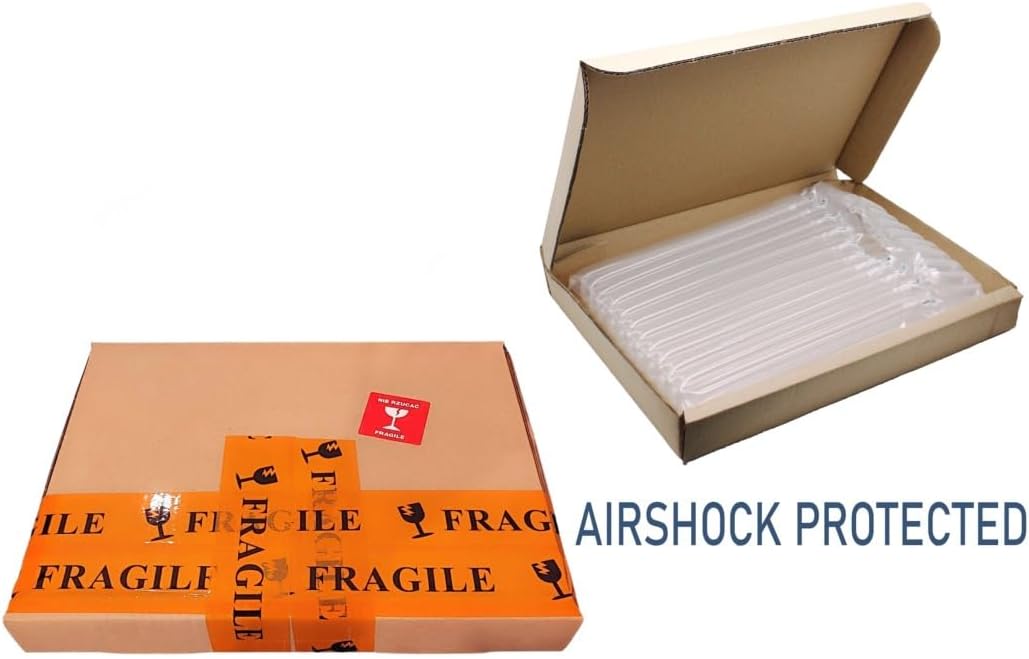
Слика 5: Прample of the secure packaging with airshock protection used for shipping the screen.
For any questions, concerns, or warranty claims, please contact EU-SOURCING customer support. When contacting support, please have your purchase details and the screen's model number (N156BGE-EA483) ready.
You can typically find contact information on your purchase receipt or the seller's page where you bought the product. We recommend sending an email for any doubts or inquiries.