
Увод
Thank you for choosing the RedThunder K62 60% Wireless Gaming Keyboard and Mouse Combo. This manual provides essential information for the proper setup, operation, and maintenance of your new gaming peripherals. Please read these instructions carefully before use to ensure optimal performance and longevity of your product.
Шта је у кутији
- One 60% Wireless Keyboard
- One Wireless Honeycomb Mouse
- One USB Charging Cable
- One USB Receiver (located in the bottom of the mouse)

Image: The RedThunder K62 60% Wireless Gaming Keyboard and Mouse Combo, including the compact keyboard, honeycomb mouse, and the small USB receiver.
Упутства за подешавање
1. Пуњење уређаја
The keyboard is equipped with an 1850 mAh battery, and the mouse with a 500 mAh battery. For transportation safety, the product is not fully charged. Please fully charge both devices before first use.
- Connect the provided USB charging cable to the USB-C port on the keyboard and the micro-USB port on the mouse.
- Plug the other end of the cable into a computer's USB port or a compatible USB power adapter.
- Charge for approximately 8 hours for the initial charge. The mouse scroll wheel will light up during charging and turn off when fully charged.

Слика: Крупни план view of the USB-C charging port located on the side of the keyboard.

Слика: Крупни план view of the micro-USB charging port on the front of the mouse.
2. Connecting the Devices (Plug and Play)
The keyboard and mouse share a single 2.4G USB receiver. The devices are pre-paired at the factory.
- Пронађите УСБ пријемник који се налази у одељку на дну миша.
- Уметните УСБ пријемник у слободан УСБ порт на рачунару.
- Turn on the keyboard using its power switch (usually located on the back or side).
- Turn on the mouse using its power switch (located on the bottom). There are typically three positions: OFF, ON (mouse only), and ON (mouse + LED light).
- Your computer should automatically detect and install the necessary drivers. The devices are now ready for use.

Image: A diagram illustrating the mouse's charging port, the three-position power switch (Off, On, On with LED), and the storage compartment for the USB receiver.
Упутство за употребу
Функције тастатуре
The K62 keyboard is a 60% compact layout, meaning some functions are accessed via the Fn тастер у комбинацији са другим тастерима.
RGB контрола позадинског осветљења
- Фн + И: Turn On/Off Backlight
- Фн + К: Switch between 4 RGB backlight modes and 7 monochrome backlight modes.
- Fn + U / J: Adjust backlight brightness (4 levels).

Image: The keyboard displaying various RGB backlight modes, with instructions for controlling them using Fn key combinations.
Мултимедијални и функционални тастери
Many standard function keys (F1-F12) and multimedia controls are accessed by holding the Fn key and pressing the corresponding key.
| Комбинација | Функција |
|---|---|
| Фн + КСНУМКС | F1 |
| Фн + КСНУМКС | F2 |
| ... | ... |
| Фн + = | Ф12 |
| Фн + К | Превиоус Трацк |
| Фн + В | Пусти/Паузирај |
| Фн + Е | Нект Трацк |
| Фн + Р | Утишавање звука |
| Фн + Т | Волуме Уп |
| Фн + И | Муте |
| Фн + Победа | Закључајте/откључајте Виндовс кључ |
Функције миша
ДПИ Адјустмент
The mouse features 3 adjustable DPI (Dots Per Inch) settings for sensitivity control. A dedicated button, usually located behind the scroll wheel, allows you to cycle through these settings: 1200, 2400, and 3200 DPI.

Image: The RedThunder K62 mouse highlighting the DPI adjustment button and its ergonomic, lightweight honeycomb shell design.
РГБ осветљење
The mouse has a built-in 7-color cyclic gradual lighting effect. Note that the mouse scroll wheel lights up only when charging; it stays off when not charging.
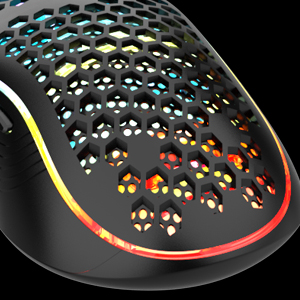
Слика: Крупни план view of the mouse's honeycomb shell design, showcasing the internal RGB lighting effects.
Управљање напајањем
Both the keyboard and mouse are equipped with smart energy-saving functions to extend battery life.
- If there is no operation on the keyboard for 30 minutes, it will automatically enter sleep mode. The keyboard lights will turn off after 2 minutes of inactivity.
- If there is no operation on the mouse for 1.5 minutes, it will automatically enter sleep mode, and its lights will turn off.
- To wake up either device, simply press any key on the keyboard or move/click the mouse.

Image: A visual representation of the smart sleep mode, showing the keyboard lights turning off after 2 minutes and the keyboard/mouse entering sleep after 30 minutes/1.5 minutes respectively.
Одржавање
- Чишћење: Користите меку, суву крпу за чишћење површина тастатуре и миша. За тврдокорну прљавштину, благо дamp Може се користити крпа, водећи рачуна да течност не уђе у уређаје.
- Одржавање батерије: To prolong battery life, avoid fully discharging the devices frequently. Recharge them when the low battery indicator appears or when performance degrades.
- Складиштење: Чувајте уређаје на хладном и сувом месту, даље од директне сунчеве светлости и екстремних температура.
- УСБ пријемник: When not in use, store the USB receiver in its designated compartment on the bottom of the mouse to prevent loss.
Решавање проблема
Проблеми са повезивањем
- Уређаји не реагују: Ensure both the keyboard and mouse are turned ON. Check if the USB receiver is securely plugged into a working USB port on your computer.
- Повремена веза: Ensure there are no significant obstructions between the devices and the USB receiver. Move the receiver closer if possible. Avoid using the devices near strong electromagnetic interference sources.
- Поновно упаривање: If the receiver and devices lose connection, you may need to re-pair them. Refer to the manufacturer's website or contact customer support for specific re-pairing instructions if the standard plug-and-play does not re-establish connection.
Проблеми са пуњењем
- Уређаји који се не пуне: Verify the USB charging cable is properly connected to both the device and the power source. Try a different USB port or power adapter. Ensure the cable is not damaged.
- Kratko trajanje baterije: Ensure devices are fully charged. Reduce backlight brightness on the keyboard or turn off mouse LEDs if extended battery life is needed.
Keyboard Specific Issues
- Тастери не реагују: Check for debris under the keycap. If multiple keys are affected, try re-pairing the keyboard.
- Incorrect key output: Ensure the Windows key lock is not active (Fn + Win). If issues persist, a factory reset (if available) or re-pairing might be necessary.
Спецификације
| Феатуре | Детаљ |
|---|---|
| Број модела | К62 |
| Технологија повезивања | 2.4Г Вирелесс |
| Капацитет батерије тастатуре | 1850 мАх |
| Капацитет батерије миша | 500 мАх |
| Позадинско осветљење тастатуре | RGB (4 modes, 7 monochrome, 4 brightness levels) |
| Осветљење миша | 7-color cyclic gradual effect (scroll wheel lights during charging) |
| ДПИ подешавања миша | 1200 / 2400 / 3200 |
| Keyboard Keystroke Lifetime | 10,000,000 притисака на тастере |
| Компатибилни уређаји | Персонал Цомпутер |
| Тежина артикла | 1.39 фунте (приближно) |
| Произвођач | РедТхундер |
Гаранција и подршка
RedThunder products are designed for reliability and performance. For warranty information, technical support, or further assistance, please refer to the official RedThunder webсајт или директно контактирајте њихову корисничку службу. Сачувајте рачун као доказ о куповини за евентуалне рекламације по гаранцији.