
Производ је завршенview
The Multilaser ZXHN H3601 ZTE RE940 is a high-performance Wi-Fi 6 Gigabit Dual Band Mesh Router designed to provide fast and reliable internet connectivity throughout your home or office. Featuring advanced Wi-Fi 6 technology, it offers improved speed, efficiency, and capacity for multiple connected devices. Its dual-band capability ensures optimal performance for various applications, from streaming 4K video to online gaming.
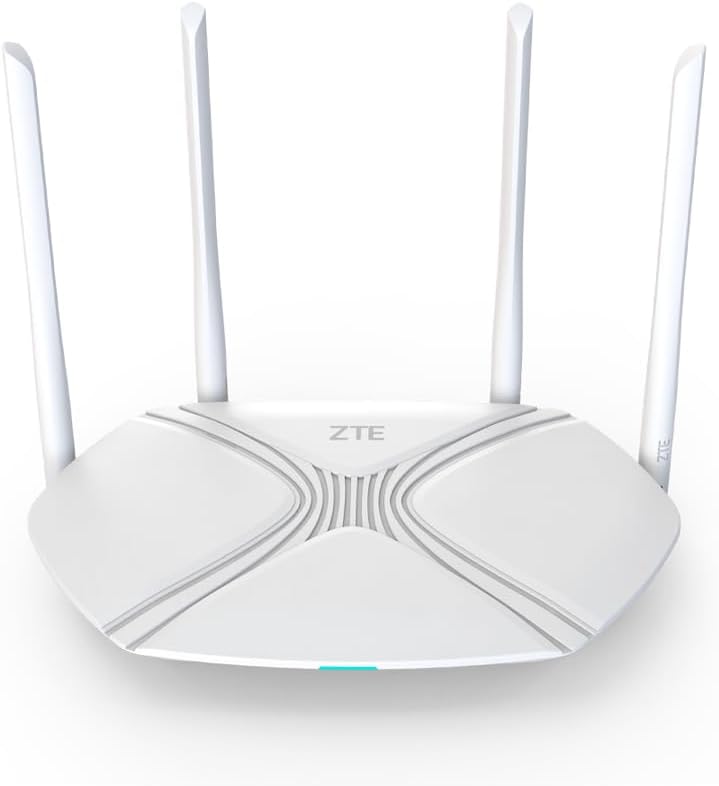
Слика 1: Фронт view of the Multilaser ZXHN H3601 ZTE RE940 Wi-Fi 6 Gigabit Dual Band Mesh Router. This image shows the sleek white design of the router with its four external antennas and the ZTE logo prominently displayed on the top surface. A small LED indicator is visible at the front base.
Водич за подешавање
Follow these steps to set up your Multilaser ZXHN H3601 ZTE RE940 router for the first time.
- Распакујте рутер: Carefully remove the router and all accessories from the packaging. Ensure you have the router, power adapter, and an Ethernet cable.
- Повежите адаптер за напајање: Plug one end of the power adapter into the router's power port and the other end into a standard electrical outlet. The power indicator light on the router should illuminate.
- Connect to the Internet (WAN):
- If you have a modem, connect one end of the provided Ethernet cable to the WAN port (often blue or labeled "Internet") on your router and the other end to the LAN port on your modem.
- If your internet service provider (ISP) directly provides an Ethernet cable for internet access, connect it directly to the WAN port on the router.
- Connect Devices (LAN):
- For wired connections, connect your computer or other network devices to any of the LAN ports (usually yellow) on the router using Ethernet cables.
- For wireless connections, locate the Wi-Fi network name (SSID) and password printed on a label on the bottom or back of the router. Connect your wireless devices to this network.
- Приступ подешавањима рутера: Отвори а web browser on a connected device and enter the default IP address (e.g., 192.168.1.1 or 192.168.0.1) provided on the router's label or in the quick start guide. Log in using the default username and password (also on the label).
- Configure Internet Connection: Follow the on-screen setup wizard to configure your internet connection settings (e.g., PPPoE, Dynamic IP, Static IP) as provided by your ISP.
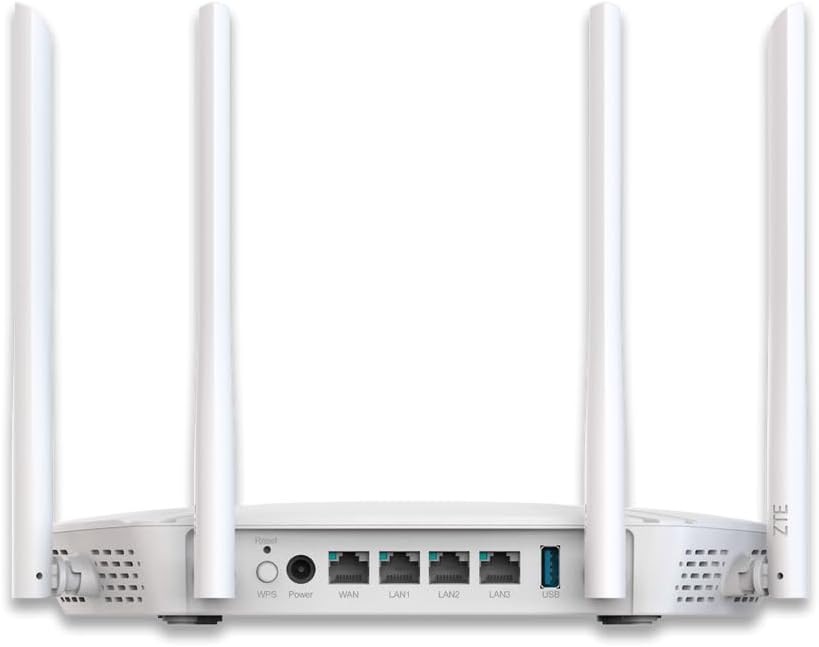
Слика 2: Позади view of the Multilaser ZXHN H3601 ZTE RE940 Wi-Fi 6 Gigabit Dual Band Mesh Router. This image highlights the various ports available on the back panel, including the power input, WAN port, multiple LAN ports, a USB port, and the WPS/Reset buttons. The four external antennas are also clearly visible.
Упутство за употребу
Once your router is set up, you can manage its operations and connect your devices.
- Повезивање уређаја:
- бежични: Тражи the Wi-Fi network name (SSID) on your device and enter the password. The router supports Wi-Fi 6 (802.11ax) for faster and more efficient wireless connections.
- Виред: Прикључите Етернет кабл са свог уређаја у било који доступан ЛАН порт на рутеру.
- Рад у двопојасном опсегу: The router operates on both 2.4 GHz and 5 GHz frequency bands. The 2.4 GHz band offers wider coverage and better penetration through walls, while the 5 GHz band provides faster speeds and less interference for devices closer to the router.
- Квалитет услуге (КоС): The router features QoS functionality, allowing you to prioritize network traffic for specific applications or devices. This ensures smoother performance for critical activities like online gaming or video conferencing by allocating more bandwidth to them. You can configure QoS settings through the router's web интерфејс.
- Мрежа гостију: For enhanced security, consider enabling a guest Wi-Fi network through the router's settings. This provides internet access to guests without giving them access to your main network resources.
Одржавање
Редовно одржавање помаже у обезбеђивању оптималних перформанси и дугог века трајања вашег рутера.
- Пласман: Place the router in a central location, away from obstructions, large metal objects, and other electronic devices that may cause interference. Elevating the router can also improve signal strength.
- Ажурирања фирмвера: Periodically check the Multilaser or ZTE support webсајт за ажурирања фирмвера. Одржавање фирмвера вашег рутера ажурираним може побољшати перформансе, додати нове функције и побољшати безбедност.
- Чишћење: Gently clean the router's exterior with a soft, dry cloth. Ensure ventilation holes are free from dust and debris to prevent overheating. Do not use liquid cleaners.
- Поновно покретање: If you experience network issues, a simple restart of the router (unplugging the power for 10 seconds and plugging it back in) can often resolve minor glitches.

Слика 3: Дно view of the Multilaser ZXHN H3601 ZTE RE940 Wi-Fi 6 Gigabit Dual Band Mesh Router. This image displays the ventilation grilles designed to dissipate heat, as well as the rubber feet for stability and keyhole slots for wall mounting.
Решавање проблема
This section addresses common issues you might encounter with your router.
- Нема интернет везе:
- Check if the WAN port cable is securely connected to both the router and your modem/ISP's connection.
- Restart your modem and then your router. Wait a few minutes for them to fully boot up.
- Проверите подешавања интернет конекције у рутеру web интерфејс.
- Обратите се свом интернет провајдеру (ISP) да бисте потврдили да нема преосталог сервиса.tagес у вашој области.
- Мала брзина Wi-Fi-ја:
- Ensure your devices are connected to the appropriate band (5 GHz for faster speeds, 2.4 GHz for better range).
- Приближите се рутеру да бисте побољшали јачину сигнала.
- Проверите да ли постоје сметње од других електронских уређаја (бежични телефони, микроталасне пећнице).
- Смањите број активних уређаја или апликација које захтевају велики пропусни опсег.
- Consider changing Wi-Fi channels in the router settings to avoid congestion.
- Не могу приступити подешавањима рутера:
- Уверите се да је ваш уређај повезан са рутером (жичано или бежично).
- Verify you are using the correct IP address (e.g., 192.168.1.1) and login credentials.
- Покушајте да обришете кеш меморију прегледача или да користите други прегледач.
- If you forgot your password, you may need to perform a factory reset. Locate the "Reset" button on the back of the router (often a small pinhole) and press and hold it for about 10 seconds until the lights flash. Напомена: Ресетовање на фабричка подешавања ће избрисати сва ваша прилагођена подешавања.
Спецификације
| Феатуре | Детаљ |
|---|---|
| Бранд | Мултиласер |
| Модел | ZXHN H3601 ZTE RE940 |
| вирелесс стандард | 802.11ак (Ви-Фи 6) |
| Класа фреквенцијског опсега | Двопојасни (2.4 GHz и 5 GHz) |
| Број портова | 3 (LAN) + 1 (WAN) + 1 (USB) |
| Посебне карактеристике | КоС (квалитет услуге) |
| Компатибилни уређаји | Gaming Consoles, Smart TVs, Tablets |
| Боја | Бела |
| Тежина производа | 500 г |
Информације о гаранцији
This product is covered by a manufacturer's warranty. For detailed information regarding warranty terms, duration, and claim procedures, please refer to the warranty card included in your product packaging or visit the official Multilaser or ZTE support webсајт. Молимо вас да сачувате доказ о куповини за потребе гаранције.
Корисничка подршка
If you require further assistance or encounter issues not covered in this manual, please contact Multilaser customer support. Support contact details (phone numbers, email, or online chat) are typically available on the official Multilaser website or in the product's quick start guide.
For online resources, visit the official Multilaser support page.