
1. Увод
Thank you for choosing the Cherry KW 7100 Mini Multi-Device Compact Keyboard. This manual provides essential information for setting up, operating, and maintaining your new keyboard. Designed for versatility and portability, this keyboard offers seamless connectivity across multiple devices.
2. Шта је у кутији
- Cherry KW 7100 Mini Multi-Device Compact Keyboard
- USB-C to USB-A Charging/Connection Cable
- 2к ААА батерије
- 2.4 GHz Wireless Nano Receiver (stored magnetically in the keyboard)
- Торбица за ношење
- Упутство за употребу

Слика 1: Одозго надоле view of the Cherry KW 7100 Mini Keyboard.
3. Подешавање
3.1. Инсталација батерије
- Пронађите одељак за батерију на доњој страни тастатуре.
- Отворите поклопац одељка за батерије.
- Уметните две ААА батерије, водећи рачуна о исправном поларитету (+/-).
- Добро затворите поклопац одељка за батерије.
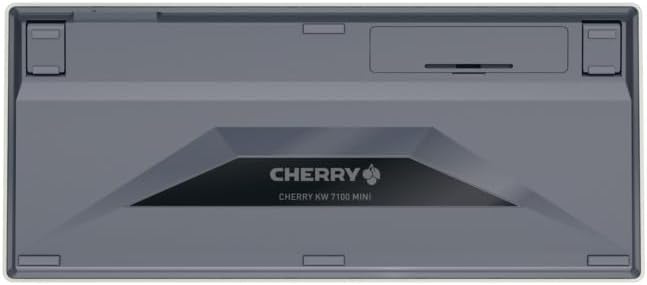
Figure 2: Underside of the keyboard with the battery compartment.
3.2. Повезивање тастатуре
The Cherry KW 7100 Mini supports three connection methods: Bluetooth, 2.4 GHz Wireless, and Wired USB-C.
3.2.1. Bluetooth Connection (Up to 3 Devices)
- Укључите тастатуру помоћу прекидача за напајање који се налази са стране.
- Press and hold one of the Bluetooth channel keys (F1, F2, or F3) for 3-5 seconds until the corresponding LED indicator blinks rapidly. This indicates pairing mode.
- On your device (laptop, smartphone, tablet), navigate to Bluetooth settings and search for available devices.
- Select "Cherry KW 7100" from the list to pair. The LED will stop blinking and remain solid for a few seconds upon successful connection.
- Repeat for up to two additional devices using the other Bluetooth channel keys (F1, F2, or F3).
3.2.2. Бежична веза од 2.4 GHz
- Locate the 2.4 GHz wireless nano receiver, typically stored magnetically in a slot on the underside of the keyboard.
- Insert the nano receiver into an available USB-A port on your computer.
- Turn on the keyboard using the power switch. The keyboard should automatically connect to the receiver.
3.2.3. Жична USB-C веза
- Connect one end of the provided USB-C cable to the USB-C port on the keyboard.
- Connect the other end of the USB-C cable to an available USB-A port on your computer.
- The keyboard will function as a wired keyboard.
Video 1: Demonstrating the setup and typing experience of the Cherry KW 7100 Mini Keyboard.
4. Управљање тастатуром
4.1. Пребацивање између повезаних уређаја
To switch between paired Bluetooth devices, simply press the corresponding Bluetooth channel key (F1, F2, or F3) that your device is paired to. The keyboard will automatically connect to the selected device.
4.2. Function Keys (FN)
The keyboard features a dedicated FN key, typically located near the right Shift key. This key, in combination with other keys, activates secondary functions such as media controls, screen brightness, and other system commands. Refer to the keycap legends for specific FN key combinations.
4.3. ЛЕД индикатори
LED indicators on the keyboard provide information about its status:
- Bluetooth Channel LEDs (F1, F2, F3): Indicate the currently active Bluetooth connection or pairing mode.
- ЛЕД тастер Caps Lock: Illuminates when Caps Lock is active.
- ЛЕД статус батерије: Означава низак ниво батерије.
4.4. Подесива стопала
The keyboard is equipped with stable, fold-out feet on the underside. These allow you to adjust the typing angle for improved ergonomics and comfort.
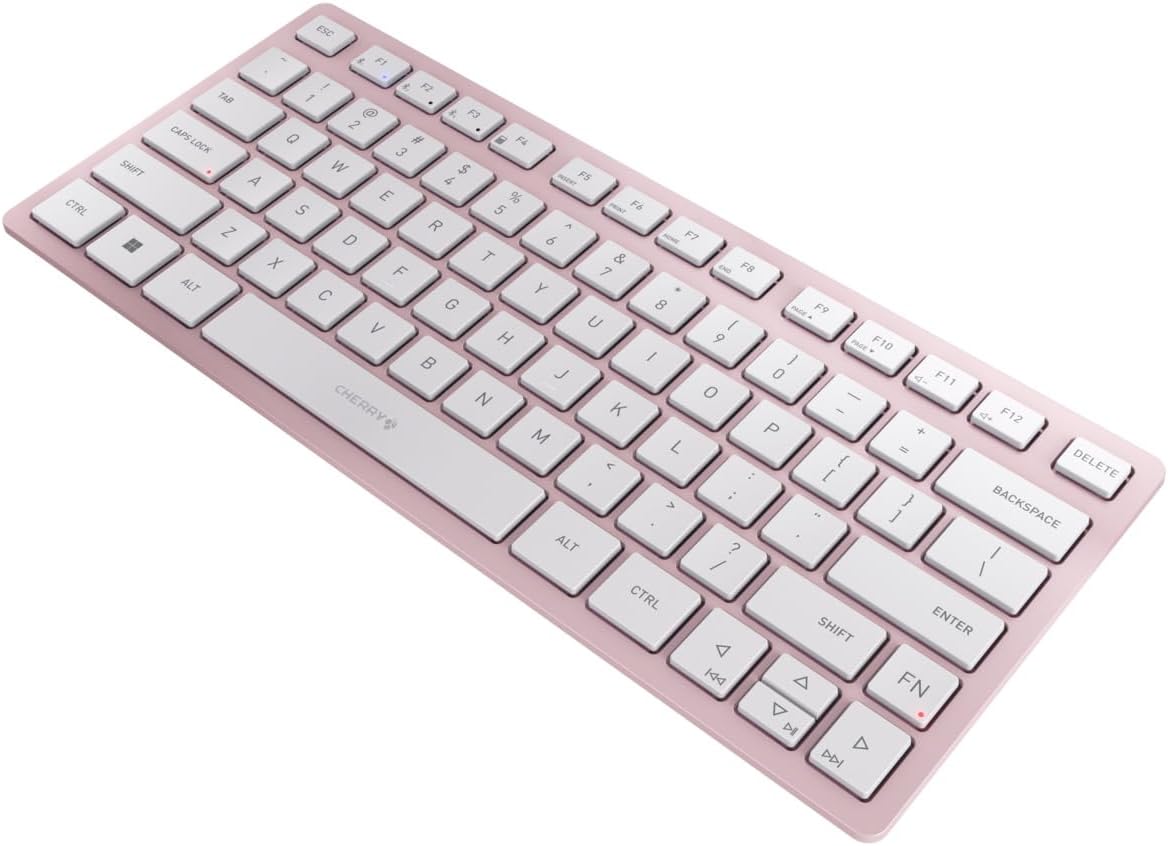
Слика 3: Под углом view of the keyboard, highlighting its slim profile.

Слика 4: Страна view showing the adjustable feet extended for an ergonomic typing angle.
5. Одржавање
5.1. Чишћење
To clean your keyboard, gently wipe the keycaps and surface with a soft, lint-free cloth. For stubborn dirt, slightly dampen the cloth with water or a mild, non-abrasive cleaning solution. Avoid excessive moisture and do not spray cleaners directly onto the keyboard.
5.2. Складиштење
When not in use, especially during travel, store the keyboard in its included carrying case to protect it from dust, scratches, and minor impacts.

Figure 5: The keyboard stored in its protective carrying case.
КСНУМКС. Решавање проблема
6.1. Keyboard Not Connecting
- Уверите се да је тастатура укључена.
- Проверите батерије и замените их ако је потребно.
- For Bluetooth, ensure the correct channel (F1, F2, or F3) is selected and the keyboard is in pairing mode (blinking LED).
- For 2.4 GHz wireless, ensure the nano receiver is securely plugged into a USB-A port.
- Try connecting via the USB-C cable to rule out wireless issues.
- Поново покрените уређај и покушајте поново да упарите.
6.2. Keys Not Responding
- Check the connection as described above.
- Уверите се да испод тастера нема остатака.
- If using a wired connection, try a different USB port or cable.
6.3. Кратак век трајања батерије
- Ensure you are using fresh, high-quality AAA batteries.
- Turn off the keyboard when not in use to conserve battery power.
7. Спецификације
| Феатуре | Спецификација |
|---|---|
| Назив модела | КВ КСНУМКС |
| Број модела ставке | JK-7100US-19 |
| Бранд | Трешња |
| Технологија повезивања | Bluetooth 5.1 (3 channels), 2.4 GHz Wireless, USB-C Wired |
| Компатибилни уређаји | Лаптоп, паметни телефон, таблет |
| Опис тастатуре | Compact, Multi-Device |
| Кључни механизам | CHERRY SX Scissor Mechanism |
| Извор напајања | 2к ААА батерије |
| Шифровање | АЕС-128 |
| Димензије производа | 11.6 к 5.1 к 0.6 инча |
| Тежина артикла | 1.4 фунти |
| Материјал | Метал, Пластика |
| Боја | Цхерри Блоссом |
8. Гаранција и подршка
This product is covered by Cherry's standard manufacturer warranty. For detailed warranty information, technical support, or service inquiries, please visit the official Cherry webсајт или директно контактирајте њихову корисничку подршку.
Произвођач: Трешња
Webсајт: ввв.цхерри.де