
1. Увод
Thank you for choosing the LIONWEI 12-in-1 USB C Docking Station. This manual provides detailed instructions for setting up, operating, and troubleshooting your device. Please read this manual thoroughly before use to ensure optimal performance and safety.
Карактеристике производа
- 12-у-1 повезивање: Expands a single USB C or Thunderbolt 3/4 port into 12 versatile ports.
- Троструки излаз за приказ: Supports up to three external monitors via HDMI (4K@60Hz), DisplayPort (4K@60Hz), and VGA (1080P@60Hz).
- Пренос података велике брзине: Features 2x USB C 3.0 ports and 1x USB A 3.0 port, all offering 5Gbps data transfer speeds. Includes 1x USB 2.0 port for peripherals.
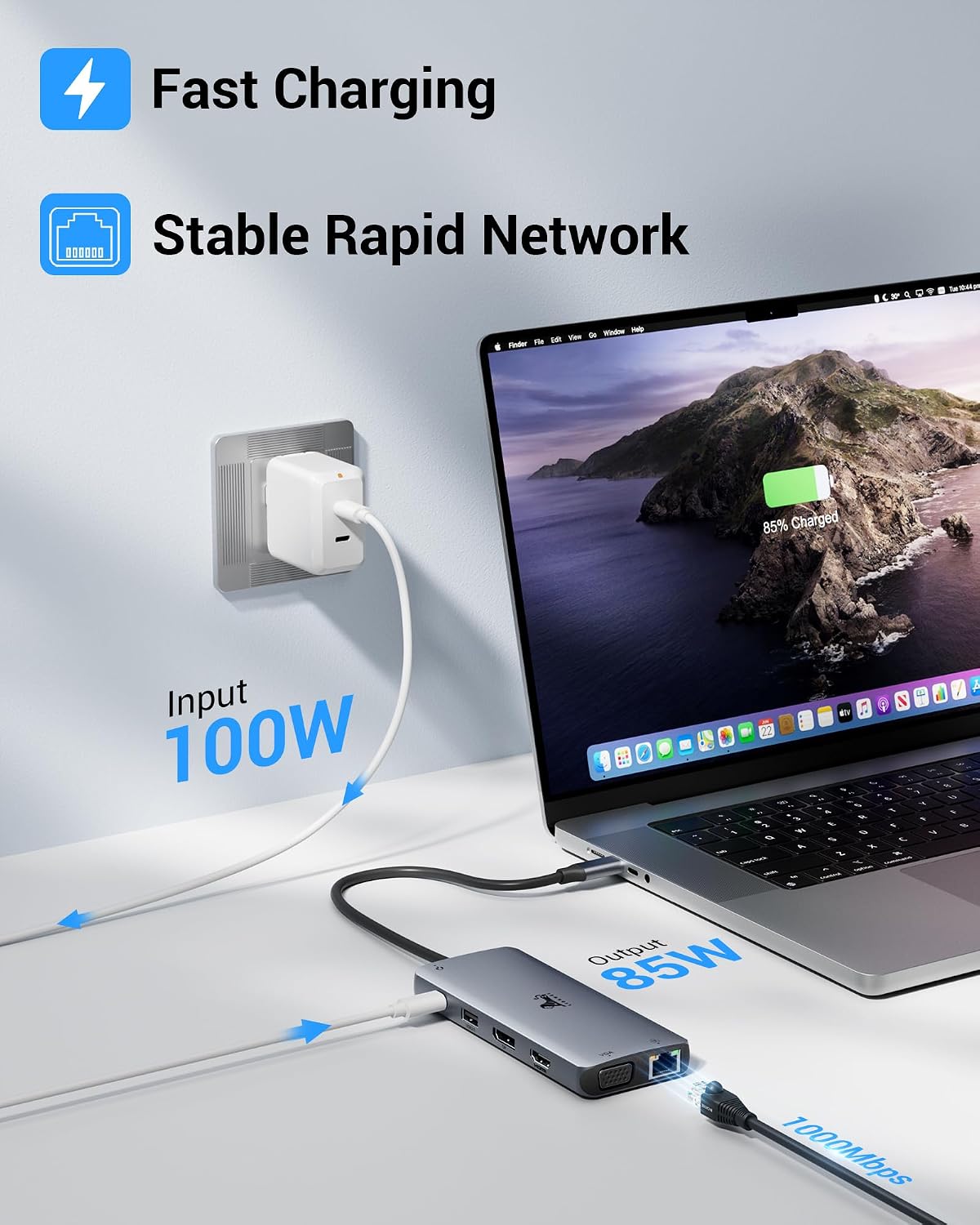
- Испорука струје: USB C PD3.0 port supports up to 100W input, providing up to 85W power delivery to your host laptop.
- Гигабит Етхернет: RJ45 port provides stable and fast wired network connectivity (10/100/1000 Mbps).
- Читач картица: Integrated SD and Micro SD card slots with up to 40MB/s transfer speed.
- Аудио повезивање: 3.5mm audio/microphone jack for headphones or speakers.
2. Производ је готовview
Familiarize yourself with the ports and components of your LIONWEI 12-in-1 USB C Docking Station.

Слика 2.1: LIONWEI 12-in-1 USB C Docking Station showing all available ports. Ports include HDMI (4K@60Hz), DisplayPort (4K@60Hz), USB 2.0 (480Mbps), PD 3.0 (100W input), Audio/Mic 3.5mm, USB C 3.0 (5Gbps), USB A 3.0 (5Gbps), SD/Micro SD Card slots (40MB/s), RJ45 (1000Mbps), and VGA (1080P@60Hz).
3. Упутства за подешавање
Follow these steps to set up your docking station.
- Повежите се са хост уређајем: Plug the integrated USB C cable from the docking station into a compatible USB C or Thunderbolt 3/4 port on your laptop. Ensure your laptop's USB C port supports video output (DP Alt Mode).
- Прикључак за напајање (опционо, али се препоручује): For stable operation and laptop charging, connect a USB C Power Delivery (PD) charger (not included, 65W or higher recommended) to the PD3.0 port on the docking station.
- Повежите екстерне екране:
- Connect your monitors to the HDMI, DisplayPort, and/or VGA ports on the docking station using appropriate cables.
- For optimal performance, use high-quality cables.
- Повежите периферне уређаје: Plug in your USB devices (keyboard, mouse, external drives) to the available USB A 3.0, USB C 3.0, or USB 2.0 ports.
- Мрежна конекција: For a wired internet connection, connect an Ethernet cable from your router/modem to the RJ45 port on the docking station.
- Аудио уређаји: Повежите слушалице или звучнике на 3.5 мм аудио прикључак.
- меморијске картице: Insert SD or Micro SD cards into the respective slots.
Напомене о компатибилности

Слика 3.1: Universal Compatibility overview, illustrating support for various display types, USB peripherals, memory cards, and operating systems.
- Compatible with laptops featuring Thunderbolt 3/4 ports or USB C ports that support video output (DP Alt Mode).
- Supported Operating Systems: Windows OS 7/8/10/11 (X86/X64), Mac OS 10.2 or higher, Chrome OS, Linux.
- For specific laptop compatibility (e.g., MacBook Pro 2022/2021/2020/2019, Lenovo ThinkPad T14 Gen 1, Dell Inspiron 7400), refer to your laptop's specifications or contact the manufacturer.
4. Упутство за употребу
Multi-Monitor Setup
The docking station supports various display modes depending on your operating system.

Слика 4.1: Windows Multi-Display Modes. Windows systems support Mirror Mode, Extend Mode, and MST (Multi-Stream Transport) Extend Mode for up to three independent displays.
- Виндоус системи: Support Mirror Mode (SST), Extend Mode (SST), and MST (Multi-Stream Transport) Extend Mode. This allows for up to three independent displays.
- macOS системи: Support Mirror Mode (SST) and Extend Mode (SST). macOS does не support MST (Multi-Stream Transport) for independent extended displays. All external monitors will mirror each other in extended mode.
- DP1.2 Laptops: If your laptop uses DP1.2, extending to two monitors may be limited to 1920x1080 resolution.
Слика 4.2: macOS Multi-Display Modes. macOS supports Mirror Mode and Extend Mode (SST), where external displays show the same content in extended mode.
Power Delivery and Charging
The PD3.0 port on the docking station allows you to charge your host laptop while using the dock.
- Connect a USB C PD charger (up to 100W input) to the PD3.0 port.
- The docking station will deliver up to 85W of power to your connected laptop.
- Ensure your charger is 65W or higher for effective charging.
- The PD port is for charging only and does not support data transfer or video output.

Слика 4.3: Illustrates fast charging (100W input, 85W output) and stable Gigabit Ethernet connectivity through the docking station.
Пренос података
Utilize the various USB ports and card reader slots for data transfer.
- USB 3.0 Ports (Type-A and Type-C): Offer data transfer speeds up to 5Gbps. Ideal for external hard drives, SSDs, and high-speed flash drives.
- УСБ 2.0 порт: Provides 480Mbps data transfer. Best suited for low-bandwidth devices like keyboards, mice, and printers to avoid signal interference.
- SD/Micro SD Card Reader: Supports data transfer up to 40MB/s. Insert cards correctly into their respective slots.

Слика 4.4: Demonstrates rapid and multiple data transfer capabilities, highlighting 5Gbps for USB-C 3.0 and USB-A 3.0, and 480Mbps for USB-A 2.0.
5. Одржавање
- Keep the docking station clean and free from dust. Use a soft, dry cloth for cleaning.
- Избегавајте излагање уређаја екстремним температурама, влажности или директној сунчевој светлости.
- Do not attempt to disassemble or repair the docking station yourself. Contact qualified service personnel if needed.
- Disconnect the docking station from power and your host device when not in use for extended periods.
КСНУМКС. Решавање проблема
| Проблем | Могући узрок | Решење |
|---|---|---|
| Нема приказа на спољном монитору/мониторима. |
|
|
| Лаптоп се не пуни. |
|
|
| USB уређаји нису препознати. |
|
|
| Ethernet connection unstable or not working. |
|
|
7. Спецификације
| Феатуре | Детаљ |
|---|---|
| Бранд | ЛИОНВЕИ |
| Број модела | УЦКСНУМКС |
| Боја | Греи |
| Материјал | Пластика или алуминијум |
| Улазни порт | USB C (Host connection) |
| Видео излазни портови | 1x HDMI (Max 4K@60Hz), 1x DisplayPort (Max 4K@60Hz), 1x VGA (Max 1080P@60Hz) |
| USB портови за пренос података | 2x USB C 3.0 (5Gbps), 1x USB A 3.0 (5Gbps), 1x USB A 2.0 (480Mbps) |
| Порт за испоруку струје | 1x USB C PD3.0 (Max 100W input, 85W output to host) |
| Етхернет порт | 1x RJ45 (10/100/1000 Mbps Gigabit Ethernet) |
| Читач картица | SD Card Slot, Micro SD Card Slot (up to 40MB/s) |
| Аудио Порт | 1x 3.5mm Audio/Mic Jack |
| Компатибилни оперативни системи | Windows OS 7/8/10/11 (X86/X64), Mac OS 10.2+, Chrome OS, Linux |
| Посебне карактеристике | Fast Charging, Fast Data Transfer, Gigabit Ethernet, Triple Display Support |
8. Гаранција и подршка
For warranty information or technical support, please refer to the product packaging or contact LIONWEI customer service directly.
- Spare parts availability: Information not available.
- Guaranteed software updates until: Information not available.