
1. Увод
Welcome to the user manual for your new SGIN E10P 10-inch Kids Tablet. This guide provides essential information on setting up, operating, maintaining, and troubleshooting your device. Please read this manual thoroughly to ensure proper use and to maximize your tablet's features.
Шта је у кутији
Приликом распакивања, молимо вас да проверите да ли су присутне све доле наведене ставке:
- SGIN E10P Kids Tablet (with protective case)
- Упутство за употребу
- УСБ Типе-Ц кабл
- адаптер за напајање (пуњач)
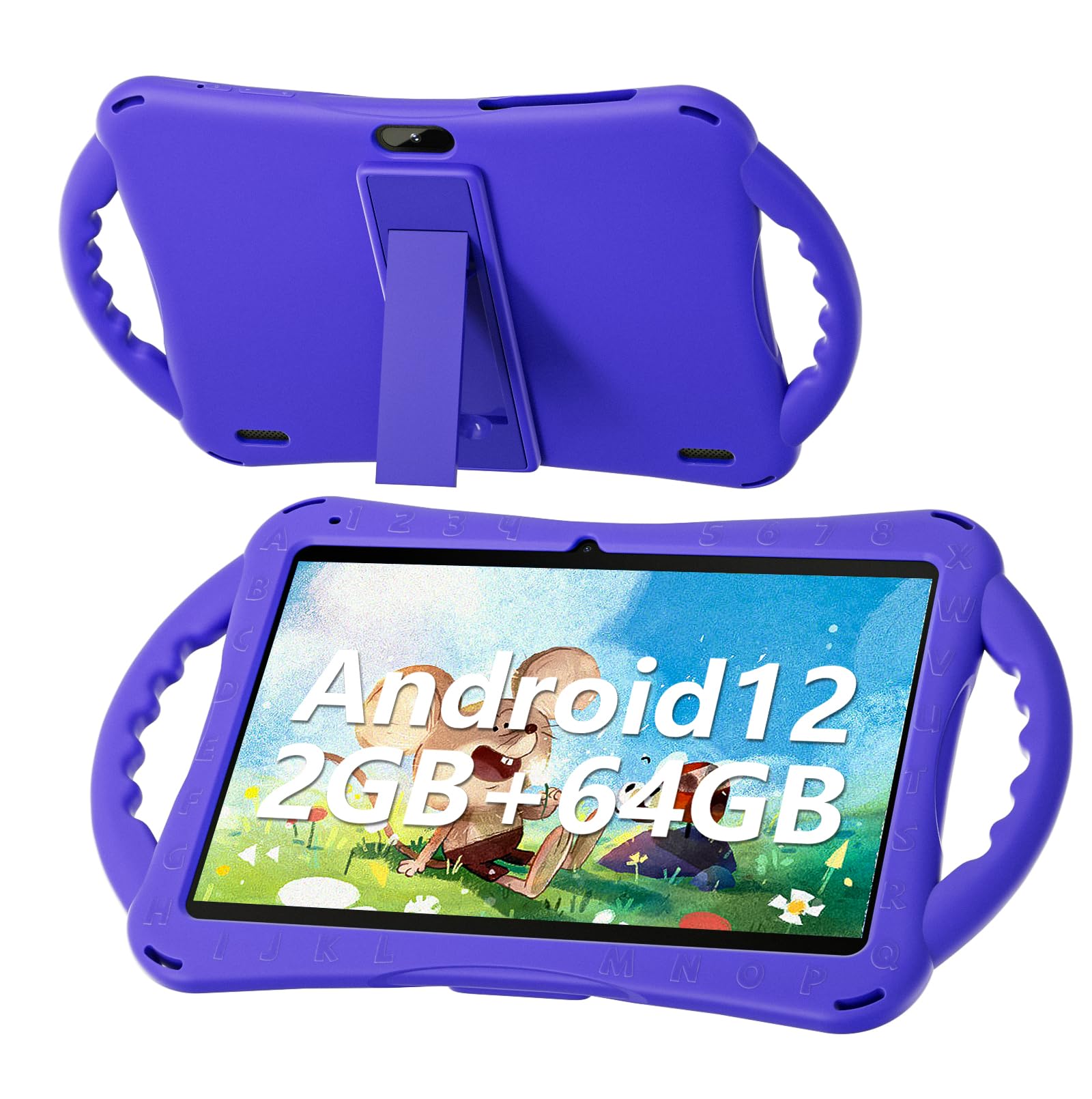
Figure 1: SGIN E10P Kids Tablet with its protective case.
2. Производ је готовview
Familiarize yourself with the physical components of your SGIN E10P Kids Tablet.

Figure 2: Labeled diagram of the SGIN E10P Kids Tablet components.
- Предња камера: За видео позиве и селфије.
- Задња камера: За снимање фотографија и видео записа.
- говорници: Аудио излаз.
- Порт типа Ц: За пуњење и пренос података.
- Слот за ТФ картицу: For expanding storage with a microSD card.
- Слушалице: За повезивање жичних слушалица.
- Повећајте јачину звука: Button to raise the audio level.
- Смањите јачину звука: Button to lower the audio level.
- Bracket (Kickstand): Integrated stand for hands-free viewинг.
- Armrest (Handle): Ergonomic handles on the protective case for easy gripping.
3. Подешавање
3.1 Пуњење таблета
Before first use, fully charge the tablet. Connect the USB Type-C cable to the tablet's Type-C port and the other end to the power adapter. Plug the power adapter into a wall outlet. The battery indicator on the screen will show charging status. A full charge typically takes several hours.
3.2 Укључивање/искључивање
- За укључивање: Press and hold the Power button (usually located on the side or top edge) until the SGIN logo appears on the screen.
- За искључивање: Притисните и држите дугме за напајање док се не појави мени. Изаберите „Искључи“ из опција.
- Рестартовати: Притисните и држите дугме за напајање док се не појави мени. Изаберите „Рестарт“ из опција.
3.3 Почетно подешавање
The first time you power on the tablet, you will be guided through an initial setup process:
- Избор језика: Одаберите жељени језик.
- Ви-Фи веза: Изаберите своју Wi-Fi мрежу и унесите лозинку да бисте се повезали на интернет.
- Гоогле налог: Sign in with an existing Google account or create a new one. This is necessary for downloading apps from the Google Play Store.
- Датум и време: Подесите тачан датум и време или дозволите мрежи да их аутоматски подеси.
- Родитељски надзор: Configure Google Kids Space or other parental control features to manage content and screen time for children.
4. Управљање таблетом
4.1 Основна навигација
The SGIN E10P tablet uses a touch-sensitive screen for navigation:
- Додирните: Додирните екран једном да бисте отворили апликацију, изабрали ставку или притиснули дугме.
- Додирните и држите: Притисните и држите ставку да бисте приступили додатним опцијама или је преместили.
- Превуците: Drag your finger across the screen to scroll through pages or lists.
- Зумирање штипкањем прстију: Поставите два прста на екран и раздвојите их да бисте увећали приказ или их спојите да бисте га умањили.
4.2 Wi-Fi повезивање
To connect or manage Wi-Fi networks:
- Иди на Подешавања > Мрежа и интернет > Ви-Фи.
- Укључи/искључи Wi-Fi On.
- Изаберите жељену мрежу са листе и унесите лозинку ако се то од вас затражи.

Figure 3: The tablet supports both 2.4GHz and 5GHz Wi-Fi for stable connections.
4.3 Applications and Content
The tablet runs on Android 12 and comes with access to the Google Play Store, allowing you to download a wide range of applications. It is pre-configured for children's use, supporting apps like YouTube Kids, educational games, and other child-friendly content.

Figure 4: The Android 12 interface with various pre-installed and downloadable kids' apps.
4.4 Родитељски надзор
Utilize the built-in parental control features to manage your child's tablet experience. This includes setting screen time limits, filtering content, and approving app downloads. Access these settings through the Google Family Link app or directly in the tablet's settings under "Digital Wellbeing & parental controls."
5. Одржавање
5.1 Чишћење
- Екран: Користите меку крпу без влакана, посебно дизајнирану за електронику. За тврдокорне мрље, благо обришитеampОбришите крпу водом или раствором за чишћење екрана (не прскајте директно по екрану).
- Случај: The silicone protective case can be wiped with a damp cloth and mild soap if necessary. Ensure it is completely dry before reattaching it to the tablet.
- Портови: Keep all ports (USB-C, headphone jack, TF card slot) free of dust and debris. Use a soft brush or compressed air if needed.
5.2 Одржавање батерије
The tablet is equipped with a 5000mAh battery, providing extended usage time.

Figure 5: The tablet features a 5000mAh battery for prolonged use.
- Избегавајте екстремне температуре, јер могу скратити век трајања батерије.
- Користите само приложени пуњач и кабл да бисте спречили оштећења.
- За оптималан век трајања батерије, избегавајте често потпуно пражњење батерије или њено дуже држање на 100% напуњености.
5.3 Складиштење
Store the tablet in a cool, dry place away from direct sunlight and moisture when not in use.
КСНУМКС. Решавање проблема
This section addresses common issues you might encounter with your SGIN E10P tablet.
6.1 Таблет се не укључује
- Уверите се да је таблет довољно напуњен. Повежите га са пуњачем најмање 30 минута пре него што покушате да га поново укључите.
- Притисните и држите дугме за напајање 10-15 секунди да бисте извршили присилно поновно покретање.
6.2 Проблеми са Wi-Fi везом
- Проверите да ли је Wi-Fi омогућен у подешавањима таблета.
- Verify that your Wi-Fi router is working correctly and other devices can connect.
- Forget the network in the tablet's Wi-Fi settings and reconnect.
- Restart both the tablet and your Wi-Fi router.
6.3 Рушење или замрзавање апликација
- Затворите и поново отворите апликацију.
- Обришите кеш меморију и податке апликације у Подешавања > Аппс > [Назив апликације] > Складиште и кеш.
- Ensure the app is updated to its latest version via the Google Play Store.
- Поново покрените таблет.
6.4 Споре перформансе
- Затворите непотребне позадинске апликације.
- Clear cached data from apps and the system.
- Ensure there is sufficient storage space available. Delete unused apps or files.
- Consider performing a factory reset as a last resort (Напомена: Овим ће се обрисати сви подаци на таблету. Важно је направити резервну копију. fileпрво).
7. Спецификације
Key technical specifications for the SGIN E10P Kids Tablet:
| Феатуре | Спецификација |
|---|---|
| Бранд | СГИН |
| Број модела | Е10П |
| Величина екрана | 10 инча |
| Резолуција екрана | 1280 к 800 |
| Процесор | 1.5 GHz Allwinner Quad-core A133 |
| РАМ | 2 ГБ |
| Складиштење (РОМ) | 64 ГБ |
| Екпандабле Стораге | TF Card Slot (for additional expansion) |
| Оперативни систем | Андроид 12 |
| Позади Webцам Ресолутион | 5 МП |
| Предња камера | 2 МП |
| Капацитет батерије | 5000 мАх |
| Повезивање | 2.4G/5G WiFi, Bluetooth 4.2 |
| Димензије (ДкШкВ) | 10.1 к 6 к 0.4 инча |
| Тежина артикла | 2.27 фунти |
8. Гаранција и подршка
SGIN provides a 1-year maintenance period from the date of purchase for this product. If you encounter any issues or require assistance, please contact SGIN customer support.
For further support, please refer to the contact information provided with your purchase documentation or visit the official SGIN webсајту.