
1. Увод
This manual provides comprehensive instructions for the setup, operation, and maintenance of your TouchWo 75-inch 4K Interactive Smart Board (Model: JPRZB75WA). This device is designed to enhance interactive presentations, collaborative work, and digital display applications in various environments, including offices and classrooms. Please read this manual thoroughly before using the product to ensure proper functionality and safety.

The TouchWo 75-inch Interactive Smart Board, shown here mounted on its portable stand, features a 4K display and a user-friendly interface for quick access to functions.
2. Кључне карактеристике
- 20-Point Touch Screen: Supports multi-finger gestures for zooming, drawing, and annotation. Includes a stylus for precise input. Operates with gloves and offers a response time within 5ms.
- Dual Operating System: Equipped with both Android 13 (RAM 4GB + ROM 32GB) and Windows 10 (Core i5, RAM 4GB + SSD 256GB) for versatile application use. Systems can be switched as needed.
- 4K Display & Multi-Interface: Features a 4K screen and integrates multiple connectivity options including HDMI, USB, VGA, RJ45, Wi-Fi, and Bluetooth 5.0. Built-in speakers are included. HDMI IN and USB OTG ports enable screen casting from external devices with touch functionality.
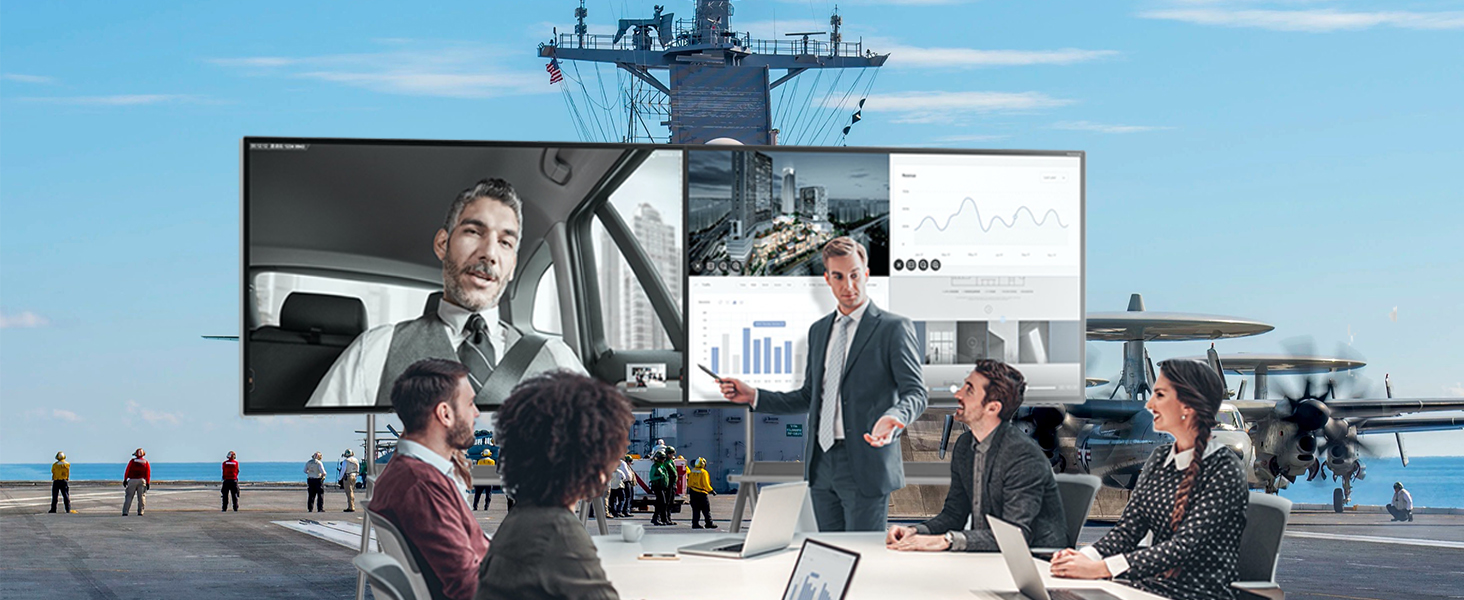
- Screen Mirroring & Digital Signage: Supports wireless screen mirroring from smartphones, laptops, and tablets. Teachers can annotate on an infinite canvas. The display supports horizontal and vertical placement for smart TV playback and digital signage. Connect an external camera and microphone for video conferencing.

This image demonstrates the 20-point touch capability of the smart board, allowing for precise and multi-user interaction through various finger gestures.
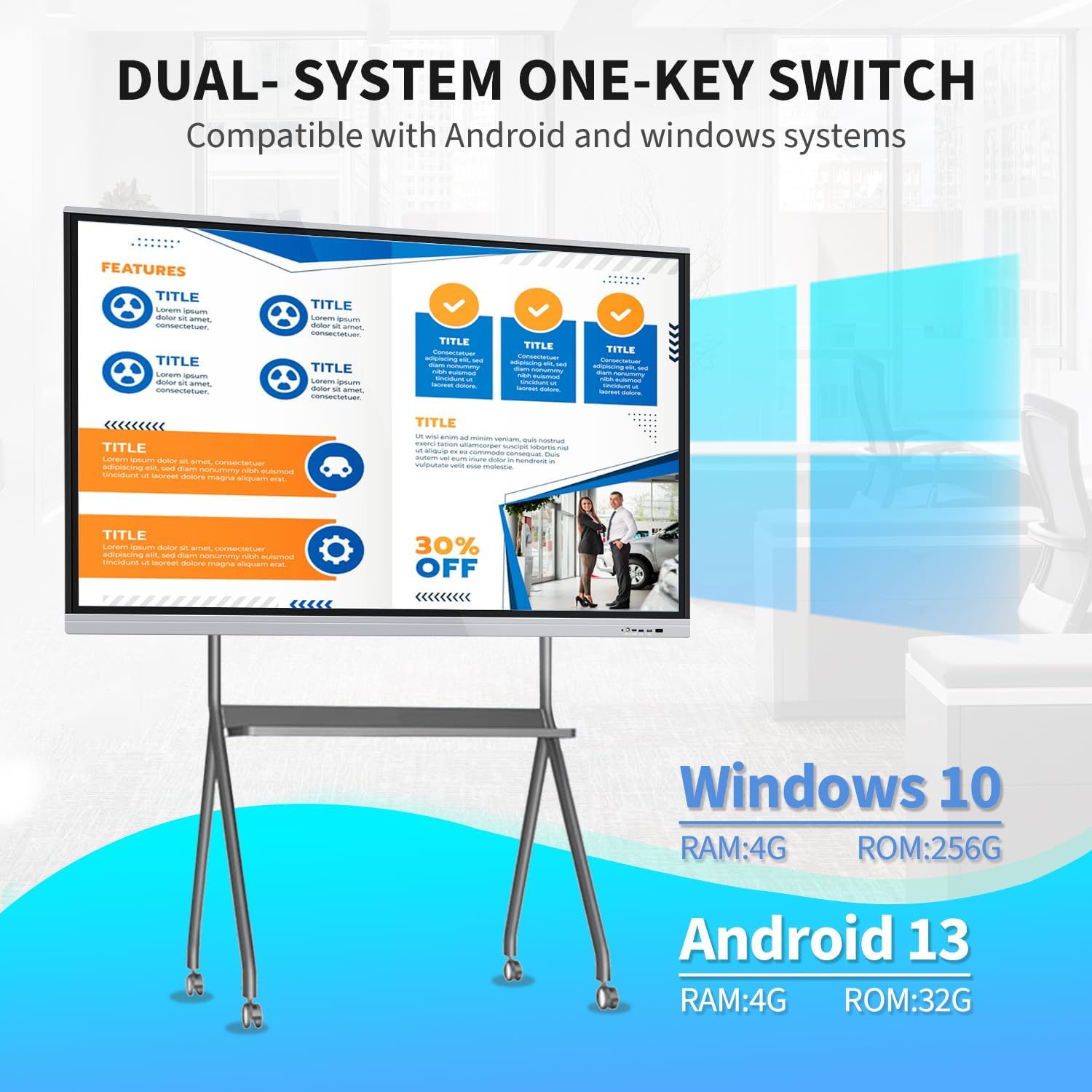
The smart board supports a dual operating system setup, allowing users to switch between Windows 10 (Core i5, 4GB RAM, 256GB SSD) and Android 13 (4GB RAM, 32GB ROM) as needed for different applications.
3. Садржај пакета
Проверите да ли су све ставке наведене у наставку укључене у ваш пакет:
- 1 x Smart Whiteboard
- 1 x Даљински кабл
- 1 x Presenter Pen
- 1 к преносиви сталак
- КСНУМКС к ВиФи антена
- 1 x Capacitive Stylus (as per feature bullets)
- 1 x Screen Mirroring Device (as per feature bullets)

The smart board offers flexible installation with both a mobile stand for portability and a wall mount bracket for fixed setups. Essential accessories such as a power line, WiFi antenna, capacitive stylus, presenter pen, and screen mirroring device are included.
4. Водич за подешавање
4.1. Опције монтаже
The TouchWo Smart Board can be installed using two methods:
- Mobile Stand Installation: Assemble the portable stand according to its separate instructions. Securely attach the smart board to the stand. This option provides flexibility for moving the board between locations.
- Монтажа зидног носача: Use the provided wall mount bracket to fix the smart board to a sturdy wall. Ensure the wall can support the weight of the unit (approximately 94.6 pounds or 43 kg). Professional installation is recommended for wall mounting.
4.2. Почетна веза
- Прикључак за напајање: Connect the power line to the smart board and then to a standard 110V AC power outlet.
- ВиФи антена: Attach the WiFi antenna to the designated port on the smart board to enable wireless network connectivity.
- Периферни уређаји: Connect any desired external devices such as a keyboard, mouse, or external storage via the available USB ports.
- Укључено: Press the power button located on the smart board. The system will boot up, typically starting with the Android operating system.
5. Упутство за употребу
5.1. System Switching (Android/Windows)
The smart board features a dual operating system. To switch between Android and Windows 10:
- Locate the system switch option on the main interface or through the quick settings menu.
- Select the desired operating system (Android or Windows) to initiate the switch. The board will restart into the selected OS.
5.2. Функционалност екрана осетљивог на додир
The 20-point touch screen allows for intuitive interaction:
- Основни гестови: Use single tap for selection, double tap for opening, and press and hold for context menus.
- Мулти-тоуцх: Utilize two fingers for zooming in/out of images or documents, and for other multi-touch commands.
- Употреба оловке: The included capacitive stylus can be used for precise writing, drawing, and annotation directly on the screen. No driver installation is required.
5.3. Пресликавање екрана
To mirror content from your devices:
- Ensure your smartphone, laptop, or tablet is connected to the same Wi-Fi network as the smart board.
- Use the included screen mirroring device or the built-in screen mirroring application on the smart board to connect your device.
- Follow the on-screen prompts to establish the connection and display your device's content on the smart board.
5.4. Digital Signage Mode
The smart board can function as a digital signage display:
- Content can be displayed in both horizontal and vertical orientations.
- Utilize the Android system to run digital signage applications or display media files.
5.5. Коришћење прибора
- Presenter Pen: Use the presenter pen for navigating presentations (e.g., PowerPoint) wirelessly. Refer to the presenter pen's specific instructions for pairing and function.
- Оловка: The capacitive stylus is for direct interaction with the touchscreen, ideal for writing and drawing.
5.6. Повезивање
The smart board offers various ports for external connections:
- ХДМИ ИН: Connect external video sources (e.g., laptops, media players) to display content on the smart board. Touch functionality can be enabled for connected devices via USB OTG.
- УСБ портови: For connecting USB drives, keyboards, mice, and other peripherals.
- ВГА: Connect older video sources.
- РЈ45: За жичану мрежну везу.
- Wi-Fi и Bluetooth: For wireless network access and connecting Bluetooth devices.
6. Одржавање
- Чишћење екрана: Use a soft, lint-free cloth specifically designed for electronic screens. DampБлаго навлажите крпу водом или средством за чишћење екрана. Избегавајте јаке хемикалије или абразивне материјале.
- Генерално чишћење: Wipe the exterior surfaces with a dry, soft cloth. Ensure all vents are clear of dust and debris to prevent overheating.
- Складиштење: If storing the smart board for an extended period, ensure it is powered off and disconnected from the power source. Store in a cool, dry place.
- Ажурирања софтвера: Periodically check for and install system updates for both Android and Windows to ensure optimal performance and security.
КСНУМКС. Решавање проблема
| Иссуе | Могући узрок | Решење |
|---|---|---|
| Нема струје | Power cable disconnected; power outlet fault | Check power cable connection; try a different outlet; ensure power button is pressed. |
| Екран на додир не реагује | Software glitch; calibration issue | Restart the device; check for system updates; recalibrate the touchscreen if an option is available in settings. |
| No display from external device | Incorrect input source selected; cable issue | Ensure the correct HDMI/VGA input is selected on the smart board; check the connection cable. |
| Проблеми са Ви-Фи везом | Antenna not connected; incorrect password; router issue | Ensure WiFi antenna is securely attached; verify Wi-Fi password; restart router and smart board. |
| Cannot switch OS | Системска грешка | Restart the smart board and try again. If the issue persists, contact support. |
8. Техничке спецификације

This diagram provides key technical specifications for the 75-inch smart board, including its physical dimensions (170.7 cm width, 101.3 cm height, 8.3 cm depth), 4K (3840x2160) resolution, 350 cd/m2 brightness, 16:9 aspect ratio, and 43 kg weight.
| Феатуре | Спецификација |
|---|---|
| Бранд | ТоуцхВо |
| Број модела | JPRZB75WA |
| Величина екрана | 75 инча |
| Резолуција | 4K UHD (3840 x 2160 пиксела) |
| Осветљеност слике | 350 lm (cd/m2) |
| Аспецт Ратио | 16:9 |
| Однос контраста | 5000:1 |
| Фреквенција освежавања | 60 Хз |
| Viewинг Англе | 178° |
| Оперативни систем | Android 13 & Windows 10 (Core i5, RAM 4GB, SSD 256GB) |
| Тоуцх Поинтс | 20 поена |
| Уграђени звучник | Да |
| Повезивање | HDMI, USB (6 total), VGA, RJ45, Wi-Fi, BT5.0 |
| Димензије производа | 3.2 к 67.2 к 40 инча (8.3 к 170.7 к 101.3 цм) |
| Тежина артикла | 94.6 фунте (43 кг) |
| Волtage | 110 Волтс |
9. Подршка и гаранција
For technical assistance, warranty inquiries, or any other support needs, please contact TouchWo customer service:
- Званична е-пошта: touchwoamz@outlook.com
- Seller Page: Посетите TouchWo seller page on Amazon за више информација.
The manufacturer aims to respond to inquiries within 24 hours. Please retain your proof of purchase for warranty claims.
For any assistance, users can contact support via the official email address provided or scan the QR code for more information. The manufacturer aims to respond within 24 hours.