
Увод
This manual provides detailed instructions for the installation, operation, maintenance, and troubleshooting of your wisecoco 12.6 Inch Bar LCD Screen HDMI Display Monitor. This monitor is specifically designed to integrate seamlessly with the Hyte Y60 PC case, serving as an excellent secondary display for monitoring system performance, displaying custom visuals, or extending your desktop.

Figure 1: The 12.6-inch bar LCD screen displaying real-time system performance data.
Подешавање и инсталација
The wisecoco 12.6 Inch Bar LCD Screen is designed for easy installation, particularly within the Hyte Y60 PC case. The package includes all necessary components for a straightforward setup.
Садржај пакета
Before beginning installation, please verify that all items are present in the package:
- 12.6-inch Bar LCD Screen
- 3.5mm DC Power Cable
- ХДМИ на Мини ХДМИ кабл
- Цросс Сцревдривер

Figure 2: Included accessories: DC power cable, HDMI to Mini HDMI cable, and a screwdriver.
Installation Steps (for Hyte Y60 PC Case)
- Припремите кућиште рачунара: Ensure your Hyte Y60 PC case is powered off and unplugged. Carefully remove the side panel where the monitor will be installed.
- Mount the Screen: The screen features a bracket specifically designed to fit the Y60 case panel. Align the screen with the designated slot on the case. Use the provided screwdriver to secure the screen in place. No additional screws are typically required.
- Повежите видео кабл: Connect one end of the HDMI to Mini HDMI cable to the Mini HDMI port on the monitor. Connect the other end to an available HDMI port on your graphics card (GPU) or motherboard.
- Повежите кабл за напајање:
- Connect the 3.5mm DC power cable to the DC 3.5mm port on the monitor. The other end of this cable typically connects to a power source within your PC.
- Alternatively, the screen can be powered via a Micro USB A cable (not included). If using Micro USB A, ensure the input is 5V500mA. If using the DC cable, the input should be 5V2A.
- Управљање кабловима: Route the cables neatly within your PC case to avoid interference with fans or other components.
- Укључено: Once all connections are secure, replace the PC case panel, plug in your PC, and power it on. The monitor should be detected as a secondary display.

Figure 3: Visual guide for installing the secondary monitor into the Hyte Y60 PC case.

Figure 4: The monitor seamlessly integrated into a Hyte Y60 PC case, displaying custom visuals.

Figure 5: Dimensions and port layout of the 12.6-inch bar LCD screen.
Упутство за употребу
The wisecoco 12.6 Inch Bar LCD Screen functions as a standard secondary display, compatible with PCs and laptops. It offers versatile display options and user-friendly controls.
Дисплаи Феатурес
- Резолуција: 1920x515 IPS panel for clear and vibrant visuals.
- Време одговора: 3-5ms for smooth motion.
- Viewугао угла: 178 ° ширине viewing angle ensures consistent image quality from various perspectives.
- Брзина освежавања: 60Hz standard refresh rate.
- Однос контраста: 1000:1 за дубоке црне и светле беле.
- Уграђени звучници: Integrated dual speakers provide audio output.

Figure 6: The monitor features a 178° full viewing angle and IPS technology for superior image quality.
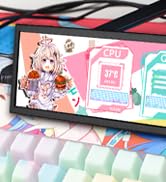
Figure 7: The Wisecoco monitor includes built-in speakers for convenience.
Режими приказа
The monitor supports both landscape and portrait modes, allowing for flexible integration into your setup. You can adjust the display orientation through your operating system's display settings.

Figure 8: The monitor supports both portrait and landscape display orientations.
Контроле на екранском менију (OSD)
The monitor features physical buttons on the back for accessing the OSD menu and controlling basic functions:
- Извор: Switches between available video inputs (e.g., Mini HDMI 1, Mini HDMI 2).
- Волуме +/-: Adjusts the audio output level of the built-in speakers.
- Мени: Accesses the OSD menu for advanced settings (brightness, contrast, color, etc.).
- Снага: Укључује или искључује монитор.
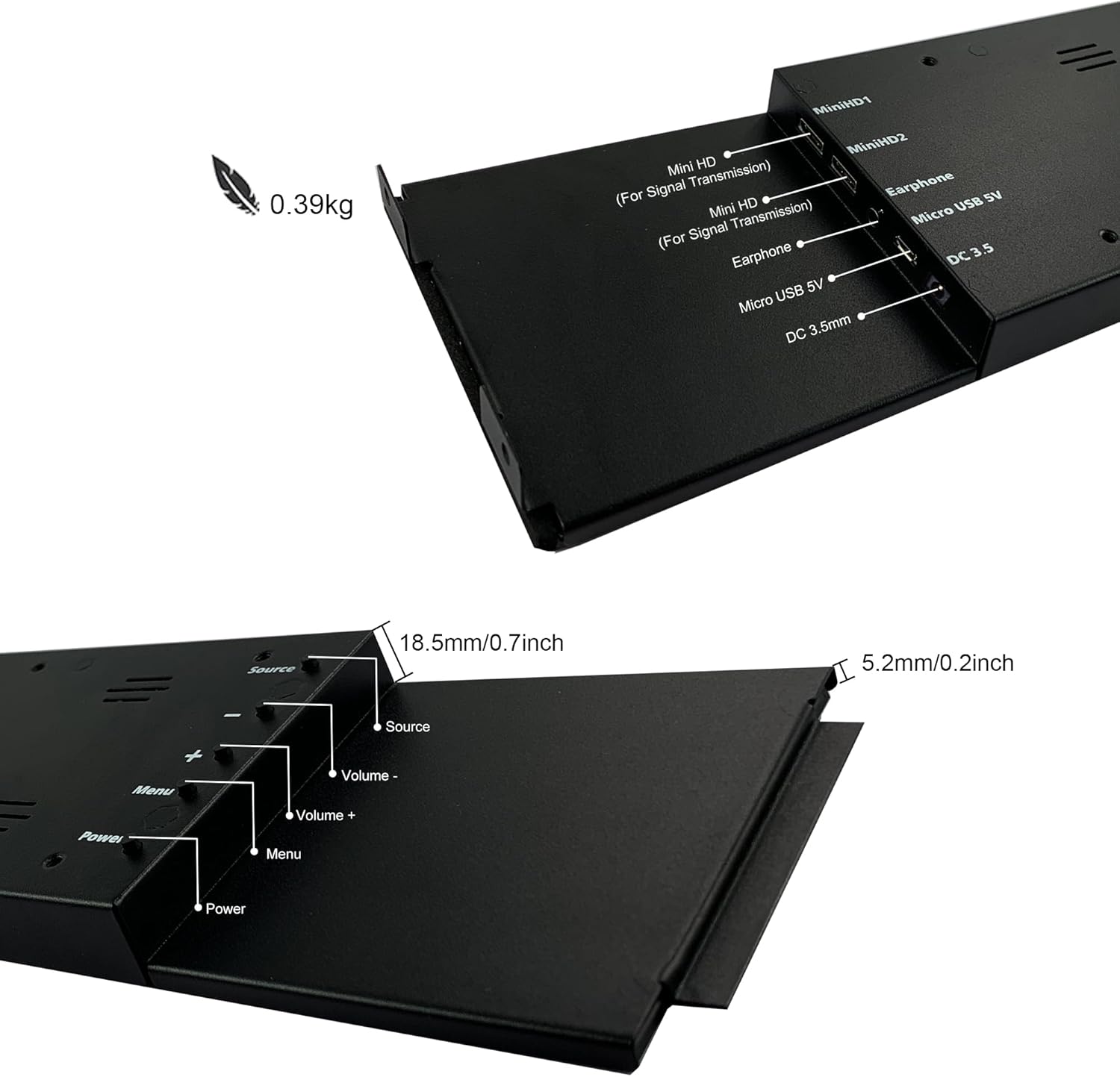
Figure 9: Location of control buttons and ports on the side of the monitor.
Одржавање
Правилно одржавање осигурава дуготрајност и оптималне перформансе вашег монитора.
- Чишћење екрана: Use a soft, lint-free cloth specifically designed for electronics. For stubborn marks, lightly dampen the cloth with water or a screen-cleaning solution. Avoid harsh chemicals, abrasive materials, or spraying liquid directly onto the screen.
- Генерално чишћење: Обришите ц монитораasinг меком, сувом крпом.
- вентилација: Уверите се да вентилациони отвори монитора нису блокирани како бисте спречили прегревање.
- Услови животне средине: Avoid exposing the monitor to extreme temperatures, high humidity, or direct sunlight.
- Искључите када се не користи: For extended periods of inactivity, it is recommended to power off the monitor.
Решавање проблема
If you encounter issues with your wisecoco monitor, refer to the following common problems and solutions:
| Проблем | Могући узрок | Решење |
|---|---|---|
| Нема дисплеја / порука „Нема сигнала“ |
|
|
| Screen flashes red, blue, or green when PC sleeps | Specific display settings or driver interaction. | Access the monitor's OSD menu and navigate through settings. Sometimes simply accessing and exiting the menu can resolve this. Ensure GPU drivers are updated. |
| No audio from built-in speakers |
|
|
| Half of the screen not working | Hardware defect or severe connection issue. |
|
Спецификације производа
Detailed technical specifications for the wisecoco 12.6 Inch Bar LCD Screen HDMI Display Monitor:
| Феатуре | Спецификација |
|---|---|
| Димензије производа | 1 к 4 к 13 инча |
| Тежина артикла | 1.74 фунти |
| Произвођач | Вајзкоко |
| Број модела ставке | R126F01-HB |
| Величина екрана на стојећем екрану | 12.6 инча |
| Аспецт Ратио | 32:9 |
| Волtage | 5 волти (ДЦ) |
| Резолуција | 1920 к 515 |
| Бранд | wisecoco |
| Величина екрана | 12.6 инча |
| Опис површине екрана | Глосси |
Гаранција и подршка
Wisecoco is committed to providing high-quality products and customer satisfaction.
- гаранција: Овај производ долази са гаранцијом од 12 месеци од датума куповине.
- Гаранција поврата новца: Нуди се 30-дневна гаранција поврата новца.
- Корисничка подршка: 24-hour customer support is available for any inquiries or assistance.
For warranty claims, technical support, or any other questions, please contact Wisecoco customer service through the official channels provided at the point of purchase or on the Wisecoco brand webсајту.

Figure 10: Wisecoco's commitment to customer satisfaction.