
1. Увод
Welcome to the C idea Kids Tablet P1150 user manual. This guide provides essential information for setting up, operating, maintaining, and troubleshooting your new 10.1-inch Android 13 tablet. Designed for children aged 3 and above, this tablet offers a safe and engaging platform for learning and entertainment with robust parental controls and eye protection features.
2. Безбедносне информације
- Надзор одраслих: Always ensure children use the tablet under adult supervision.
- Пуњење: Use only the provided charger and cable. Do not allow children to handle the charger unsupervised.
- Вода и влага: Keep the tablet away from water, liquids, and high humidity.
- температура: Избегавајте излагање таблета екстремним температурама (врућим или хладним).
- Време екрана: Monitor screen time to prevent eye strain and encourage healthy habits.
- Чишћење: Disconnect the tablet from power before cleaning. Use a soft, dry cloth.
- физичка оштећења: Do not drop, bend, or puncture the tablet. The protective case helps, but is not indestructible.
3. Садржај пакета
Молимо вас да означите поље за следеће ставке:
- C idea Kids Tablet P1150 (10.1-inch)
- Protective EVA Case with adjustable stand
- Стилус Пен
- УСБ кабл за пуњење
- Повер Адаптер
- Кориснички приручник (овај документ)
4. Производ је готовview
The C idea Kids Tablet P1150 features a 10.1-inch Full HD display with eye protection, powered by an Unisoc T310 Quad-Core processor and Android 13. It comes with 4GB RAM and 64GB internal storage, expandable up to 1TB via a MicroSD card. The tablet is equipped with dual cameras (5MP front, 8MP rear) and a 6000mAh battery for extended use.
Кључне карактеристике:
- 10.1-инчни FHD екран: Vibrant 1280x800 pixel screen with 400 nits brightness and 120Hz eye protection mode.
- Моћне перформансе: Unisoc T310 Quad-Core processor for smooth operation.
- Андроид 13 ОС: Google Certified with access to Google Play Store and pre-installed iWawa app.
- AmpЛе Стораге: 4GB RAM + 64GB ROM, expandable up to 1TB with a MicroSD card.
- Дуготрајна батерија: 6000mAh battery for hours of use.
- Родитељски надзор: Comprehensive tools for managing content, screen time, and safe browsing.
- Издржљив дизајн: Comes with a non-toxic, child-safe EVA foam case.

Image: The C idea Kids Tablet P1150 demonstrating its eye protection feature, comparing a screen with low blue light mode to one without.

Image: An illustration highlighting the Unisoc T310 Quad-Core processor, emphasizing the tablet's performance.
5. Подешавање
5.1 Почетно пуњење
- Connect the USB charging cable to the tablet's charging port.
- Укључите други крај кабла у адаптер за напајање, а затим укључите адаптер у зидну утичницу.
- Allow the tablet to charge completely before first use (approximately 3-4 hours). The battery icon on the screen will indicate charging status.
5.2 Укључивање/искључивање
- За укључивање: Press and hold the Power button (usually on the side or top edge) for a few seconds until the C idea logo appears.
- За искључивање: Притисните и држите дугме за напајање док се не појави мени. Изаберите „Искључи“ и потврдите.
- Рестартовати: Притисните и држите дугме за напајање док се не појави мени. Изаберите „Рестарт“ и потврдите.
5.3 Чаробњак за почетно подешавање
Upon first power-on, you will be guided through a setup wizard:
- Изаберите језик: Одаберите жељени језик.
- Повежите се на Ви-Фи: Select your Wi-Fi network and enter the password. This is crucial for downloading apps and updates.
- Гоогле налог: Sign in with an existing Google account or create a new one. This is required to access the Google Play Store.
- Датум и време: Подесите тачан датум и време или дозволите мрежи да их аутоматски подеси.
- Родитељски надзор: You will be prompted to set up parental controls, which is highly recommended for children's use. (See Section 7 for details).
5.4 Уметање MicroSD картице
To expand storage, you can insert a MicroSD card (up to 1TB):
- Пронађите слот за MicroSD картицу са стране таблета.
- Gently insert the MicroSD card into the slot with the gold contacts facing down, until it clicks into place.
- The tablet will detect the card and may prompt you to format it for internal or portable storage. Follow the on-screen instructions.
6. Упутство за употребу
6.1 Основна навигација
- додирните: Додирните икону да бисте отворили апликацију или изабрали ставку.
- Превуците: Drag your finger across the screen to scroll through pages or lists.
- Зумирање штипкањем прстију: Користите два прста да бисте увећали или умањили фотографије и web странице.
- Хоме дугме: Returns you to the home screen.
- Дугме за назад: Враћа се на претходни екран.
- Дугме за недавне апликације: Shows recently opened applications.
6.2 Повезивање на Ви-Фи
- Иди на Подешавања > Мрежа и интернет > Ви-Фи.
- Укључи/искључи Wi-Fi On.
- Изаберите жељену мрежу са листе и унесите лозинку ако се то од вас затражи.
6.3 Преузимање апликација
The tablet comes with the Google Play Store and iWawa app pre-installed.
- Гоогле Плаи продавница: Open the Play Store app, search for desired educational or entertainment apps, and tap "Install."
- iWawa: This app is specifically designed for children, offering a curated selection of games and educational content. It also integrates parental control features.

Image: The C idea Kids Tablet P1150 showing the Android 13 operating system interface with various applications, indicating Google certification.

Слика: Вишеструко views of the C idea Kids Tablet P1150 highlighting its 10.1-inch FHD screen, dual speakers, and parental control options such as setting time limits and managing apps.
6.4 Подешавање подешавања екрана
- Осветљеност: Swipe down from the top of the screen to open the Quick Settings panel. Drag the brightness slider to adjust.
- Режим заштите очију: This mode reduces blue light emission. It can usually be found in Подешавања > Дисплаи > Штитник за удобност очију или слично.
6.5 Коришћење камера
The tablet has a 5MP front camera and an 8MP rear camera.
- Отворите Камера апп.
- Додирните икону камере да бисте пребацивали између предње и задње камере.
- Додирните дугме затварача да бисте снимили фотографију или покренули/зауставили снимање видеа.
7. Родитељски надзор
The C idea Kids Tablet P1150 offers robust parental control features to ensure a safe and controlled environment for your child. These settings can be accessed through the tablet's main settings or the pre-installed iWawa app.
7.1 Setting Up Child Profiles
- Дођите до Подешавања > Дигитално благостање и родитељски надзор или отворите иВава апп.
- Креирајте новог дечјег професионалцаfile, providing their name and age.
- Set a PIN or password for the parental control section to prevent children from altering settings.
7.2 Филтрирање садржаја
You can filter content to ensure your child only accesses age-appropriate material:
- Within the child's profile settings, you can approve or block specific apps.
- Управљај web browsing by enabling safe search and blocking inappropriate webсајтовима.
7.3 Screen Time Management
Control how long your child can use the tablet:
- Set daily time limits for overall tablet usage or for individual apps.
- Schedule bedtime mode to automatically lock the tablet during specific hours.
7.4 Safe Browsing
The parental control features allow you to manage and monitor your child's online activities, ensuring they browse safely.
8. Одржавање
8.1 Чишћење таблета
- Always power off the tablet and disconnect it from the charger before cleaning.
- Use a soft, lint-free cloth to wipe the screen and body. For stubborn smudges, slightly dampобришите крпу водом или средством за чишћење екрана.
- Не користите јаке хемикалије, абразивна средства за чишћење или аеросолне спрејеве.
8.2 Одржавање батерије
- Avoid completely draining the battery frequently. Charge it before it reaches 0%.
- Не остављајте таблет да се пуни предуго након што се потпуно напуни.
- Store the tablet in a cool, dry place if not used for an extended period, with the battery charged to about 50%.
8.3 Ажурирања софтвера
Редовно проверавајте и инсталирајте ажурирања софтвера како бисте осигурали оптималне перформансе и безбедност:
- Connect the tablet to a Wi-Fi network.
- Иди на Подешавања > Систем > Ажурирање система.
- Пратите упутства на екрану да бисте преузели и инсталирали све доступне надоградње.
8.4 Управљање складиштем
To maintain smooth performance, manage the tablet's storage:
- Regularly delete unused apps and files.
- Move photos and videos to the MicroSD card or cloud storage.
- Обриши кеш меморију апликације у Подешавања > Аппс > [Изаберите апликацију] > Складиште и кеш > Обриши кеш меморију.

Image: The C idea Kids Tablet P1150 illustrating its storage capabilities: 4GB RAM, 64GB internal storage, and support for up to 1TB via TF (MicroSD) card.
КСНУМКС. Решавање проблема
If you encounter issues with your C idea Kids Tablet P1150, refer to the following common problems and solutions:
| Проблем | Решење |
|---|---|
| Таблет се не укључује. | Ensure the battery is charged. Connect to the charger and wait a few minutes before attempting to power on again. If still unresponsive, perform a hard reset by holding the power button for 10-15 seconds. |
| Проблеми са Wi-Fi везом. | Check if Wi-Fi is enabled in settings. Restart your Wi-Fi router. Forget the network and reconnect. Ensure the tablet is within range of the Wi-Fi signal. |
| Апликације се руше или раде споро. | Close background apps. Clear app cache (Settings > Apps > [App Name] > Storage & cache). Restart the tablet. Ensure sufficient storage space is available. |
| Tablet is not charging. | Verify the charging cable and adapter are securely connected. Try a different outlet. Inspect the charging port for debris or damage. Use only the original charger. |
| Екран не реагује. | Restart the tablet. If the issue persists, a factory reset might be necessary (backup data first). |
If the problem persists after trying these solutions, please contact C idea customer support.
10. Спецификације
Below are the technical specifications for the C idea Kids Tablet P1150:
| Феатуре | Спецификација |
|---|---|
| Назив модела | П1150 |
| Бранд | Ц идеја |
| Величина екрана | 10.1 инча |
| Резолуција екрана | 1280 x 800 пиксела (FHD) |
| Дисплаи Типе | LCD, IPS Wide Viewинг Англе |
| Max Display Brightness | 400 гњида |
| Оперативни систем | Андроид 13 |
| Процесор | Unisoc T310 Quad-Core, 1.6 GHz |
| РАМ | 4 ГБ |
| Интерна меморија | 64 ГБ |
| Екпандабле Стораге | Up to 1 TB (MicroSD/TF Card) |
| Задња камера | 8 МП |
| Предња камера | 5 МП |
| Резолуција снимања видео записа | ФХД 1080п |
| Капацитет батерије | 6000 mAh (литијум-полимер) |
| Трајање батерије | Up to 5 Hours (usage dependent) |
| Повезивање | Wi-Fi (802.11a/b/n/ac), Bluetooth |
| Портс | 1x USB, 3.5mm Headphone Jack |
| Димензије (Д x Ш x В) | 23.6 к 15.5 к 0.7 цм |
| Укључене компоненте | Tablet, Stylus, Protective Case |
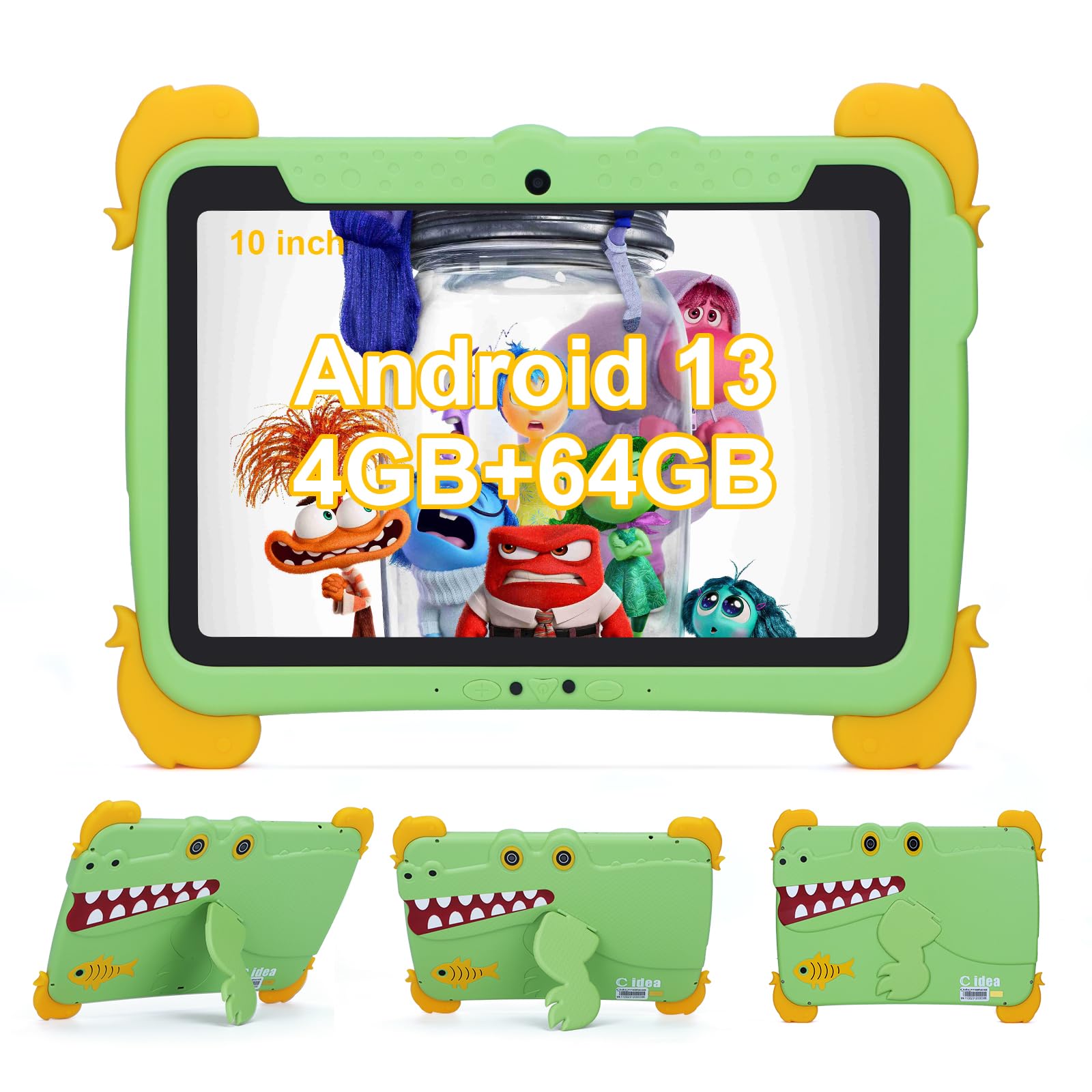
Image: The C idea Kids Tablet P1150 in its protective case, highlighting its technical features including Wi-Fi 5, 10.1-inch IPS display, and eye protection.
11. Гаранција и подршка
C idea is committed to providing quality products and customer satisfaction.
- гаранција: Your C idea Kids Tablet P1150 comes with a 2-годишња бесплатна гаранција од дана куповине.
- враћа: Нудимо Политика враћања без навођења разлога у року од 30 дана.
- техничка подршка: Доступна је дугорочна техничка подршка.
- Служба за кориснике: For any inquiries or assistance, please contact our 24-часовна онлајн служба за кориснике. Refer to the contact information provided with your purchase or on the official C idea webсајту.