
Увод
Thank you for choosing the MoKo Bluetooth AZERTY Keyboard. This manual provides detailed instructions to help you set up, operate, and maintain your keyboard, ensuring optimal performance with your Microsoft Surface Pro device. Please read this manual thoroughly before use.
Компатибилност
This keyboard is specifically designed for the following Microsoft Surface Pro models:
- Surface Pro 7 Plus (2021)
- Surface Pro 7 (2019)
- Сурфаце Про 6
- Surface Pro 5 (Pro 2017)
- Сурфаце Про 4
- Сурфаце Про 3
The keyboard dimensions are approximately 29.5 cm (11.6 inches) in length, 21.7 cm (8.54 inches) in width, and 0.6 cm (0.23 inches) in height, providing a similar typing experience to official Surface Pro keyboards.
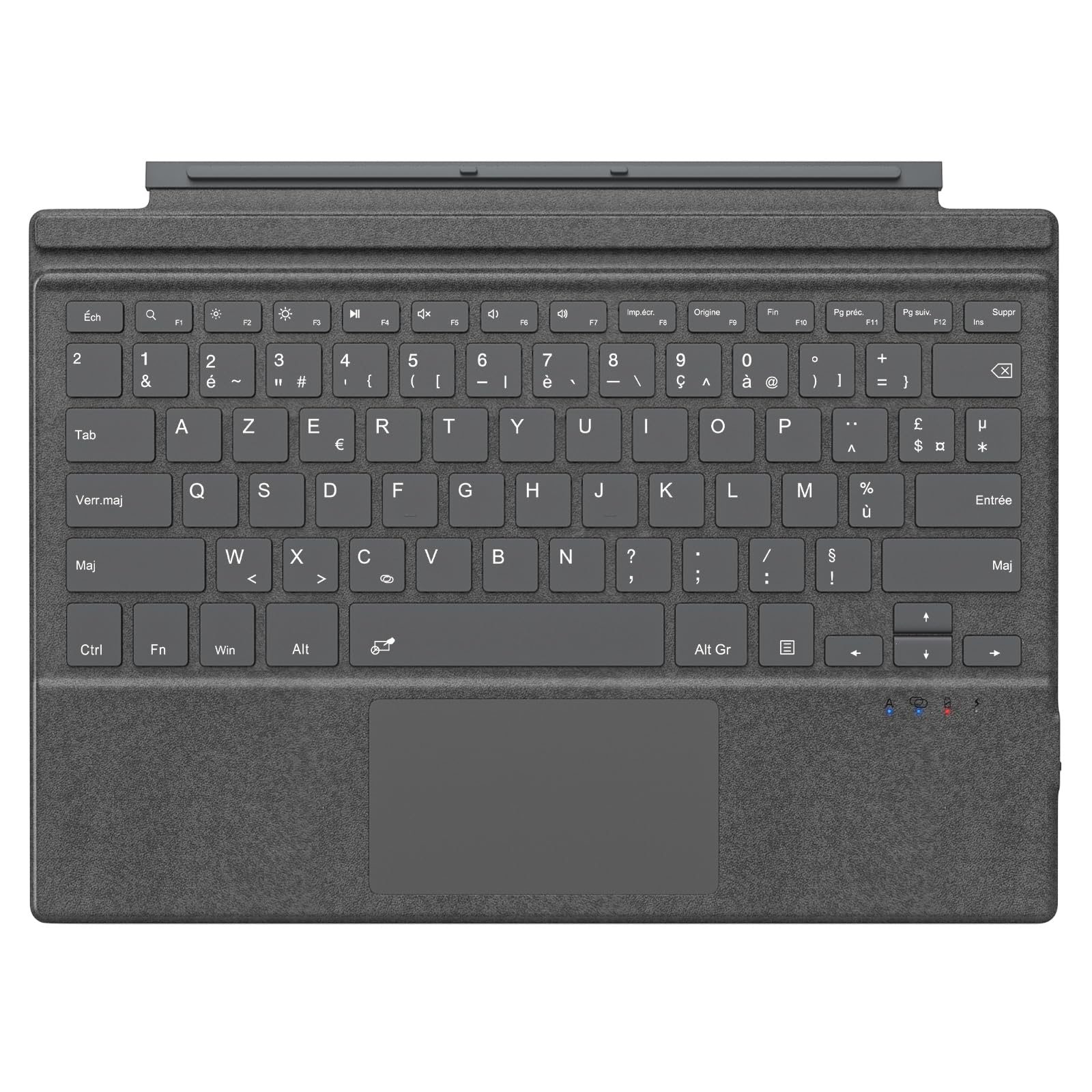
Image: The MoKo Bluetooth AZERTY Keyboard shown with several Microsoft Surface Pro models, illustrating compatibility.
Шта је у кутији
Приликом распакивања, молимо вас да се уверите да су сви предмети присутни:
- MoKo Bluetooth AZERTY Keyboard
- УСБ кабл за пуњење
Сетуп
1. Пуњење тастатуре
The keyboard is equipped with a built-in 520mAh lithium battery. Before initial use, or when the battery is low, charge the keyboard using the provided USB cable.
- Connect the small end of the USB charging cable to the charging port on the keyboard.
- Connect the larger end of the USB cable to a USB power source (e.g., computer, wall adapter).
- Индикаторска лампица пуњења ће се упалити. Када се потпуно напуни, лампица може променити боју или се угасити.
A full charge provides approximately 25 hours of continuous use.

Слика: Крупни план view of the keyboard's charging port with a USB cable connected, indicating the charging process.
2. Блуетоотх упаривање
To connect your keyboard to your Surface Pro:
- Уверите се да је тастатура напуњена и укључена.
- On your Surface Pro, go to Подешавања > Уређаји > Блуетоотх и други уређаји.
- Укључите Блуетоотх.
- Притисните тастер Fn кључ и C key simultaneously on the keyboard to enter pairing mode. The Bluetooth indicator light on the keyboard will flash.
- On your Surface Pro, click Додајте Блуетоотх или други уређај > Блуетоотх.
- Select "MoKo Keyboard" (or similar name) from the list of available devices.
- Follow any on-screen prompts to complete the pairing process. The Bluetooth indicator light on the keyboard will stop flashing once connected.
The keyboard can be used attached to your Surface Pro or detached for flexible positioning. The effective Bluetooth connection range is approximately 10 meters (33 feet).

Image: A Surface Pro tablet with the MoKo keyboard detached, illustrating the wireless Bluetooth connection capability.
Упутство за употребу
Распоред тастатуре и тастери
This keyboard features an AZERTY layout with 105 keys, providing a full-size typing experience. The keys utilize a scissor-switch mechanism for comfortable and responsive typing.

Слика: Детаљна view of the keyboard's AZERTY layout, highlighting the scissor-switch keys and integrated trackpad.
Trackpad Functionality
The integrated trackpad allows for precise navigation and control of your Surface Pro. To activate or deactivate the trackpad, press the Fn кључ и Размакница истовремено.
Напомена: Please remove any protective film from the trackpad surface before use to ensure proper functionality.
Подесиви углови куцања
The keyboard's design allows for two different typing angles, providing an ergonomic and comfortable experience whether you are working on a desk, lap, or other surface.

Image: A Surface Pro with the keyboard attached, demonstrating the two possible ergonomic typing angles.
Управљање напајањем
Аутоматски режим спавања
To conserve battery life, the keyboard will automatically enter sleep mode after 10 minutes of inactivity. The Bluetooth connection will automatically disconnect during this period.
Reconnecting After Sleep
To wake the keyboard and re-establish the Bluetooth connection, simply press any key. The keyboard will automatically attempt to reconnect to the last paired device.

Image: An illustration of the keyboard's power management, including automatic sleep mode and USB-C charging.
Одржавање
To ensure the longevity and optimal performance of your MoKo keyboard, follow these maintenance guidelines:
- Чишћење: Користите меку, суву крпу која не оставља влакна за чишћење површине тастатуре. За тврдокорну прљавштину, благо обришитеampОбришите крпу водом или благим средством за чишћење. Избегавајте прекомерну влагу.
- Складиштење: Када се не користи, чувајте тастатуру на хладном и сувом месту, даље од директне сунчеве светлости и екстремних температура.
- Избегавајте течности: Do not expose the keyboard to liquids. It is not waterproof.
- Пажљиво рукујте: Избегавајте испуштање тастатуре или њено излагање јаким ударцима.
Решавање проблема
Ако имате проблема са тастатуром, погледајте следећа уобичајена решења:
| Проблем | Решење |
|---|---|
| Тастатура се не укључује | Уверите се да је тастатура напуњена. Повежите је са извором напајања помоћу USB кабла. |
| Упаривање преко Bluetooth-а није могуће | 1. Ensure the keyboard is in pairing mode (Fn + C). 2. Make sure Bluetooth is enabled on your Surface Pro. 3. Delete any previous keyboard pairings on your Surface Pro and try again. 4. Ensure the keyboard is within the 10-meter range. |
| Тастатура се често искључује | 1. Ensure the keyboard is charged. 2. Avoid placing obstacles between the keyboard and your Surface Pro. 3. Reconnect the Bluetooth connection manually if needed. |
| Трекпед не реагује | 1. Ensure the trackpad is activated (Fn + Spacebar). 2. Remove any protective film from the trackpad surface. 3. Restart the keyboard and try again. |
| Кључеви не реагују | 1. Ensure the keyboard is properly connected via Bluetooth. 2. Check battery level and charge if necessary. 3. Restart your Surface Pro and the keyboard. |
Спецификације
| Феатуре | Детаљ |
|---|---|
| Бранд | МоКо |
| Назив модела | Clavier Français |
| Број модела | B0CPLZXMFK |
| Технологија повезивања | Блуетоотх |
| Опис тастатуре | Интегрисано |
| Посебна карактеристика | Ергономски |
| Боја | Греи |
| Распоред тастатуре | АЗЕРТИ |
| Број кључева | 105 |
| Тип прекидача | Сциссор Свитцх |
| Извор напајања | Battery Powered (520mAh Lithium) |
| Димензије производа (Д к Ш к В) | 29.5 цм к 21.7 цм к 0.6 цм (11.6 к 8.54 к 0.23 инча) |
| Тежина артикла | 10.93 унци |
| Материјал | АБС (акрилонитрил бутадиен стирен) |
| Компатибилан ОС | Windows (Minimum Windows 10) |

Image: A technical diagram illustrating the precise dimensions of the MoKo Bluetooth AZERTY Keyboard.
Гаранција и подршка
For warranty information or technical support, please refer to the documentation provided with your purchase or contact MoKo customer service directly through their official webсајт или продавницу где је производ купљен.