
1. Увод
This manual provides detailed instructions for the installation, operation, and maintenance of your Kolink Unity Solar ARGB Mesh Midi Tower Case. Please read this manual thoroughly before beginning installation to ensure proper setup and safe usage. This case is designed to house standard PC components, offering efficient cooling and customizable ARGB lighting.
2. Безбедносне информације
- Увек искључите напајање из зидне утичнице пре инсталирања или уклањања било којих компоненти.
- Пажљиво рукујте свим компонентама како бисте спречили оштећења услед електростатичког пражњења (ESD). Размислите о употреби антистатичке наруквице.
- Avoid placing the case in direct sunlight, near heat sources, or in environments with excessive dust or humidity.
- Do not attempt to modify the case or its components. Unauthorized modifications may void your warranty and pose safety risks.
- Држите мале делове, као што су шрафови, ван домашаја деце.
3. Садржај пакета
Проверите да ли су све ставке присутне у пакету:
- Kolink Unity Solar ARGB Mesh Midi Tower Case
- Accessory Box (containing screws, cable ties, and standoffs)
- Кориснички приручник (овај документ)
4. Производ је готовview
The Kolink Unity Solar ARGB Mesh Midi Tower Case features a mesh front panel for optimal airflow, pre-installed ARGB fans, and a tempered glass side panel to showcase your build.
4.1 Спољни Views

Слика 4.1.1: Предња страна view of the Kolink Unity Solar ARGB Mesh Midi Tower Case, highlighting the mesh front panel and three illuminated ARGB fans.
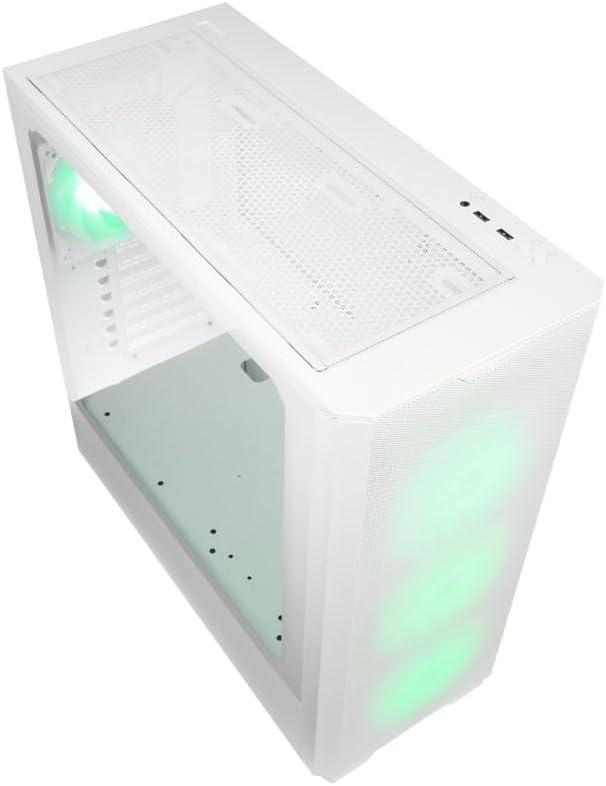
Слика 4.1.2: Врх view of the case, showing the top mesh panel and front I/O ports.
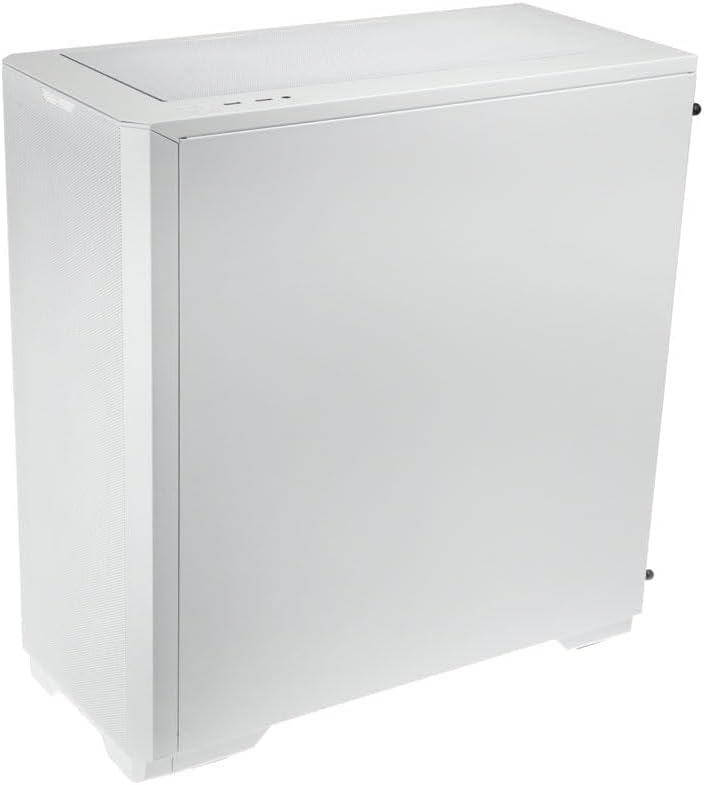
Слика 4.1.3: Задња страна view of the case, illustrating the solid right side panel.

Слика 4.1.4: Composite image showing the front, rear, and tempered glass side panel of the case.
4.2 Предњи И/О портови

Слика 4.2.1: Close-up of the top-mounted front I/O panel, featuring audio jacks, USB ports, and control buttons.
The front I/O panel typically includes:
- Дугме за напајање
- Дугме за ресетовање
- УСБ 3.0 портови (к1)
- УСБ 2.0 портови (к2)
- HD Audio Jacks (Headphone/Microphone)
- ARGB Control Button (for pre-installed fans)
4.3 Унутрашњи распоред

Слика 4.3.1: Ентеријер view of the case, showing the motherboard tray, front fan mounts, and PSU shroud.

Слика 4.3.2: Још један ентеријер view, highlighting the rear fan mount and the spacious main chamber.

Слика 4.3.3: Close-up of the pre-installed ARGB fans at the front of the case.

Слика 4.3.4: View behind the motherboard tray, showing space for cable management and drive mounts.
5. Водич за подешавање и инсталацију
Follow these steps to install your PC components into the Kolink Unity Solar case.
5.1 Припрема случаја
- Поставите кућиште на равну, стабилну површину.
- Remove the tempered glass side panel by unscrewing the thumbscrews at the rear and carefully pulling it away. Set it aside on a soft, non-abrasive surface.
- Remove the solid right side panel by unscrewing its thumbscrews and sliding it off.
5.2 Инсталација матичне плоче
- Install the I/O shield (if applicable) into the rear opening of the case.
- Ensure the correct standoffs are installed for your motherboard form factor (ATX, Micro-ATX, Mini-ITX). Adjust or add standoffs as needed using the provided tools.
- Carefully align your motherboard with the standoffs and I/O shield.
- Причврстите матичну плочу приложеним завртњима. Немојте превише затезати.
5.3 Инсталација јединице за напајање (ПСУ).
- Locate the PSU mounting area at the bottom rear of the case.
- Slide your PSU into the designated bay from the rear of the case.
- Align the PSU with the screw holes and secure it with the provided screws.
5.4 Storage Drive Installation (HDDs/SSDs)
The case supports multiple storage drives. Refer to the accessory box for specific mounting hardware.
- 2.5" SSD дискови: Mount directly onto the SSD trays located behind the motherboard tray or on the PSU shroud. Secure with screws.
- 3.5" HDD-ови: Install into the drive cage located under the PSU shroud. Slide the drive into the tray and secure it.
5.5 Graphics Card (GPU) and Expansion Card Installation
- Уклоните потребне поклопце PCIe слотова са задње стране кућишта.
- Уметните графичку картицу или друге картице за проширење у одговарајуће PCIe слотове на матичној плочи.
- Secure the cards with the provided screws or retention clips.
5.6 Cable Management and Connections
- Connect all necessary power cables from the PSU to your motherboard, CPU, GPU, and storage drives.
- Connect the front I/O cables (USB, Audio, Power/Reset switches, ARGB control) to their respective headers on the motherboard. Refer to your motherboard manual for header locations.
- Route cables through the cutouts and tie-down points behind the motherboard tray to maintain a clean interior and optimize airflow. Use the included cable ties.
- Ensure the pre-installed ARGB fans are connected to the integrated ARGB controller or directly to an ARGB header on your motherboard (if supported).
6. Управљање ARGB осветљењем
The Kolink Unity Solar case comes with pre-installed ARGB fans. You can control their lighting effects in two ways:
- Case ARGB Button: Use the dedicated ARGB control button on the front I/O panel to cycle through various lighting modes and colors.
- Софтвер матичне плоче: If your motherboard has a 3-pin 5V ARGB header and compatible software (e.g., ASUS Aura Sync, MSI Mystic Light, Gigabyte RGB Fusion), you can connect the case's ARGB controller to the motherboard and synchronize lighting effects with other components. Refer to your motherboard manual for instructions on ARGB header connection and software usage.
7. Одржавање
Редовно одржавање помаже у обезбеђивању оптималних перформанси и дугог века трајања компоненти вашег рачунара.
- Филтери за прашину: The case features removable dust filters on the front, top, and bottom. Periodically remove and clean these filters with compressed air or by rinsing them with water (ensure they are completely dry before reinstallation).
- Унутрашње чишћење: Use compressed air to remove dust from inside the case, especially from fan blades, heatsinks, and other components. Perform this cleaning in a well-ventilated area.
- Спољно чишћење: Обришите спољашње површине меком, дamp крпу. Избегавајте јаке хемикалије или абразивна средства за чишћење.
КСНУМКС. Решавање проблема
Ако наиђете на проблеме, погледајте следеће уобичајене кораке за решавање проблема:
- PC not powering on: Double-check all power connections from the PSU to the motherboard, CPU, and GPU. Ensure the front panel power switch cable is correctly connected to the motherboard header. Verify the PSU switch is in the 'ON' position.
- Fans not spinning/ARGB not lighting up: Check fan power connections and ARGB connections. Ensure ARGB cables are connected to the correct 3-pin 5V ARGB headers (not 4-pin 12V RGB headers). If using the case controller, ensure it is powered.
- Нема излаза на екран: Ensure your graphics card is properly seated in its PCIe slot and all necessary power cables are connected. Verify your monitor cable is connected to the graphics card, not the motherboard's integrated graphics port (unless you are using integrated graphics).
9. Спецификације
Key specifications for the Kolink Unity Solar ARGB Mesh Midi Tower Case:
| Феатуре | Спецификација |
|---|---|
| Бранд | КОЛИНК |
| Назив модела | Unity Solar |
| Број модела ставке | UNITYSOLARWHT |
| Тип случаја | Мид Товер |
| Боја | Бела |
| Компатибилност матичне плоче | АТКС, Мицро-АТКС, Мини-ИТКС |
| Метод хлађења | Ваздух |
| Тип монтаже напајања | Боттом Моунт |
| Број УСБ 2.0 портова | 2 |
| Укупно УСБ портова | 2 (Note: Product description indicates 1x USB 3.0, 2x USB 2.0. Please verify with product packaging.) |
| Total Internal Bays | 4 (Mixed 2.5"/3.5" support) |
| Тежина артикла | 2.2 фунти |
10. Гаранција и подршка
For warranty information and technical support, please refer to the official KOLINK webсајт или контактирајте продавца. Сачувајте доказ о куповини за потребе гаранције.