
Увод
This manual provides detailed instructions for the setup, operation, and maintenance of your Prechen 10.1 inch Portable Touchscreen Monitor, Model HD-101. Please read this manual thoroughly before using the device to ensure proper functionality and to prevent damage.
Карактеристике производа
- Portable Touchscreen: This 10.1-inch monitor is compact and lightweight, designed for portability. The touchscreen functionality allows for intuitive navigation and interaction, enhancing productivity on the go.
- High-Resolution IPS Display: Features a 1920x1200 resolution with a 16:10 aspect ratio, delivering clear and vibrant visuals. IPS technology provides wide viewing angles and accurate color reproduction, suitable for various applications.
- Свестрано повезивање: Equipped with HDMI and USB-C ports, offering flexible connection options. It can be easily connected to Windows PCs, laptops, and gaming consoles like Xbox. Note: USB-C is for touch functionality and power.
- Интегрисани звучници: Built-in speakers provide clear and dynamic audio, eliminating the need for external speakers during media consumption, gaming, or virtual meetings.
- Компатибилан са ВЕСА носачем: The monitor supports VESA mounting standards, allowing for attachment to compatible stands or arms for customized workspace setups and comfortable viewинг углова.
Сетуп
Садржај пакета
Проверите да ли су све ставке присутне у пакету:
- Prechen 10.1 inch Portable Touchscreen Monitor
- ХДМИ кабл
- УСБ-Ц на УСБ-Ц кабл
- USB-A to USB-C Cable (for power/touch)
- Повер Адаптер
- Кориснички приручник (овај документ)
Повезивање монитора
- Прикључак за напајање: Connect the provided power adapter to the DC Power Port on the monitor and plug it into a power outlet. Alternatively, if your device supports power delivery, connect a USB-C to USB-C cable to the USB-C (Power & Touch) port for both power and signal.
- Видео веза:
- ДВИ: Connect one end of the HDMI cable to the HDMI port on the monitor and the other end to the HDMI output of your computer or device.
- USB-C (DisplayPort Alternate Mode): If your device supports DisplayPort Alternate Mode over USB-C, connect a USB-C to USB-C cable to the USB-C (Power & Touch) port on the monitor and your device. This single cable can provide video, power, and touch functionality.
- Функционалност додира: For touch functionality, ensure the USB-C (Power & Touch) port is connected to your device. If using HDMI for video, you will also need to connect a USB-A to USB-C cable from your device's USB-A port to the monitor's USB-C (Power & Touch) port.
- Аудио излаз: If you wish to use external headphones or speakers, connect them to the 3.5mm Audio Port on the monitor.
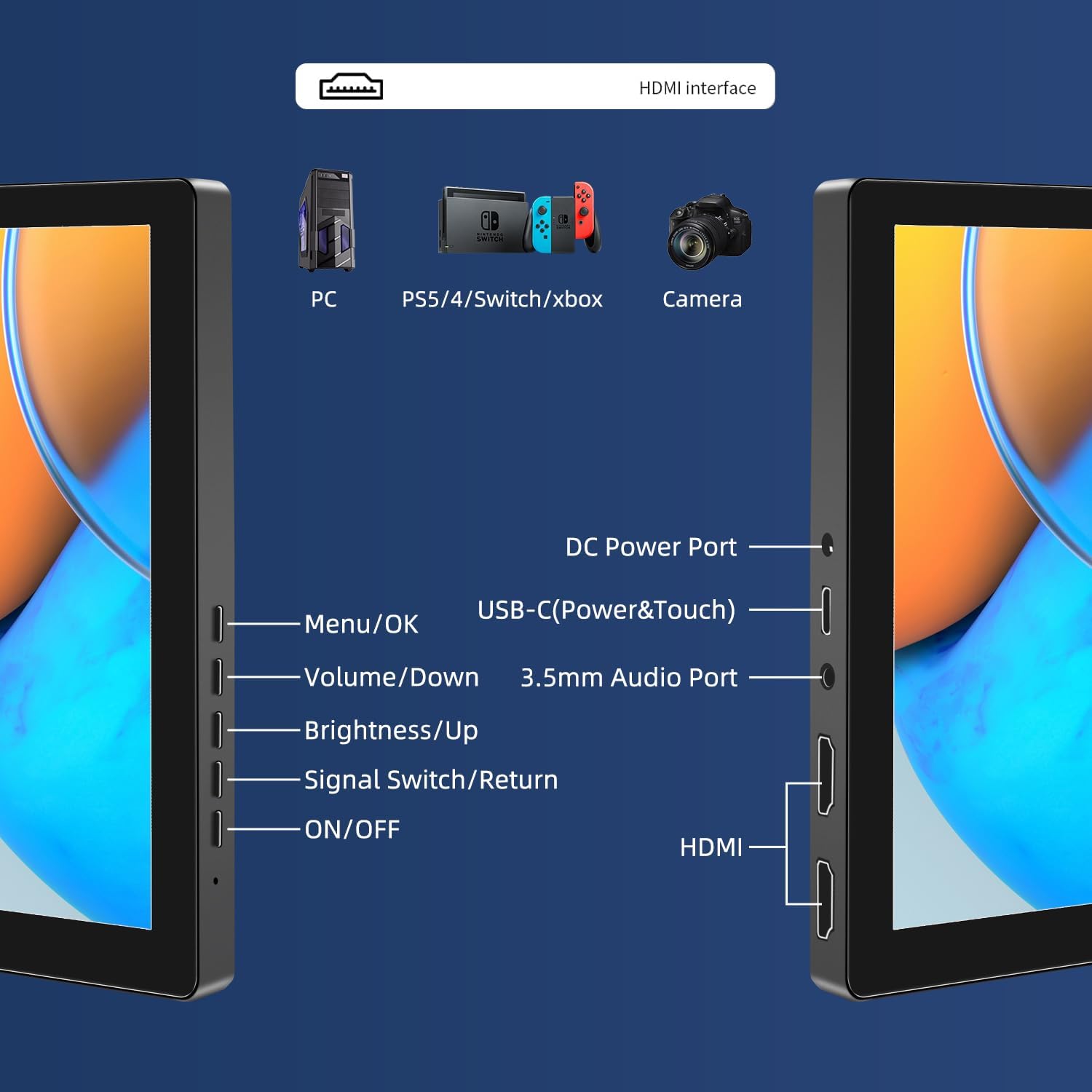
Слика: Прекоview of the monitor's ports including DC Power, USB-C (Power & Touch), 3.5mm Audio, HDMI, and control buttons.
Упутство за употребу
Укључивање/искључивање
- To power on the monitor, press the ОН/ОФФ дугме.
- За искључивање притисните и држите тастер ОН/ОФФ button for a few seconds until the screen turns off.
Коришћење менија на екрану (ОСД).
OSD мени вам омогућава да подесите разне поставке екрана.
- Притисните тастер Мени / ОК дугме да бисте отворили OSD мени.
- Користите Волуме/Довн и Бригхтнесс/Уп дугмад за навигацију кроз опције менија.
- Притисните Мени / ОК да бисте изабрали опцију или потврдили подешавање.
- Притисните тастер Signal Switch/Return дугме да бисте се вратили на претходни мени или изашли из OSD-а.
Подешавање режима приказа
The monitor supports multiple display modes when connected to a computer:
- Режим дуплирања: Displays the same content on both your primary screen and the portable monitor.
- Проширени режим: Проширује радну површину на оба екрана, пружајући више радног простора.
- Режим другог екрана: Користи само преносиви монитор као екран.
These modes are typically configured through your operating system's display settings (e.g., Windows Display Settings, macOS System Preferences).
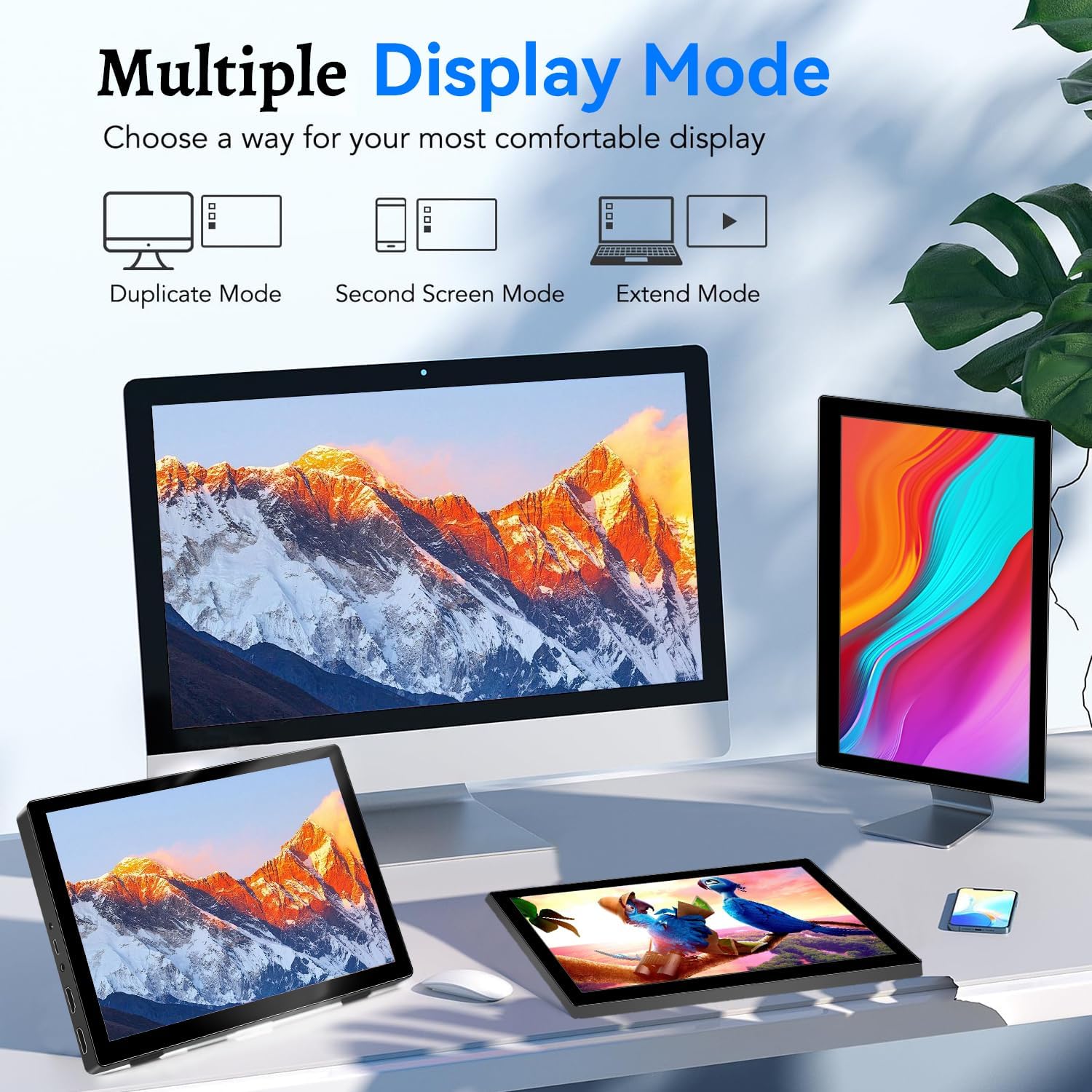
Image: Visual representation of Duplicate, Second Screen, and Extend display modes.
Using Touchscreen Functionality
The monitor supports 10-point touchscreen technology. Ensure the USB-C (Power & Touch) port is correctly connected to your device for touch input to function.

Слика: прamples of 10-point touchscreen gestures for interaction.
Одржавање
- Чишћење екрана: Користите меку крпу која не оставља длачицеampводом или неабразивним средством за чишћење екрана. Не прскајте средство за чишћење директно на екран.
- Чишћење Цasing: Обришите монитор цasinОбришите меком, сувом крпом. Избегавајте употребу јаких детерџената или растварача.
- Складиштење: Када се не користи, монитор чувајте на хладном и сувом месту, даље од директне сунчеве светлости и екстремних температура.
- Руковање: Avoid dropping or subjecting the monitor to strong impacts. Do not place heavy objects on top of the monitor.
Решавање проблема
| Проблем | Могући узрок | Решење |
|---|---|---|
| Нема дисплеја/црни екран |
|
|
| Екран осетљив на додир не реагује |
|
|
| Нема звука из звучника |
|
|
| Проблеми са квалитетом слике (замућена, изобличена) |
|
|
Спецификације
| Феатуре | Детаљ |
|---|---|
| Бранд | Прецхен |
| Број модела | ХД-101 |
| Величина екрана | 10.1 инча |
| Резолуција | 1920 x 1200 (UXGA Wide) |
| Аспецт Ратио | 16:10 |
| Панел Типе | ИПС |
| Рефресх Рате | 60 Хз |
| Време одговора | 1 мс |
| Повезивање | 1x HDMI, 1x USB-C (Power & Touch), 1x 3.5mm Audio Jack, 1x DC Power Port |
| Димензије (Д к Ш к В) | 21.8 к 15.8 к 1.4 цм |
| Тежина | 990 грама |
| Произвођач | Shenzhen Kenowa Electronics Co., LTD |
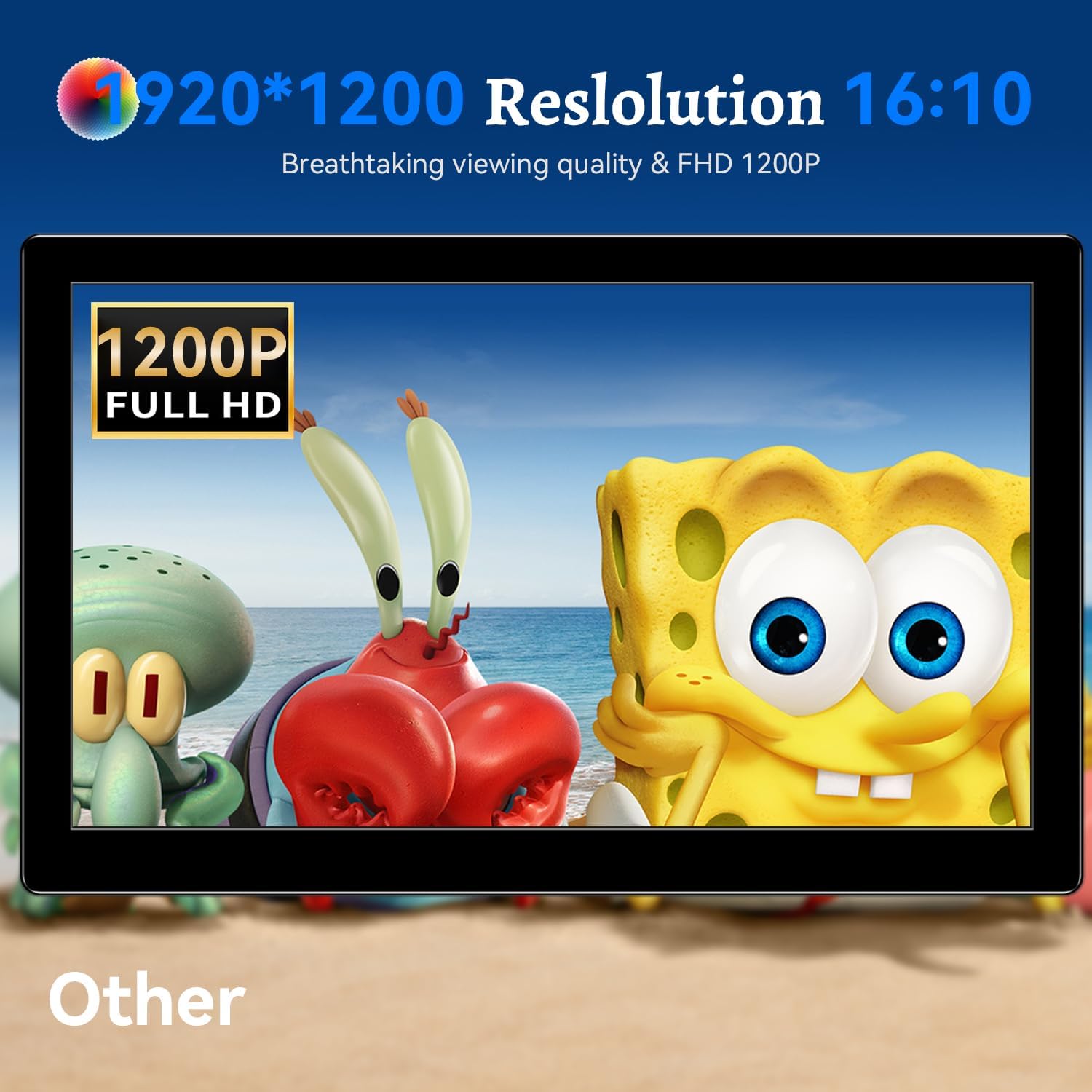
Слика: Монитор приказујеasing its 1920x1200 Full HD resolution.

Image: The monitor's IPS panel offering wide viewing angles and rich colors.
Гаранција и подршка
For warranty information and technical support, please refer to the warranty card included with your product or contact Prechen customer service through their official website. Please have your model number (HD-101) and purchase details ready when contacting support.