
1. Увод
Хвала вам на куповиниasing the WiMiUS S27 Pro Mini Projector. This manual provides detailed instructions for setting up, operating, and maintaining your projector to ensure optimal performance and longevity. The S27 Pro features 4K support, 1080P native resolution, 18000LM brightness, 270° rotation, automatic keystone correction, Wi-Fi 6, and Bluetooth 5.3 connectivity, offering a versatile and immersive viewинг искуство.
2. Безбедносне информације
- Не гледајте директно у сочиво пројектора када је укљученоamp is on, as it may cause eye damage.
- Обезбедите одговарајућу вентилацију око пројектора како бисте спречили прегревање. Не блокирајте вентилационе отворе.
- Користите само адаптер за напајање који је испоручени уз пројектор.
- Држите пројектор даље од воде, влаге и екстремних температура.
- Do not attempt to disassemble or repair the projector yourself. Contact qualified service personnel for assistance.
- Држите пројектор ван домашаја деце.
3. Производ је готовview
3.1. Компоненте и портови
The WiMiUS S27 Pro Mini Projector is designed for portability and ease of use. It features a compact design with various ports for connectivity.

Слика: Позади view of the WiMiUS S27 Pro Projector, highlighting the HDMI, USB, and Audio ports for connecting various devices.
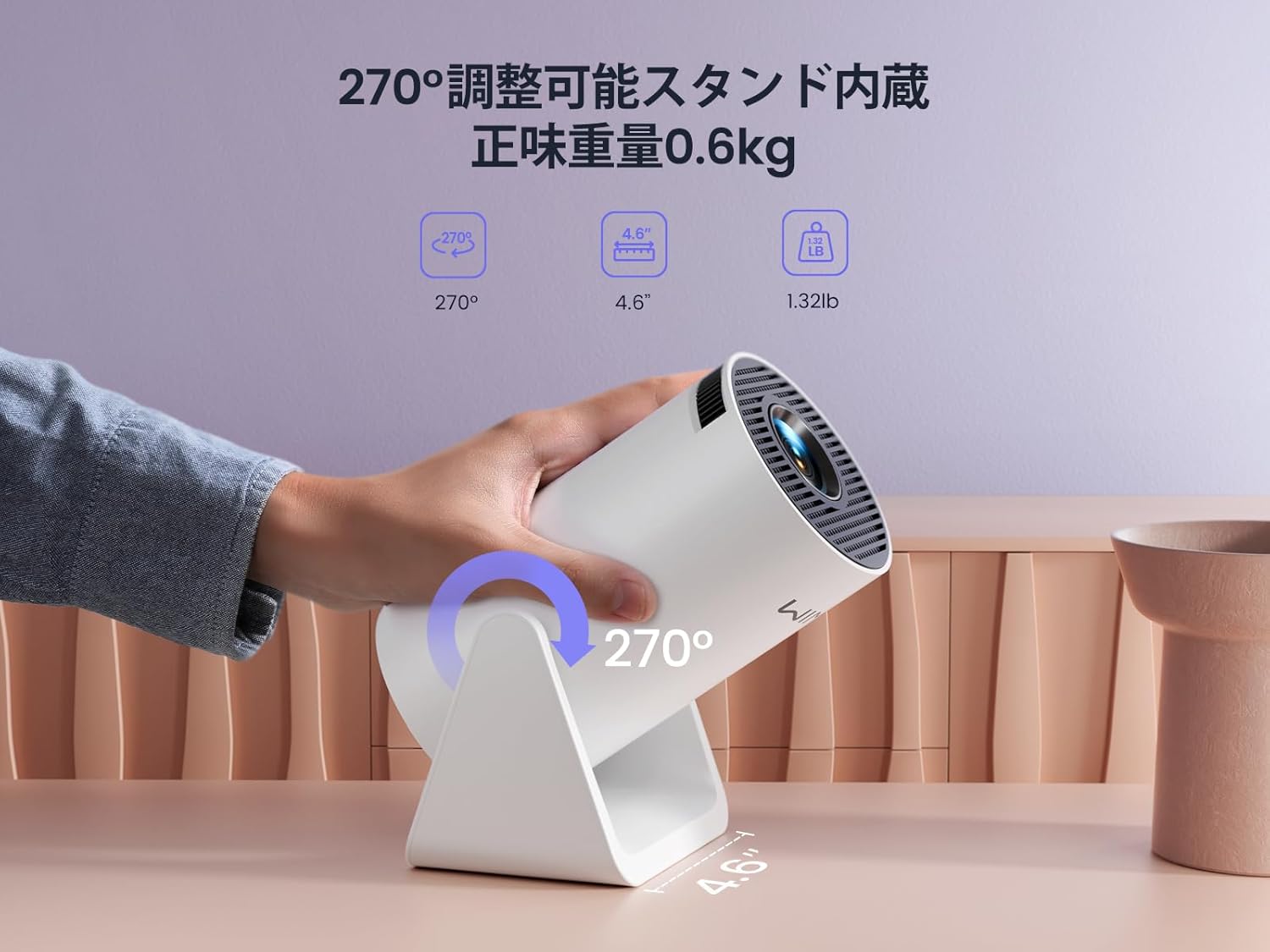
Image: The WiMiUS S27 Pro Projector on its integrated 270° adjustable stand, demonstrating its flexible projection angles and compact size (0.6kg).
4. Подешавање
КСНУМКС. Постављање
The S27 Pro's 270° rotatable stand allows for flexible placement, including ceiling projection. Position the projector between 0.8 meters and 5 meters from the projection surface to achieve a screen size of 40 to 200 inches.

Image: The projector displaying an image on a wall, demonstrating its automatic vertical keystone correction feature for a perfectly rectangular picture.
4.2. Прикључак за напајање
Connect the provided power adapter to the projector's DC input port and then plug it into a power outlet.
4.3. Прво укључивање
Press the power button on the projector or the remote control to turn on the device. The projector will display the main menu.
4.4. Фокус и корекција Кеистоне
- Аутоматска вертикална корекција Кеистоне: The projector automatically corrects vertical image distortion.
- Ручно фокусирање: Подесите прстен за фокусирање на објективу пројектора док слика не буде јасна.
- Дигитални зум: Use the remote control to adjust the image size from 85% to 100% to fit your screen.

Image: A projected image demonstrating the 85% to 100% zoom function, allowing adjustment for various room sizes.
5. Упутство за употребу
5.1. Навигација
Use the remote control to navigate through the projector's menu and select desired functions.
5.2. Ви-Фи веза
The S27 Pro supports ultra-fast Wi-Fi 6 (5G and 2.4G dual-band) for stable and quick streaming.
- From the homepage, select "Set" (Settings).
- Enter the "WiFi" menu and turn on the WiFi function.
- Wait for the projector to detect available WiFi networks.
- Select your home WiFi network and enter the password to connect.

Image: The projector's interface displaying options for Wi-Fi 6 and Bluetooth 5.3, indicating advanced wireless connectivity.
5.3. Блуетоотх веза
The built-in Bluetooth 5.3 chip allows connection to headphones, speakers, and AirPods for enhanced audio.
- From the homepage, select "Set" (Settings).
- Enter the "BT Model" (Bluetooth) menu and turn on Bluetooth.
- Тражи available Bluetooth devices and select your device to pair.

Image: The WiMiUS S27 Pro Projector connected wirelessly to headphones and a smart speaker via Bluetooth 5.2, illustrating its audio connectivity options.
5.4. Пресликавање екрана
Mirror your smartphone, tablet, or PC screen wirelessly to the projector.
- From the homepage, select "Mirroring".
- Choose "Wireless screen" for wireless mirroring.
- За иОС уређаје: Connect your iPhone to the same Wi-Fi network as the projector. Open Control Center, tap "Screen Mirroring", and select the projector from the list (e.g., "VB6_3AF9_itv").
- За Андроид уређаје: Connect your Android device to the same Wi-Fi network as the projector. Open the screen mirroring function (often called "Smart View", "Cast", "Wireless Display", etc.) and select the projector.

Image: A smartphone wirelessly mirroring its screen content to the WiMiUS S27 Pro Projector, demonstrating the seamless screen mirroring function.
Video: iPhone Screen Mirroring Method
Video: This video demonstrates the steps to connect your iPhone to the WiMiUS S27 Pro Projector using the screen mirroring function.
5.5. Повезивање спољних уређаја
The projector supports various wired connections:
- ДВИ: Connect devices like TV Sticks, PS5, Switch, iPad, or PCs.
- УСБ: Connect USB drives or smartphones for media playback.
- 3.5 мм аудио излаз: Connect external speakers, headphones, or earphones.
Video: Connecting with TV Stick
Video: This video illustrates how to connect a TV Stick to the WiMiUS S27 Pro Projector via the HDMI port for streaming content.
6. Одржавање
- Чишћење сочива: Use a soft, lint-free cloth and lens cleaning solution to gently wipe the lens. Avoid abrasive materials.
- вентилација: Regularly check and clean the ventilation openings to prevent dust buildup, which can affect performance and lead to overheating. The projector features a dustproof design to minimize internal dust accumulation.
- Ажурирања софтвера (ОТА): The projector supports Online Over-The-Air (OTA) updates. Check for new firmware versions in the settings menu to ensure your device has the latest features and improvements.
КСНУМКС. Решавање проблема
- Слика је мутна: Adjust the manual focus ring on the lens. Ensure the projector is within the recommended projection distance (0.8m-5m).
- Нема сигнала: Check if the correct input source (HDMI, USB) is selected. Verify all cables are securely connected.
- Wi-Fi/Bluetooth connection issues: Ensure the projector and your device are connected to the same Wi-Fi network. Restart both devices and try reconnecting.
- Cannot play copyrighted content (Netflix, Prime Video, Hulu): Due to copyright restrictions, these apps cannot be mirrored directly from a smartphone. Use an external streaming device like a TV Stick or Roku connected via HDMI.
- прегревање: Ensure the projector has adequate ventilation and that the vents are not blocked. Allow the projector to cool down if it becomes excessively hot.
- Image distortion: The projector features automatic vertical keystone correction. If horizontal distortion occurs, adjust the projector's physical position.
8. Спецификације
| Бранд | ВиМиУС |
| Модел | С27 Про |
| Величина производа | 9 к 11 к 17 цм |
| Тежина | 600 г |
| Нативе Ресолутион | 1920 к 1080 (Фулл ХД) |
| Подржана резолуција | До 3840 x 2160 (4K) |
| Осветљеност | 18000LM (400 ANSI) |
| Повезивање | Wi-Fi 6 (5G/2.4G), Bluetooth 5.3, HDMI, USB, 3.5mm Audio Out |
| Однос пројекције | 1.26:1 (кратки пројекцијски домет) |
| Величина пројекције | 40-200 инча |
| Кеистоне Цоррецтион | Automatic Vertical |
| Функција зумирања | 50% Digital Zoom (85%-100%) |
| Потрошња енергије | 59.99 В |
9. Гаранција и подршка
The WiMiUS S27 Pro Mini Projector comes with a 3 година гаранције. If you encounter any issues or have questions regarding your product, please contact our customer support team. For technical assistance or warranty claims, refer to the contact information provided in your purchase documentation or visit the official WiMiUS webсајту.