
1. Увод
This manual provides comprehensive instructions for the installation, operation, and maintenance of your TAFFIO 10.25-inch Touchscreen Android Navigation System. This system is designed to integrate seamlessly into Volvo S40, C30, C70, and V50 models from 2004-2013, offering advanced navigation, entertainment, and communication features.
Please read this manual thoroughly before installation and use to ensure proper function and to maximize your experience with the device. Keep this manual for future reference.
2. Безбедносне информације
- Увек дајте приоритет безбедној вожњи. Не користите систем на начин који вам одвлачи пажњу од пута.
- Ensure all connections are secure and correctly installed to prevent electrical hazards or damage to the vehicle's systems.
- Не покушавајте да растављате или модификујете уређај. То може поништити гаранцију и проузроковати оштећење.
- Консултујте се са стручњаком за инсталацију ако нисте сигурни у вези са било којим корацима.
- Одржавајте екран чистим и без препрека како бисте одржали јасну видљивост.
3. Подешавање
3.1 Садржај пакета
Пре почетка инсталације, проверите да ли су све компоненте присутне у пакету:
- 1x Android multimedia system
- 1к кабл за напајање
- 1x CAN-BUS Decoder
- 2к УСБ кабл
- 1x RCA Plugs & Sim Card Slot cable
- 1x Rear camera input cable
- 1к ГПС антена
- 1x 4G антена

Figure 3.1: Included components of the TAFFIO Android multimedia system.
3.2 Инсталација
The TAFFIO Android multimedia system is designed for Plug & Play installation, minimizing the need for additional adapters or mounting frames. However, careful attention to connections is required.
- Припрема: Уверите се да је паљење возила искључено и да је акумулатор искључен пре почетка инсталације.
- Уклоните оригиналну јединицу: Carefully remove the existing car radio or display unit from your Volvo dashboard. Refer to your vehicle's service manual for specific instructions on removing dashboard components.
- Connect Main Unit: Connect the main power cable (B) from the TAFFIO system to the original main unit's wiring harness.
- Connect to TAFFIO Radio: Connect the appropriate cable (A) to the TAFFIO Android multimedia system.
- LCD Plug Connection: Connect the original LCD plug (C) to the designated port on the TAFFIO system.
- Слот за СИМ картицу: Insert your 4G LTE SIM card into the provided slot (D) if you intend to use mobile internet without Wi-Fi.
- Додатне везе: Connect the GPS antenna, 4G antenna, USB cables, RCA plugs, and rear camera input cable to their respective ports on the TAFFIO system. Ensure the CAN-BUS decoder is correctly integrated into the wiring harness (E) to support steering wheel controls and vehicle settings.
- AUX Input Verification: It is crucial to determine if your original Volvo radio has an AUX (Auxiliary Audio Input). This information may be necessary for proper audio integration.
- Тест функционалност: Before fully reassembling the dashboard, reconnect the battery and test the system's basic functions, including power on/off, audio, touchscreen response, and steering wheel controls.
- Завршна скупштина: Once functionality is confirmed, carefully reassemble the dashboard components, ensuring no wires are pinched.
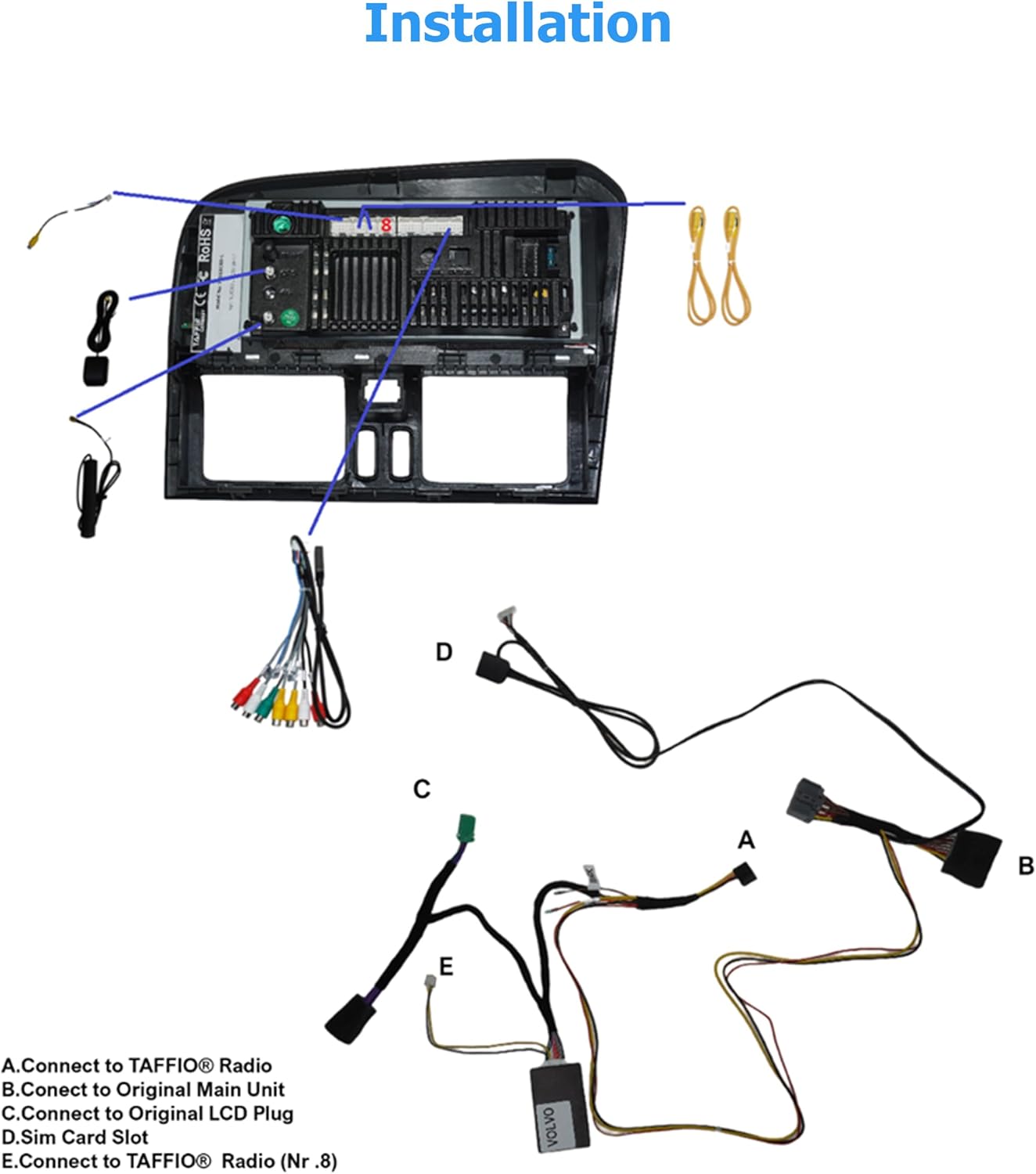
Figure 3.2: Installation diagram for the TAFFIO Android multimedia system.
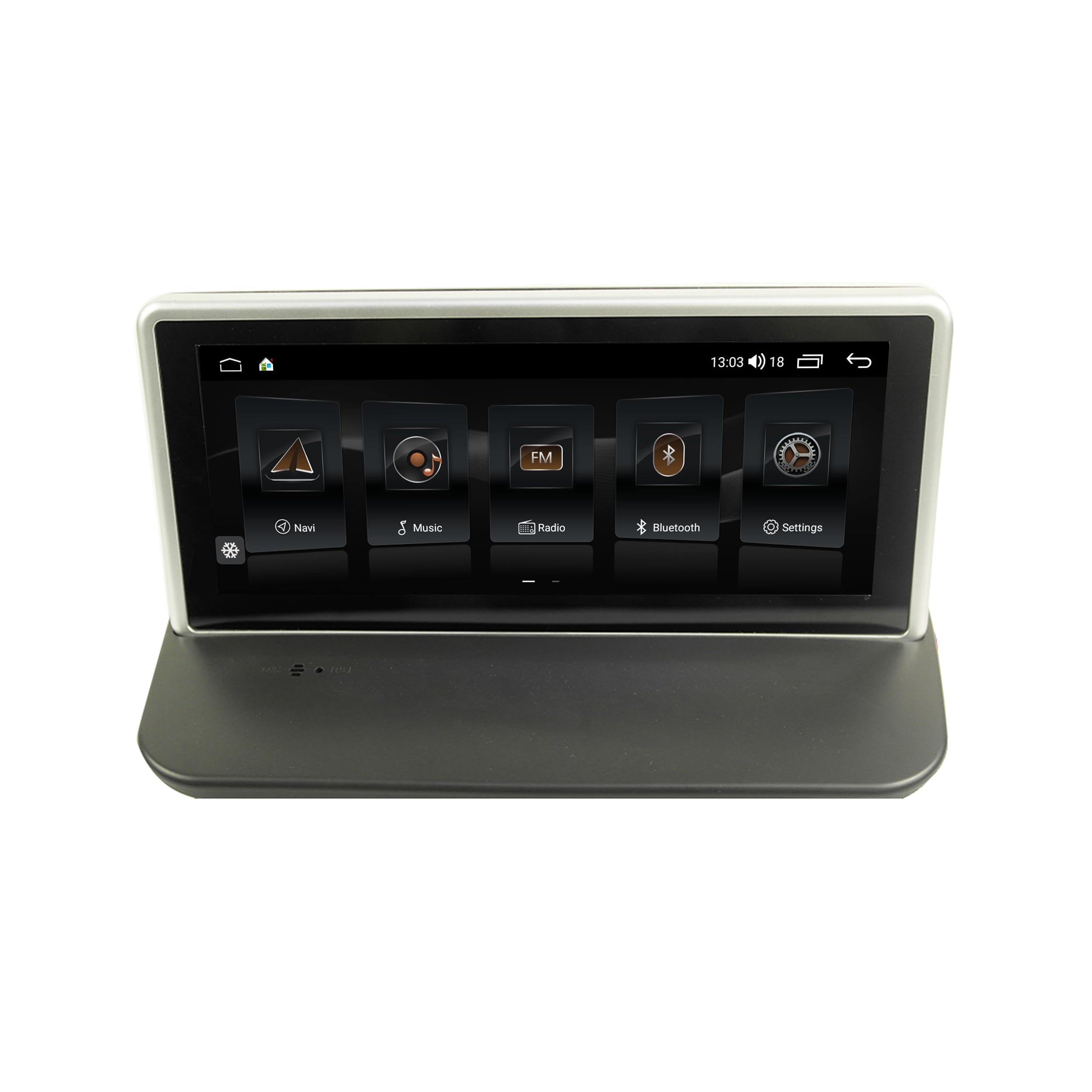
Figure 3.3: TAFFIO system installed in a Volvo dashboard, showing the main interface and rearview камера view.
4. Упутство за употребу
4.1 Укључивање и почетно подешавање
After installation, turn on your vehicle's ignition. The system will boot up, displaying the TAFFIO logo. The initial boot may take slightly longer. Follow any on-screen prompts for language selection and basic Android setup.
4.2 Кориснички интерфејс и навигација
The system features an intuitive user interface with a 3D graphical display. Control is primarily via the capacitive multitouch screen. You can also use the vehicle's original steering wheel controls, which are supported by the system.

Figure 4.1: Main menu of the TAFFIO Android system.

Figure 4.2: Android applications screen.
4.3 Повезивање
- Ви-Фи: Connect to available WLAN hotspots or your smartphone's hotspot for internet access. Navigate to Settings > Network & Internet > Wi-Fi.
- 4Г ЛТЕ: If a SIM card is installed, the system will automatically connect to the mobile network for internet access.
- Блуетоотх: Pair your mobile phone for hands-free calling and A2DP music streaming. Go to Settings > Connected devices > Pair new device. The system supports synchronization of phone book contacts.
- УСБ: Use the provided USB cables to connect external storage devices for music, pictures, and videos.
4.4 Навигација
The system comes with pre-installed GPS navigation map material and offers free lifetime updates. Access navigation through the dedicated 'Maps' or 'Navigation' app icon. The system supports 2-Zone function, allowing you to listen to radio or music while navigating.

Figure 4.3: Wireless Carplay navigation interface.
4.5 КарПлеј и Андроид Ауто
The system features integrated CarPlay and Android Auto functionality without requiring an additional adapter. Connect your compatible smartphone via USB or wirelessly (if supported by your phone and the system) to access these features.

Figure 4.4: Android Auto interface.
4.6 Мултимедијалне функције
- Радио: FM/AM tuner with RDS (Radio Data System) for displaying station names.
- Репродукција медија: Пустите музику, видео записе и view pictures from USB drives or internal storage.
- Екуализер: Customize audio settings with preset EQ modes (Pop, Classic, Rock, Jazz) or user-defined Bass/Treble/Balance controls.
- Back-Zone Function: Allows navigation on the front screen while passengers in the back can watch TV or video (requires additional rear displays).
4.7 Интеграција возила
The system supports various vehicle-specific functions:
- Контроле на волану: Retains original steering wheel control functionality.
- Vehicle Settings: Access and adjust certain vehicle settings through the system interface.
- Позадиview камера: Automatic switching to the rearview camera display when reversing.
- Day and Night Display: Automatic or manual adjustment of screen brightness for optimal visibility.

Figure 4.5: Vehicle personalization settings.
5. Одржавање
- Чишћење екрана: Use a soft, lint-free cloth to clean the touchscreen. For stubborn marks, lightly dampОбришите крпу водом или средством за чишћење екрана. Избегавајте абразивне материјале или јаке хемикалије.
- Ажурирања софтвера: Periodically check for software updates to ensure optimal performance and access to new features. Updates can typically be found through the system's settings or TAFFIO's official support channels.
- Општа нега: Избегавајте излагање уређаја екстремним температурама, директној сунчевој светлости током дужег периода или прекомерној влази.
КСНУМКС. Решавање проблема
This section addresses common issues you might encounter with your TAFFIO Android Navigation System.
| Проблем | Могући узрок | Решење |
|---|---|---|
| Нема напајања / Систем се не укључује | Неисправно ожичење; Прегорели осигурач; Проблем са акумулатором возила | Check all power connections. Verify vehicle fuses. Ensure vehicle battery is charged. |
| Нема звука | Volume too low; Mute activated; Incorrect audio output settings; Wiring issue | Increase volume. Check if mute is active. Verify audio settings. Inspect speaker wiring. Ensure AUX input is correctly configured if applicable. |
| Екран осетљив на додир не реагује или је нетачан | Software glitch; Screen dirty; Physical damage | Restart the system. Clean the screen. If issue persists, contact support. |
| ГПС сигнал је изгубљен или нетачан | GPS antenna obstructed or disconnected; Environmental interference | Уверите се да је GPS антена правилно повезана и да има јасан сигнал view неба. Пређите на отворен простор. |
| Проблеми са Блуетоотх везом | Device not in pairing mode; Interference; Software issue | Ensure both devices are in pairing mode. Restart both devices. Clear Bluetooth cache on phone. |
| CarPlay/Android Auto се не повезује | Incorrect USB cable; Phone software issue; System software issue | Use a high-quality USB data cable. Ensure phone's CarPlay/Android Auto settings are correct. Restart phone and system. |
| Контроле на волану не раде | CAN-BUS decoder not connected; Incorrect settings | Verify CAN-BUS decoder connection. Check system settings for steering wheel control configuration. |
If you encounter an issue not listed here or if the suggested solutions do not resolve the problem, please contact TAFFIO customer support for further assistance.
7. Спецификације
| Феатуре | Детаљ |
|---|---|
| Назив модела | TJ-S40 |
| Величина екрана | 10.25 инча |
| Оперативни систем | Андроид 10 |
| Процесор | Octa-Core 1.8Ghz CPU |
| РАМ | 4 ГБ |
| Интерна меморија | Фласх од 64 ГБ |
| Повезивање | Bluetooth, USB, Wi-Fi, 4G LTE (SIM card slot) |
| Посебне карактеристике | Touchscreen, Integrated CarPlay & Android Auto, GPS Navigation, RDS Radio, Rear Camera Input |
| Мап Типе | Worldwide (with free lifetime updates) |
| Режим аудио излаза | Стерео |
| Тип монтаже | Монтажа на контролној табли |
| Компатибилна возила | Volvo S40, C30, C70, V50 (2004-2013) |
8. Гаранција и подршка
8.1 Информације о гаранцији
Your TAFFIO 10.25-inch Touchscreen Android Navigation System comes with a 2-годишња гаранција произвођача. This warranty covers defects in materials and workmanship under normal use. Please retain your purchase invoice as proof of purchase for warranty claims.
The warranty does not cover damage caused by improper installation, misuse, accidents, unauthorized modifications, or normal wear and tear.
8.2 Корисничка подршка
For technical assistance, warranty claims, or any questions regarding your TAFFIO product, please contact TAFFIO customer support through the retailer where you purchased the device or visit the official TAFFIO webсајт за контакт информације.