
1. Увод
This manual provides instructions for the OUPARY 61-Key Wired RGB Gaming Mechanical Keyboard. This compact keyboard features mechanical red switches for a linear key feel, vibrant RGB backlighting, and a detachable USB-C cable for portability. It is designed for efficient operation and a responsive typing experience.
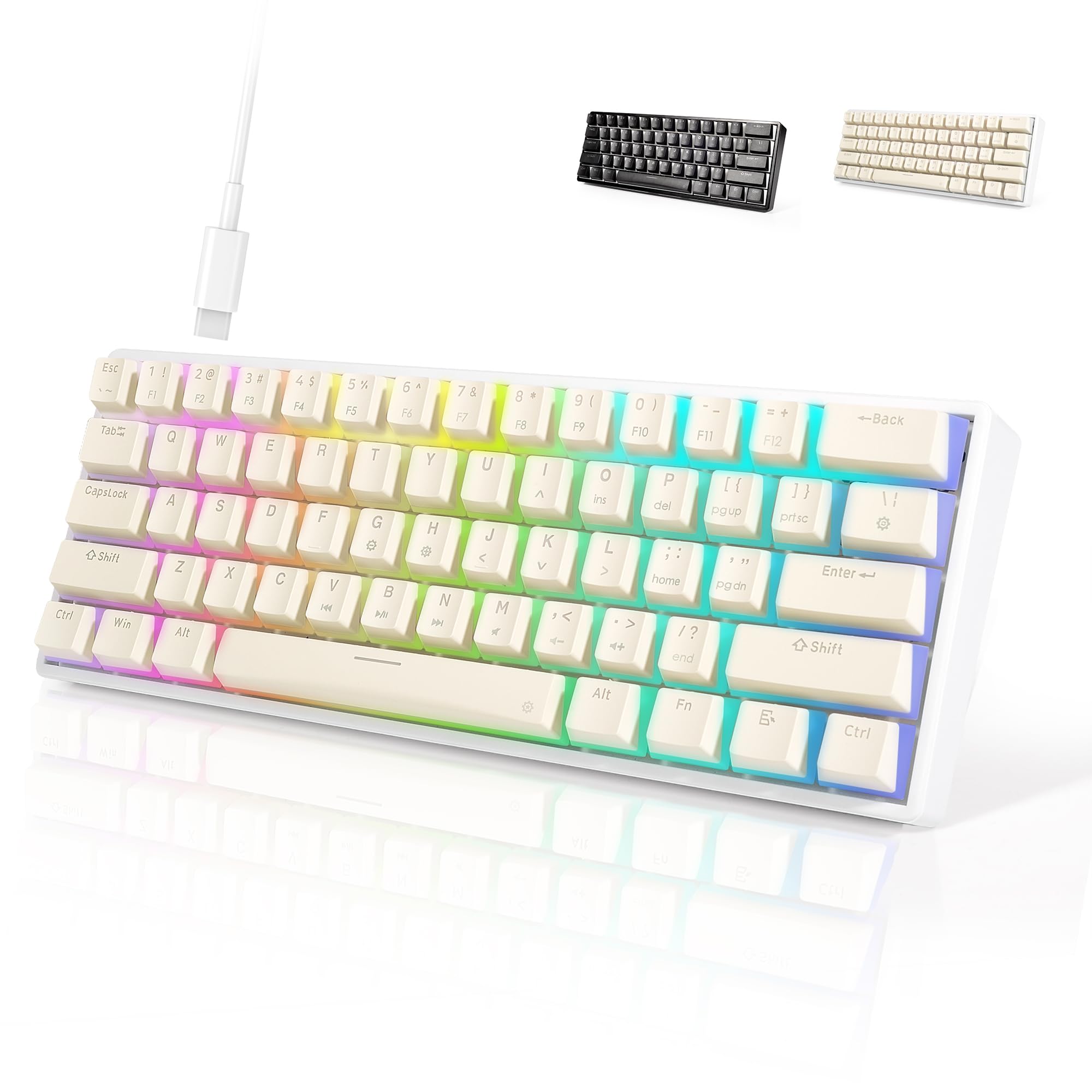
Image 1.1: The OUPARY 61-Key Wired RGB Gaming Mechanical Keyboard in a typical desktop setup.
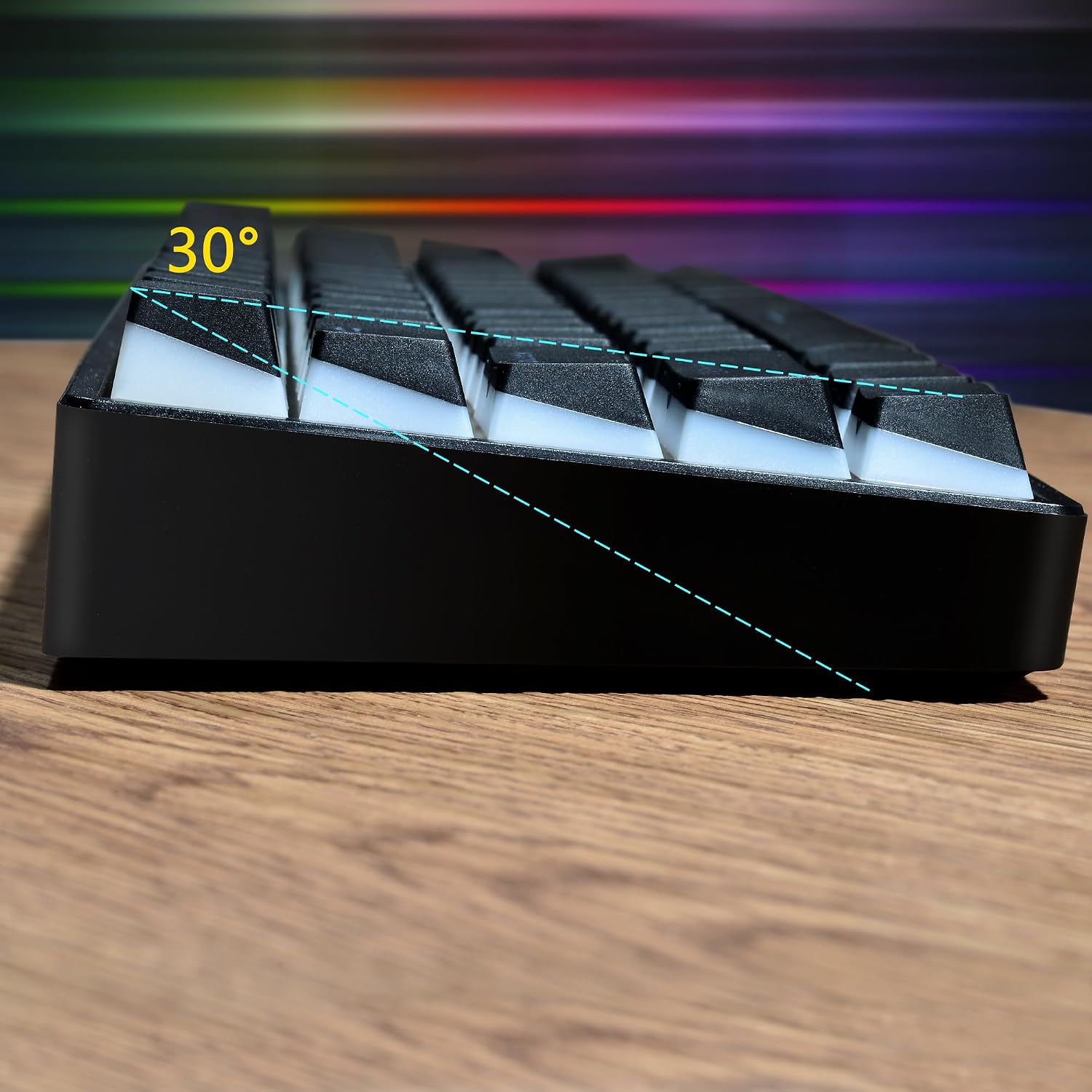
Слика 1.2: Бочни професионалацfile illustrating the ergonomic angle of the keyboard.
2. Садржај пакета
Проверите да ли су све ставке присутне у вашем пакету:
- OUPARY 61-Key Mechanical Keyboard
- УСБ-Ц кабл
- Кеицап Пуллер
- 4 Replacement Red Dot Switches
3. Подешавање
3.1 Повезивање тастатуре
The OUPARY 61-Key Mechanical Keyboard connects via a detachable USB-C cable. Follow these steps to connect your keyboard:
- Locate the USB-C port on the back or side of the keyboard.
- Повежите један крај приложеног USB-C кабла са USB-C портом тастатуре.
- Повежите други крај USB-C кабла са доступним USB портом на рачунару.
- Ваш оперативни систем ће аутоматски препознати тастатуру.

Image 3.1: Detachable USB-C cable connection for enhanced portability and stability.
3.2 Driver Support
This keyboard supports professional driver software for advanced customization. Please refer to the manufacturer's website for the latest driver downloads and instructions on how to install and use the software to configure macros, key assignments, and advanced RGB lighting effects.
4. Упутство за употребу
4.1 Basic Key Functions (61-Key Layout)
The 61-key layout is compact, utilizing the Fn (Function) key to access secondary functions. Common Fn key combinations include:
- Fn + [Number Row]: Accesses F1-F12 keys (e.g., Fn + 1 = F1, Fn + 2 = F2).
- Fn + [P, L, ;, /]: Often used for arrow keys (e.g., Fn + P = Up Arrow). Specific key mappings may vary; refer to keycap legends.
- Fn + [U, I, O, J, K, L]: Often used for Home, End, Page Up, Page Down, Insert, Delete. Specific key mappings may vary; refer to keycap legends.
- Фн + Бацкспаце: May function as Delete.
4.2 Прилагођавање RGB позадинског осветљења
The keyboard features a vibrant RGB backlight with multiple effects. You can customize colors, speed, and brightness using shortcut keys:
- Fn + [тастер]: Specific keys are designated for changing lighting modes, colors, brightness levels, and effect speeds. Consult the keycap legends for specific symbols or refer to the full driver software for detailed control.
- Common combinations include:
- Фн + \|: Cycle through lighting effects.
- Fn + [{ or }]: Подесите осветљеност.
- Fn + [; or ']: Adjust effect speed.
- Fn + [., /]: Change lighting direction or color.
4.3 Заштита од духова
The keyboard incorporates a full anti-ghosting mechanism. This ensures that every keypress is registered accurately, even when multiple keys are pressed simultaneously, which is beneficial for fast typing and intense gaming sessions.
5. Одржавање
5.1 Чишћење тастатуре
Да бисте одржали оптималне перформансе и изглед, редовно чистите тастатуру:
- Искључите тастатуру из рачунара пре чишћења.
- Користите бочицу компримованог ваздуха да бисте уклонили прашину и остатке између тастера.
- Обришите тастере и површину тастатуре меком, благо длакомamp крпа. Избегавајте прекомерну влагу.
- Не користите јаке хемикалије или абразивна средства за чишћење.
5.2 Замена тастера и прекидача
This keyboard features hot-swappable mechanical switches, allowing for easy replacement without soldering. Use the included keycap puller and switch puller for these procedures:
- Уклањање тастера: Use the keycap puller to gently grip and pull keycaps straight up.
- Уклањање прекидача: After removing the keycap, use the switch puller to grasp the clips on the top and bottom of the switch. Gently rock and pull the switch straight up to remove it from the PCB.
- Инсталирање прекидача: Поравнајте пинове новог прекидача са отворима на штампаној плочи. Чврсто притисните прекидач док не кликне на своје место. Уверите се да пинови нису савијени.
- Инсталирање тастатура: Поставите капицу тастера преко осовине прекидача и чврсто притисните док се не уклопи.
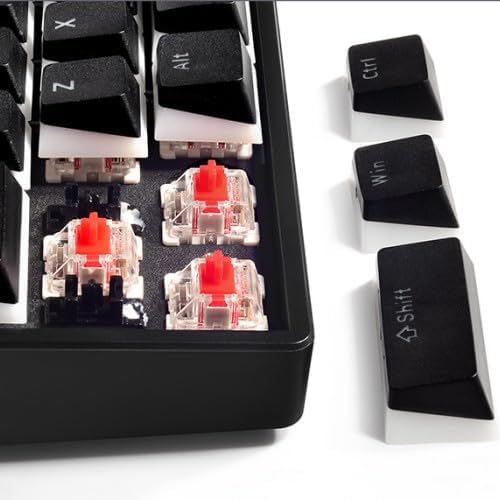
Слика 5.1: Крупни план view of the mechanical red switches and removable keycaps.
Напомена: This keyboard supports 3-pin mechanical switches. Ensure any replacement switches are compatible.
КСНУМКС. Решавање проблема
Ако имате проблема са тастатуром, погледајте следећа уобичајена решења:
- Тастатура не реагује:
- Уверите се да је USB-C кабл безбедно повезан и са тастатуром и са рачунаром.
- Покушајте да повежете тастатуру са другим УСБ портом на рачунару.
- Тестирајте тастатуру на другом рачунару да бисте искључили проблеме специфичне за систем.
- RGB Lights Not Working or Shut Off:
- Проверите кабловску везу.
- Try unplugging and re-plugging the keyboard.
- Ensure no lighting effects are set to 'off' or minimum brightness via shortcut keys or driver software.
- Perform a factory reset if available (consult driver software or manufacturer support for specific instructions).
- Keys Are Stuck or Not Registering:
- Искључите и поново укључите тастатуру.
- Remove the keycap and inspect the switch for any debris or damage. Clean if necessary.
- If a switch is faulty, replace it using the included spare switches and tools (refer to Section 5.2).
- Driver Software Issues:
- Ensure you have downloaded the correct and latest version of the driver software from the official OUPARY webсајту.
- Temporarily disable any antivirus or firewall software during installation if issues persist.
- Restart your computer after driver installation.
7. Спецификације

Image 7.1: Product dimensions of the OUPARY 61-Key Mechanical Keyboard.
| Феатуре | Детаљ |
|---|---|
| Бранд | ОУПАРИ |
| Модел | B0CSSZQFTX |
| Технологија повезивања | USB-C (жичани) |
| Опис тастатуре | Механички |
| Тип прекидача | Linear (Red Switches) |
| Број кључева | 61 |
| Keyboard Backlight Color Support | РГБ |
| Посебне карактеристике | Ergonomic, Anti-Ghosting, Detachable USB-C Cable, Hot-Swappable Switches |
| Компатибилни уређаји | PC |
| Боја | Бела |
| Материјал | Plastic (ABS/PBT possible) |
8. Гаранција и подршка
For warranty information, technical support, or further assistance, please refer to the documentation included with your purchase or visit the official OUPARY webсајт. Сачувајте доказ о куповини за потребе гаранције.