
1. Увод
The Vivitek NovoDS DS310 is a high-performance 4K digital signage player designed for creating dynamic visual displays in various environments, including corporate and public spaces. This device facilitates the integration of media files, rich text, webpages, and social media content into customizable configurations. The NovoDS solution offers convenient content updates via NovoDS Studio and DS Cloud, utilizing a drag-and-drop interface for layout customization and intuitive playlist editing, making it accessible for users of all technical skill levels.
2. Безбедносне информације
Пажљиво прочитајте и следите сва безбедносна упутства како бисте спречили оштећење уређаја или повреде. Сачувајте ово упутство за будуће потребе.
- Напајање: Use only the power adapter provided with the device. Ensure the power source matches the voltagе захтеве.
- вентилација: Не блокирајте вентилационе отворе. Обезбедите адекватан проток ваздуха око уређаја како бисте спречили прегревање.
- Окружење: Избегавајте излагање уређаја екстремним температурама, влази, прашини или директној сунчевој светлости.
- Чишћење: Искључите напајање пре чишћења. Користите меку, суву крпу. Не користите течна или аеросолна средства за чишћење.
- Сервисирање: Не покушавајте сами да сервисирате уређај. Све сервисирање препустите квалификованом особљу.
3. Садржај пакета
Проверите да ли су све ставке присутне у пакету:
- Vivitek NovoDS DS310 Digital Signage Player
- Повер Адаптер
- Ремоте Цонтрол
- Водич за брзи почетак
- Wi-Fi Antennas (x2)
4. Производ је готовview
Familiarize yourself with the components and ports of the NovoDS DS310 player.
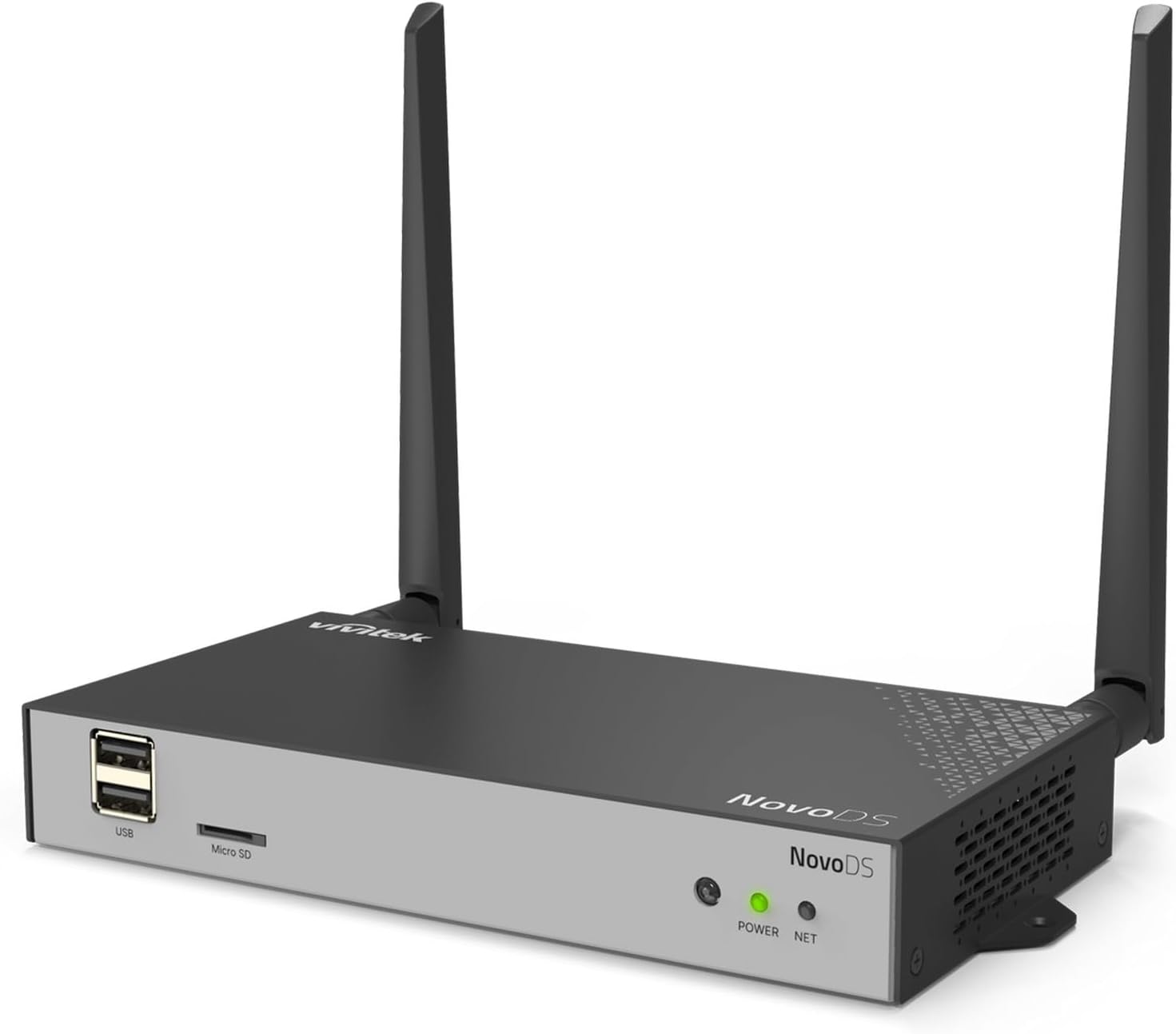
Слика 4.1: Overall front-left view of the Vivitek NovoDS DS310 player, showcasing its compact design with two Wi-Fi antennas, USB port, Micro SD slot, and status indicators.
4.1 Предња плоча

Слика 4.2: Детаљан предњи део view of the NovoDS DS310 player, clearly showing the USB ports, Micro SD slot, POWER indicator (green LED), and NET indicator (green LED).
- УСБ портови: Two USB-A ports for connecting USB storage devices, keyboards, mice, or other peripherals.
- Мицро СД слот: For inserting a Micro SD card to expand storage or load content.
- Индикатор снаге: A green LED that illuminates when the device is powered on.
- NET индикатор: A green LED that illuminates when the device has an active network connection (wired or wireless).
4.2 Задња плоча

Слика 4.3: Детаљан задњи део view of the NovoDS DS310 player, illustrating all available connectivity ports from left to right: LAN, HDMI-IN, HDMI-OUT, RS232, Type-C, Audio-IN, Audio-OUT, Reset button, and DC power input.
- ЛАН порт: RJ45 Ethernet port for a wired network connection.
- HDMI-IN: HDMI input for connecting an external video source to be displayed or integrated into signage content.
- HDMI-OUT: HDMI output for connecting the player to a display device (monitor, TV, projector).
- РС232: Serial port for advanced control and integration with external systems.
- Тип-Ц: USB Type-C port for data transfer or peripheral connection.
- AUDIO-IN: 3.5mm audio input jack.
- AUDIO-OUT: 3.5mm audio output jack for connecting external speakers or audio systems.
- Ресет: A small recessed button used to reboot the device or perform a factory reset.
- ДЦ ИН: Улазни порт за напајање за приложени адаптер за напајање.
4.3 бочна панела

Слика 4.4: Лева страна view of the NovoDS DS310 player, showing ventilation grilles and the GPIO port for custom integrations.
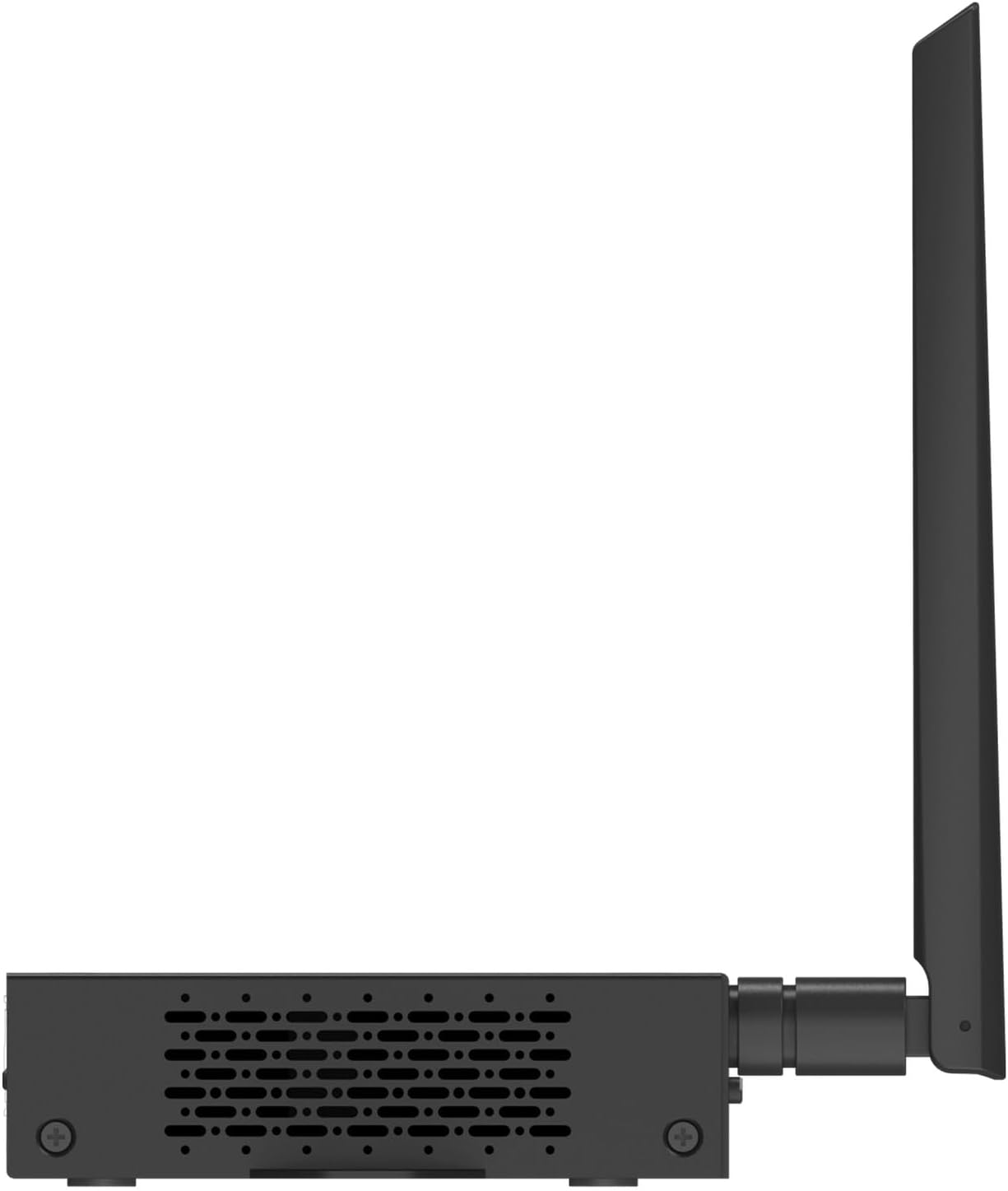
Слика 4.5: Десна страна view of the NovoDS DS310 player, showing ventilation grilles.
- ГПИО порт: General Purpose Input/Output terminal for connecting external sensors or control devices, enabling interactive signage solutions.
- Вентилационе решетке: Located on both side panels to ensure proper heat dissipation and maintain optimal operating temperature.
4.4 Врх View анд Моунтинг

Слика 4.6: Врх view of the NovoDS DS310 player, showing integrated mounting brackets for secure installation.
- Монтажни носачи: Integrated into the chassis for easy and secure installation on various surfaces or behind displays.
5. Упутства за подешавање
Follow these steps to set up your NovoDS DS310 player:
- Повежите антене: Screw the two Wi-Fi antennas onto the designated connectors on the rear of the device. Ensure they are securely fastened.
- Повежи се са екраном: Повежите један крај HDMI кабла са ХДМИ-ОУТ port on the NovoDS DS310 and the other end to an HDMI input on your display device (monitor, TV, projector).
- Мрежна конекција:
- Виред: Connect an Ethernet cable from your network router/switch to the ЛАН port on the NovoDS DS310.
- бежични: The device will prompt you to configure Wi-Fi during initial setup or you can configure it via the system settings.
- Укључено: Прикључите приложени адаптер за напајање на ДЦ ИН port on the NovoDS DS310, then plug the adapter into a power outlet. The POWER indicator will illuminate.
- Почетно покретање: The device will power on automatically and begin the boot process. Follow the on-screen instructions for initial configuration, including language selection and network setup.
6. Упутство за употребу
This section outlines basic operation of the NovoDS DS310 player.
6.1 Content Management with NovoDS Studio/Cloud
The NovoDS DS310 is managed using the NovoDS Studio software (for local management) or NovoDS Cloud service (for remote management). These platforms allow you to create, schedule, and deploy digital signage content.
- NovoDS Studio: Download and install the NovoDS Studio software on your computer. Connect the DS310 to the same local network as your computer. The software will detect the player, allowing you to upload content, design layouts, and manage playlists.
- NovoDS Cloud: Register your DS310 device with the NovoDS Cloud service. This enables remote content updates and management from any internet-connected location. Refer to the NovoDS Cloud documentation for detailed setup and usage.
6.2 Коришћење даљинског управљача
The included remote control allows for basic navigation and system settings adjustments on the connected display.
- Навигација: Use the arrow keys to move through menus and options.
- Select/OK: Потврдите изборе.
- Назад/Мени: Return to the previous screen or access the main menu.
- Волумен: Adjust audio output volume (if applicable).
6.3 USB and Micro SD Card Usage
Content can also be loaded directly onto the device via USB drives or Micro SD cards.
- Insert a USB drive into a УСБ порт or a Micro SD card into the Мицро СД слот.
- The system may automatically detect new content or you may need to navigate to the storage device through the system's file browser to import media.
7. Одржавање
Proper maintenance ensures the longevity and optimal performance of your NovoDS DS310.
- Чишћење: Regularly wipe the exterior of the device with a soft, dry, lint-free cloth. Do not use abrasive cleaners, solvents, or spray directly onto the device.
- вентилација: Ensure that the ventilation openings are clear of dust and obstructions. Periodically check for dust buildup and gently clean if necessary using compressed air.
- Ажурирања фирмвера: Check for and install firmware updates as recommended by Vivitek to ensure the device has the latest features and security enhancements. These updates are typically managed through NovoDS Studio or NovoDS Cloud.
- Складиштење: Ако уређај складиштите дуже време, искључите га из струје и чувајте га на хладном и сувом месту.
КСНУМКС. Решавање проблема
This section addresses common issues you might encounter with the NovoDS DS310.
| Проблем | Могући узрок | Решење |
|---|---|---|
| Нема струје | Power adapter not connected or faulty. Power outlet not working. | Ensure the power adapter is securely connected to the device and a working power outlet. Test the outlet with another device. |
| Нема излаза на екрану | HDMI cable loose or faulty. Incorrect input selected on display. | Check HDMI cable connections. Ensure the display is set to the correct HDMI input source. Try a different HDMI cable. |
| Нема мрежне везе | Ethernet cable disconnected. Wi-Fi not configured or out of range. Network issues. | For wired connection, check Ethernet cable. For Wi-Fi, ensure correct network is selected and password entered. Verify router/network functionality. |
| Content not updating | Network connectivity issues. Incorrect content schedule. Device not registered with NovoDS Studio/Cloud. | Verify network connection. Check content schedule in NovoDS Studio/Cloud. Ensure the device is properly registered and online in the management platform. |
| Уређај не реагује | Привремени софтверски квар. | Притисните тастер РЕСЕТ button briefly to reboot the device. If the issue persists, perform a factory reset (refer to advanced settings in NovoDS Studio/Cloud documentation). |
9. Спецификације
Technical specifications for the Vivitek NovoDS DS310.
| Феатуре | Детаљ |
|---|---|
| Бранд | Вивитек |
| Број модела | ДС310 |
| Резолуција | 4K |
| Капацитет меморије | 8 ГБ |
| Тип контролера | Ремоте Цонтрол |
| Димензије производа | Approximately 1 x 1 x 1 inches (actual dimensions may vary slightly from placeholder) |
| Тежина артикла | Отприлике 2 фунти |
| Повезивање | LAN, Wi-Fi, HDMI-IN, HDMI-OUT, USB, Micro SD, RS232, Type-C, Audio-IN, Audio-OUT, GPIO |
| УПЦ | 813097025746 |
10. Гаранција и подршка
For warranty information and technical support, please refer to the official Vivitek webсајт или директно контактирајте њихову корисничку службу. Детаљи о гарантним роковима и процедурама сервисирања обично су дати уз документацију о куповини или доступни на мрежи.
Vivitek Official Webсајт: ввв.вивитекцорп.цом
When contacting support, please have your product model (DS310) and serial number ready.