
1. Увод
Thank you for choosing the Sharp 50FQ5EG 50-inch QLED 4K Google TV. This manual provides essential information for setting up, operating, maintaining, and troubleshooting your new television. Please read it thoroughly before use and keep it for future reference.
Кључне карактеристике:
- 50-inch QLED 4K Ultra HD Display with 144 Hz Refresh Rate
- Google TV Operating System with Google Assistant and Chromecast built-in
- Harman/Kardon Hybrid Speaker System with Dolby Atmos
- Dolby Vision IQ, HDR10, HLG Support
- Multiple Connectivity Options: 4 x HDMI 2.1, 2 x USB, Bluetooth 5.3, Wi-Fi, Ethernet
- Frameless Aluminum Design
Укључене компоненте:
- Sharp 50FQ5EG Television
- Постоље
- Даљински управљач (потребне су 2 ААА батерије, укључене)
- Упутство за употребу
- Повер Цабле
2. Безбедносне информације
Да бисте осигурали безбедан рад и спречили оштећења, молимо вас да се придржавате следећих мера безбедности:
- Напајање: Connect the TV only to an AC 220V, 50Hz power outlet. Do not overload power outlets.
- вентилација: Обезбедите одговарајућу вентилацију око телевизора. Не блокирајте вентилационе отворе.
- Течност и влага: Do not expose the TV to rain, moisture, or dripping/splashing liquids. Do not place objects filled with liquids on the TV.
- Извори топлоте: Keep the TV away from heat sources such as radiators, heat registers, stoves, or other heat-producing appliances.
- Чишћење: Искључите телевизор из зидне утичнице пре чишћења. Користите меку, суву крпу. Не користите течна средства за чишћење или аеросолна средства за чишћење.
- Сервисирање: Не покушавајте сами да сервисирате овај производ. Све сервисирање препустите квалификованом сервисном особљу.
- деца: Supervise children to ensure they do not play with the TV or remote control.
3. Подешавање
3.1 Распакивање
Carefully remove the TV and all accessories from the packaging. Retain the packaging materials for future transport or servicing.
3.2 Attaching the Pedestal Stand
If you are not wall-mounting the TV, attach the included pedestal stand:
- Поставите телевизор лицем надоле на меку, равну површину да бисте спречили оштећење екрана.
- Поравнајте компоненте постоља са отворима за монтажу на дну телевизора.
- Причврстите постоље помоћу приложених завртња. Уверите се да је постоље чврсто причвршћено пре него што поставите телевизор усправно.

Слика: Крупни план view of the TV's pedestal stand and integrated Harman/Kardon speakers.
3.3 Монтажа на зид (опционо)
The Sharp 50FQ5EG supports VESA wall mounts with a standard of 200 к 200 мм. Use M6 screws (not included) with a length appropriate for your wall mount bracket. Consult a professional for wall mounting to ensure safety and proper installation.
3.4 Повезивање периферних уређаја
Connect your external devices to the TV's ports. The TV features 4 HDMI 2.1 ports, 2 USB ports, Ethernet, and an optical audio output.
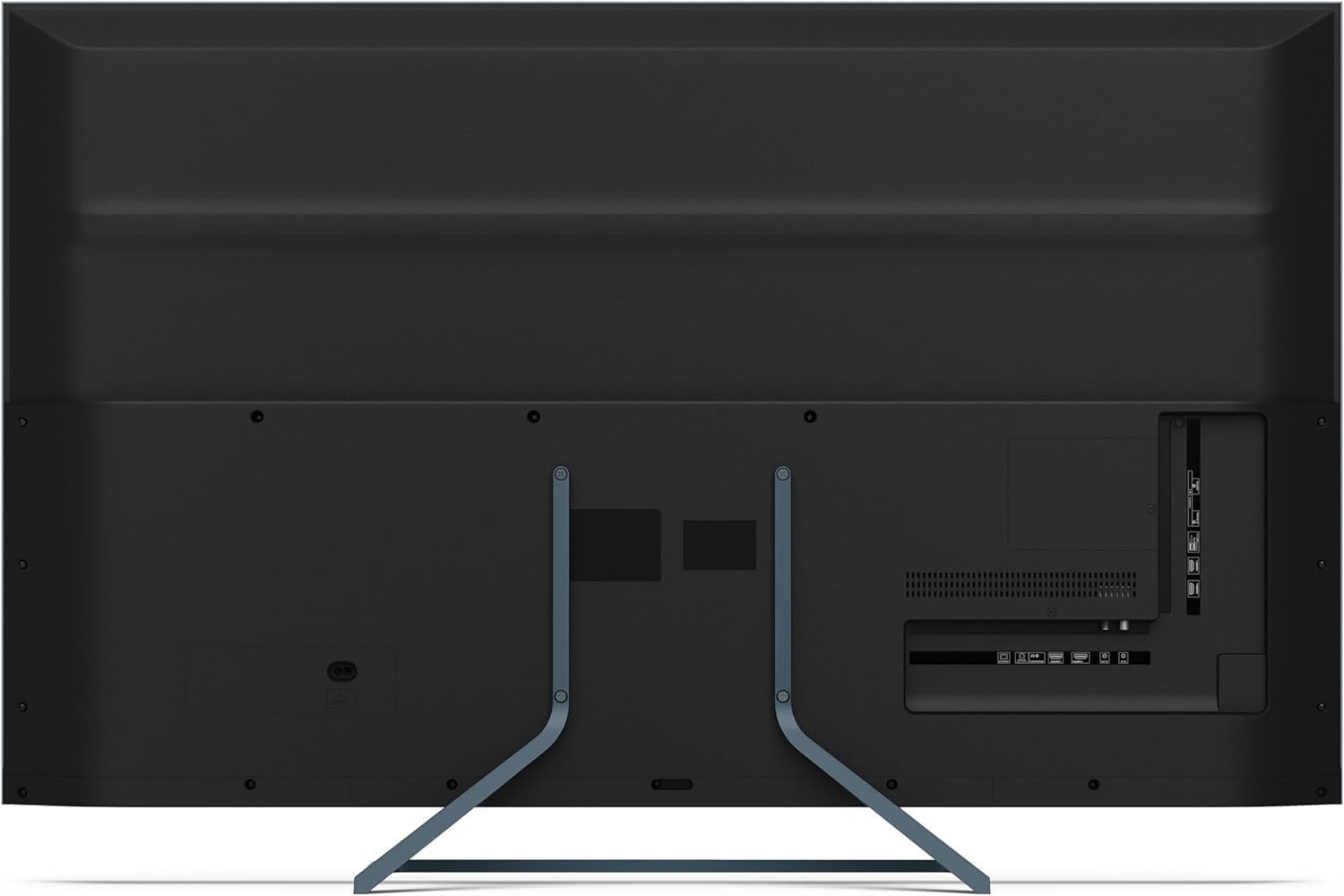
Слика: Позади view of the television displaying the arrangement of HDMI, USB, and other connectivity ports.
- ДВИ: Connect Blu-ray players, game consoles, or set-top boxes. HDMI 2.1 supports eARC and ALLM for enhanced audio and gaming.
- УСБ: Повежите УСБ уређаје за складиштење података за репродукцију медија.
- Етхернет: За жичану интернет везу.
- Снага: Прикључите кабл за напајање на телевизор, а затим на зидну утичницу.
3.5 Почетно укључивање и подешавање Google TV-а
- Укључите телевизор у електричну утичницу.
- Притисните дугме за напајање на даљинском управљачу или на телевизору.
- The TV will guide you through the initial setup process, including language selection, network connection (Wi-Fi or Ethernet), and Google account sign-in.
- Упаривање даљинског управљача: During initial setup, you may need to pair the Bluetooth remote control. Follow the on-screen instructions, typically involving pressing specific buttons on the remote simultaneously.
4. Управљање телевизором
4.1 Даљински управљач
The included remote control uses Bluetooth for enhanced functionality. It allows navigation, voice control via Google Assistant, and quick access to various features.
4.2 Интерфејс Google TV-а
The Google TV interface organizes your content from various streaming services and apps. Use the remote's directional pad to navigate through menus, select apps, and browse content.

Image: The television screen showing the Google TV home interface with recommended content and installed applications.
4.3 Подешавања слике
Your Sharp 50FQ5EG TV features advanced picture technologies:
- QLED Q-Colour: Provides vibrant and accurate color reproduction.
- 4К Ултра ХД: Пружа оштре и детаљне слике.
- Брзина освежавања од 144 Хз: Ensures smooth motion, especially beneficial for gaming and fast-paced content.
- Dolby Vision IQ, HDR10, HLG: Supports various High Dynamic Range formats for enhanced contrast and brightness.
- AQUOS Motion: Improves motion clarity by reducing blur.
- Eco Sensor: Аутоматски подешава осветљеност на основу услова амбијенталног осветљења.
Access picture settings through the TV's menu to customize brightness, contrast, color, and other display options.
4.4 Подешавања звука
The TV is equipped with a Harman/Kardon Hybrid Speaker System and supports Dolby Atmos for immersive audio.
- Harman/Kardon Speakers: Delivers clear sound with powerful bass.
- Долби Атмос: Provides a three-dimensional audio experience.
Adjust sound modes, equalizer settings, and volume levels via the TV's audio menu.
4.5 Повезивање
- Ви-Фи/Етернет: Повежите се на кућну мрежу за приступ интернету и стримовање.
- Блуетоотх КСНУМКС: Повежите бежичне слушалице, звучне панеле или друге уређаје који подржавају Bluetooth.
- Гоогле Цаст: Cast content from your mobile devices or computer directly to the TV.
4.6 Коришћење апликација
The Google TV platform provides access to a wide range of applications from the Google Play Store, including:
- Netflix, Amazon Prime Video, HBO, Disney+, Movistar+, DAZN, Atresmedia
- KODI, IPTV, Steamlink, Twitch, VLC, YouTube
- Puffin TV Browser, Spotify, Deezer, TuneIn Radio
Navigate to the 'Apps' section on the Google TV home screen to browse, download, and manage your applications.
5. Одржавање
5.1 Чишћење телевизора
- Екран: Нежно обришите екран меком крпом која не оставља влакна. За тврдокорне мрље, благо обришитеampОбришите крпу водом или специјализованим средством за чишћење екрана (нанесите на крпу, не директно на екран).
- Тело: Обришите оквир и постоље телевизора меком, сувом крпом.
- Немојте користити: Abrasive cleaners, alcohol, benzene, or thinners, as these can damage the TV's surface.
5.2 Ажурирања софтвера
Ваш телевизор може да добија ажурирања софтвера ради побољшања перформанси и додавања нових функција. Уверите се да је ваш телевизор повезан на интернет да би аутоматски добијао ова ажурирања или их ручно проверите у менију подешавања.
КСНУМКС. Решавање проблема
Ако наиђете на проблеме са телевизором, погледајте следеће уобичајене проблеме и решења:
| Проблем | Могуће решење |
|---|---|
| Но Повер | Проверите да ли је кабл за напајање безбедно повезан са телевизором и зидном утичницом. Уверите се да утичница има струје. Покушајте са другом утичницом. |
| Нема слике, али је звук присутан | Проверите извор улаза. Уверите се да су спољни уређаји укључени и правилно повезани. Покушајте са другим HDMI каблом. |
| Нема звука, али је слика присутна | Check the volume level. Ensure mute is not activated. Check audio output settings (e.g., internal speakers, external soundbar). |
| Даљински управљач не реагује | Replace the batteries. Ensure there are no obstructions between the remote and the TV. Re-pair the Bluetooth remote if necessary (refer to initial setup). |
| Не могу да се повежем са Wi-Fi мрежом | Проверите рутер и модем. Уверите се да је лозинка за Wi-Fi исправна. Покушајте да поново покренете телевизор и рутер. |
| Apps Not Working/Freezing | Ensure the TV has a stable internet connection. Try clearing the app's cache or reinstalling the app. Restart the TV. |
Ако проблем и даље постоји након што сте испробали ова решења, обратите се корисничкој подршци.
7. Спецификације

Image: Technical drawing illustrating the width, height, and depth of the television with and without its stand.
| Феатуре | Спецификација |
|---|---|
| Број модела | 50ФК5ЕГ |
| Величина екрана | 50 инча |
| Дисплаи Тецхнологи | QLED, LED |
| Резолуција | 4К Ултра ХД (3840 к 2160) |
| Рефресх Рате | 144 Хз |
| ХДР подршка | Dolby Vision IQ, HDR10, HLG |
| Оперативни систем | Гоогле ТВ |
| Аудио излаз | 2.1 Channel Harman/Kardon Speakers, 15W Max Power, Dolby Atmos |
| Повезивање | 4 x HDMI 2.1, 2 x USB 2.0, Bluetooth 5.3, Wi-Fi, Ethernet |
| ВЕСА стандард за монтажу | 200 к 200 мм |
| Димензије са постољем (Ш к В к Д) | 113.22 к 73.89 к 23.2 цм |
| Димензије без постоља (Ш к В к Д) | 113.22 к 66.87 к 6.0 цм |
| Тежина (без постоља) | 11.5 кг |
| Потрошња енергије (радна) | 84 Ваттс |
| Годишња потрошња енергије | 64 кВх/год |
| Контролни метод | Voice (Google Assistant), Remote Control |
| Боја | Anthracite Grey Aluminum |
8. Гаранција и подршка
8.1 Информације о гаранцији
This Sharp 50FQ5EG television comes with a Ограничена гаранција. Please refer to the warranty card included with your product or visit the official Sharp webсајт за детаљне услове и одредбе у вези са покрићем, трајањем и процедурама услуге.
8.2 Корисничка подршка
For technical assistance, troubleshooting beyond this manual, or warranty claims, please contact Sharp customer support. Contact details can typically be found on the Sharp official webсајту или у документацији коју сте добили уз телевизор.