
1. Увод
Thank you for choosing the A4TECH F.STYLER FBK11 Wireless Bluetooth Keyboard. This versatile keyboard offers dual connectivity modes (Bluetooth and 2.4 GHz wireless) and supports pairing with up to four devices simultaneously. It is designed for seamless use across various operating systems, including Windows, macOS, Android, and iOS. This manual provides detailed instructions to help you set up, operate, and maintain your new keyboard.

Слика 1: Предња страна view of the A4TECH F.STYLER FBK11 Wireless Bluetooth Keyboard, showcasinг његов компактан дизајн и распоред тастера.
2. Карактеристике производа
- Двоструко повезивање: Supports both Bluetooth and 2.4 GHz wireless modes for flexible connection options.
- Упаривање више уређаја: Connect and switch between up to 4 devices (3 via Bluetooth, 1 via 2.4G wireless) seamlessly.
- Мултимедијални интервентни тастери: Dedicated shortcut keys for quick access to media controls and other functions.
- Компатибилност са оперативним системом: Compatible with Windows, macOS, Chrome OS, Android, and iOS devices.
- Компактан и преносив дизајн: Lightweight and easy to carry for on-the-go productivity.
- Арапски/енглески распоред: Features a dual-language key layout for broader usability.
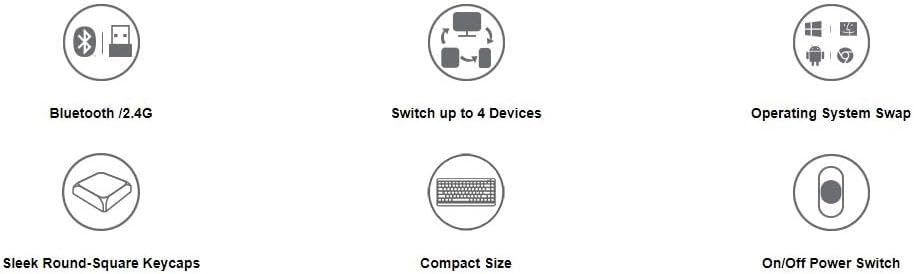
Figure 2: Visual representation of key features including Bluetooth/2.4G connectivity, multi-device switching, OS swap, sleek keycaps, compact size, and on/off power switch.
3. Садржај пакета
Молимо вас да проверите пакет за следеће ставке:
- A4TECH F.STYLER FBK11 Wireless Bluetooth Keyboard
- 2.4 GHz USB Nano пријемник
- 2 к ААА алкалне батерије
- Кориснички приручник (овај документ)

Figure 3: The keyboard shown with its included accessories: the USB receiver and two AAA batteries.
4. Подешавање
4.1. Инсталација батерије
- Пронађите одељак за батерију на доњој страни тастатуре.
- Отворите поклопац одељка за батерије.
- Insert the two AAA alkaline batteries, ensuring correct polarity (+/-).
- Добро затворите поклопац одељка за батерије.
4.2. Укључивање/искључивање
Slide the power switch, located on the top right edge of the keyboard, to the 'ON' position to power on the keyboard. Slide it to 'OFF' when not in use to conserve battery life.
5. Упутство за употребу
5.1. Режими повезивања
The FBK11 keyboard supports two connectivity modes: Bluetooth and 2.4 GHz wireless.
5.1.1. Бежична веза од 2.4 GHz
- Insert the 2.4 GHz USB Nano Receiver into an available USB port on your computer or device.
- Укључите тастатуру.
- The keyboard should automatically connect to the receiver. The 2.4G indicator light on the keyboard will illuminate briefly.
5.1.2. Блуетоотх веза
The keyboard can connect to up to three Bluetooth devices (BT1, BT2, BT3).
- Укључите тастатуру.
- Притисните и држите Fn key and then press one of the Bluetooth keys (БТ1, БТ2, или БТ3) for 3-5 seconds until the corresponding Bluetooth indicator light starts blinking rapidly. This indicates the keyboard is in pairing mode.
- На свом уређају (рачунару, таблету, паметном телефону) идите на подешавања Bluetooth-а и потражите нове уређаје.
- Select "A4TECH FBK11" or a similar name from the list of available devices.
- Follow any on-screen prompts to complete the pairing process. The indicator light will stop blinking and remain solid for a few seconds once connected.
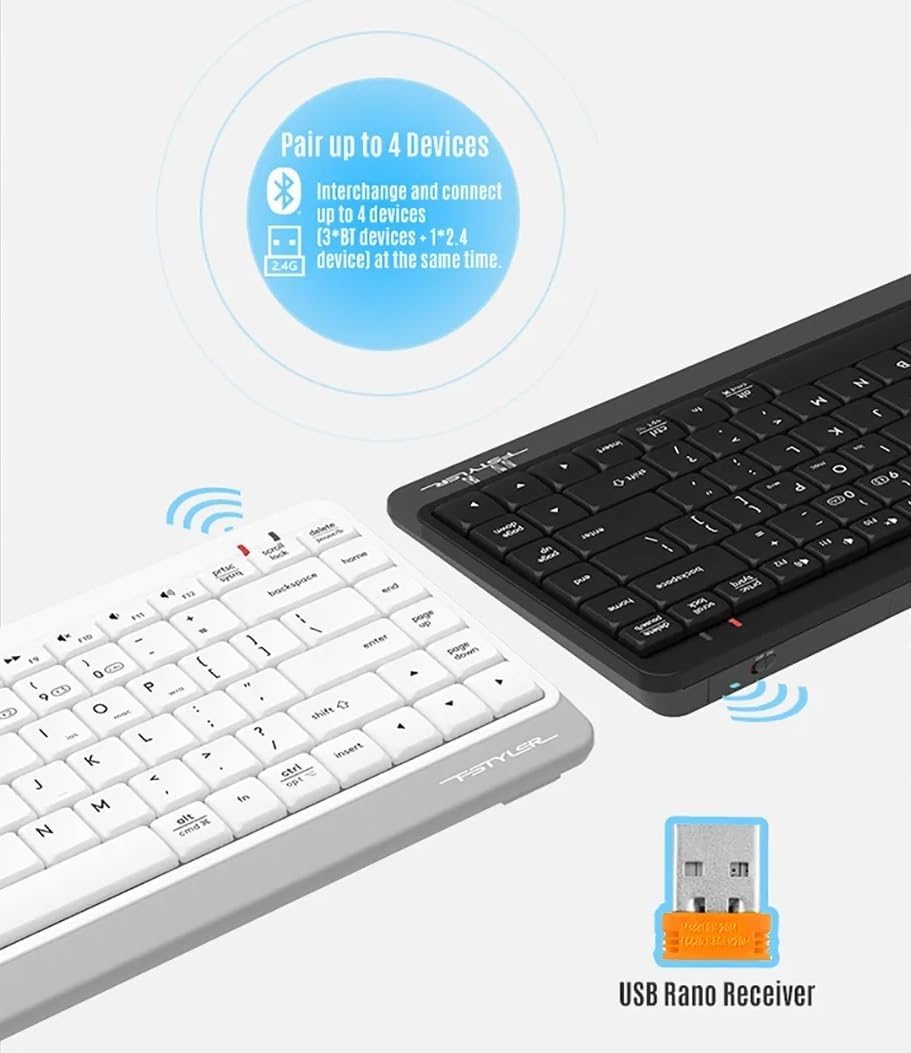
Figure 4: The keyboard demonstrating its dual connectivity options, including the USB Nano Receiver for 2.4G wireless and Bluetooth pairing capabilities.
5.2. Multi-Device Switching
Да бисте се пребацивали између повезаних уређаја:
- Притисните Fn + 2.4G to switch to the device connected via the 2.4 GHz USB receiver.
- Притисните Fn + BT1 to switch to the first Bluetooth-paired device.
- Притисните Fn + BT2 to switch to the second Bluetooth-paired device.
- Притисните Fn + BT3 to switch to the third Bluetooth-paired device.

Figure 5: Diagram illustrating how the keyboard can be paired with up to four different devices simultaneously, including a smartphone, tablet, laptop, and desktop computer.
5.3. Operating System Switching
The keyboard features dedicated keys to optimize its layout for different operating systems:
- Притисните Фн + К for Android/iOS mode.
- Притисните Фн + В for Windows mode.
- Притисните Фн + Е for macOS mode.
5.4. Multimedia Hotkeys and FN Lock Mode
The keyboard includes 12 multimedia and internet hotkeys (F1-F12) that can be accessed directly or by using the Fn key.

Слика 6: Завршеноview of the keyboard's main functions, highlighting FN Locking Mode, Multimedia & Internet Hotkeys, Multi-Device Switch, Operating System Swap, and PC/MAC Dual-Function Keys.
5.4.1. FN Lock Mode
By default, after pairing, the FN shortcut is locked in FN mode. This means you can use the multimedia functions (F1-F12) directly without pressing the Fn key.
- Закључај Фн режим: No need to press the Fn key for multimedia functions.
- Откључај Фн режим: Притисните Фн + ЕСЦ to switch back to standard F1-F12 key functions, requiring the Fn key to access multimedia shortcuts.
The locking FN mode is memorized when switching devices and shutting down.

Figure 7: Detailed explanation of how to lock and unlock the FN mode, allowing direct access to multimedia functions.
КСНУМКС. Решавање проблема
| Проблем | Могући узрок | Решење |
|---|---|---|
| Тастатура не реагује | Low battery; Keyboard is off; Incorrect connection mode; Device Bluetooth is off. | Replace batteries; Turn on keyboard; Switch to correct connection mode (2.4G/BT1/BT2/BT3); Enable Bluetooth on your device. |
| Не могу да упарим преко Bluetooth-а | Keyboard not in pairing mode; Device is too far; Interference. | Ensure keyboard is in pairing mode (blinking light); Move keyboard closer to device; Remove potential sources of interference. |
| 2.4G connection issues | USB receiver not properly inserted; Interference. | Re-insert USB receiver; Try a different USB port; Move keyboard closer to receiver; Remove potential sources of interference. |
| Мултимедијални тастери не раде | FN Lock mode is off. | Притисните Фн + ЕСЦ to toggle FN Lock mode. |
7. Спецификације
- Модел: ФБК11
- Повезивање: Блутут 5.0, бежични 2.4 GHz
- Радни опсег: До 10 метара (33 стопе)
- Тип батерије: 2 к ААА алкалне батерије
- Материјал: Пластика
- Боја: Црно
- Димензије: Приближно 36.1 к 15.3 к 4.4 цм
- Тежина: Отприлике 363 грама
- Компатибилни ОС: Windows, macOS, Chrome OS, Android, iOS
- Посебне карактеристике: Lightweight, Portable, Multi-functional, Multi-device support
8. Одржавање
- Чишћење: Use a soft, dry cloth to clean the keyboard. For stubborn dirt, a slightly damp Може се користити крпа, али водите рачуна да влага не уђе у тастатуру.
- Складиштење: Чувајте тастатуру на хладном и сувом месту, даље од директне сунчеве светлости и екстремних температура.
- Одржавање батерије: Извадите батерије ако се тастатура неће користити дуже време како бисте спречили цурење.
- Избегавајте течности: Do not expose the keyboard to water or other liquids.
- Пажљиво рукујте: Избегавајте испуштање или излагање тастатуре јаким ударцима.
9. Гаранција и подршка
This product comes with a standard manufacturer's warranty. For detailed warranty terms and conditions, please refer to the warranty card included with your purchase or contact your local A4TECH distributor or retailer.
For technical support, troubleshooting assistance, or inquiries about your A4TECH F.STYLER FBK11 keyboard, please visit the official A4TECH website or contact their customer service department. Contact information can typically be found on the product packaging or the A4TECH webсајту.