
ZEUSLAP ZL P16KT
Zeuslap P16KT 16-inch Portable Touch Monitor User Manual
Model: ZL P16KT | Brand: ZEUSLAP
1. Увод
This manual provides comprehensive instructions for the setup, operation, maintenance, and troubleshooting of your Zeuslap P16KT 16-inch Portable Touch Monitor. Designed for versatility, this monitor features a 2560x1600 resolution, 144Hz refresh rate, ADS-IPS panel with 100% sRGB color gamut, 500 Cd/m² brightness, and touch functionality, making it ideal for various applications including work, gaming, and multimedia consumption on the go.

Figure 1.1: Zeuslap P16KT Portable Monitor showcasing its 2.5K resolution, 144Hz refresh rate, 16-inch size, 100% sRGB, and touch capabilities.
2. Водич за подешавање
Follow these steps to set up your Zeuslap P16KT portable monitor.
2.1 Садржај пакета
- Zeuslap P16KT Portable Monitor
- УСБ-Ц на УСБ-Ц кабл
- Mini-HDMI to HDMI Cable
- Power Adapter (if included, or use a compatible USB-C power source)
- Protective Cover/Stand
2.2 Повезивање монитора
The Zeuslap P16KT offers versatile connectivity options. Ensure your device supports video output over USB-C (DisplayPort Alternate Mode) or HDMI.
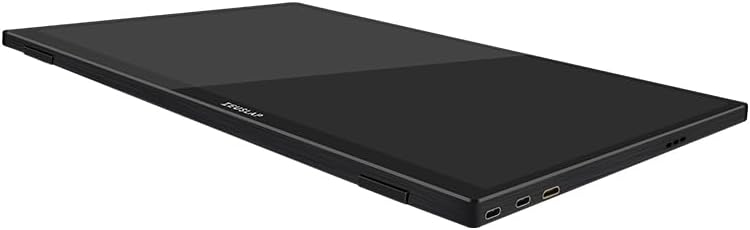
Слика 2.1: Бочни професионалацfile of the Zeuslap P16KT monitor, highlighting the USB-C and Mini-HD input ports.
- Прикључак за напајање: Connect the monitor to a power source using one of the USB-C ports and a compatible power adapter (5V/3A or higher recommended). The monitor can also draw power directly from a connected device if it provides sufficient power via USB-C.
- USB-C Connection (Full Feature): For devices with a full-featured USB-C port (supporting video, audio, power, and touch data), connect one end of the provided USB-C to USB-C cable to the monitor's USB-C port and the other end to your device's USB-C port. This single cable can provide power, video, and enable touch functionality.
- Mini-HDMI Connection: For devices with an HDMI output, connect one end of the Mini-HDMI to HDMI cable to the monitor's Mini-HD port and the other end to your device's HDMI port. Note: When using Mini-HDMI, a separate USB-C connection for power and touch functionality (if desired) is required.
- USB-A Connection (for Touch): If using Mini-HDMI for video, connect a USB-A to USB-C cable from your device's USB-A port to the monitor's USB-C port to enable touch functionality.

Слика 2.2: Задња страна view of the Zeuslap P16KT, indicating the location of Mini-HD, Type-C ports, USB port, and OSD control buttons.
2.3 Using the Protective Cover as a Stand
The included protective cover can be folded to serve as a stand, allowing you to position the monitor at various viewинг углова.
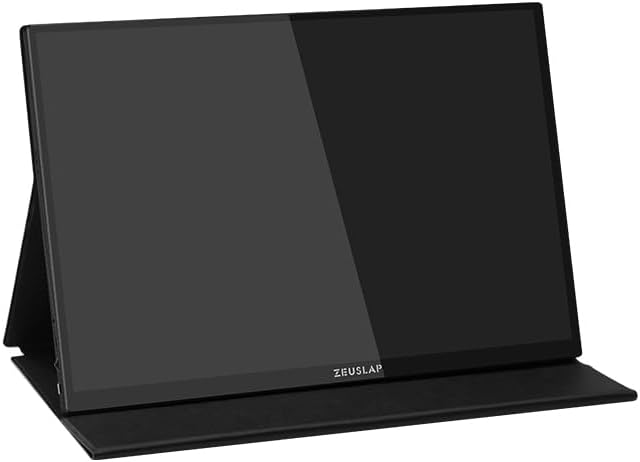
Figure 2.3: The Zeuslap P16KT monitor positioned using its multi-functional protective cover as a stable stand.
3. Упутство за употребу
Learn how to operate your Zeuslap P16KT monitor and utilize its features.
3.1 Укључивање/искључивање
Once connected to a power source and a video input, the monitor should automatically power on. To manually power off, press and hold the power button (usually integrated with the OSD joystick/button) for a few seconds.
3.2 Приказ на екрану (ОСД) мени
The OSD menu allows you to adjust various display settings. The OSD controls are typically located on the side or back of the monitor.
- Accessing OSD: Press the OSD button/joystick to bring up the menu.
- Навигација: Користите џојстик или дугмад за смер да бисте се кретали кроз опције менија.
- Избор: Press the OSD button/joystick to select an option.
- Излаз: Navigate to the 'Exit' option or press the back button to close the OSD menu.
Common OSD settings include Brightness, Contrast, Color Temperature, Input Source, Aspect Ratio, and Refresh Rate (e.g., switching between 144Hz and 120Hz if supported by your device).
3.3 Функционалност додира
The Zeuslap P16KT features a responsive touch screen. Ensure the touch connection (via USB-C or separate USB-A to USB-C cable) is properly established with your device.
- Виндовс ОС: Touch functionality should be plug-and-play. If not, check device manager for HID-compliant touch screen drivers.
- мацОС: macOS does not natively support touch input for external monitors. Third-party drivers may be available but are not officially supported.
- Android/Smartphones: Touch functionality depends on the phone's support for external touch displays via USB-C. Some phones may require specific settings or apps.
4. Одржавање и њега
Правилна нега осигурава дуготрајност и оптималне перформансе вашег монитора.
- Чишћење екрана: Нежно обришите екран меком крпом која не оставља влакна. За тврдокорне мрље, лагано дрхтајтеampОперите крпу водом или неабразивним средством за чишћење екрана. Не прскајте течност директно на екран.
- Чишћење Цasing: Користите меку, суву крпу за чишћење површине монитораasinг. Избегавајте јаке хемикалије или абразивне материјале.
- Складиштење: Када се не користи, чувајте монитор у заштитној футроли на хладном и сувом месту, даље од директне сунчеве светлости и екстремних температура.
- Руковање: Монитор увек држите за ивице. Избегавајте притискање екрана.
КСНУМКС. Решавање проблема
Овај одељак се бави уобичајеним проблемима на које можете наићи.
| Проблем | Могући узрок | Решење |
|---|---|---|
| Нема дисплеја/порука „Нема сигнала“ | Incorrect input source selected; Loose cable connection; Insufficient power; Device not outputting video. | Check all cable connections (USB-C, Mini-HDMI). Ensure the monitor is receiving adequate power. Use the OSD menu to select the correct input source. Verify your device's video output settings. |
| Функција додира не ради | USB-C cable not full-featured; Separate USB cable for touch not connected; Device driver issue; Operating system limitation. | Ensure you are using a full-featured USB-C cable or have connected the separate USB-A to USB-C cable for touch data. Check device manager for touch screen drivers. Note that macOS does not natively support external touch displays. |
| Monitor frequently disconnects or flickers | Insufficient power; Faulty cable; Overheating. | Ensure the monitor is connected to a stable power source with sufficient wattage. Try a different USB-C or HDMI cable. Ensure adequate ventilation around the monitor. |
| Cannot connect to phone | Phone does not support DisplayPort Alternate Mode over USB-C; Phone requires specific settings. | Verify your phone's USB-C port supports video output. Some Android phones may require enabling 'Desktop Mode' or similar settings. Consult your phone's manual. |
| Image is distorted or incorrect resolution | Incorrect display settings on connected device. | Adjust the display resolution on your connected device to 2560x1600. Ensure the refresh rate is set correctly (e.g., 144Hz or 120Hz). |
6. Спецификације
Detailed technical specifications for the Zeuslap P16KT Portable Monitor.
| Феатуре | Детаљ |
|---|---|
| Бранд | ЗЕУСЛАП |
| Назив модела | ZL P16KT |
| Величина екрана | 16 инча |
| Резолуција екрана | 2560 x 1600 пиксела (2K) |
| Панел Типе | ADS-IPS |
| Рефресх Рате | 144Хз |
| Гамут боја | 100% сРГБ |
| Осветљеност | 500 Cd/m² |
| Технологија повезивања | USB Type-C, Mini-HD |
| Посебна карактеристика | Portable, Touchscreen |
| Компатибилни уређаји | Desktop, Laptop, Smartphone |
| Димензије производа | 0.5 к 35.5 к 23.2 цм |
| Боја | Црно |
| Први доступан датум | 27. фебруара 2024. године |
7. Гаранција и подршка
For warranty information and technical support, please refer to the documentation included with your purchase or visit the official ZEUSLAP webсајт. Сачувајте доказ о куповини за потребе гаранције.
If you encounter issues not covered in this manual, please contact ZEUSLAP customer service for assistance.
Ask a question about this manual
Ask about setup, troubleshooting, compatibility, parts, safety, or missing instructions. Manuals+ will review the question and use this page’s manual context to help answer it.