
1. Увод
Thank you for choosing the Mecer 23.8 Inch Full HD LED Monitor. This manual provides essential information for setting up, operating, and maintaining your monitor. Please read it thoroughly before use to ensure proper functionality and longevity of your device.
This monitor features a 23.8-inch Full HD (1920 x 1080) display, offering crisp and clear visuals. It incorporates TFT LED panel technology for energy efficiency and vibrant colors, with a 16:9 aspect ratio suitable for widescreen viewing. Connectivity options include VGA and HDMI, making it compatible with various devices. Built-in speakers provide basic audio, and wide 178° viewing angles ensure comfortable use. With a 2ms response time, it is suitable for general computing and multimedia consumption.
2. Безбедносне информације
- Извор напајања: Користите само адаптер за напајање који се испоручује са монитором. Уверите се да је утичница правилно уземљена.
- вентилација: Не блокирајте вентилационе отворе. Оставите довољно простора око монитора за правилан проток ваздуха како бисте спречили прегревање.
- Пласман: Place the monitor on a stable, flat surface. Avoid placing it in direct sunlight, near heat sources, or in environments with excessive dust or humidity.
- Чишћење: Disconnect the power cord before cleaning. Use a soft, dry cloth for the screen and a slightly damp cloth for the casinг. Избегавајте употребу абразивних средстава за чишћење или растварача.
- Изложеност течности: Keep liquids away from the monitor. If liquid enters the monitor, disconnect power immediately and contact qualified service personnel.
- Растављање: Не покушавајте сами да растављате или поправљате монитор. Све сервисне радове препустите квалификованом сервисеру.
3. Садржај пакета
Молимо вас да проверите садржај пакета како бисте били сигурни да су сви предмети присутни:
- Mecer 23.8 Inch LED Monitor
- Постоље за монитор (база и врат)
- Адаптер за напајање и кабл
- ХДМИ кабл
- ВГА кабел
- Кориснички приручник (овај документ)
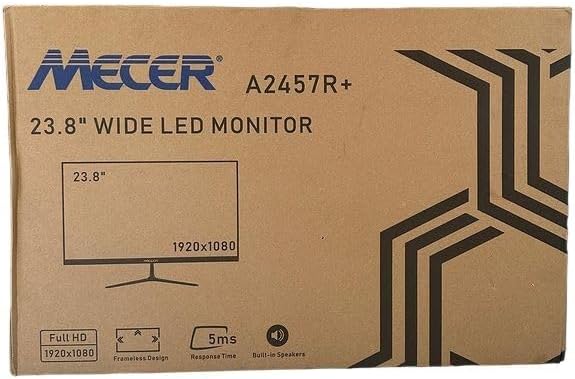
Слика 3.1: The monitor packaging box, indicating the model A2457R+ and key features like 23.8" display, Full HD 1920x1080 resolution, frameless design, 5ms response time, and built-in speakers.
4. Подешавање
4.1. Склапање постоља за монитор
- Пажљиво извадите компоненте монитора и постоља из паковања.
- Причврстите врат постоља на панел монитора тако што ћете поравнати језичке и чврсто притиснути док не кликне на место.
- Attach the stand base to the stand neck, securing it with the provided screw (usually hand-tightened).
- Поставите састављени монитор на стабилну, равну површину.

Слика 4.1: Фронт view of the Mecer 23.8 Inch LED Monitor with its stand assembled, ready for connection.
4.2. Повезивање са рачунаром
The monitor supports both HDMI and VGA connections. Choose the appropriate cable for your computer.
- ХДМИ веза: Connect one end of the HDMI cable to the HDMI port on your computer's graphics card and the other end to the HDMI port on the monitor. HDMI transmits both video and audio signals.
- ВГА конекција: Connect one end of the VGA cable to the VGA port on your computer's graphics card and the other end to the VGA port on the monitor. VGA transmits only video signals.

Слика 4.2: Позади view of the Mecer 23.8 Inch LED Monitor, showing the input ports including HDMI and VGA, as well as the power input.
4.3. Прикључак за напајање
- Connect the power adapter cable to the DC IN port on the back of the monitor.
- Укључите адаптер за напајање у зидну утичницу.
5. Упутство за употребу
5.1. Укључивање/искључивање
Press the power button, typically located on the bottom right side or rear of the monitor, to turn the monitor on or off. The power indicator light will illuminate when the monitor is on.
5.2. Избор извора улаза
If you have multiple devices connected, you may need to manually select the input source. Use the monitor's control buttons (usually located near the power button) to navigate to the input selection menu and choose between HDMI or VGA.
5.3. Он-Сцреен Дисплаи (ОСД) мени
The OSD menu allows you to adjust various display settings. Use the monitor's control buttons to:
- Приступите ОСД менију.
- Navigate through menu options (e.g., Brightness, Contrast, Color Settings, Input Source).
- Adjust values or select options.
- Изађите из менија на екрану.
Уобичајена подесива подешавања укључују:
- Осветљеност/контраст: Подесите укупну осветљеност и разлику између светлих и тамних подручја.
- Подешавања боја: Adjust color temperature, RGB values, or select preset color modes.
- Размера: Change between 16:9, 4:3, or other available options.
- аудио: Adjust volume for the built-in speakers.
5.4. Уграђени звучници
The monitor includes built-in speakers for basic audio output. If using an HDMI connection, audio will be transmitted automatically. For VGA connections, ensure your computer's audio output is configured correctly. Adjust the volume through the OSD menu or your computer's operating system.
6. Одржавање
6.1. Чишћење монитора
- Увек искључите монитор из утичнице пре чишћења.
- Екран: Нежно обришите екран меком крпом која не оставља влакна. За тврдокорне мрље, лагано дampen the cloth with water or a specialized screen cleaner (ensure it's alcohol-free and ammonia-free) and wipe carefully. Do not spray liquid directly onto the screen.
- Casing: Користите меку, суву крпу да обришете монитор casinг. Ако је потребно, мало дamp Може се користити крпа, а затим сува крпа.
6.2. Складиштење
Ако складиштите монитор дуже време, искључите све каблове, спакујте га у оригинално паковање (ако је доступно) и чувајте га на хладном и сувом месту, даље од директне сунчеве светлости и екстремних температура.
КСНУМКС. Решавање проблема
Ако наиђете на проблеме са монитором, погледајте следеће уобичајене проблеме и решења:
- Нема напајања:
- Уверите се да је кабл за напајање безбедно повезан са монитором и зидном утичницом.
- Проверите да ли утичница функционише тако што ћете укључити други уређај.
- Проверите да ли адаптер за напајање исправно ради.
- Нема сигнала:
- Уверите се да је видео кабл (HDMI или VGA) безбедно повезан и са монитором и са рачунаром.
- Проверите да ли је на монитору изабран исправан улазни извор (преко OSD менија).
- Check if your computer is powered on and outputting a video signal.
- Пробајте други видео кабл ако је доступан.
- Слика је мутна или изобличена:
- Уверите се да је резолуција монитора подешена на нативну резолуцију (1920 x 1080) у подешавањима екрана вашег рачунара.
- Adjust the monitor's OSD settings for brightness, contrast, and sharpness.
- For VGA connections, use the 'Auto Adjust' function in the OSD menu if available.
- Нема звука из уграђених звучника:
- Ensure the monitor's volume is not muted or set too low in the OSD menu.
- Check your computer's audio output settings to ensure the monitor is selected as the playback device.
- If using VGA, ensure your computer's audio is routed to an external speaker system, as VGA does not carry audio.
8. Спецификације
| Феатуре | Спецификација |
|---|---|
| Бранд | Mecer |
| Број модела | А2457Р+ |
| Величина екрана | 23.8 инча |
| Резолуција | 1920 к 1080 пиксела (Фулл ХД) |
| Дисплаи Типе | LED (TFT LED Panel) |
| Аспецт Ратио | 16:9 |
| Време одговора | 2 милисекунди |
| Рефресх Рате | 75 Хз |
| Viewинг Англес | 178° хоризонтално / 178° вертикално |
| Повезивање | 1к ХДМИ, 1к ВГА |
| Уграђени звучници | Да |
| Боја | Црно |
| Димензије производа (Д x Ш x В) | 560D x 42W x 410H millimetres |
| Посебне карактеристике | High performance intelligent multi-frequency scanning, Micro Computer digital technology control, no radiation, no glare, Comply with VESA DPMS international power saving regulation, Support DDC 1/2B and Windows PNP Plug and Play |
9. Гаранција и подршка
This Mecer monitor comes with a 1 година ограничене гаранције од датума куповине. Молимо вас да сачувате доказ о куповини за потребе гаранције.
For technical support, service, or warranty inquiries, please contact your retailer or the authorized Mecer service center in your region. Do not attempt to repair the product yourself, as this may void your warranty.