This manual provides comprehensive instructions for the YQSAVIOR Kids Tablet, model YQQ1K. It covers setup, operation, maintenance, and troubleshooting to ensure a safe and optimal user experience. Please read this manual thoroughly before using the device.
Садржај пакета
Након отварања пакета, проверите да ли су сви састојци присутни:
YQSAVIOR Kids Tablet (Pink, Model YQQ1K)
Protective Silicone Case (pre-installed)
УСБ кабл за пуњење
Кориснички приручник (овај документ)
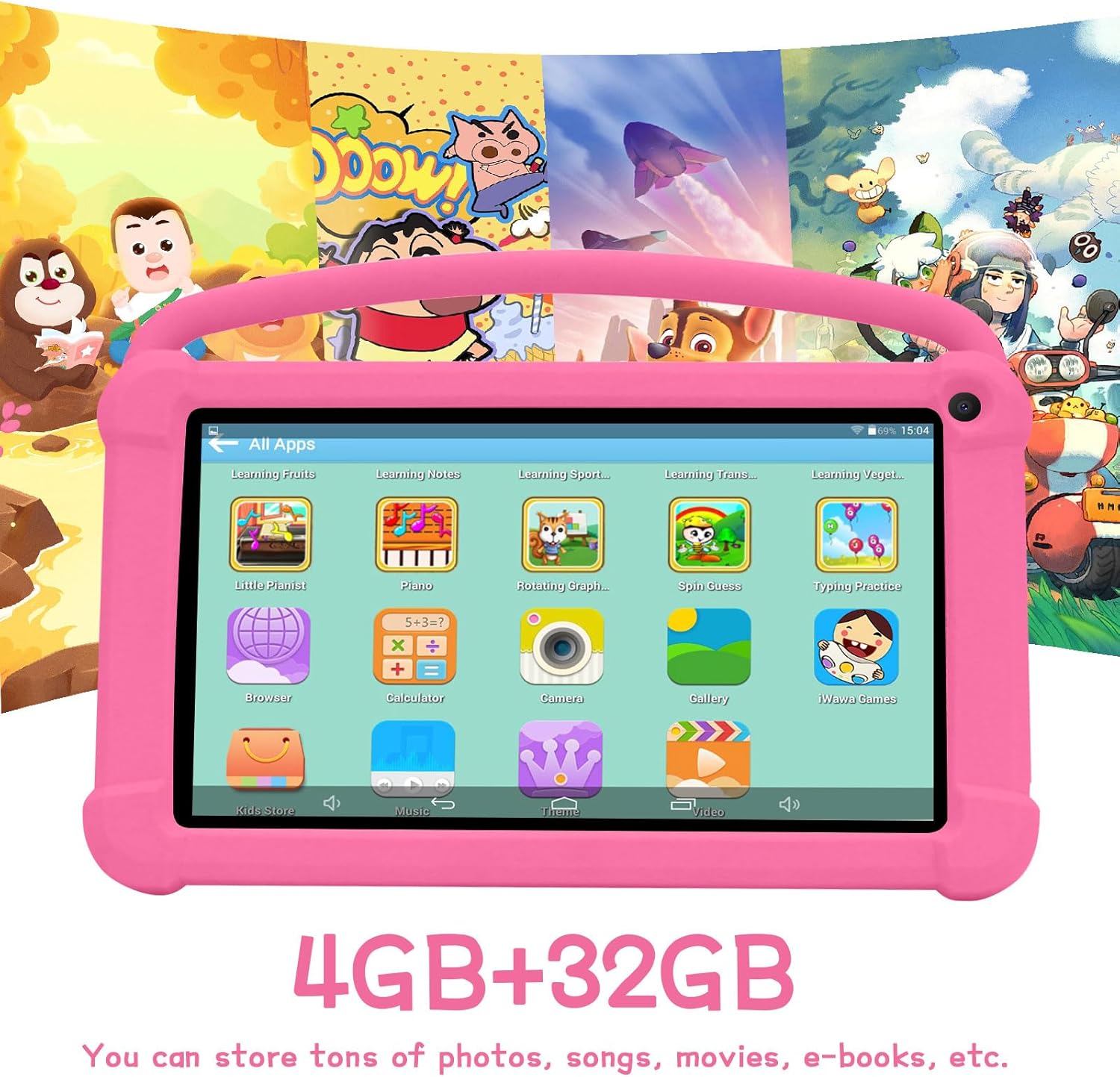
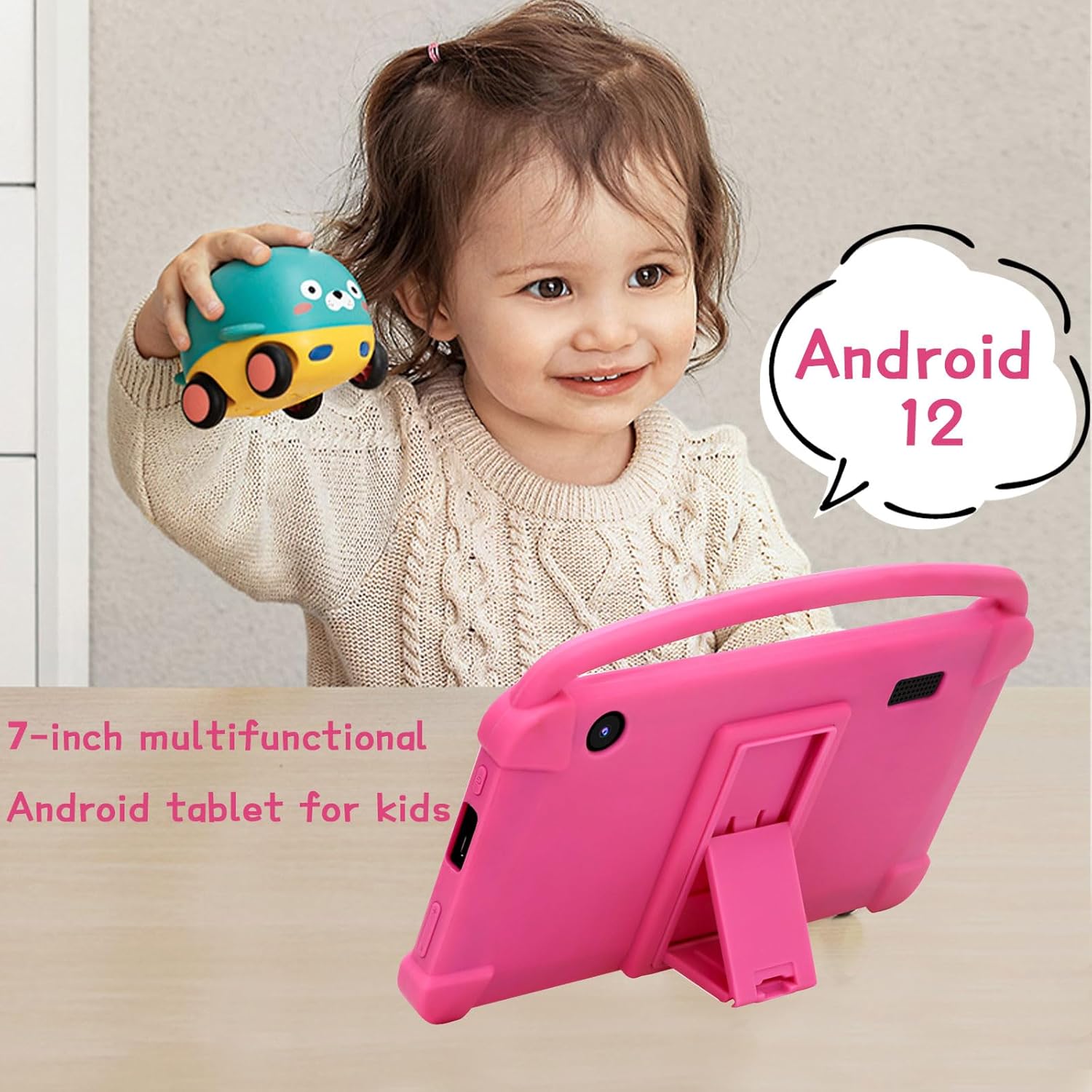
Image: The YQSAVIOR Kids Tablet, featuring its durable pink protective case and integrated kickstand. The screen displays vibrant educational content, highlighting its primary use for children.
Сетуп
1. Почетно пуњење
Before first use, fully charge the tablet. Connect the provided USB charging cable to the tablet's charging port and the other end to a compatible USB power adapter (not included) or a computer's USB port.
Пуно пуњење обично траје 3-4 сата.
Индикатор батерије на екрану ће приказивати статус пуњења.
2. Укључивање/искључивање
За укључивање: Press and hold the Power button located on the side of the tablet until the YQSAVIOR logo appears.
За искључивање: Притисните и држите дугме за напајање док се не појави мени са опцијама напајања. Изаберите „Искључи“ и потврдите.
3. Чаробњак за почетно подешавање
При првом укључивању, таблет ће вас водити кроз процес почетног подешавања:
Изаберите жељени језик.
Connect to a Wi-Fi network. This is essential for downloading apps and updates.
Sign in with your Google account or create a new one. This is required for accessing the Google Play Store and other Google services.
Follow on-screen prompts to complete the setup.
Упутство за употребу
1. Кретање кроз интерфејс
The YQSAVIOR Kids Tablet runs on Android 12. Navigation is primarily touch-based:
Додирните: Изаберите ставку или отворите апликацију.
Превуците: Листајте кроз странице или листе.
Зумирање штипкањем прстију: Zoom in or out on images or web странице.
Хоме дугме: Враћа се на главни почетни екран.
Дугме за назад: Враћа се на претходни екран.
Дугме за недавне апликације: Displays recently opened applications.
Image: The tablet's screen showing a grid of colorful application icons, including "Learning Fruits," "Photo," "Calculator," and "Camera," demonstrating its pre-installed educational and utility apps.
2. Родитељски надзор
The tablet includes robust parental control features to manage content and screen time:
Access the parental control settings through the dedicated "Kids Space" or "Family Link" app (if pre-installed) or via Android's system settings.
Set daily screen time limits.
Филтер web content and block inappropriate applications.
Monitor app usage and activity.
Направите више деце проfiles with customized settings for each.
Image: A family interacting with the YQSAVIOR Kids Tablet, emphasizing the ease of use for both children and parents, and the importance of parental controls for a safe digital environment.
3. Инсталирање и управљање апликацијама
Apps can be downloaded from the Google Play Store. Ensure the tablet is connected to Wi-Fi.
Open the "Play Store" app.
Тражи desired apps or browse categories.
Tap "Install" to download and install an app.
To uninstall an app, go to Settings > Apps & notifications, select the app, and tap "Uninstall."
Image: The YQSAVIOR Kids Tablet showing an interactive learning game, with a child's hand reaching towards the screen, demonstrating the tablet's touch responsiveness and suitability for educational play.
4. Функционалност камере
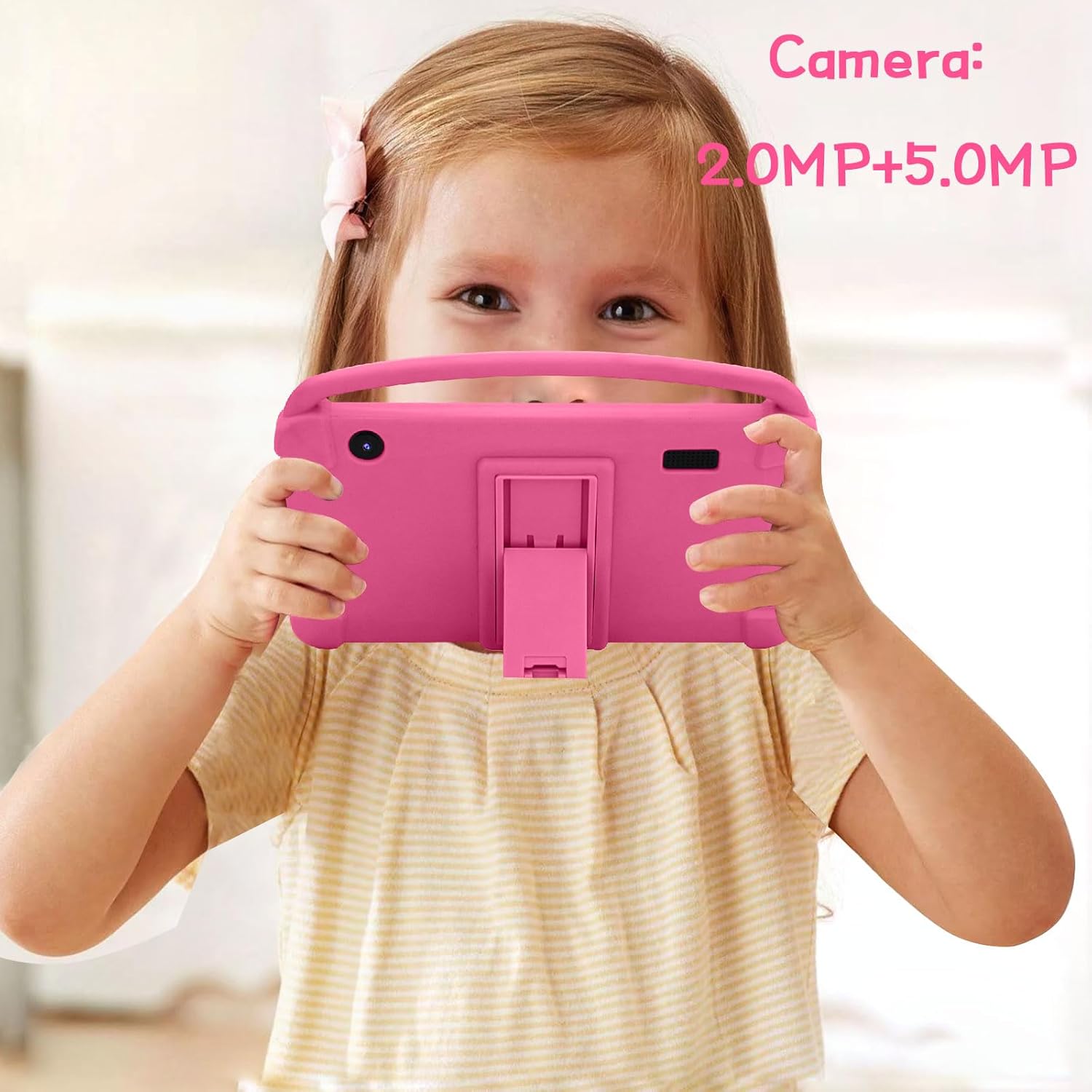
Таблет има предњу камеру од 2.0 МП и задњу камеру од 5.0 МП.
Отворите апликацију „Камера“ са почетног екрана или из фиоке апликација.
Додирните дугме затварача да бисте снимили фотографије.
Пребацујте се између предње и задње камере помоћу иконе за пребацивање камере.
Photos and videos are saved to the "Gallery" app.
Image: A young girl holding the YQSAVIOR Kids Tablet, positioned as if taking a photo, highlighting the tablet's dual camera functionality and ease of use for children.
Одржавање
1. Чишћење таблета
Користите меку крпу која не оставља влакна за чишћење екрана и кућишта.
За тврдокорне мрље, благо дampобришите крпу водом или средством за чишћење екрана.
Избегавајте употребу јаких хемикалија, абразивних материјала или прекомерне влаге.
2. Брига о батерији
Избегавајте често потпуно пражњење батерије.
Не излажите таблет екстремним температурама.
Use only the provided charging cable or a certified compatible alternative.
3. Ажурирања софтвера
Редовно проверавајте и инсталирајте системска ажурирања како бисте осигурали оптималне перформансе и безбедност. Идите на Подешавања > Систем > Ажурирање система.
4. Управљање складиштем
The tablet has 32GB of internal storage, expandable up to 512GB via a Micro SD card (not included).
To insert a Micro SD card, locate the card slot on the side of the tablet and gently push the card in until it clicks.
Regularly clear cache and uninstall unused apps to free up space.
Image: The YQSAVIOR Kids Tablet displaying its app interface, with text overlays indicating "4GB+32GB," signifying its memory and storage capacity for various media and applications.
Решавање проблема
Проблем
Могући узрок
Решење
Таблет се не укључује.
Слаба батерија; пад система.
Пуните таблет најмање 30 минута. Ако и даље не реагује, притисните и држите дугме за напајање 10-15 секунди да бисте га поново покренули.
Проблеми са Wi-Fi везом.
Incorrect password; Router issue; Out of range.
Verify Wi-Fi password. Restart your router. Ensure tablet is within Wi-Fi range.
Апликације су споре или се руше.
Insufficient RAM; Too many apps open; Outdated app.
Close background apps. Clear app cache (Settings > Apps). Update apps from Play Store. Consider a factory reset if issues persist (backup data first).
Екран не реагује.
Привремени софтверски квар.
Force restart the tablet by holding the power button for 10-15 seconds.
Батерија се брзо празни.
High screen brightness; Background apps; Wi-Fi/Bluetooth always on.
Reduce screen brightness. Close unused apps. Turn off Wi-Fi/Bluetooth when not in use.
Спецификације
Феатуре
Детаљ
Модел
YQQ1K
Оперативни систем
Андроид 12
Величина екрана
7 инча ИПС
Резолуција екрана
1024x600 пиксела
РАМ
4GB (2GB+2GB)
Интерна меморија
32ГБ РОМ
Екпандабле Стораге
Мицро СД до 512 ГБ
Предња камера
2.0МП
Задња камера
5.0МП
Повезивање
Wi-Fi (802.11n), Bluetooth
Аудио
Dual Speaker, 3.5mm Headphone Jack
Батерија
Литијум јонски (укључено)
Димензије (ДкШкВ)
7 к 0.3 к 3 инча
Тежина артикла
1.19 фунти
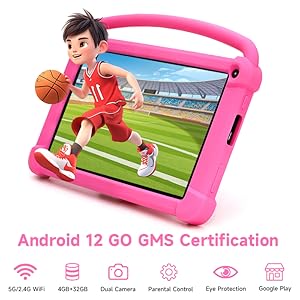
Image: A detailed graphic of the 7-inch YQSAVIOR Kids Tablet, accompanied by key specifications such as Android 12 OS, 7-inch IPS display, 4GB RAM, 32GB ROM, 3000mAh battery, and built-in Google Play, summarizing its core features.
Гаранција и подршка
YQSAVIOR products are designed for reliability and performance. For warranty information and technical support, please refer to the contact details provided on the product packaging or visit the official YQSAVIOR webсајту.
За уобичајене проблеме, погледајте одељак Решавање проблема у овом упутству.
Ask about setup, troubleshooting, compatibility, parts, safety, or missing instructions. Manuals+ will review the question and use this page’s manual context to help answer it.