
1. Увод
Welcome to the YQSAVIOR Kids Tablet user manual. This guide provides essential information to help you set up, operate, and maintain your new tablet. Designed specifically for children, this tablet offers a safe and engaging platform for learning and entertainment, featuring robust parental controls and a durable design.
Please read this manual thoroughly before using the device to ensure proper functionality and safety.
2. Шта је у кутији
- YQSAVIOR Kids Tablet (Model YQQ1K)
- Кабл за пуњење
3. Производ је готовview
The YQSAVIOR Kids Tablet is equipped with features designed for young users, including a durable shockproof case and an adjustable stand for comfortable viewинг.
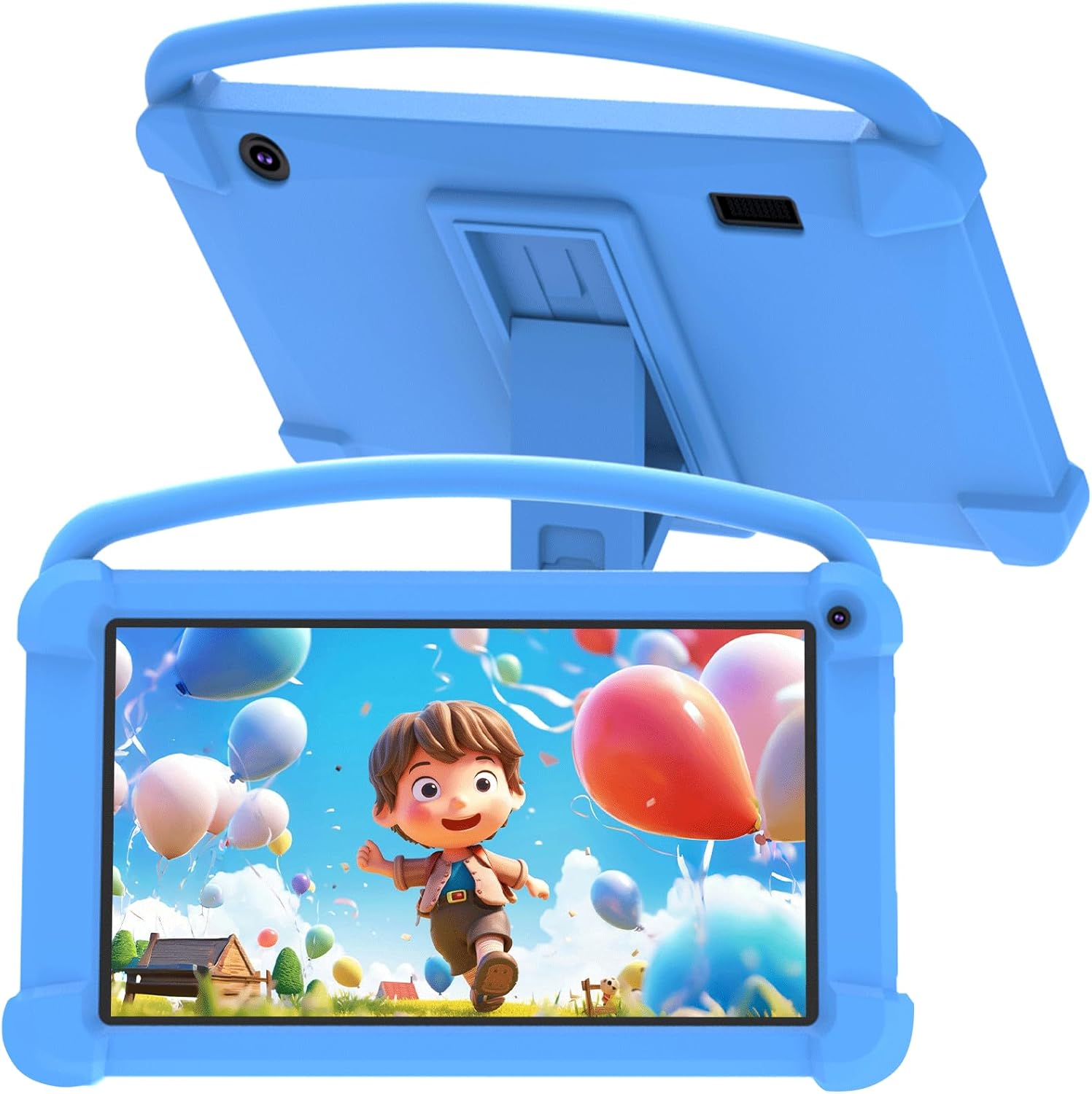
Слика 3.1: Предња страна view of the YQSAVIOR Kids Tablet with its protective case.

Figure 3.2: The tablet's adjustable stand for hands-free viewинг.
Кључне компоненте:
- 7-инчни IPS HD екран: Provides clear and bright visuals (1024x600 resolution).
- Protective Silicone Case: Designed to absorb shocks and prevent damage from drops.
- Подесиво постоље: Integrated into the case for convenient viewинг углова.
- Двоструке камере: Front 2.0MP and Rear 5.0MP for photos and video calls.
- 3.5 мм прикључак за слушалице: За приватно слушање.
- Утор за микро СД картицу: Expandable storage up to 512GB.
4. Подешавање
4.1 Почетно пуњење
Before first use, fully charge the tablet using the provided charging cable and a compatible power adapter (not included). The charging indicator will show progress.
4.2 Укључивање/искључивање
- За укључивање: Притисните и држите дугме за укључивање док се екран не укључи.
- За искључивање: Притисните и држите дугме за напајање, а затим изаберите „Искључи“ из опција које се појављују на екрану.
4.3 Чаробњак за почетно подешавање
Upon first power-on, the tablet will guide you through an initial setup process. This includes selecting your language, connecting to a Wi-Fi network, and setting up a Google account. A Google account is required to access the Google Play Store and other Google services.
4.4 Уметање Мицро СД картице
To expand storage, locate the Micro SD card slot on the side of the tablet. Gently insert a Micro SD card (up to 512GB) until it clicks into place. The tablet will recognize the new storage.
5. Упутство за употребу
5.1 Родитељски надзор
The YQSAVIOR Kids Tablet features robust parental control options to ensure a safe digital environment for children. These controls allow you to manage screen time, filter content, and control app access.

Слика 5.1: Завршеноview of parental control features.
Access the parental control settings through the dedicated app or system settings to:
- Поставите дневна временска ограничења за коришћење таблета.
- Одобравање или блокирање одређених апликација.
- Филтер webсајтова и онлајн садржаја.
- Monitor activity logs.
5.2 Управљање апликацијама
The tablet comes with pre-installed educational and entertainment apps. You can download additional applications from the Google Play Store, thanks to its GMS certification.

Figure 5.2: The tablet's 'All Apps' screen.
5.3 Репродукција медија
The tablet supports various media formats and is compatible with streaming services like Netflix due to Widevine L1 support. The 1024x600 IPS HD display ensures a clear visual experience for videos and games.
Video 5.3: An animated video showcasing the YQSAVIOR Kids Tablet's design, features like the protective case, adjustable stand, and dual cameras, along with its quad-core processor and various color options.
6. Одржавање
6.1 Чишћење
Use a soft, lint-free cloth to clean the screen and the tablet's body. For stubborn smudges, slightly dampИсперите крпу водом. Избегавајте употребу јаких хемикалија или абразивних материјала.
6.2 Одржавање батерије
- Избегавајте излагање таблета екстремним температурама (врућим или хладним).
- Не остављајте таблет да се пуни дуже време након што је потпуно напуњен.
- За дуготрајно складиштење, напуните батерију на око 50% и искључите уређај.
6.3 Ажурирања софтвера
Periodically check for system updates in the tablet's settings to ensure optimal performance and access to the latest features and security patches.
КСНУМКС. Решавање проблема
Уобичајени проблеми и решења:
- Таблет се не укључује: Ensure the tablet is charged. Connect it to a power source and try again.
- Споре перформансе: Close unused applications, clear app caches, or restart the tablet.
- Проблеми са Ви-Фи везом: Check if Wi-Fi is enabled, restart your router, or forget and reconnect to the network.
- Рушење апликација: Ensure apps are updated. Try clearing the app's cache or reinstalling it.
- Батерија се брзо празни: Reduce screen brightness, close background apps, or disable unnecessary features like Bluetooth/GPS when not in use.
If issues persist, consider performing a factory reset (this will erase all data, so back up important files first) or contact customer support.
8. Спецификације
| Феатуре | Спецификација |
|---|---|
| Назив модела | YQQ1K |
| Оперативни систем | Андроид 12 |
| Величина екрана | 7 инча |
| Резолуција екрана | 1024x600 Pixels (IPS HD) |
| РАМ | 4GB (2GB+2GB) |
| Интерна меморија (РОМ) | 32ГБ |
| Екпандабле Стораге | Мицро СД до 512 ГБ |
| Задња камера | 5 МП |
| Предња камера | 2 МП |
| Вирелесс Типе | 802.11n (Wi-Fi) |
| Повезивање | Блуетоотх |
| Батерија | 1 литијум јон (укључено) |
| Тежина артикла | 1.21 фунти |
| Димензије производа | 7 к 0.3 к 3 инча |
9. Гаранција и подршка
For warranty information and customer support, please refer to the documentation included with your purchase or visit the official YQSAVIOR store on Amazon. You can find more information and contact details at: YQSAVIOR Amazon Store.