
Увод
This manual provides detailed instructions for the setup, operation, maintenance, and troubleshooting of your ZTE MC888 Ultra 5G Router. The MC888 Ultra is a high-performance 5G router designed to deliver fast and reliable internet connectivity. It supports download speeds up to 3.8 Gbps and upload speeds up to 280 Mbps, features dual Gigabit LAN/WAN ports, and includes an RJ11 port for voice calls via VoIP, VoLTE, or VoNR.
Безбедносне информације
- Пажљиво прочитајте сва упутства пре употребе уређаја.
- Do not open or modify the device. Unauthorized modifications can void your warranty and create safety hazards.
- Use only the power adapter and accessories supplied with the router.
- Држите уређај даље од воде, влаге и екстремних температура.
- Обезбедите одговарајућу вентилацију око рутера како бисте спречили прегревање.
- Avoid placing the router near strong electromagnetic fields.
Садржај пакета
Проверите да ли су све ставке присутне у вашем пакету:
- ЗТЕ МЦ888 Ултра 5Г рутер
- Повер Адаптер
- Етхернет Цабле
- Кратки водич (није укључен у овај приручник)
Девице Оверview
Familiarize yourself with the ports and indicators on your ZTE MC888 Ultra 5G Router.
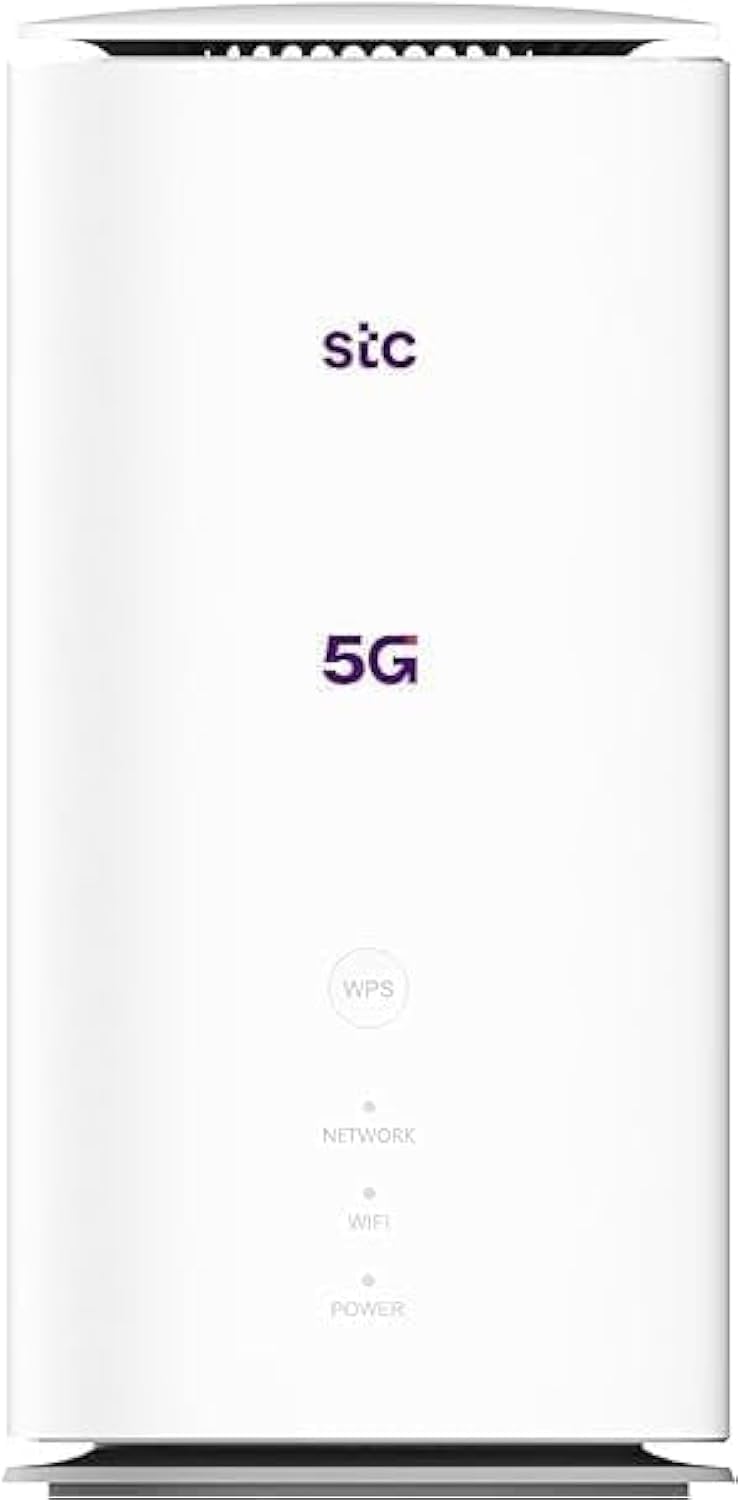
Слика: Предња и задња страна view of the ZTE MC888 Ultra 5G Router, showing LED indicators, SIM card slot, power port, LAN/WAN ports, and RJ11 port.
Индикатори на предњој плочи:
- ЛЕД за напајање: Означава статус напајања.
- Мрежни ЛЕД: Показује статус 5G/4G мрежне везе.
- Ви-Фи ЛЕД: Означава Wi-Fi активност.
Портови на задњој плочи:
- Напајање: Повезује се на адаптер за напајање.
- LAN/WAN Ports (x2): Gigabit Ethernet ports for wired connections or WAN input.
- Порт РЈ11: For connecting a telephone for VoIP, VoLTE, or VoNR calls.
- Слот за СИМ картицу: За уметање ваше 5G/4G SIM картице.
- Дугме за ресетовање: Користи се за враћање на фабричка подешавања.
Сетуп
1. Уметните СИМ картицу
- Уверите се да је рутер искључен.
- Locate the SIM card slot on the rear panel.
- Уметните стандардну Nano-SIM картицу у слот са златним контактима окренутим надоле и правилно оријентисаним засеченим углом. Притисните док не кликне на своје место.
2. Прикључите напајање
- Connect the supplied power adapter to the router's power port.
- Укључите други крај адаптера за напајање у зидну утичницу.
3. Укључите напајање
- The router will automatically power on. Wait for the Power LED to turn solid, and the Network LED to indicate a stable 5G/4G connection. This may take a few minutes.
4. Повежите уређаје
- Ви-Фи веза: Find the Wi-Fi network name (SSID) and password printed on the label at the bottom of the router. Select this network on your device (smartphone, laptop, etc.) and enter the password.
- Етхернет веза: Use the provided Ethernet cable to connect your computer or other network device to one of the LAN/WAN ports on the router.
Оперативни
Приступ Web Интерфејс
- Отвори а web прегледач на уређају повезаном са рутером.
- Enter the router's default IP address (e.g., 192.168.0.1 or 192.168.1.1) into the address bar and press Enter. The exact IP address is usually found on the router's label.
- Enter the default username and password (also found on the router's label) to log in.
Changing Wi-Fi Settings
Фром тхе web interface, navigate to the Wi-Fi settings section to change your SSID, password, security type, or enable/disable guest networks.
RJ11 Voice Call Functionality
The RJ11 port allows you to connect a standard analog telephone. You can manage sending and receiving calls via a configured VoIP account, or through VoLTE or VoNR, depending on your mobile operator's compatibility and SIM card support. Refer to your service provider for specific setup details.
Режим приступне тачке
The router supports Access Point (AP) mode, allowing it to extend an existing wired network wirelessly. This feature can be configured through the web интерфејс у оквиру мрежних подешавања.
Одржавање
Ажурирања фирмвера
Periodically check the router's web interface for available firmware updates. Keeping your firmware up-to-date ensures optimal performance, security, and access to new features. Follow the on-screen instructions for safe updating.
Чишћење
Clean the router with a soft, dry cloth. Do not use liquid cleaners or aerosols. Ensure the device is powered off before cleaning.
Фацтори Ресет
If you experience persistent issues or forget your login credentials, you can perform a factory reset. With the router powered on, use a pin to press and hold the Reset button on the rear panel for approximately 5-10 seconds until the indicators flash. The router will restart with default settings.
Решавање проблема
- Нема интернет везе: Check the Network LED. If it's off or red, ensure the SIM card is correctly inserted and has an active data plan. Try restarting the router.
- Мала брзина Wi-Fi-ја: Ensure your devices are within range. Reduce interference from other electronic devices. Try changing the Wi-Fi channel in the web интерфејс.
- Не могу приступити Web Интерфејс: Verify your device is connected to the router via Wi-Fi or Ethernet. Double-check the IP address and login credentials. Try clearing your browser's cache.
- Прекиди Wi-Fi везе: Update router firmware. Ensure the router is placed in a central location. Check for conflicting Wi-Fi networks.
Спецификације
| Бранд | ЗТЕ |
| Назив модела | MC888 Ultra |
| Број модела | MC888 ULTRA |
| Технологија повезивања | Wi-Fi, 5G/4G Cellular |
| вирелесс стандард | 802.11ац |
| Класа фреквенцијског опсега | Дуал-Банд |
| Максимална брзина преузимања | 3.8 Гбпс |
| Мак Уплоад Спеед | 280 Мбпс |
| Пропусни опсег LAN порта | 1000 Mbps (гигабит) |
| Број портова | 2 x Gigabit LAN/WAN, 1 x RJ11 |
| Антенна Типе | Унутрашње |
| Сигурносни протокол | ВПС |
| Посебне карактеристике | Access Point Mode, RJ11 for VoIP/VoLTE/VoNR |
| РАМ | 4 ГБ |
| Компатибилни уређаји | PC, Laptop, Smartphone, Tablet, Gaming Console, Smart TV, Surveillance Camera, Printer, Ethernet-enabled devices |
| Укључене компоненте | Router, Ethernet Cable, Charger |
Гаранција и подршка
Информације о гаранцији
The ZTE MC888 Ultra 5G Router comes with a 2-year agent warranty. Please retain your proof of purchase for warranty claims. The warranty covers manufacturing defects and malfunctions under normal use. It does not cover damage caused by misuse, accidents, unauthorized repairs, or acts of nature.
Корисничка подршка
For technical assistance, warranty service, or further inquiries, please contact your local ZTE authorized service center or the retailer from whom you purchased the product. You may also visit the official ZTE webсајт за ресурсе подршке и честа питања.


