
1. Увод
The Phomemo M950 Label Maker is a versatile, portable thermal label printer designed for both home and office use. It offers dual printing modes: direct input via its integrated keyboard and wireless printing via Bluetooth connection to a mobile application. This device utilizes thermal printing technology, eliminating the need for ink cartridges, and supports various label tape types for diverse labeling needs.
2. Безбедносне информације
- Keep the device away from water and high humidity to prevent electric shock or damage.
- Не растављајте или покушавајте сами да поправите уређај. Обратите се корисничкој подршци за помоћ.
- Use only Phomemo-approved label tapes to ensure optimal performance and prevent damage to the print head.
- Чувати ван домашаја деце.
- Избегавајте излагање уређаја директној сунчевој светлости или екстремним температурама.
- Charge the device using a compatible Type-C USB power adapter.
3. Садржај пакета
Please check the package contents upon unboxing. If any items are missing or damaged, contact your retailer or Phomemo customer support.
- Пхомемо М950 Лабел Макер
- 12mm Label Tape Roll (pre-installed or included separately)
- УСБ кабл за пуњење типа Ц
- Кориснички приручник (овај документ)
4. Производ је готовview
Familiarize yourself with the components of your Phomemo M950 Label Maker.

Image: Phomemo M950 Label Maker showing its main features including no ink, one-touch key, keyboard editing, app editing, 203 DPI resolution, backlight support, Type-C recharge, and built-in cutter.
Кључне карактеристике:
- Унос са тастатуре: Integrated QWERTY keyboard for direct label creation.
- Блуетоотх повезивање: Connects to smartphones for advanced label design via the Phomemo app.
- Термална штампа: No ink required, uses thermal label tapes.
- Backlight Screen: Обезбеђује видљивост у условима слабог осветљења.
- Уграђени резач: For clean and precise label cutting.
- Пуњива батерија: Integrated 1200mAh battery, rechargeable via Type-C port.
5. Подешавање
5.1. Пуњење уређаја
Before first use, fully charge the label maker.
- Connect the provided USB Type-C cable to the charging port on the side of the label maker.
- Повежите други крај кабла са компатибилним USB адаптером за напајање (није укључен) или USB портом рачунара.
- The charging indicator light will show the charging status. Once fully charged, the indicator will change or turn off.

Image: Phomemo M950 Label Maker highlighting the Type-C charging port and its compact dimensions.
5.2. Loading Label Tape
Ensure the device is powered off before loading or replacing tape.
- Open the tape compartment cover located on the top or back of the device.
- Insert the label tape roll with the label side facing up, ensuring it sits securely in the compartment.
- Feed the end of the label tape through the tape guide until it protrudes slightly from the output slot.
- Close the tape compartment cover firmly.
5.3. Укључивање/искључивање
Press and hold the Power button (usually marked with a power symbol) for a few seconds to turn the device on or off.
6. Упутство за употребу
The Phomemo M950 offers two primary methods for creating labels.

Image: Phomemo M950 Label Maker illustrating the two usage modes: direct printing from the keyboard and printing via a mobile device using the 'Print Master' app.
6.1. Keyboard Printing
This mode allows you to create labels directly on the device without needing a smartphone.
- Укључено: Turn on the label maker. The screen will illuminate.
- Type Text: Use the QWERTY keyboard to type your desired label text. The text will appear on the display.
- Прилагодите: Use the function keys (e.g., 'Fn', 'Shift', 'Symbol', 'Caps', 'Accent') to access various customization options such as font styles, sizes, symbols, and borders. The device supports multiple languages, borders, and symbols.
- Преview: Use the 'Preview' button to see how your label will look before printing.
- Штампа: Press the 'Print' button to print the label. The built-in cutter will automatically cut the label after printing.

Image: Phomemo M950 Label Maker showcasing its extensive features including support for 23+ languages, 103+ borders, and 790+ symbols and icons for label customization.
6.2. Bluetooth App Printing
For more advanced design options, connect your label maker to the 'Print Master' mobile app.
- Преузми апликацију: Download the 'Print Master' app from your mobile device's app store (App Store for iOS, Google Play for Android).
- Омогући Блуетоотх: Ensure Bluetooth is enabled on your mobile device and the Phomemo M950.
- Повежите се: Open the 'Print Master' app and follow the on-screen instructions to connect to your M950 label maker via Bluetooth.
- Design Label: Use the app's interface to design your label. The app offers massive templates, additional fonts, borders, and icons.
- Штампа: Once your design is complete, tap the print icon in the app to send the label to the M950 for printing.

Image: Phomemo M950 Label Maker demonstrating the use of the 'Print Master' app with numerous templates, 270+ borders, 110+ fonts, 1500 icons, and 14+ languages for creative label design.
6.3. Adjusting Print Density
For optimal print quality, especially with ribbon tapes, adjust the print density.
- Press the 'Fn' key, then select 'Pinter Densities' (Printer Densities).
- Choose 'High' for clearer prints, particularly when using ribbon tapes.

Image: Step-by-step guide on how to set the print density to 'High' on the Phomemo M950 Label Maker for clear prints, especially for ribbon tapes.
7. Одржавање
7.1. Чишћење главе за штампање
Regular cleaning ensures consistent print quality.
- Turn off the label maker and open the tape compartment.
- Gently wipe the print head with a soft, lint-free cloth dampнапуњен изопропил алкохолом.
- Allow the print head to dry completely before closing the compartment and powering on the device.
7.2. Tape Storage
Store label tapes in a cool, dry place away from direct sunlight to preserve their quality and adhesive properties.
КСНУМКС. Решавање проблема
If you encounter issues with your Phomemo M950, refer to the following common problems and solutions.
| Проблем | Могући узрок | Решење |
|---|---|---|
| Нема струје | Low battery; Device off | Charge the device; Press and hold power button to turn on. |
| Лош квалитет штампе | Print head dirty; Incorrect print density; Low battery | Clean print head; Adjust print density to 'High'; Charge device. |
| Label not feeding | Tape incorrectly loaded; Tape jammed; Out of tape | Re-load tape correctly; Clear any jams; Replace tape roll. |
| Грешка Блуетоотх везе | Bluetooth off; Device not paired; App issue | Ensure Bluetooth is on for both devices; Re-pair in app; Restart app/device. |
| Резач не ради | Tape jammed; Cutter mechanism obstructed | Clear any tape jams; Ensure no debris is blocking the cutter. |
9. Спецификације
| Феатуре | Детаљ |
|---|---|
| Назив модела | М950 |
| Бранд | Пхомемо |
| Технологија штампе | Тхермал |
| Технологија повезивања | Bluetooth, Keyboard |
| Излаз штампача | Моноцхроме |
| Максимална резолуција штампања | 203 дпи |
| Максимална величина медија | 12 мм * 4000 мм |
| Компатибилни уређаји | Смартпхонес |
| Повер | 10 Ваттс |
| Тип батерије | Уграђени литијум-јонски од 1200 мАх |
| Порт за пуњење | УСБ Типе-Ц |
| Димензије производа | 15.2 к 5.4 к 11.2 цм |
| Тежина артикла | 490 грама |
| Боја | Бела |
| Посебна карактеристика | Portable, Backlight Screen, Built-in Cutter |
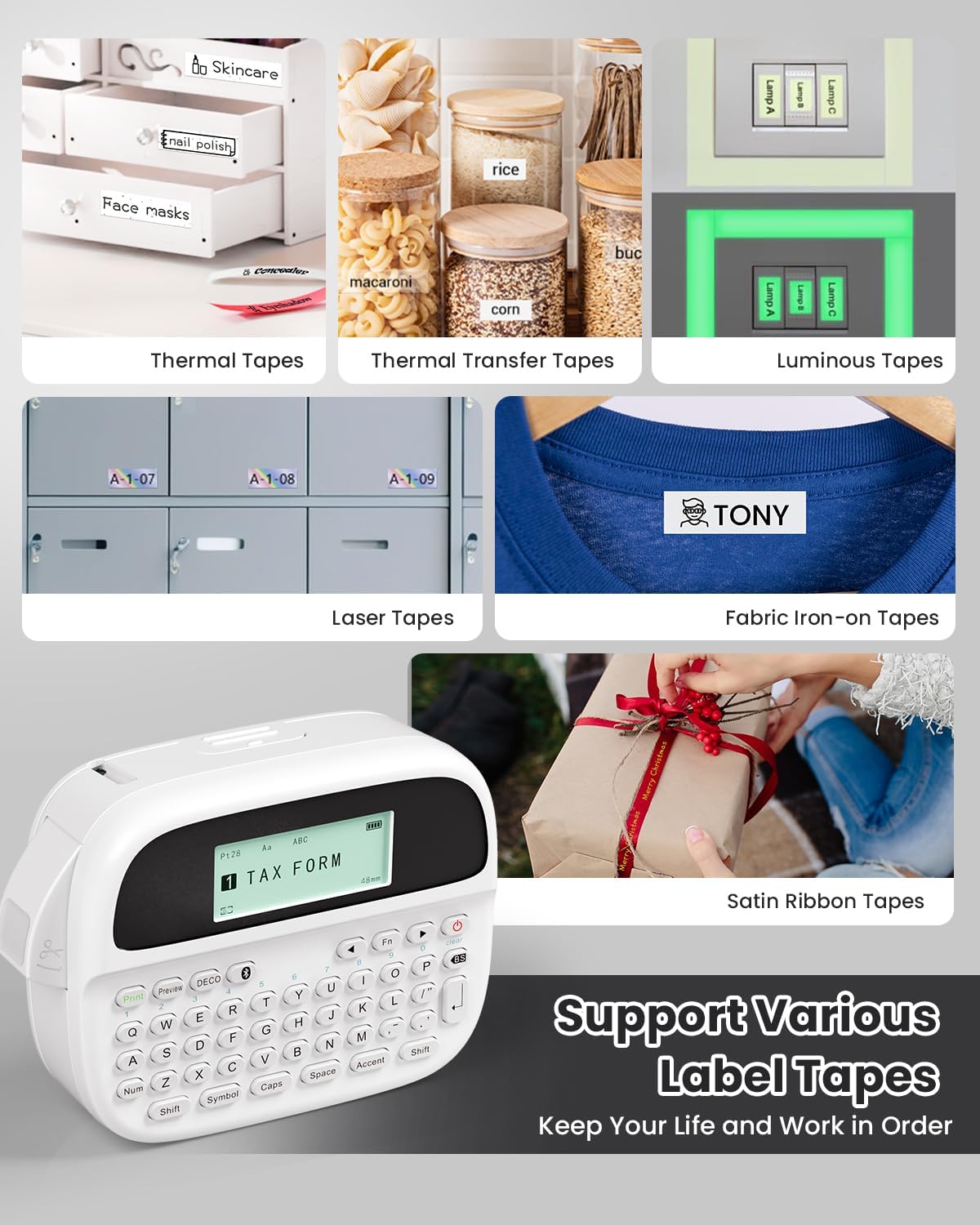
Image: Phomemo M950 Label Maker supporting various label tape types including Thermal, Thermal Transfer, Luminous, Laser, Fabric Iron-on, and Satin Ribbon tapes.

Image: Phomemo M950 Label Maker demonstrating its backlight screen feature, allowing for comfortable use even at night.
10. Гаранција и подршка
For warranty information, technical support, or service inquiries, please refer to the official Phomemo webсајт или директно контактирајте њихову корисничку службу. Сачувајте рачун као доказ о куповини за потребе гаранције.
Phomemo Official Webсајт: Visit Phomemo Store