
1. Увод
This manual provides detailed instructions for the setup, operation, maintenance, and troubleshooting of your JOMAA Wireless Bluetooth Keyboard and Mouse Combo. This combo offers versatile connectivity options, RGB backlighting, and an ergonomic design for enhanced user comfort and productivity across multiple devices.
2. Садржај пакета
Молимо вас да се уверите да су све ставке присутне у вашем пакету:
- JOMAA Wireless Bluetooth Keyboard
- JOMAA Wireless Bluetooth Mouse
- УСБ-А на Типе-Ц кабл за пуњење
- USB Wireless Receiver (stored inside the mouse)
- Кориснички приручник (овај документ)
3. Подешавање
3.1 Пуњење уређаја
Both the keyboard and mouse are equipped with built-in rechargeable lithium batteries. Before initial use, or when the battery is low (indicated by flashing lights), charge both devices using the provided USB-A to Type-C cable.
- Connect the Type-C end of the cable to the charging port on the keyboard/mouse.
- Повежите USB-A крај са извором напајања (нпр. USB портом рачунара, USB адаптером за зид).
- Charging indicators will show the charging status.

Image: Type-C rechargeable feature of the JOMAA keyboard and mouse.
3.2 Повезивање миша
The mouse supports two connection methods: 2.4G wireless via USB dongle and Bluetooth.
3.2.1 2.4G Wireless Connection (USB Dongle)
- Locate the USB wireless receiver stored in the compartment on the underside of the mouse.
- Прикључите УСБ пријемник у доступан УСБ-А порт на рачунару или уређају.
- Укључите миш помоћу прекидача за напајање на његовој доњој страни. Миш би требало да се аутоматски повеже.
3.2.2 Блуетоотх веза
- Укључите миш помоћу прекидача за напајање на његовој доњој страни.
- Press the Bluetooth button on the bottom of the mouse to switch to Bluetooth mode. The indicator light will flash, indicating it's in pairing mode.
- On your device (laptop, tablet, smartphone), go to Bluetooth settings and search for new devices.
- Select "BT5.0 Mouse" from the list of available devices to pair.
3.3 Повезивање тастатуре
The keyboard supports 2.4G wireless via USB dongle (shared with mouse) and two Bluetooth channels.
3.3.1 2.4G Wireless Connection (USB Dongle)
- Ensure the USB wireless receiver is plugged into your device.
- Укључите тастатуру помоћу прекидача за напајање.
- Press the 'Fn' key + '1' key to activate the 2.4G wireless channel. The keyboard should connect automatically.
3.3.2 Bluetooth Connection (Channels 2 & 3)
- Укључите тастатуру.
- Press 'Fn' + '2' or 'Fn' + '3' to select a Bluetooth channel. The indicator light for the selected channel will flash, indicating pairing mode.
- На свом уређају идите у подешавања Bluetooth-а и потражите нове уређаје.
- Select "Wireless Keyboard" from the list to pair.
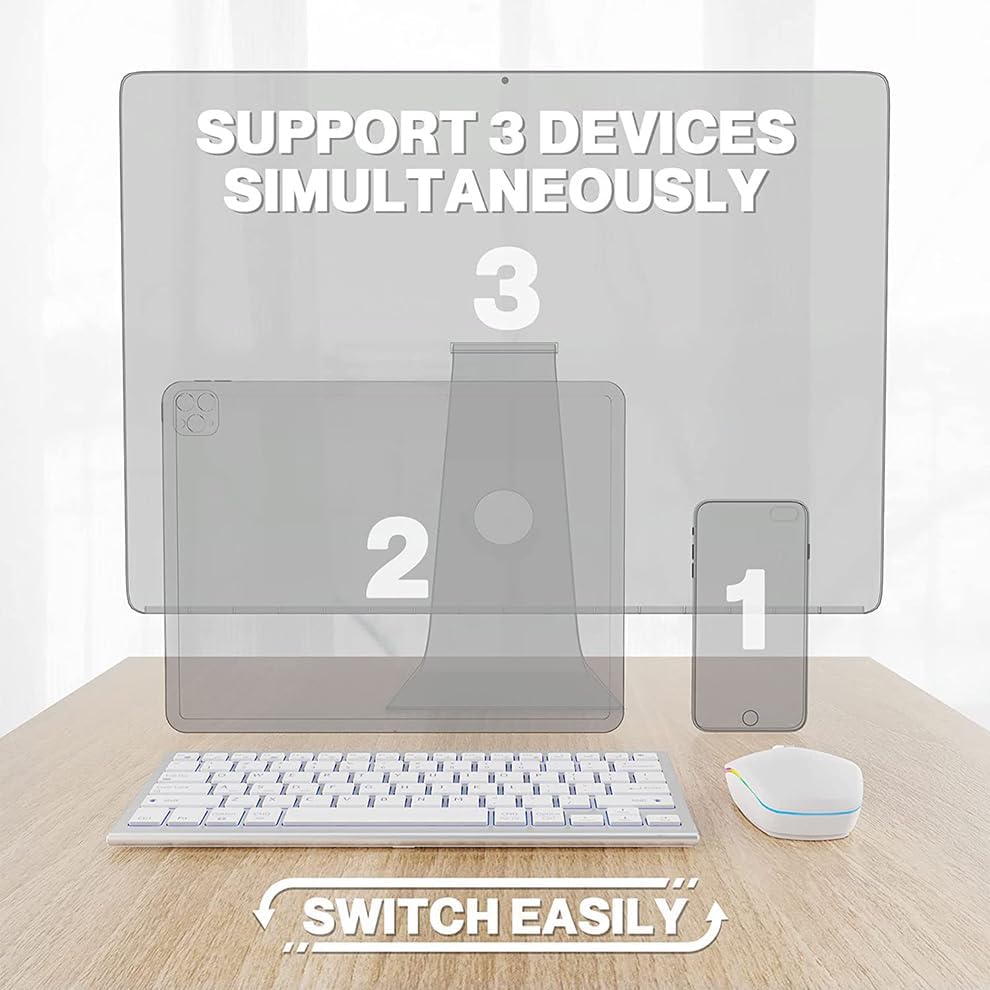
Image: Multi-device connectivity of the JOMAA keyboard and mouse.
4. Упутство за употребу
4.1 Пребацивање између уређаја
Both the keyboard and mouse can connect to up to three devices and switch between them seamlessly.
- тастатура: Press 'Fn' + '1' (for 2.4G USB), 'Fn' + '2' (for Bluetooth 1), or 'Fn' + '3' (for Bluetooth 2) to switch to the desired connected device.
- миш: Use the switch on the underside of the mouse to toggle between 2.4G wireless and Bluetooth modes.

Image: Switching between devices on the keyboard.
4.2 Keyboard Backlighting (RGB)
The keyboard features adjustable RGB backlighting with multiple color options and effects.
- Притисните тастер РГБ дугме (often labeled with a sun or light icon, typically F12 or similar) to cycle through different backlight colors and effects (e.g., pulse, solid red, green, blue, yellow, purple, teal, white).
- Adjust brightness using dedicated function keys (refer to keyboard legends for specific keys, often Fn + F11/F12 or similar).
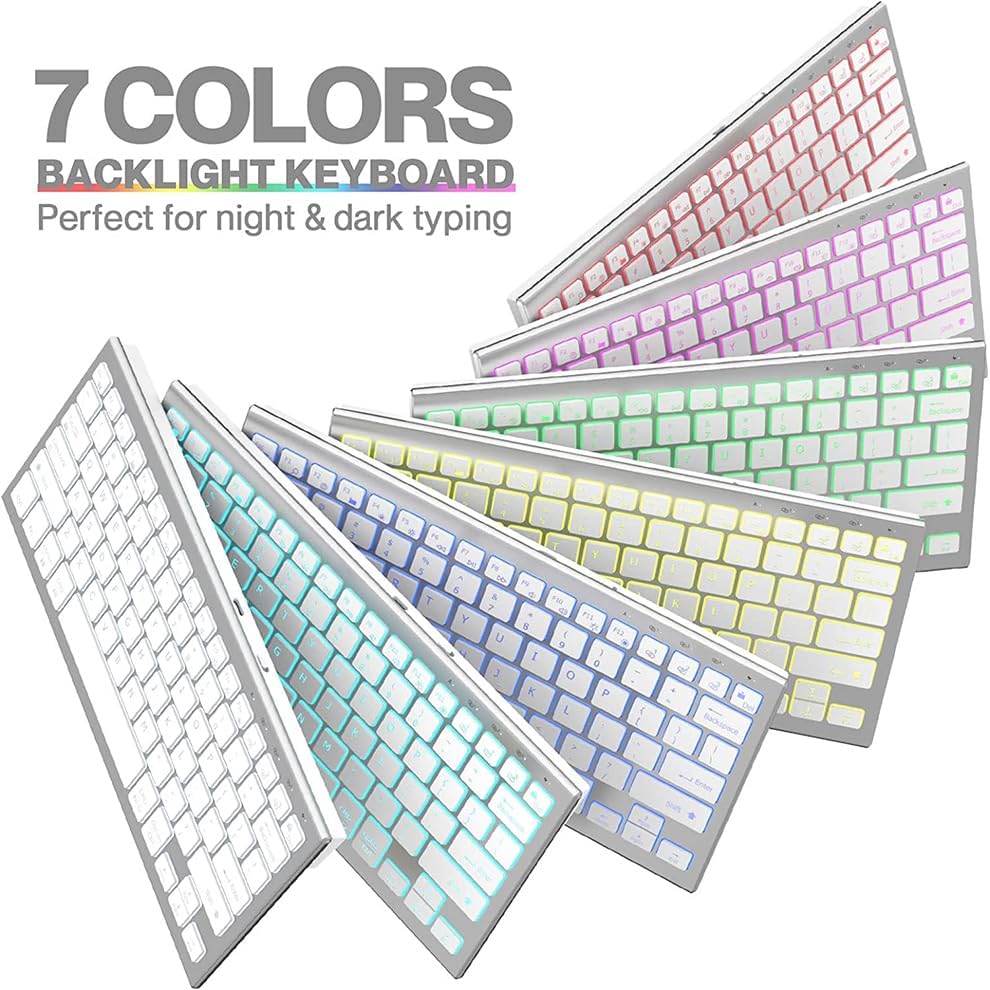
Image: JOMAA keyboard with 7-color backlighting.
4.3 Quiet Typing and Clicking
The keyboard utilizes scissor-switch keys for a quiet typing experience, and the mouse is designed for silent clicks, minimizing disturbance in quiet environments.
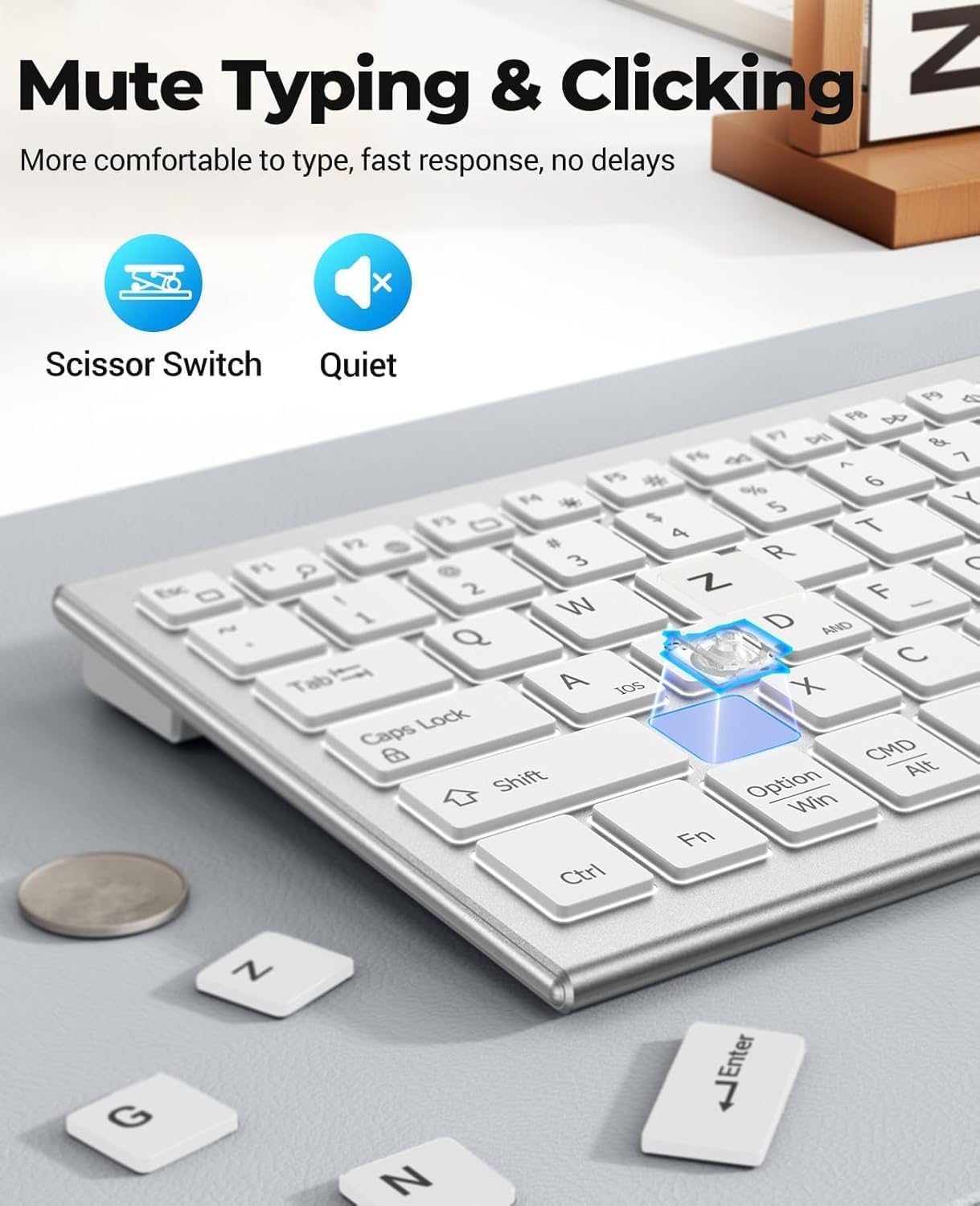
Image: Quiet typing and clicking features.
4.4 Ергономски дизајн
The keyboard features a slight incline for comfortable typing, and the mouse's curvature is designed to fit the palm, reducing fatigue during extended use.

Image: Ergonomic design and dimensions of the keyboard and mouse.
4.5 Mouse DPI Adjustment
The mouse offers 3 adjustable DPI levels (800/1200/1600) to suit different user preferences and tasks. Use the DPI button on the mouse to cycle through these settings.

Image: Mouse features including DPI adjustment and quiet click.
5. Одржавање
5.1 Управљање батеријом
The devices feature smart power-saving management. They will enter a sleep mode after 5 minutes of inactivity to conserve battery. Move the mouse or press any key on the keyboard to wake them up.
- A full charge provides approximately 365 days of standby time.
- Recharge when the low battery indicator flashes.
5.2 Чишћење
To clean your keyboard and mouse, use a soft, dry cloth. For stubborn dirt, a slightly damp Може се користити крпа са благим сапуном, водећи рачуна да течност не уђе у уређаје. Избегавајте јаке хемикалије или абразивне материјале.
КСНУМКС. Решавање проблема
6.1 Проблеми са повезивањем
- Уређај се не повезује: Ensure both the keyboard and mouse are turned on and fully charged. For 2.4G wireless, verify the USB dongle is securely plugged in. For Bluetooth, ensure Bluetooth is enabled on your device and the keyboard/mouse is in pairing mode.
- Повремена веза: Move the devices closer to your computer to reduce interference. Ensure no other wireless devices are causing interference.
6.2 Позадинско осветљење не ради
- Check if the keyboard battery is low. Backlighting may be disabled to conserve power.
- Press the RGB button (F12 or similar) to ensure the backlight is not turned off or set to a very dim setting.
6.3 Mouse Cursor Jumps or is Unresponsive
- Очистите сензор миша на доњој страни.
- Покушајте да користите миш на другој површини.
- Adjust the DPI setting to see if it improves responsiveness.
7. Спецификације
| Бранд | ЈОМАА |
| Боја | Бела |
| Технологија повезивања | 2.4Г, Блуетоотх |
| Посебна карактеристика | 7 Color Backlit |
| Компатибилни уређаји | Лаптоп, лични рачунар, паметни телефон |
| Да ли су батерије потребне | Yes (1 Lithium Ion battery included for each device) |
| Извор напајања | Баттери Поверед |
| Оријентација руке | Ambidextrous (Mouse) |
| Компатибилност оперативног система | Мац, Виндовс |
| Број тастера (тастатура) | 81 |
| Опис тастатуре | Мултимедија |
8. Гаранција
This product comes with a three-month manufacturer's warranty. Please retain your proof of purchase for warranty claims. The warranty covers manufacturing defects but does not cover damage caused by misuse, accidents, or unauthorized modifications.
9. Подршка
For further assistance, technical support, or warranty inquiries, please contact JOMAA customer service through the retailer where you purchased the product or visit the official JOMAA webсајт за контакт информације.
10. Видео презентације производа
Video: Demonstration of the use of a keyboard and mouse set. This video provides a visual guide on connecting the keyboard and mouse, switching between devices, and showcasing the RGB lighting features.