
UGEE UE12
UGEE UE12 Drawing Tablet User Manual
Модел: УЕ12
1. Увод
Welcome to the user manual for your UGEE UE12 Drawing Tablet. This 11.6-inch graphic tablet features a full-laminated screen, 124% sRGB color gamut, and a battery-free stylus, designed to provide a natural and precise drawing experience. It is compatible with various operating systems and creative software, making it an ideal tool for digital art, animation, image editing, and 3D sculpture.

Figure 1.1: UGEE UE12 Drawing Tablet with its battery-free stylus, showcasinњегов елегантан дизајн и екран.
2. Шта је у кутији
Upon unboxing your UGEE UE12 Drawing Tablet, please ensure all the following components are present:
- UGEE UE12 Drawing Tablet
- Battery-Free Stylus
- Replacement Nibs (8 included)
- USB-C to USB-C Cable (for direct connection)
- 3-in-1 Cable (for traditional connection)
- Кориснички приручник (овај документ)
Напомена: A power adapter for the USB-C cable may need to be prepared separately if your device does not provide sufficient power via a single USB-C connection.
3. Водич за подешавање
3.1 Connecting Your Tablet
The UGEE UE12 offers flexible connectivity options using its dual Type-C ports.
Option 1: Single USB-C Cable Connection (Full-featured USB-C port required)
If your computer, laptop, or Android device has a full-featured USB-C port that supports video output and power delivery, you can connect the tablet using a single USB-C to USB-C cable.
- Connect one end of the USB-C to USB-C cable to the UGEE UE12 tablet's Type-C port.
- Connect the other end of the cable to the full-featured USB-C port on your computer, laptop, or Android device.
- Ensure your device provides sufficient power. If the tablet does not power on or display correctly, you may need to use an external power adapter connected to the tablet's second Type-C port.
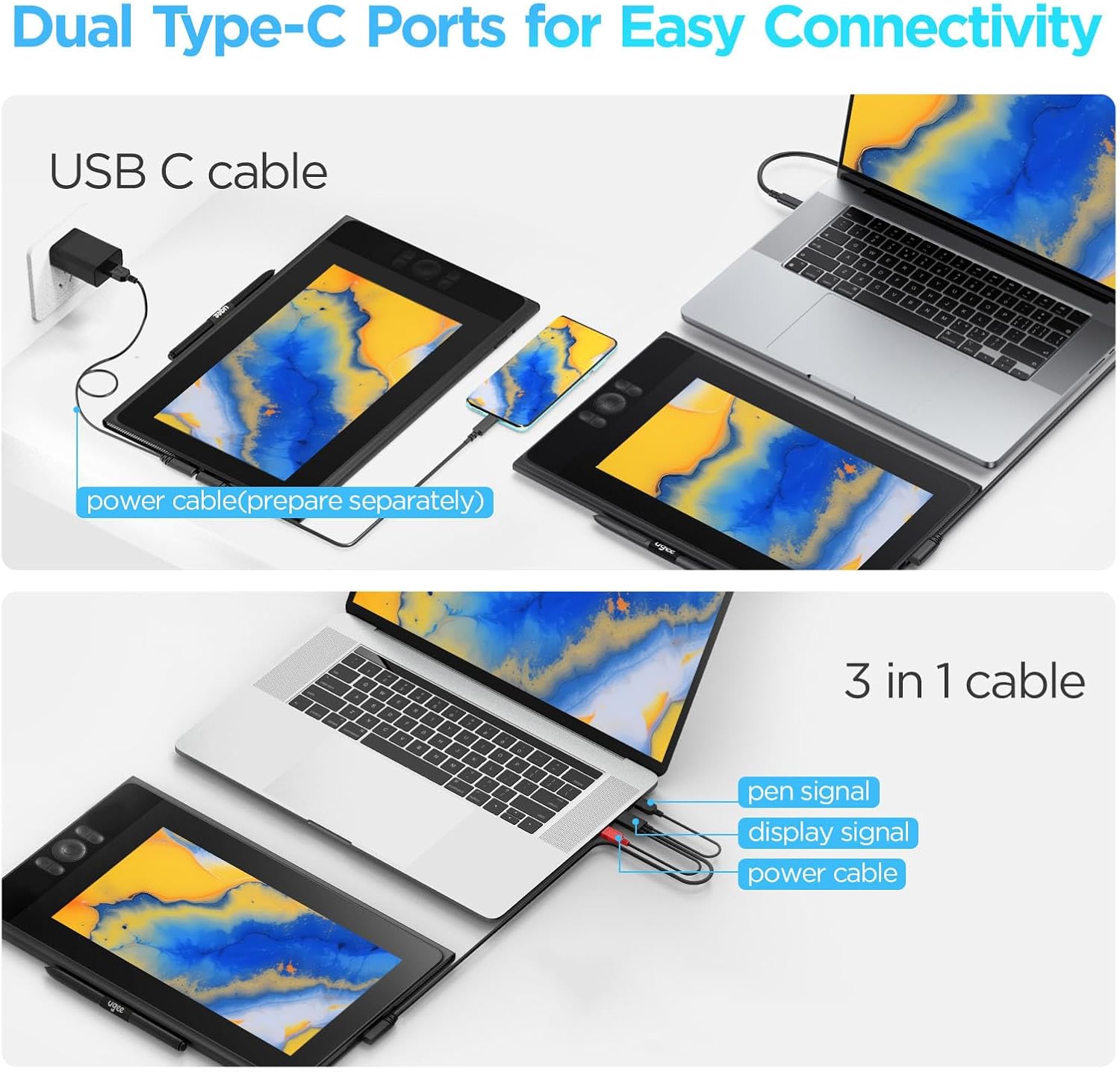
Figure 3.1: Connecting the UGEE UE12 using a single USB-C cable to a laptop or Android phone. Note the option for a separate power cable if needed.
Option 2: 3-in-1 Cable Connection
For devices without a full-featured USB-C port, use the provided 3-in-1 cable. This cable combines HDMI for display, USB-A for data, and USB-A for power.
- Connect the single end of the 3-in-1 cable to the UGEE UE12 tablet's Type-C port.
- Connect the HDMI connector to your computer's HDMI port.
- Connect the USB-A data connector to your computer's USB port.
- Connect the USB-A power connector to a USB power source (e.g., your computer's USB port or a USB wall adapter).
3.2 Инсталација драјвера
To ensure full functionality and customization of your UGEE UE12 tablet, it is essential to install the latest drivers.
- Before installing, uninstall any existing tablet drivers from other brands to avoid conflicts.
- Visit the official UGEE webсајт (ввв.угее.цом) and navigate to the support or download section.
- Locate and download the latest driver for the UGEE UE12 model compatible with your operating system (Windows, macOS, Android, ChromeOS).
- Покрените инсталатер и пратите упутства на екрану.
- Поново покрените рачунар након завршетка инсталације.
- After restarting, open the UGEE driver software to customize pen pressure, shortcut keys, and display settings.

Figure 3.2: The UGEE UE12 is compatible with various operating systems and creative software, indicated by their respective logos.
4. Управљање таблетом
4.1 Full-Laminated Display
The UE12 features an 11.6-inch FHD (1920x1080) full-laminated, anti-glare screen. This design minimizes parallax, providing a precise and natural drawing experience. The anti-glare surface reduces reflections, while the full lamination ensures the cursor appears directly under the pen tip.
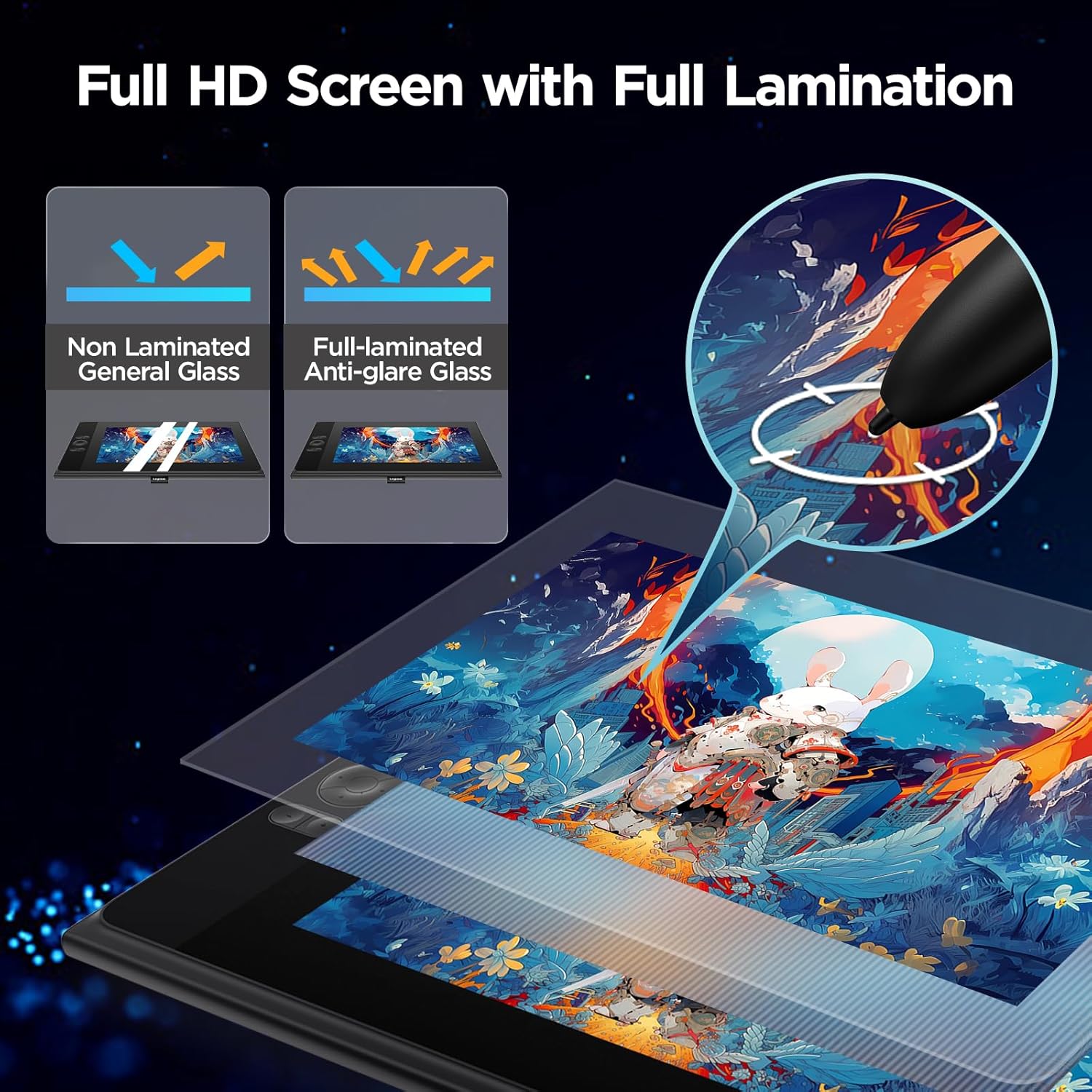
Figure 4.1: Comparison of non-laminated vs. full-laminated anti-glare glass, highlighting reduced parallax and improved visual clarity.

Figure 4.2: The anti-glare surface minimizes ambient light interference, and the paper-like frosted surface enhances the natural drawing feel.
The display boasts an ultra-wide color gamut of 124% sRGB, allowing for vibrant and accurate color reproduction. You can switch between three color spaces: sRGB, Adobe RGB, and DCI-P3, to match your workflow requirements.

Figure 4.3: The UE12 offers a wide color gamut, including 124% sRGB, 96% NTSC, and 100% Adobe RGB for accurate color representation.
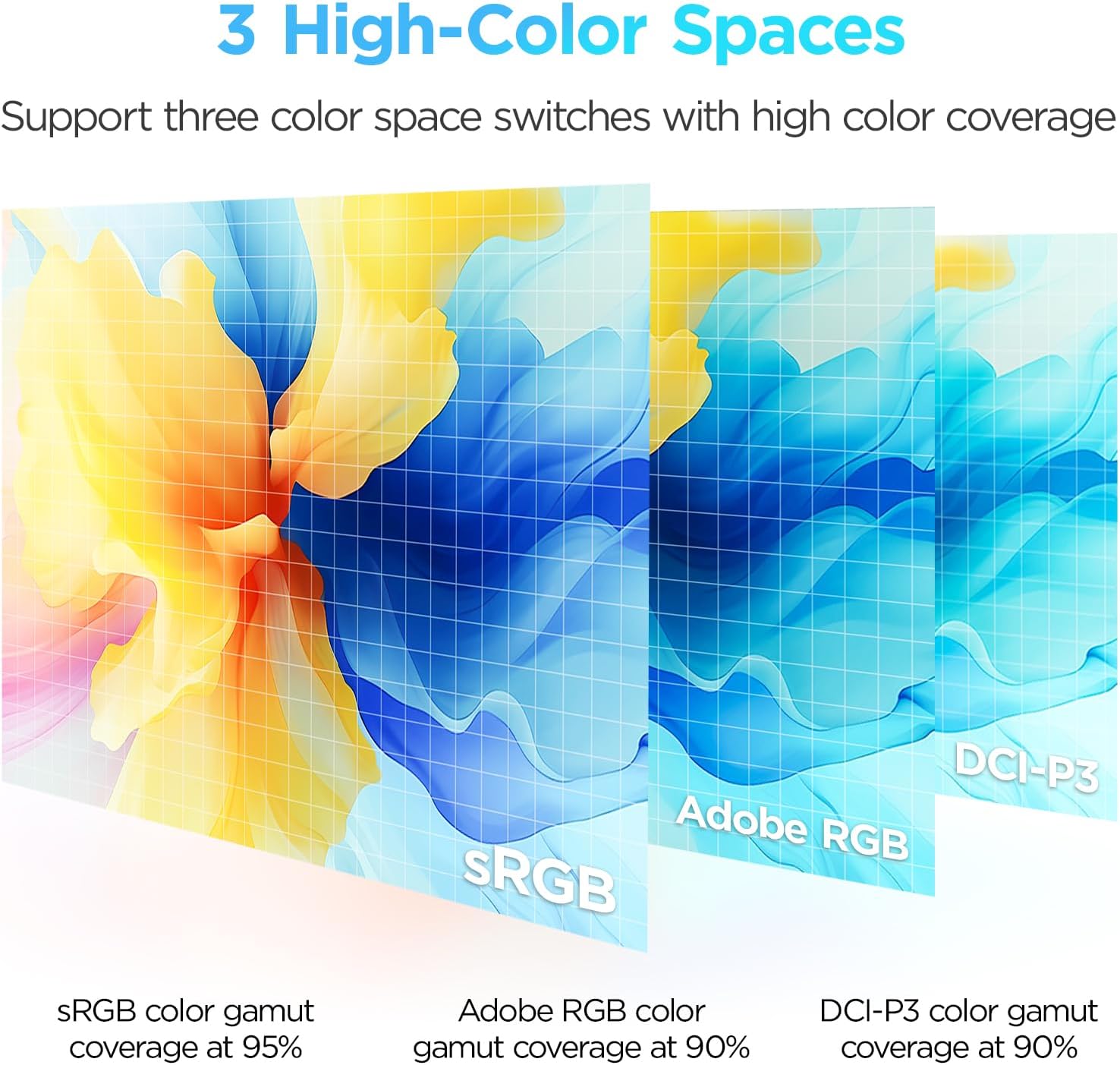
Figure 4.4: The tablet supports switching between sRGB, Adobe RGB, and DCI-P3 color spaces for professional color management.
4.2 Battery-Free Stylus
The included stylus is battery-free, eliminating the need for charging. It features 16K-level pressure sensitivity and 60° tilt recognition, providing a natural and responsive drawing experience with no delays.
- Осетљивост на притисак: The 16K pressure levels allow for fine control over line thickness and opacity.
- Препознавање нагиба: The 60° tilt support enables natural shading and brush effects, mimicking traditional art tools.
- Програмабилни пречици: The stylus body has two customizable buttons. By default, these can be set to switch between drawing tools, eraser, or other functions via the driver software.
- Заменски врхови: Eight replacement nibs are included in the package. To replace a nib, gently pull out the old nib with the nib remover tool (if provided, otherwise use tweezers) and insert a new one.

Figure 4.5: The UGEE stylus is battery-free, offers 16K levels of pressure sensitivity, 60° tilt support, and a fine pen design that mimics a pencil.
4.3 Customizable Shortcut Keys
The UE12 Graphics Tablet is equipped with 8 customizable shortcut keys and a concave-convex design for easy blind operation. These keys can be configured through the driver software to perform various functions, such as:
- Pen/Eraser toggle
- Brush size adjustment (increase/decrease)
- Поништи/Понови
- Увећајте/умањите
- Application-specific shortcuts
Refer to the driver software interface for detailed customization options.

Figure 4.6: The 8 customizable shortcut keys and central dial for efficient workflow, allowing for blind operation.
4.4 Компатибилност софтвера
The UGEE UE12 is compatible with a wide range of mainstream drawing and design software, including but not limited to:
- Адобе Пхотосхоп
- Адобе Иллустратор
- Manga Studio
- CorelPainter
- ibis Paint X
- Блендер
- ГИМП
- Маиа
- Autodesk Sketchbook
- Affinity Designer/Photo
Ensure your software is updated to its latest version for optimal performance.

Figure 4.7: The UGEE UE12 can be used for various creative tasks, including drawing, note-taking, and even gaming.
5. Одржавање
5.1 Чишћење таблета
To maintain the performance and appearance of your UGEE UE12 tablet:
- Always power off and unplug the tablet before cleaning.
- Користите меку крпу која не оставља длачицеampводом или средством за чишћење екрана посебно дизајнираним за електронику.
- Do not use harsh chemicals, abrasive cleaners, or alcohol-based solutions, as these can damage the screen and surface.
- Нежно обришите екран и цasing. Avoid spraying liquid directly onto the tablet.
5.2 Замена врха оловке
The stylus nibs will wear down over time, especially with frequent use on the paper-like surface. Replace the nib when it becomes too short or sharp, or if you notice a change in drawing feel.
- Gently pull the worn nib straight out using the nib remover tool or a pair of tweezers.
- Insert a new replacement nib firmly into the stylus until it clicks into place.
5.3 Складиштење
When not in use, store your tablet in a cool, dry place away from direct sunlight and extreme temperatures. Protect the screen from scratches by using a protective sleeve or case.
КСНУМКС. Решавање проблема
If you encounter issues with your UGEE UE12 Drawing Tablet, please refer to the following common solutions:
6.1 No Display / Screen Flashing
- Проверите каблове: Ensure all cables (USB-C or 3-in-1) are securely connected to both the tablet and your computer/device.
- Напајање: If using a single USB-C cable, ensure your computer's USB-C port provides sufficient power. Try connecting an external power adapter to the tablet's second Type-C port.
- Driver Issue: Uninstall and reinstall the latest UGEE drivers from the official website. Conflicting drivers from other tablet brands can cause display issues.
- Подешавања екрана: Check your computer's display settings to ensure the tablet is detected as an extended or duplicated display. Adjust resolution if necessary.
- Пробајте други порт/кабл: Test with a different USB-C port on your computer or try using the 3-in-1 cable if you were using a single USB-C cable.
6.2 Stylus Not Responding / Inaccurate Cursor
- Инсталација драјвера: Verify that the UGEE driver is correctly installed and running. Reinstall if necessary.
- Nib Check: Ensure the stylus nib is properly inserted and not overly worn. Replace if needed.
- сметње: Keep the tablet away from strong electromagnetic interference sources (e.g., large monitors, speakers).
- калибрација: Use the calibration tool within the UGEE driver software to recalibrate the screen and pen.
- Сукоб софтвера: Close any other drawing applications or tablet drivers that might be running in the background.
6.3 Shortcut Keys Not Working
- Софтвер драјвера: Open the UGEE driver software and ensure the shortcut keys are correctly mapped. Reset to default settings if unsure.
- Application Focus: Some applications may override tablet shortcuts. Ensure the drawing application is the active window.
- Поновна инсталација драјвера: If the issue persists, a clean reinstallation of the driver might resolve it.
7. Спецификације
| Феатуре | Детаљ |
|---|---|
| Димензије производа | 11.6 к 10.09 к 0.04 инча |
| Тежина артикла | 3.84 фунти |
| Назив модела | УЕ12 |
| Величина екрана | 11.6 инча |
| Резолуција екрана | Фул ХД (1920x1080) |
| Гамут боја | 124% сРГБ |
| Stylus Technology | Без батерије |
| Осетљивост на притисак | 16K Levels |
| Тилт Рецогнитион | 60° |
| Пречице | 8 Customizable Keys |
| Повезивање | Dual Type-C Ports (USB-C, 3-in-1 Cable) |
| Компатибилност оперативног система | Windows 7 or later, macOS 10.10 or later, Android 10.1 or later, Chrome 88 or later |
| Посебне карактеристике | Full Lamination, Anti-Glare Glass, 60° Tilt Support, Shortcut Keys |
8. Гаранција и подршка
8.1 Гаранција на производ
Your UGEE UE12 Drawing Tablet is covered by a manufacturer's warranty. Please refer to the warranty card included with your product for specific terms, conditions, and duration. Typically, this warranty covers defects in materials and workmanship under normal use. Keep your proof of purchase for warranty claims.
For additional protection, extended protection plans may be available for purchase from authorized retailers.
8.2 Корисничка подршка
For technical assistance, driver downloads, or further inquiries, please visit the official UGEE support channels:
- Службено Webсајт: ввв.угее.цом
- Brand Store on Amazon: UGEE Official Store
- Refer to the contact information provided in your product packaging for direct customer service.
When contacting support, please have your product model (UE12) and purchase details ready.
Ask a question about this manual
Ask about setup, troubleshooting, compatibility, parts, safety, or missing instructions. Manuals+ will review the question and use this page’s manual context to help answer it.