
Ninkear A15
Ninkear A15 Laptop User Manual
Модел: А15
1. Увод
Welcome to the Ninkear A15 Laptop user manual. This guide provides essential information for setting up, operating, maintaining, and troubleshooting your new Ninkear A15 laptop. Please read this manual thoroughly to ensure proper use and to maximize the performance and longevity of your device.
The Ninkear A15 is a high-performance laptop featuring an AMD Ryzen 5 5500U Hexa-core Processor, 16GB RAM, and a 512GB PCIe SSD, designed for a variety of computing tasks from daily productivity to graphic design and entertainment.
2. Шта је у кутији
Upon opening your Ninkear A15 Laptop package, please verify that all the following items are included:
- A15 laptop x 1
- Миш к 1
- Подлога за миш к 1
- Пуњач к 1
3. Производ је готовview
The Ninkear A15 laptop is engineered for efficiency and user comfort. Below are key features and components:
3.1 Кључне карактеристике
- Моћан процесор: Equipped with an AMD Ryzen 5 5500U processor, AMD Radeon graphics, 6 cores and 12 threads, with a frequency up to 4.0Ghz, suitable for various applications.
- Имерзивни екран: Features a 15.6-inch FHD IPS display with 1920x1080 resolution, offering a 90.3% screen-to-body ratio and a 180-degree viewing angle for clear and natural picture quality.
- Продужено трајање батерије: A 4350mAh battery provides up to 6 hours of daily use, making it ideal for mobile work. It supports full-function Type-C charging.
- AmpСкладиштење и меморија: Comes with 16GB DDR4 RAM (3200Mhz) and a 512GB PCIe SSD, ensuring fast performance for professional software and multitasking.
- Дизајн прилагођен кориснику: Includes a full digital backlit keyboard with three adjustable monochrome backlight levels (FN+F9) and a 0.5-second fingerprint unlocking feature for enhanced security and convenience.
3.2 Визуелни прелазview

Фронт view of the Ninkear A15 Laptop, showcasinњегов елегантан дизајн и екран.

Ан оверview of the Ninkear A15 Laptop highlighting key specifications like 15.6" IPS FHD display, AMD Ryzen 5 5500U processor, 16GB DDR4 RAM, 512GB PCIe SSD, 4350mAh battery, backlit keyboard, and Type-C full function port.

Детаљно view of the AMD Ryzen 5 5500U processor, emphasizing its 6 cores, 12 threads, 7nm process, and 4.0GHz max turbo frequency.
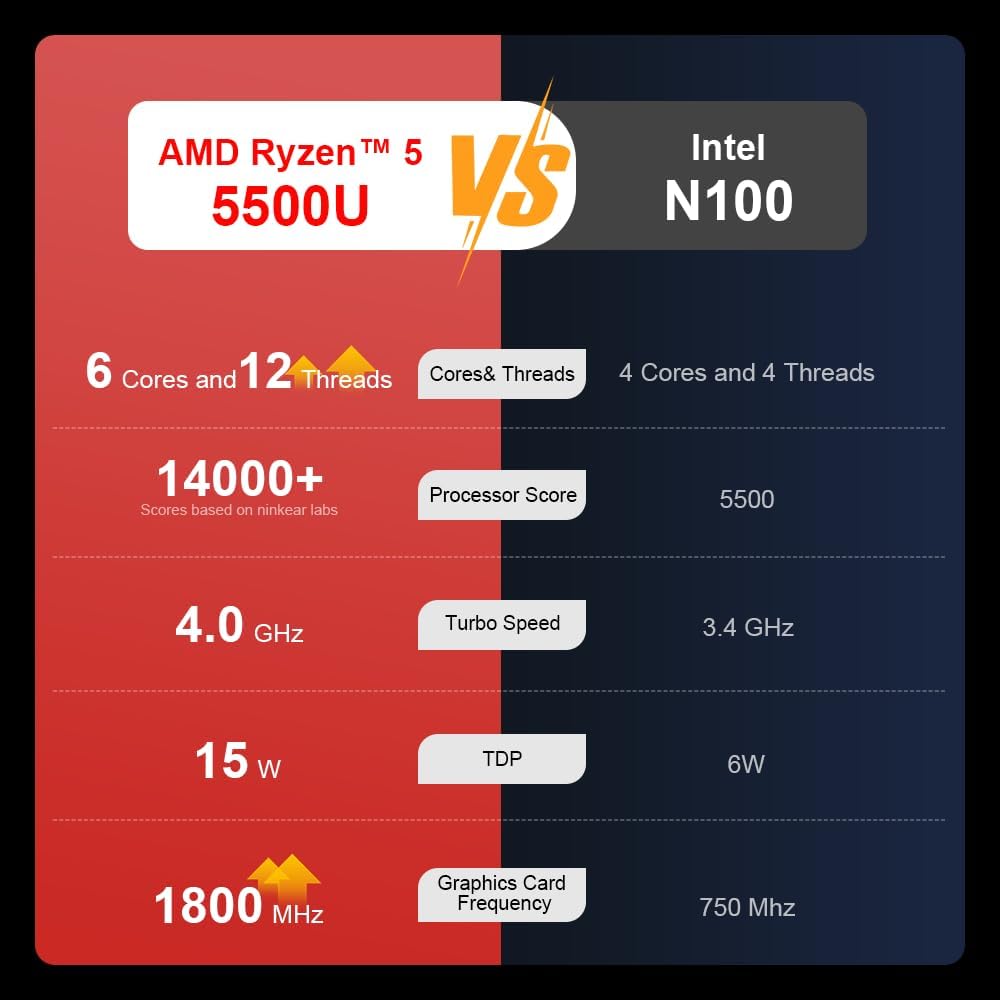
A comparison chart illustrating the performance differences between the AMD Ryzen 5 5500U and Intel N100 processors, including core/thread count, processor score, turbo speed, TDP, and graphics card frequency.

Image showing the 512GB M.2 PCIe SSD and highlighting the 3200MHz DDR4 running frequency, indicating a 20% speed improvement over 2666MHz DDR4.

The 15.6-inch IPS FHD screen of the A15, designed to deliver vibrant and accurate colors while reducing eye strain during long work hours.

Illustration of the A15 laptop's suitability for various 'recreational office' tasks, including graphic design (Ae, Ps, Ai) and gaming/entertainment.

Information about the laptop's 50.5WH high-capacity lithium-ion battery, providing up to 8 hours of local video playback and 72 hours of standby time.

A visual guide to the rich interfaces of the Ninkear A15 Laptop, including USB 3.0, USB 2.0, Headphone Jack, Charging Port, HDMI, and full-function Type-C ports.
3.3 Видео о производу
Званична видео презентација производаasing the Ninkear A15 Laptop's features, including its design, display, backlit keyboard, and various ports. This video provides a dynamic overview of the laptop's capabilities and physical attributes.
4. Подешавање
Follow these steps to set up your Ninkear A15 Laptop for the first time:
- Распакујте лаптоп: Пажљиво извадите лаптоп и сву додатну опрему из паковања.
- Прикључите напајање: Plug the charger into the laptop's charging port (DC-in or Type-C) and then into a power outlet.
- Почетно покретање: Open the laptop lid and press the power button (integrated with fingerprint sensor). The laptop will power on and begin the initial Windows 11 setup process.
- Подешавање система Windows 11: Follow the on-screen instructions to complete the Windows 11 setup, including selecting your region, language, connecting to Wi-Fi, and creating a user account.
- Подешавање отиска прста: During or after Windows setup, you can configure the fingerprint reader for quick and secure login.
5. Упутство за употребу
This section covers basic operation of your Ninkear A15 Laptop.
5.1 Укључивање/искључивање и режим спавања
- Укључено: Притисните дугме за напајање.
- Искључивање: Кликните на дугме Старт у оперативном систему Windows, а затим изаберите Напајање > Искључи.
- Режим спавања: Затворите поклопац или кликните на дугме Старт, а затим изаберите Напајање > Спавање.
5.2 Тастатура и тачпед
- Тастатура са позадинским осветљењем: Притисните Фн + Ф9 to cycle through the three levels of monochrome backlight brightness or turn it off.
- Тоуцхпад: Use the integrated touchpad for cursor control and gestures. Refer to Windows settings for touchpad customization.
- Нумеричка тастатура: The laptop features a full digital numeric keypad for convenient data entry.
5.3 Повезивање периферних уређаја
Utilize the various ports for external devices:
- УСБ портови: Connect USB devices like external hard drives, mice, or keyboards to the USB 2.0 or USB 3.0 ports.
- ДВИ: Connect to external monitors or projectors using the HDMI port.
- Тип-Ц: The full-function Type-C port supports data transfer, video output, and power delivery.
- Аудио прикључак: Повежите слушалице или екстерне звучнике на 3.5 мм аудио прикључак.
5.4 Подешавања екрана
Adjust display settings via Windows Settings > System > Display to optimize resolution, scaling, and multiple monitor setups.
6. Одржавање
Proper maintenance ensures the longevity and optimal performance of your Ninkear A15 Laptop.
- Чишћење: Користите меку крпу која не оставља влакна за чишћење екрана и кућишта. За тврдокорне мрље, благо обришитеampОбришите крпу водом или средством за чишћење екрана. Избегавајте јаке хемикалије.
- Ажурирања софтвера: Regularly update Windows and device drivers to ensure system stability, security, and performance.
- Одржавање батерије: Да бисте продужили век трајања батерије, избегавајте често потпуно пражњење батерије. Чувајте лаптоп на хладном и сувом месту када га не користите дуже време.
- вентилација: Уверите се да вентилациони отвори лаптопа нису блокирани како бисте спречили прегревање. Користите лаптоп на тврдој, равној површини.
- Резервна копија података: Редовно правите резервне копије важних података на екстерни диск или складиште у облаку како бисте спречили губитак података.
КСНУМКС. Решавање проблема
This section addresses common issues you might encounter with your Ninkear A15 Laptop.
| Проблем | Могући узрок | Решење |
|---|---|---|
| Лаптоп се не укључује | Low battery or power adapter issue | Ensure the charger is properly connected and the power outlet is working. Allow the laptop to charge for at least 30 minutes before attempting to power on again. |
| Екран је празан или црн | Display driver issue, external display connected, or sleep mode | Press any key or move the mouse to wake from sleep. Disconnect any external monitors. Try pressing Фн + Ф7 (or the key with a display icon) to switch display modes. If still blank, force shut down by holding the power button for 10 seconds, then restart. |
| Ви-Фи се не повезује | Wi-Fi adapter off, incorrect password, or router issue | Check if Wi-Fi is enabled in Windows settings. Verify the Wi-Fi password. Restart your router and modem. Update Wi-Fi drivers if necessary. |
| Позадинско осветљење тастатуре не ради | Backlight turned off or low brightness setting | Притисните Фн + Ф9 repeatedly to adjust brightness or turn on the backlight. |
| Споро перформансе | Too many programs running, low disk space, or outdated drivers | Close unnecessary applications. Free up disk space. Run Windows Update and update drivers. Consider running a virus scan. |
8. Спецификације
Detailed technical specifications for the Ninkear A15 Laptop:
| Феатуре | Спецификација |
|---|---|
| Бранд | Нинкеар |
| Назив модела | А15 |
| Величина екрана | 15.6 инча |
| Резолуција екрана | 1920 x 1080 пиксела (FHD IPS) |
| Процесор | AMD Ryzen 5 5500U (2.1 GHz, 6 Cores, 12 Threads) |
| РАМ | 16 GB DDR4 (3200 MHz) |
| Хард Дриве | 512 ГБ ПЦИе ССД |
| графичка картица | Интегрисана AMD Radeon графика |
| Оперативни систем | Виндовс 11 |
| Боја | Сребро |
| Тежина артикла | 5 фунти |
| Димензије производа | 14 к 9 к 0.15 инча |
| УСБ 3.0 портови | 2 |
| Просечно трајање батерије | Up to 6-8 hours (daily use) |
| Посебне карактеристике | Backlit Keyboard, Numeric Keypad, Fingerprint Unlock, Full-function Type-C |
9. Гаранција и подршка
Ninkear provides a standard warranty for the A15 Laptop. Please refer to the warranty card included in your product packaging for specific terms and conditions, including warranty duration and coverage details.
For technical support, troubleshooting assistance, or warranty claims, please contact Ninkear customer service through the official website or the contact information provided with your purchase. Ensure you have your product model (A15) and purchase details ready when contacting support.
You can also visit the official Ninkear store on Amazon for additional product information and support resources: Ninkear Amazon Store
Ask a question about this manual
Ask about setup, troubleshooting, compatibility, parts, safety, or missing instructions. Manuals+ will review the question and use this page’s manual context to help answer it.