
1. Увод
This manual provides detailed instructions for the installation, operation, and maintenance of your GAMEON Midnight I Series Mid Tower Gaming PC Case. Please read this manual thoroughly before beginning installation to ensure proper setup and to maximize the performance and lifespan of your product. Keep this manual for future reference.
2. Безбедносне информације
- Always disconnect the power supply from the wall outlet before performing any installation or maintenance inside the PC case.
- Handle the tempered glass panels with care. Tempered glass, while durable, can shatter if dropped or subjected to sharp impacts.
- Avoid exposing the case to extreme temperatures or high humidity.
- Do not attempt to modify the case or its components. Unauthorized modifications may void your warranty and pose safety risks.
- Држите мале делове и шрафове даље од деце.
3. Садржај пакета
Молимо вас да проверите да ли се у вашем пакету налазе све доле наведене ставке:
- GAMEON Midnight I Series Mid Tower Gaming PC Case
- 7 x 120mm ARGB PWM Cooling Fans (pre-installed)
- Accessory Box (containing screws, cable ties, and other mounting hardware)
- ARGB/PWM Fan Controller and Remote Control
- Кориснички приручник (овај документ)
4. Производ је готовview
The GAMEON Midnight I Series PC case is designed for optimal cooling and aesthetic appeal, featuring tempered glass panels and pre-installed ARGB PWM fans.

Figure 4.1: Internal layout of the PC case, highlighting the spacious interior for component installation.

Figure 4.2: Rear and top internal view, illustrating fan placement and overall structure.
4.1 ARGB+PWM Case Fans
The case comes with 7 pre-installed 120mm ARGB PWM fans, providing efficient cooling and customizable lighting. The fans are controlled via an included ARGB/PWM controller and remote.

Figure 4.3: ARGB+PWM fan features and fan mounting support. The front supports 360mm water cooling. Fan mounts include 3x120mm for PSU cover, 3x120mm for bottom, 3x120mm for top, and 1x120mm for rear.
4.2 Предњи И/О портови
The front panel provides convenient access to essential ports for connectivity.
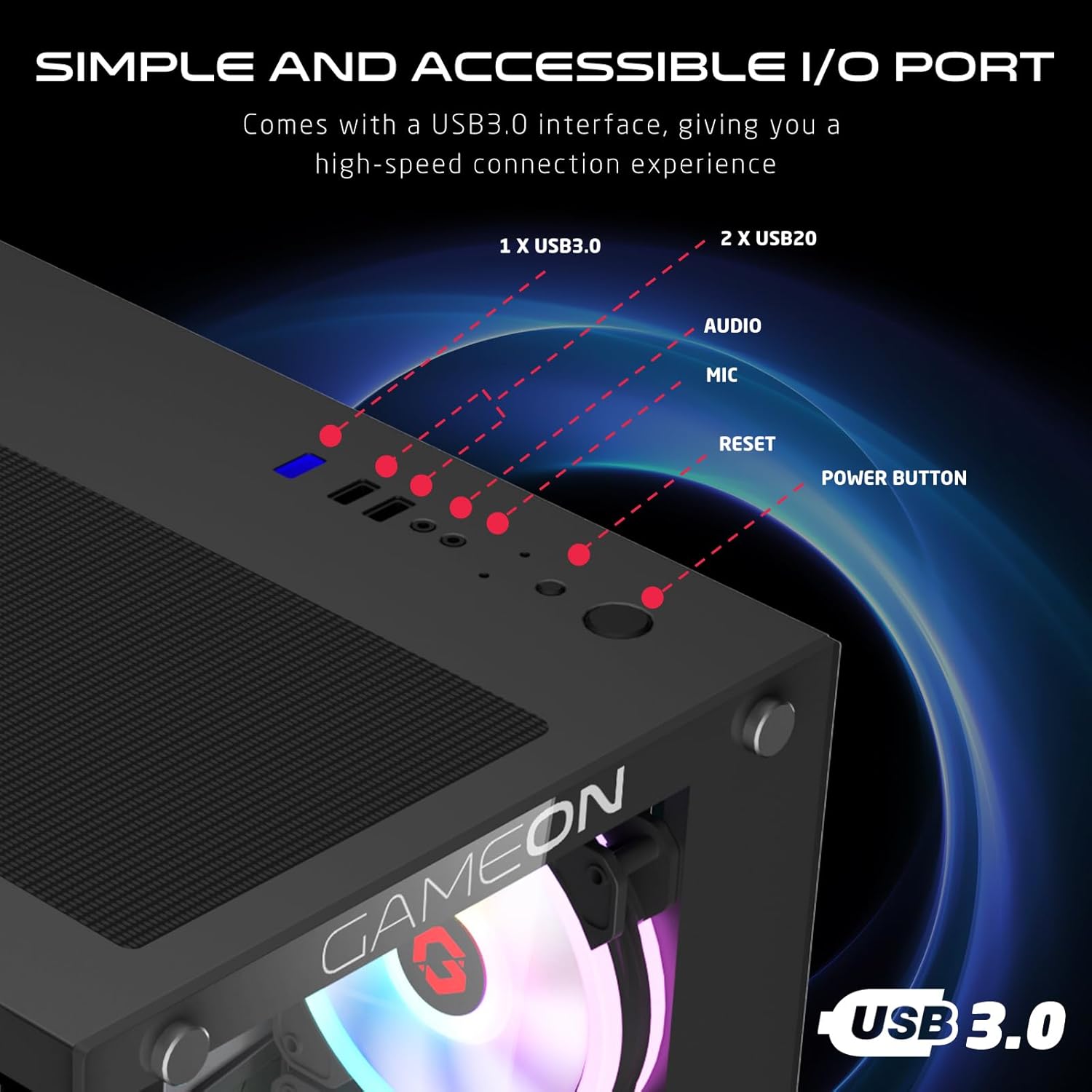
Figure 4.4: Front I/O ports, including 1x USB 3.0, 2x USB 2.0, Audio jack, Microphone jack, Reset button, and Power button.
4.3 Cooling and Construction
The case is designed with an optimized cooling solution, featuring multiple fan mounts and durable tempered glass panels.

Figure 4.5: Optimized cooling solution with massive air intake and exhaust. Features 7 pre-installed fans and durable tempered glass construction.
4.4 Compatibility and Drive Support
The case offers wide compatibility for various motherboard form factors and ample drive bay support.

Figure 4.6: Motherboard compatibility includes ATX, M-ATX, and ITX. Drive bay support for 2x HDD and 2x SSD. Also shown are the front panel header connections.
5. Упутства за подешавање
Follow these steps to install your components into the GAMEON Midnight I Series PC case.
5.1 Припрема случаја
- Поставите кућиште на равну, стабилну површину.
- Carefully remove the tempered glass side panel(s) by unscrewing the thumb screws and gently sliding the panel off. Set them aside in a safe place.
- Уклоните све унутрашње материјале за паковање.
5.2 Инсталација матичне плоче
- Инсталирајте И/О штит (ако није претходно инсталиран на матичној плочи) у задњи отвор кућишта.
- Align your motherboard with the standoffs inside the case. Ensure the standoffs match your motherboard's form factor (ATX, M-ATX, ITX).
- Причврстите матичну плочу приложеним вијацима.
5.3 Инсталација јединице за напајање (ПСУ).
- Locate the PSU mounting area at the bottom rear of the case.
- Slide your PSU into position from the rear of the case.
- Причврстите напајање (PSU) помоћу приложених завртња.
5.4 Инсталација диска (HDD/SSD)
The case supports 2x 3.5" HDDs and 2x 2.5" SSDs.
- For 3.5" HDDs: Locate the drive cage, typically near the PSU shroud. Slide the HDD into the drive bay and secure it with screws.
- For 2.5" SSDs: Mount the SSDs to the designated mounting points, usually on the back of the motherboard tray or within the drive cage, using the provided screws.
5.5 Инсталација графичке картице и картице за проширење
- Уклоните потребне поклопце PCIe слотова са задње стране кућишта.
- Уметните графичку картицу или друге картице за проширење у одговарајуће PCIe слотове на матичној плочи.
- Причврстите картице завртњима.
5.6 Управљање кабловима
Користите изрезе за усмеравање каблова и тачке за везивање иза лежишта матичне плоче да бисте управљали кабловима. Ово побољшава проток ваздуха и естетику.
5.7 Connecting Front Panel I/O and Fans
- Connect the front panel cables (Power SW, Reset SW, HDD LED, Power LED, USB 3.0, USB 2.0, HD Audio) to their corresponding headers on your motherboard. Refer to your motherboard manual for header locations.
- Ensure the pre-installed ARGB fans are connected to the included ARGB/PWM controller. Connect the controller to a SATA power connector from your PSU and a 3-pin ARGB header (if available) and a 4-pin PWM header on your motherboard for software control, or use the remote for standalone control.
6. Упутство за употребу
6.1 Укључивање/искључивање
- After all components are installed and cables connected, replace the side panels.
- Connect your monitor, keyboard, mouse, and power cable to the PSU.
- Press the Power button on the front panel to turn on your PC.
- To turn off, use the operating system's shutdown function or press and hold the Power button for several seconds.
6.2 ARGB контрола вентилатора
Унапред инсталирани ARGB вентилатори могу се контролисати на два начина:
- даљински управљач: Use the included remote to cycle through various lighting effects, adjust brightness, and change fan speed.
- Софтвер матичне плоче: If the ARGB controller is connected to a compatible 3-pin ARGB header on your motherboard, you can synchronize lighting effects with your motherboard's RGB software (e.g., ASUS Aura Sync, MSI Mystic Light Sync, ASRock Polychrome RGB, Gigabyte RGB Fusion).
7. Одржавање
Редовно одржавање помаже у обезбеђивању оптималних перформанси и дугог века трајања кућишта вашег рачунара.
7.1 Чишћење филтера за прашину
The case includes dust filters to prevent dust buildup. It is recommended to clean them every 1-3 months, depending on your environment.
- Locate the dust filters (e.g., top, bottom, front).
- Gently remove the filters.
- Clean them using compressed air, a soft brush, or by rinsing with water (ensure they are completely dry before re-installing).
- Re-attach the dust filters.
7.2 Генерално чишћење
- Користите меку, дamp cloth to wipe down the exterior surfaces of the case. Avoid abrasive cleaners.
- For tempered glass panels, use a glass cleaner and a microfiber cloth to avoid streaks.
7.3 Fan Cleaning
Periodically inspect the fan blades for dust accumulation. Use compressed air to gently clear dust from the fan blades and grilles.
КСНУМКС. Решавање проблема
If you encounter issues with your PC case, refer to the following common problems and solutions.
8.1 Вентилатори се не окрећу или ARGB не ради
- Проверите везу за напајање: Ensure the ARGB/PWM controller is properly connected to a SATA power connector from your PSU.
- Check Fan Connections: Verify that all fans are securely connected to the ARGB/PWM controller.
- Батерија даљинског управљача: If using the remote, check if its battery needs replacement.
- Софтвер матичне плоче: If using motherboard software for control, ensure the controller is connected to the correct ARGB header and the software is installed and configured correctly.
- Смер вентилатора: Уверите се да су вентилатори правилно оријентисани за оптималан проток ваздуха (усисни/издувни).
8.2 Предњи И/О портови не раде
- Check Motherboard Connections: Ensure all front panel cables (USB 3.0, USB 2.0, HD Audio) are correctly and securely connected to their respective headers on the motherboard. Refer to your motherboard manual.
8.3 PC Not Powering On
- Power Button Connection: Verify the Power SW cable from the front panel is correctly connected to the motherboard's front panel header.
- PSU Connection: Уверите се да је напајање правилно повезано са зидном утичницом и да је прекидач за напајање у положају „УКЉУЧЕНО“.
- Internal Power Cables: Check that all necessary power cables (24-pin ATX, CPU, GPU) are securely connected to the motherboard and components.
9. Спецификације
| Феатуре | Спецификација |
|---|---|
| Назив модела | GO-EMPERORII-M (Midnight I Series) |
| Тип случаја | Мид Товер |
| Материјал | Каљено стакло |
| Боја | Црно |
| Димензије производа (Д к Ш к В) | 44 к 28 к 42.7 цм |
| Тежина артикла | 6.45 кг |
| Подршка матичне плоче | ATX, Micro ATX, ITX |
| Унапред инсталирани вентилатори | 7 x 120mm ARGB PWM ventilatora |
| Величина вентилатора | 120мм |
| Метод хлађења | Air, Water (supports up to 360mm radiator in front) |
| Дриве Баис | 2 x 3.5" HDD, 2 x 2.5" SSD |
| Предњи И / О портови | 1 x USB 3.0, 2 x USB 2.0, Audio, Mic, Reset, Power |
| Додатне карактеристике | Dust Filters, ARGB Controller with Remote |
10. Гаранција и подршка
This product comes with a standard manufacturer's warranty. For specific warranty terms and conditions, please refer to the documentation provided with your purchase or contact GAMEON customer support. For technical assistance or further inquiries, please visit the official GAMEON webсајт или контактирајте њихове канале за подршку.