
Производ је завршенview
The JSAUX 12-in-1 RGB Docking Station (Model HB1201S) is designed to expand the connectivity and enhance the gaming experience for portable gaming consoles such as the Steam Deck (OLED), ROG Ally, Legion Go, and MSI Claw. This docking station features multiple ports for video output, data transfer, network connectivity, and power delivery, along with customizable RGB lighting.

Слика: Прекоview of the JSAUX 12-in-1 RGB Docking Station, highlighting its various ports and features including Gigabit Ethernet, USB C PD (100W), USB A 3.2 (10Gbps), DisplayPort 1.4 (4K@120Hz), HDMI 2.1 (4K@120Hz), SD card slot, TF card slot, USB C 3.2 (10Gbps, no video output), IN: USB C (HOST), Retractable Stand, RGB Touch Switch, 3.5mm audio interface, USB A 2.0 (480Mbps), and RGB Light Strip.
Садржај пакета
- JSAUX 12-in-1 RGB Docking Station (HB1201S)
- USB-C to USB-C Host Cable
- Упутство за употребу

Video: A person unboxes the JSAUX RGB Docking Station, showing the purple transparent dock and the included USB-C to USB-C cable. This video demonstrates the physical contents of the product packaging.
Упутства за подешавање
- Прикључак за напајање: Connect a 100W Power Delivery (PD) charger (not included) to the USB-C PD port on the docking station.
- Host Device Connection: Use the provided USB-C to USB-C cable to connect your gaming console (Steam Deck, ROG Ally, Legion Go, etc.) to the 'IN: USB C (HOST)' port on the docking station.
- Повезивање екрана:
- For single display: Connect your monitor or TV to either the HDMI (4K@120Hz) or DisplayPort (4K@120Hz) output.
- For dual display: Connect two monitors using both the HDMI and DisplayPort outputs. Note that dual-screen support maxes out at 4K@60Hz or 2K@120Hz.

Image: A Steam Deck is shown docked and connected to two external monitors, demonstrating the dual display output capability via HDMI and DisplayPort.
- Етхернет веза: For a stable wired internet connection, connect an Ethernet cable to the Gigabit Ethernet port on the docking station.
- USB периферни уређаји: Connect your USB devices (keyboard, mouse, external drives, etc.) to the available USB A 3.2 (10Gbps), USB C 3.2 (10Gbps), or USB A 2.0 (480Mbps) ports.
- Аудио излаз: Connect headphones or external speakers to the 3.5mm audio jack for audio output.
- меморијске картице: Insert SD or TF cards into their respective slots for data access. Note: Simultaneous reading of SD and TF cards is not supported.
Упутство за употребу
РГБ режими осветљења
The docking station features six dynamic RGB lighting modes. You can cycle through these modes or turn the lighting on/off using the top-mounted touch switch. For custom lighting control, connect the USB-C upstream port to a PC and use OpenRGB software.
- Директно
- Дисање
- Раинбов Ваве
- Spectrum Cycle
- Race Cycle
- Слагање
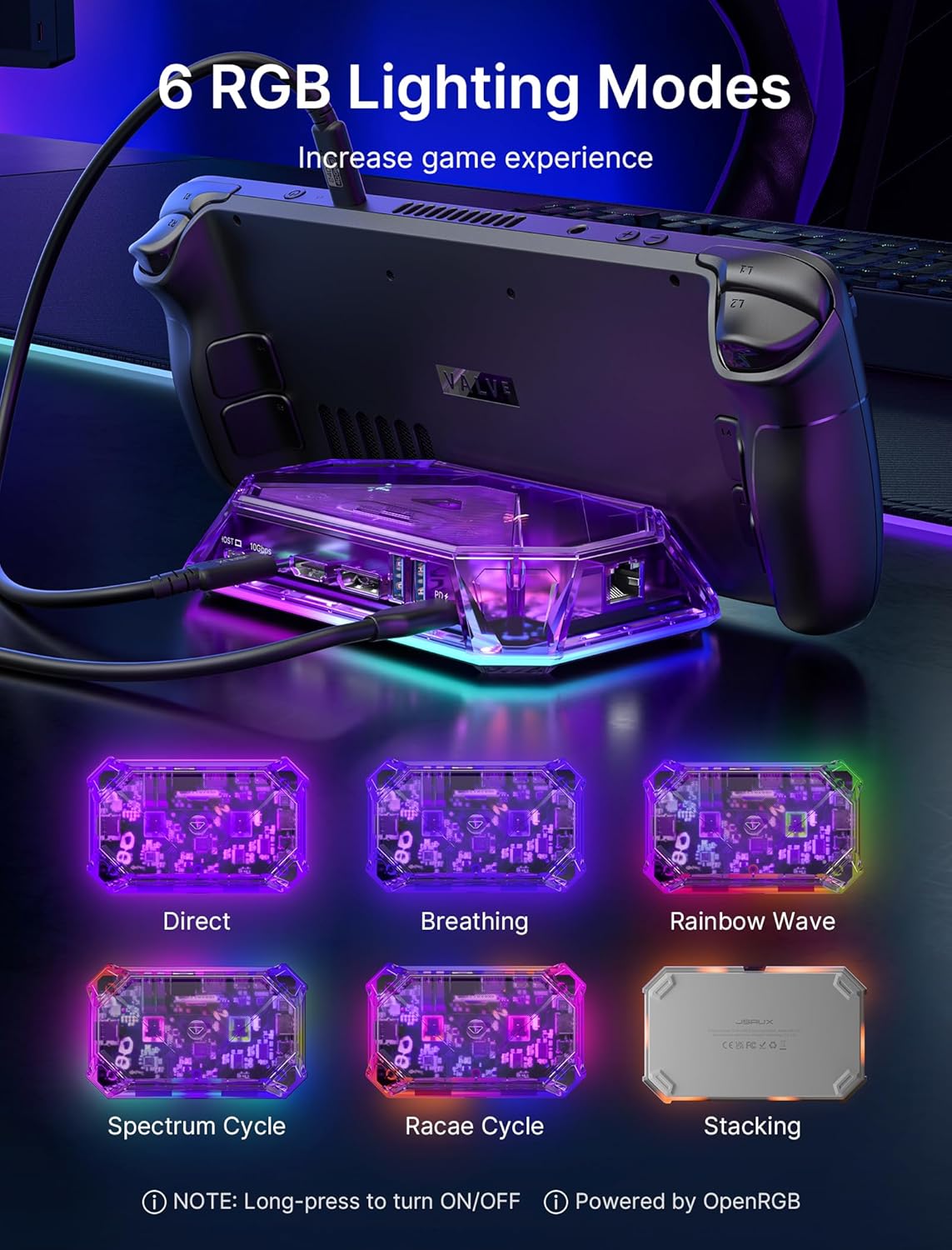
Image: The JSAUX RGB Docking Station is shown with a Steam Deck, illustrating six different RGB lighting modes: Direct, Breathing, Rainbow Wave, Spectrum Cycle, Race Cycle, and Stacking. Instructions for turning on/off and OpenRGB software are also visible.
Advanced Display Features
The HDMI and DisplayPort outputs support 4K@120Hz with advanced features for an enhanced visual experience:
- Променљива брзина освежавања (ВРР): Synchronizes display refresh rate with the console's frame rate to eliminate screen tearing and stuttering.
- Аутоматски режим ниске латенције (АЛЛМ): Automatically switches the display to a low-latency mode for smoother gaming.
- Високи динамички опсег (ХДР): Provides a wider range of colors and contrast for more vibrant and realistic images.

Image: A person is shown playing a video game on a large curved monitor, with the JSAUX docking station connected to a handheld console. The image highlights features like VRR (Variable Refresh Rate), ALLM (Auto Low Latency Mode), HDR (High Dynamic Range), and QFT (Quick Frame Transport) for an immersive experience.
Пренос података и пуњење
The docking station offers high-speed data transfer and efficient power delivery:
- Пренос података: USB A 3.2 and USB C 3.2 ports support data transfer speeds up to 10Gbps.
- Испорука струје: The USB C PD 3.0 port supports up to 100W fast charging for your connected console or other compatible devices.

Image: The JSAUX docking station is shown with multiple USB cables connected, emphasizing the 10Gbps data transfer speed of its USB 3.2 ports.
Одржавање
To ensure the longevity and optimal performance of your JSAUX 12-in-1 RGB Docking Station, follow these maintenance guidelines:
- Чишћење: Use a soft, dry cloth to clean the exterior of the docking station. Avoid using liquid cleaners or abrasive materials.
- Складиштење: Чувајте докинг станицу на хладном и сувом месту, даље од директне сунчеве светлости и екстремних температура.
- Ажурирања фирмвера: Periodically check the official JSAUX website for any available firmware updates. Keeping the firmware updated can improve compatibility and performance.
- Пажљиво рукујте: Избегавајте испуштање уређаја или излагање јаким ударима.
Решавање проблема
Ако наиђете на проблеме са базном станицом, погледајте следеће уобичајене проблеме и решења:
| Проблем | Могући узрок | Решење |
|---|---|---|
| No video output or flickering screen | Loose cable connection, incompatible display settings, power issue. | Ensure all cables (USB-C host, HDMI/DisplayPort, power) are securely connected. Check your console's display settings and the monitor's input source. Verify the power adapter provides sufficient wattage (100W PD recommended). Try a different HDMI/DisplayPort cable. |
| USB уређаји нису препознати | Loose connection, device driver issue, power limitation. | Reconnect the USB device. Ensure your console's drivers are up to date. If using multiple high-power USB devices, ensure adequate power is supplied to the dock. |
| Ethernet connection not working | Loose cable, network configuration, driver issue. | Check the Ethernet cable connection. Verify network settings on your console. Ensure the console's network drivers are updated. |
| Пуњење је споро или не ради | Insufficient power adapter, faulty cable. | Use a 100W Power Delivery (PD) charger. Ensure the USB-C PD cable is functioning correctly. |
| РГБ осветљење не функционише | Lighting off, software issue. | Press the top-mounted touch switch to cycle through modes or turn on/off. If using OpenRGB, ensure the software is correctly configured and the dock is connected to a PC. |
| VRR/ALLM/HDR not working | Display incompatibility, console settings. | Ensure your connected display (monitor/TV) supports VRR, ALLM, and HDR. Verify these features are enabled in your console's display settings. |
Спецификације
| Феатуре | Детаљ |
|---|---|
| Модел | ХБ1201С |
| Димензије | 9.19 x 14.99 x 2.82 цм |
| Тежина | 15.2 унци (0.43 кг) |
| Портс | 12 Укупно |
| Видео Оутпут | 1x HDMI 2.1 (4K@120Hz), 1x DisplayPort 1.4 (4K@120Hz) |
| УСБ портови | 2x USB A 3.2 (10Gbps), 1x USB C 3.2 (10Gbps, no video output), 1x USB A 2.0 (480Mbps) |
| Повер Деливери | 1x USB C PD 3.0 (up to 100W) |
| Етхернет | 1x Gigabit Ethernet (1Gbps) |
| Аудио | 1к 3.5 мм аудио прикључак |
| Читачи картица | 1x SD Card Slot (480Mbps), 1x TF Card Slot (480Mbps) |
| Компатибилни уређаји | Valve Steam Deck, Steam Deck OLED, ASUS ROG Ally, Lenovo Legion Go, MSI Claw, OneXPlayer, AYANEO Slide, etc. |
| Посебне карактеристике | VRR, ALLM, HDR, 6 RGB Lighting Modes, OpenRGB Software Support |
Гаранција и подршка
JSAUX products are designed for reliability and performance. For warranty information, technical support, or to inquire about replacement parts, please visit the official JSAUX webсајт или директно контактирајте њихову корисничку службу.
Службено Webсајт: ввв.јсаук.цом
Молимо вас да сачувате доказ о куповини за евентуалне рекламације у вези са гаранцијом.