
MageGee MK-Storm
MageGee Mechanical Gaming Keyboard MK-Storm User Manual
Brand: MageGee | Model: MK-Storm
1. Увод
Thank you for choosing the MageGee MK-Storm Mechanical Gaming Keyboard. This 104-key wired keyboard is designed for an enhanced typing and gaming experience, featuring durable brown switches, blue backlighting, and anti-ghosting technology. This manual provides essential information for setup, operation, and maintenance to ensure optimal performance.
2. Кључне карактеристике
- Blue Backlit Gaming Keyboard: Features 20 different backlit modes, 5 brightness levels, and 5 speed adjustments. The backlight can be easily turned off.
- Mechanical Brown Switches: Offers moderate trigger key travel and force, suitable for both typing and gaming. Provides tactile feedback with a slight sound.
- Anti-Ghosting Keyboard: All 104 keys have individual switches with full N-key rollover, ensuring faster response and simultaneous key presses without conflict.
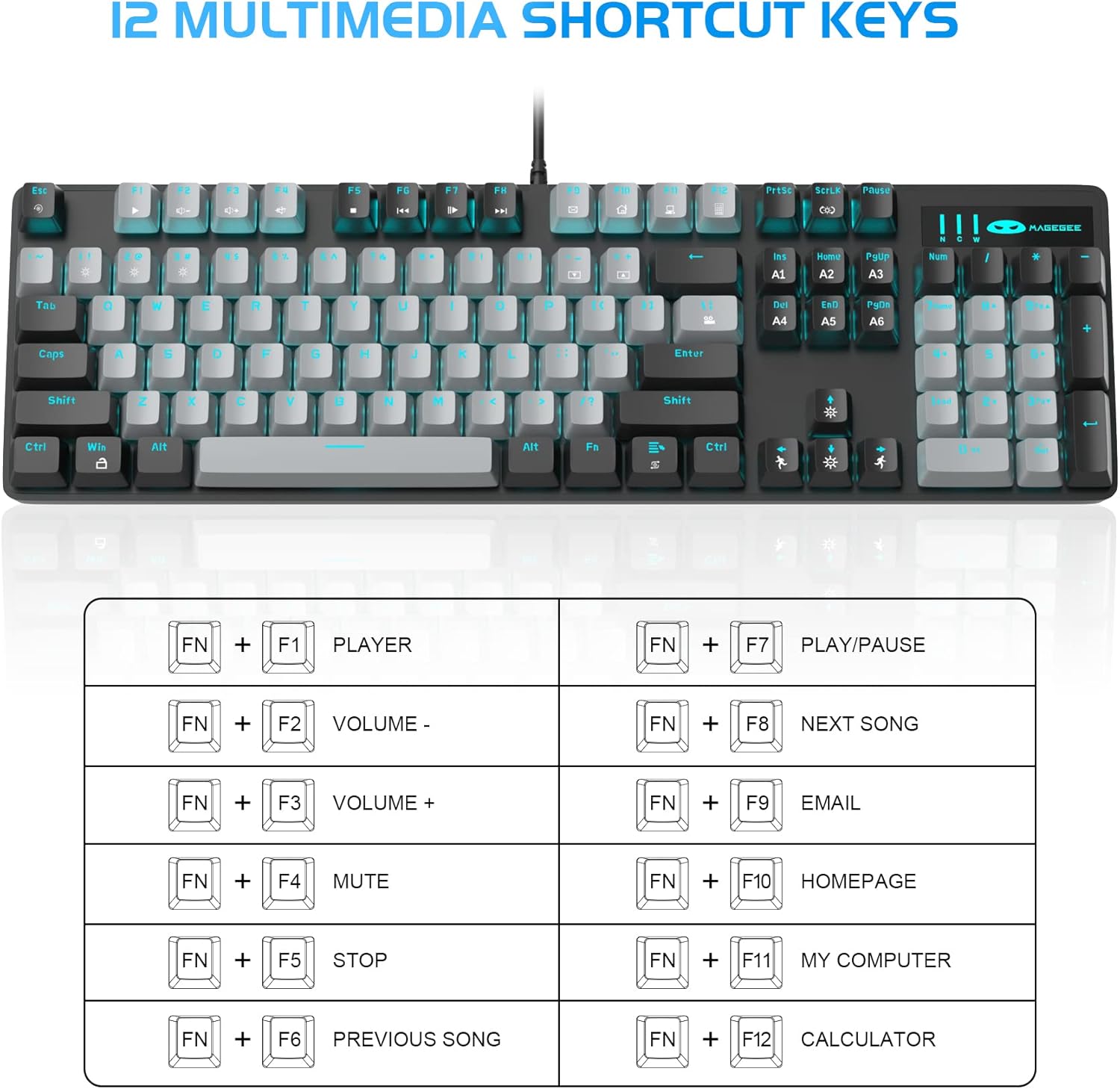
- 12 Multimedia Combination Keys: Quick operations via FN+ F1~F12 for media control and office functions.
- Ергономски дизајн: Premium metal panel construction for stability. Ergonomic key layout and two-step adjustable feet for comfortable typing angles.
- Широка компатибилност: USB wired connection compatible with Windows 2000/Vista/Win7/Win8/Win10/MAC/Linux.

3. Садржај пакета
The MageGee MK-Storm Mechanical Gaming Keyboard package includes the following items:
- MageGee Mechanical Gaming Keyboard (MK-Storm)
- USB Wired Cable (attached to keyboard)
- Алат за извлачење капица
- 16 Extra Keycaps (color scheme varies by keyboard variant)
- Упутство за употребу
4. Подешавање
- Повежите тастатуру: Plug the USB connector of the keyboard cable into an available USB port on your computer (PC, laptop, or desktop).
- Инсталација драјвера: Тастатура је „plug-and-play“. Ваш оперативни систем би требало аутоматски да детектује и инсталира потребне драјвере. За основне функционалности обично није потребна додатна инсталација софтвера.
- Подесите угао тастатуре: Flip out the two-step feet on the underside of the keyboard to adjust the typing angle to your preference.

5. Упутство за употребу
5.1 Контрола позадинског осветљења
The MK-Storm keyboard features a single blue backlight with multiple modes and adjustable settings.
- Промена режима позадинског осветљења: Притисните ФН + ИНС да бисте циклично мењали 20 различити режим позадинског осветљења.
- Подесите осветљеност: Притисните ФН + ↑ (Up Arrow) to increase brightness (5 levels). Press ФН + ↓ (Стрелица надоле) да бисте смањили осветљеност.
- Подесите брзину: Притисните ФН + ← (Left Arrow) to decrease animation speed (5 levels). Press ФН + → (Right Arrow) to increase animation speed.
- Искључите позадинско осветљење: The backlight can be turned off by cycling through the brightness levels until it is off, or by selecting a mode that has no illumination.

5.2 мултимедијалних тастера
Access multimedia and system functions quickly using the FN key in combination with the F1-F12 keys.
| Комбинација тастера | Функција |
|---|---|
| ФН + Ф1 | Плаиер |
| ФН + Ф2 | Волуме - |
| ФН + Ф3 | Волуме + |
| ФН + Ф4 | Муте |
| ФН + Ф5 | Стани |
| ФН + Ф6 | Претходна песма |
| ФН + Ф7 | Пусти/Паузирај |
| ФН + Ф8 | Нект Сонг |
| ФН + Ф9 | Емаил |
| ФН + Ф10 | Почетна страница |
| ФН + Ф11 | Мој рачунар |
| ФН + Ф12 | Калкулатор |
5.3 Прилагођени професионалацfiles (If applicable)
The keyboard supports custom lighting profiles. Refer to the manufacturer's website or included software (if any) for detailed instructions on programming and saving custom lighting zones or key assignments. Once programmed, these profiles can often be accessed directly from the keyboard using FN key combinations (e.g., FN+1, FN+2, FN+3 for different profileс).
6. Прилагођавање
The MageGee MK-Storm keyboard allows for customization of keycaps and switches.
- Замена капице тастера: Use the included keycap puller tool to carefully remove existing keycaps. Align the new keycap with the switch stem and press down gently until it clicks into place.
- Замена прекидача: The keyboard comes with extra brown switches. To replace a switch, first remove the keycap. Then, use a switch puller (not included, but often similar to a keycap puller) to gently extract the switch from the PCB. Insert the new switch, ensuring the pins align correctly, and press firmly until it seats properly.


7. Одржавање
- Чишћење: The floating keys design makes cleaning easier. Use a soft brush or compressed air to remove dust and debris from between the keycaps. For stubborn dirt, remove keycaps using the provided tool and wipe the keyboard surface with a slightly damp cloth. Ensure the keyboard is disconnected before cleaning.
- Складиштење: Чувајте тастатуру на сувом и хладном месту, даље од директне сунчеве светлости и екстремних температура.
- Нега каблова: Избегавајте прекомерно савијање или увијање USB кабла како бисте спречили оштећења.
КСНУМКС. Решавање проблема
- Тастатура не реагује:
- Уверите се да је УСБ кабл безбедно прикључен и на тастатуру и на рачунар.
- Покушајте да прикључите тастатуру на други УСБ порт на рачунару.
- Поново покрените рачунар.
- Тестирајте тастатуру на другом рачунару да бисте искључили проблем специфичан за систем.
- Позадинско осветљење не ради/неисправно:
- Ensure the backlight is not turned off (FN + ↓ to increase brightness).
- Прелазите кроз режиме позадинског осветљења помоћу FN + INS.
- Check if any specific software is interfering with the lighting settings.
- Кључеви се не региструју:
- Clean around the affected key to ensure no debris is obstructing the switch.
- If a specific switch is faulty, consider replacing it with one of the spare switches provided, following the customization instructions.
9. Спецификације
| Феатуре | Детаљ |
|---|---|
| Бранд | MageGee |
| Број модела | MK-Storm |
| Распоред тастера | 104 тастера (пуна величина) |
| Тип прекидача | Механички смеђи прекидачи |
| Позадинско осветљење | Blue Backlit (20 modes, 5 brightness, 5 speed) |
| Повезивање | УСБ Виред |
| Анти-Гхостинг | Потпуни Н-Кеи Ролловер |
| Мултимедијални тастери | 12 (FN + F1-F12) |
| Материјал | Metal Panel Construction |
| Компатибилни уређаји | Лаптоп, ПЦ |
| Оперативни системи | Windows 2000/Vista/Win7/Win8/Win10/MAC/Linux |
| Тежина артикла | 2.77 фунти |
| Димензије пакета | 17.63 к 12.36 к 1.89 инча |

10. Гаранција и подршка
For warranty information, technical support, or any product-related inquiries, please contact MageGee customer service through the retailer where the product was purchased or visit the official MageGee webсајту. Сачувајте рачун о куповини за гаранције.
Ask a question about this manual
Ask about setup, troubleshooting, compatibility, parts, safety, or missing instructions. Manuals+ will review the question and use this page’s manual context to help answer it.