
Увод
Хвала вам на куповиниasing the KTC H27S17 27-inch WQHD 180Hz Curved Gaming Monitor. This manual provides essential information for the safe and efficient use of your new monitor. Please read it thoroughly before use and retain it for future reference.
Производ је завршенview Видео
Видео: Званична видео презентација производаasing the key features and design of the KTC H27S17 27-inch Curved Gaming Monitor.
Садржај пакета
Проверите да ли су све ставке наведене у наставку укључене у ваш пакет:
- Повер Цабле
- ДисплаиПорт Цабле
- Повер Адаптер
- Постоље за монитор
- Постоље за постоље
- Driver CD (or download link)
- Монтажни завртњи
- Instruction Manual (Japanese version)
- Водич за брзи почетак
- Гарантни лист
Упутства за подешавање
1. Састављање постоља
Attach the stand base to the monitor stand using the provided screws. Then, securely attach the assembled stand to the back of the monitor.
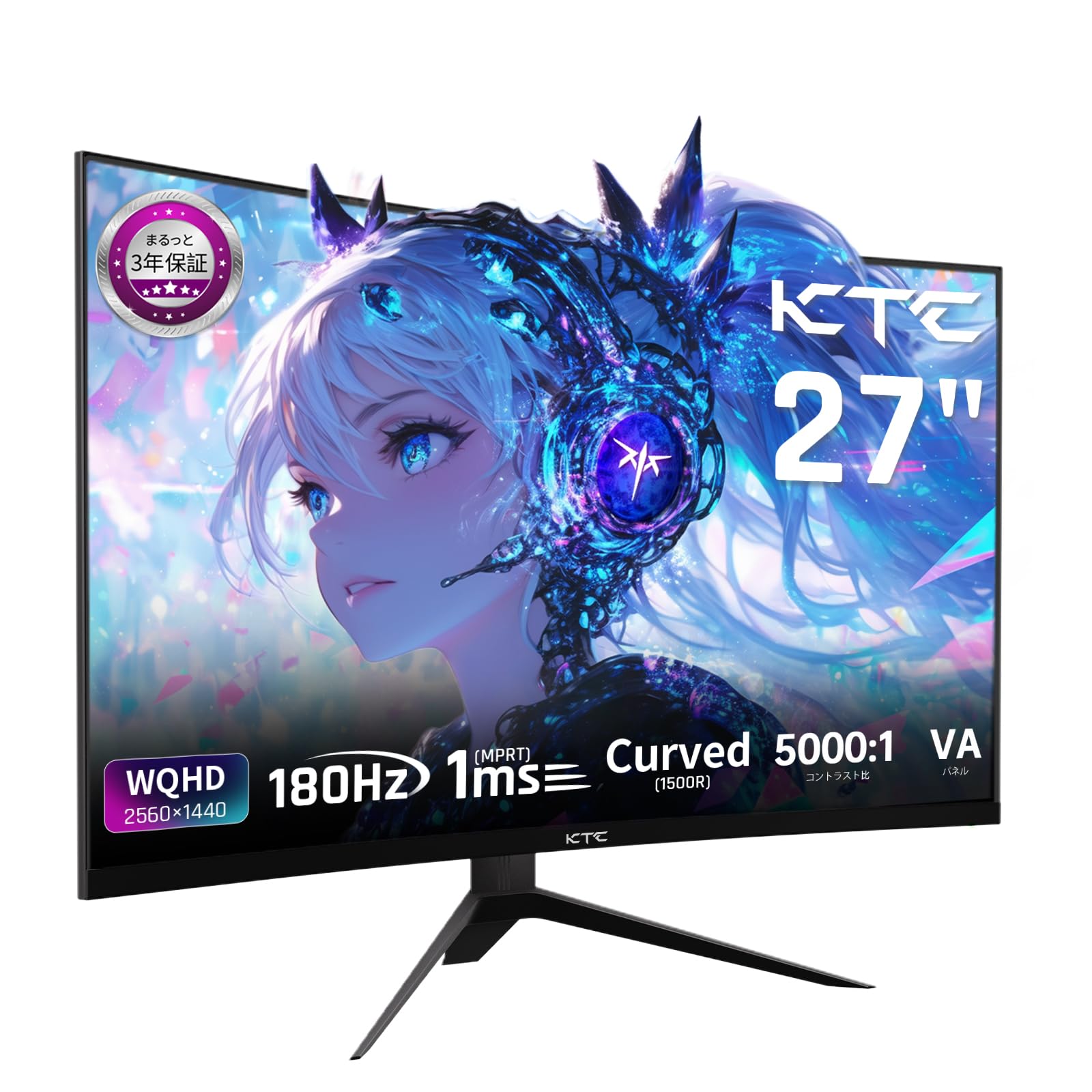
Image: The KTC H27S17 monitor fully assembled with its stand, viewед са фронта.
2. Повезивање са извором напајања
Прикључите адаптер за напајање на DC улазни порт монитора, а затим укључите кабл за напајање у зидну утичницу.
3. Повезивање са уређајем
Use the appropriate cable (DisplayPort or HDMI) to connect your computer or gaming console to the monitor. Ensure the cable is securely connected to both the monitor and your device.

Слика: Позади view of the monitor showing the various input ports including DC, USB, HDMI, DisplayPort, and headphone jack.
4. VESA монтажа (опционо)
The monitor supports VESA 100mm x 100mm mounting. If using a VESA mount, remove the stand and attach the monitor to your VESA-compatible arm or wall mount using appropriate screws.
Image: Diagram illustrating the VESA 100x100mm mounting pattern and tilt adjustment range on the back of the monitor.
Упутство за употребу
Укључивање/искључивање
Притисните дугме за напајање, које се обично налази на задњој или доњој страни монитора, да бисте га укључили или искључили. Индикаторска лампица напајања ће светлети када је монитор укључен.
Он-Сцреен Дисплаи (ОСД) мени
Use the joystick or buttons on the monitor to navigate the OSD menu. This menu allows you to adjust various display settings such as brightness, contrast, color temperature, input source, and gaming features.
Избор улазног извора
If multiple devices are connected, use the OSD menu to select the desired input source (HDMI 1, HDMI 2, DisplayPort 1, DisplayPort 2).
Дисплаи Феатурес
Curved Display (1500R)
Закривљеност од 1500R пружа импресиван утисак viewing experience, reducing eye strain during extended use by matching the natural curve of the human eye.

Image: A curved monitor displaying a vibrant image, highlighting the 1500R curvature for an immersive experience.
WQHD Resolution (2560x1440)
Experience detailed visuals with WQHD (2560x1440) resolution, offering approximately 1.7 times the pixel density of Full HD displays.

Image: A monitor displaying a high-resolution image, emphasizing the clarity of WQHD (2560x1440) compared to lower resolutions.
High Refresh Rate (180Hz) and Fast Response Time (1ms MPRT)
The 180Hz refresh rate and 1ms (MPRT) response time ensure smooth, blur-free visuals, crucial for fast-paced gaming and action scenes.

Image: A split screen comparison on the monitor, demonstrating the difference between 180Hz/1ms and 60Hz/5ms, highlighting reduced motion blur.
Vibrant Color Reproduction and HDR10
With sRGB 132%, DCI-P3 104%, Adobe RGB 112% color volume, and HDR10 support, the monitor delivers accurate and vivid colors with enhanced contrast between bright and dark areas.

Image: A monitor displaying a colorful scene, illustrating the wide color gamut and high contrast ratio (5000:1).
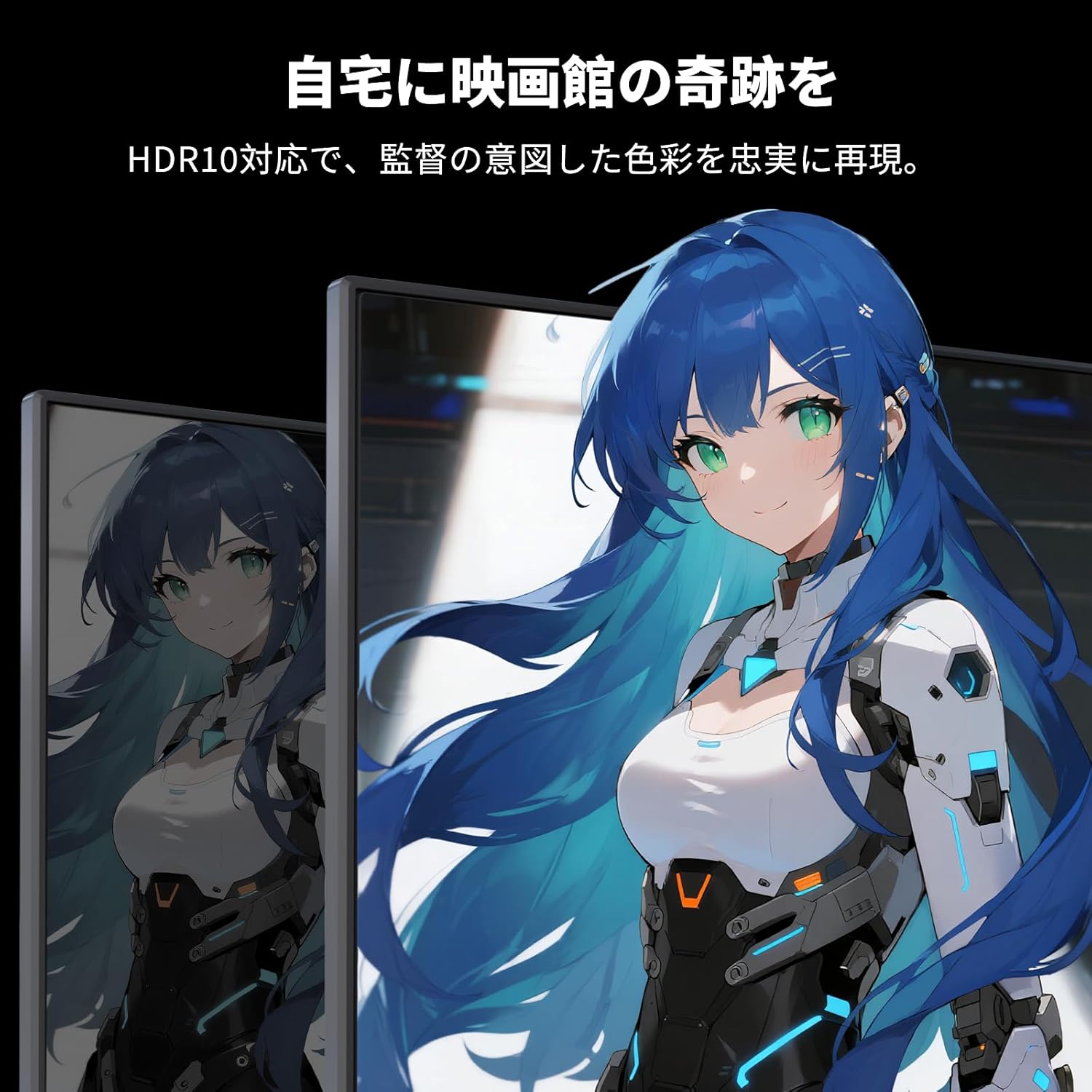
Image: A monitor showing a scene with HDR10 enabled, demonstrating improved dynamic range and detail in both bright and dark areas.
Адаптиве Синц Тецхнологи
Adaptive Sync (FreeSync and G-Sync compatible) eliminates screen tearing and stuttering, providing a fluid gaming experience.

Image: A split screen comparison on the monitor, showing the difference between Adaptive Sync OFF (screen tearing) and ON (smooth image).
Карактеристике неге очију
The monitor includes Flicker-Free technology and a Low Blue Light mode to reduce eye strain during prolonged use.

Image: Illustrations demonstrating Flicker-Free technology and Low Blue Light mode, designed to reduce eye fatigue.
Повезивање
The KTC H27S17 monitor offers multiple connectivity options:
- 2 x HDMI 2.0: Supports WQHD (2560x1440) at 144Hz.
- 2 x DisplayPort 1.4: Supports WQHD (2560x1440) at 180Hz.
- 1 к УСБ 2.0: For firmware upgrades only.
- 1 x 3.5mm Headphone Jack: За аудио излаз.
- 1 x DC Input: За прикључак на струју.
Слика: Детаљна view of the monitor's rear panel, highlighting the DC input, USB port, HDMI ports, DisplayPort inputs, and headphone jack.
Physical Adjustments
Подешавање нагиба
The monitor stand allows for tilt adjustment from -5 to 15 degrees, enabling you to find an optimal viewугао за удобност.
Image: Diagram illustrating the tilt adjustment range of the monitor stand.
ВЕСА компатибилност
The monitor is compatible with VESA 100mm x 100mm mounting standards, allowing for flexible installation with monitor arms or wall mounts.
Одржавање
Чишћење екрана
Нежно обришите екран меком крпом која не оставља влакна. За тврдокорне мрље, лагано дampОперите крпу водом или средством за чишћење екрана. Избегавајте употребу јаких хемикалија или абразивних материјала.
Чишћење кућишта монитора
Wipe the monitor body with a soft, dry cloth. Do not use liquid cleaners directly on the monitor.
Складиштење
Када се монитор не користи дуже време, чувајте га на хладном и сувом месту, даље од директне сунчеве светлости и екстремних температура.
Решавање проблема
Ако наиђете на проблеме са монитором, погледајте следећа уобичајена решења:
- Нема напајања: Ensure the power cable and adapter are securely connected and the power outlet is functional.
- Нема сигнала: Verify that the input cable (HDMI/DisplayPort) is correctly connected to both the monitor and the source device. Select the correct input source via the OSD menu.
- Треперење/изобличена слика: Check cable connections. Ensure your graphics card drivers are up to date. Try adjusting the refresh rate in your device's display settings.
- Мртви пиксели: While rare, a small number of dead pixels may be within manufacturing tolerances. Refer to the warranty policy for details.
- Audio Issues (Headphone Jack): Ensure headphones are fully plugged in. Check audio settings on your connected device.
For further assistance, please contact KTC customer support.
Спецификације
| Феатуре | Спецификација |
|---|---|
| Бранд | КТЦ |
| Модел | Х27С17 |
| Величина екрана | 27 инча |
| Резолуција | WQHD (2560 x 1440 pixels) |
| Аспецт Ратио | 16:9 |
| Закривљеност | 1500Р |
| Панел Типе | VA |
| Рефресх Рате | 180 Хз |
| Време одговора | 1 мс (МПРТ) |
| Однос контраста | 5000:1 |
| Осветљеност | 300 цд/м² |
| Гамут боја | sRGB 132% / DCI-P3 104% / Adobe RGB 112% |
| ХДР подршка | ХДР10 |
| Адаптиве Синц | FreeSync, G-Sync Compatible |
| Повезивање | 2x HDMI 2.0, 2x DisplayPort 1.4, 1x USB 2.0 (Upgrade only), 1x Headphone Jack |
| ВЕСА Моунт | 100 мм к 100 мм |
| Подешавање нагиба | -5 до 15 степени |
| Карактеристике неге очију | Без треперења, ниско плаво светло |
Гаранција и подршка
KTC provides a 3-year warranty and a 12-month exchange service for this product. For any questions or issues, please contact customer support.
- Телефон: 050-3606-8990
- Емаил: суппорт@ктцплаи.цом

Image: Information regarding KTC's 3-year warranty and contact details for customer support.
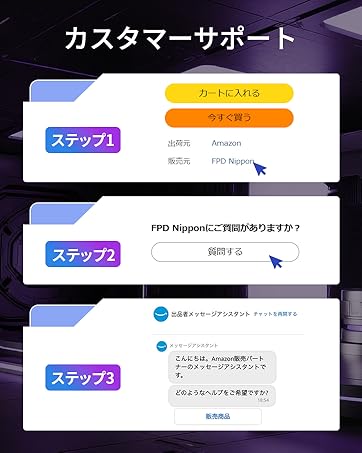
Image: Step-by-step guide on how to contact customer support via Amazon.