
1. Увод
Thank you for choosing the wegear MW2 Wireless Bluetooth Mouse. This compact and portable mouse is designed for comfort and precision, offering seamless connectivity and adjustable sensitivity for various tasks. Please read this manual carefully to ensure proper setup and optimal performance.
2. Безбедносне информације
- Држите уређај даље од воде и других течности како бисте спречили струјни удар или оштећења.
- Избегавајте излагање миша екстремним температурама или директној сунчевој светлости.
- Не покушавајте сами да растављате или поправљате уређај. За помоћ контактирајте квалификовано сервисно особље.
- Одложите батерије у складу са локалним прописима. Не спаљујте.
3. Садржај пакета
- wegear MW2 Wireless Bluetooth Mouse
- 1 x AA Battery (pre-installed or included)
- USB Receiver (stored in battery compartment)
- Упутство за употребу
4. Производ је готовview
Familiarize yourself with the components of your wegear MW2 Wireless Bluetooth Mouse:

Слика: Доња страна view of the wegear MW2 mouse, highlighting the power on/off switch, Bluetooth pairing button, DPI button, battery compartment, and the storage slot for the USB receiver.
- Леви/десни клик: Standard mouse buttons for interaction.
- Точак за померање: За вертикално скроловање.
- Дугме ДПИ: Located on the bottom, cycles through 800, 1200, and 1600 DPI settings.
- Прекидач за укључивање/искључивање: Located on the bottom, to conserve battery life.
- Дугме за Блуетоотх упаривање: Located on the bottom, used to initiate Bluetooth pairing.
- Слот за USB пријемник: Located inside the battery compartment for convenient storage.
5. Подешавање
5.1. Уметните батерију
- Remove the battery compartment cover from the bottom of the mouse.
- Уметните једну АА батерију, водећи рачуна о исправном поларитету (+/-).
- Вратите поклопац одељка за батерије.
For a visual guide on battery insertion and initial setup, please refer to the video below:
Video: Demonstrates the process of inserting the AA battery and initial power-on for the wegear Wireless Mouse.
5.2. Укључите напајање
Slide the Power On/Off switch on the bottom of the mouse to the 'ON' position. A light indicator will illuminate.
5.3. Повежите се преко Блуетоотх-а
- Уверите се да је миш укључен.
- Long press the Bluetooth Pairing Button on the bottom of the mouse for 3 seconds. The LED indicator will flash green, indicating it's in pairing mode.
- On your computer (PC, Mac, etc.), open your Bluetooth settings.
- Тражи new devices and select "Bluetooth MS" (or similar name) from the list to connect.
- Once connected, the LED indicator will stop flashing.
For a visual guide on Bluetooth pairing, please refer to the image below:
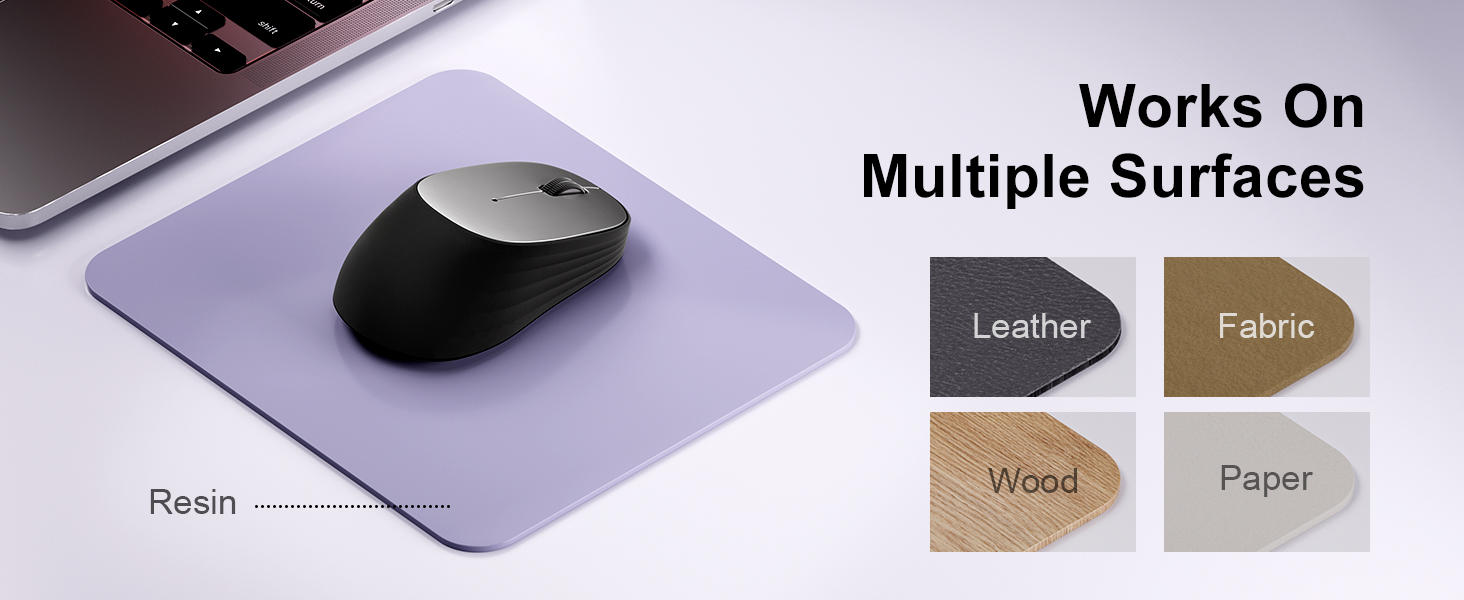
Image: A laptop screen displays a Bluetooth pairing prompt, indicating a new device (Bluetooth mouse) is found. The wegear mouse is shown nearby with a '10M' range indicator, illustrating its Bluetooth 5.0 connectivity.
5.4. Connect via USB Receiver (2.4G Wireless)
If your device does not support Bluetooth or you prefer a 2.4G wireless connection:
- Locate the USB receiver inside the battery compartment of the mouse.
- Укључите УСБ пријемник у слободан УСБ порт на рачунару.
- The mouse should automatically connect to your device. No additional pairing is required.
6. Управљање мишем
6.1. Подешавање DPI-ја
The wegear MW2 mouse features 3 adjustable DPI levels (800, 1200, 1600) for customized cursor sensitivity. To change the DPI:
- Press the DPI button on the bottom of the mouse.
- Сваки притисак ће циклично мењати подешавања DPI-ја. Брзина курсора ће се мењати у складу са тим.
For a visual representation of DPI levels, please refer to the image below:
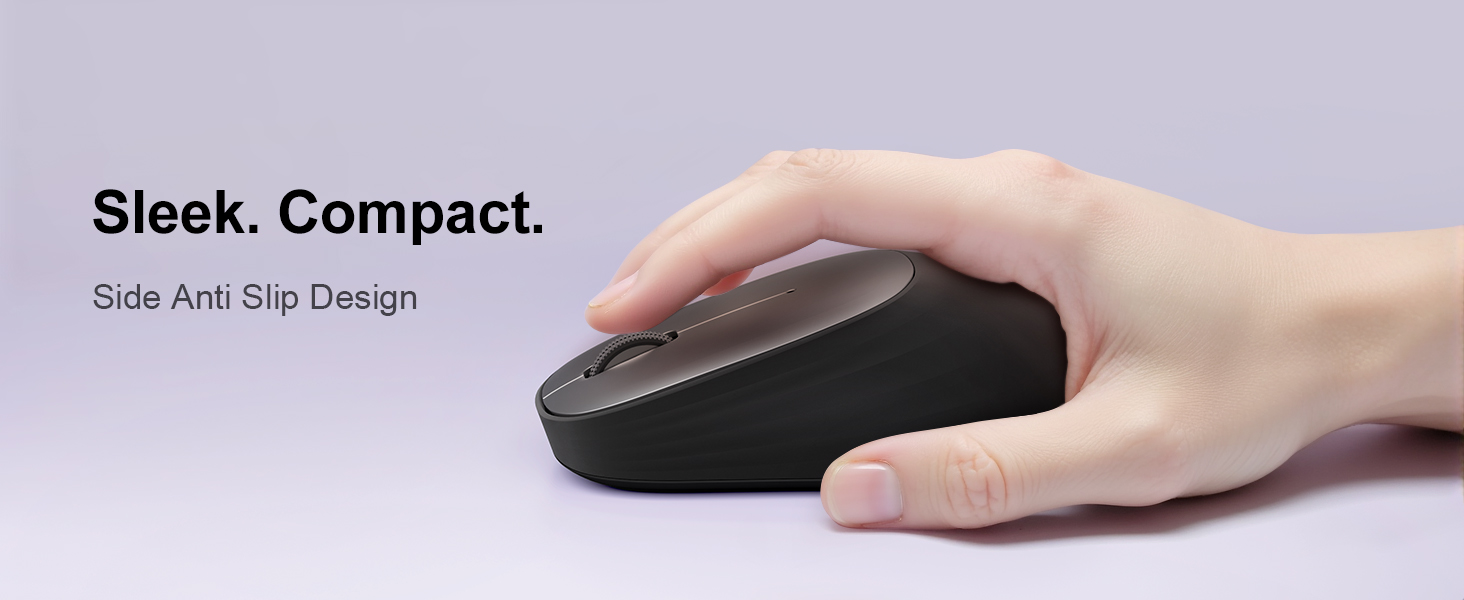
Image: The wegear MW2 mouse is depicted with three distinct visual arcs, each labeled with a DPI setting (800, 1200, 1600), illustrating the adjustable sensitivity levels for smooth navigation.
6.2. Тихи кликови
The mouse is designed with silent click buttons, providing a quiet user experience suitable for various environments without disturbing others.
6.3. Режим уштеде енергије
To conserve battery life, the mouse automatically enters a sleep mode after 10 seconds of inactivity. Simply move the mouse to wake it up and resume operation.
For more details on power saving, please refer to the image below:
Image: A user is shown working on a laptop with the wegear MW2 mouse. An overlay text explains that the mouse enters power-saving mode after 10 seconds of inactivity and can be woken by moving it.
7. Одржавање
7.1. Трајање батерије
The wegear MW2 mouse is designed for long-lasting performance, offering up to 12 months of battery life with a single AA battery, especially when utilizing the automatic sleep mode and manually turning off the mouse when not in use.
7.2. Чишћење
To clean your mouse, gently wipe its surface with a soft, dry cloth. Avoid using harsh chemicals or abrasive materials that could damage the finish.
КСНУМКС. Решавање проблема
- Миш се не повезује:
- Ensure the mouse is powered on.
- Check if the battery is inserted correctly and has sufficient charge.
- For Bluetooth connection, ensure your device's Bluetooth is enabled and the mouse is in pairing mode.
- For USB receiver connection, ensure the receiver is securely plugged into a USB port. - Курсор је нестабилан или не реагује:
- Clean the optical sensor on the bottom of the mouse.
- Ensure you are using the mouse on a suitable surface (non-reflective, non-transparent). - Kratko trajanje baterije:
- Make sure to turn off the mouse using the Power On/Off switch when not in use for extended periods.
9. Спецификације
| Феатуре | Детаљ |
|---|---|
| Број модела | МВ2 |
| Технологија повезивања | Bluetooth 5.0, 2.4G Wireless (via USB receiver) |
| Технологија детекције покрета | Оптицал |
| Подесиви ДПИ | 800, 1200, 1600 |
| Тип батерије | 1 к АА батерија |
| Процењени век трајања батерије | До 12 месеци |
| Посебна карактеристика | Portable, Compact Design, Silent Clicks, Automatic Sleep Mode |
| Тежина артикла | 4.2 унци |
| Димензије пакета | 4.25 к 3.27 к 1.73 инча |
10. Гаранција и подршка
The wegear MW2 Wireless Bluetooth Mouse comes with a standard manufacturer's warranty. For detailed warranty information, product support, or technical assistance, please refer to the contact information provided on the product packaging or visit the official wegear webсајту.
We are committed to providing high-quality products and excellent customer service. If you encounter any issues or have questions, please do not hesitate to reach out to our support team.