
1. Увод
This manual provides essential information for the installation, operation, maintenance, and troubleshooting of your PNY RTX 4000 Ada Generation 20GB DDR6 Quadro Graphics Card. This professional graphics card is designed for demanding applications such as 3D rendering, CAD/CAM, scientific simulations, and AI workflows, leveraging the NVIDIA Ada Lovelace architecture.
Key features include 6,144 CUDA cores, 48 RT Cores, 192 Tensor Cores, and 20GB of GDDR6 ECC memory, all within a single-slot, 130W design. It supports up to four 4K monitors or two 8K monitors via DisplayPort 1.4a.

Figure 1: PNY RTX 4000 Ada Generation Graphics Card overview, showing the single-slot design and an illustrative power connector icon.
2. Безбедносне информације
Please read and follow all safety instructions carefully to prevent damage to the product or personal injury.
- Увек искључите напајање из рачунара пре инсталирања или уклањања било којих компоненти.
- Wear an anti-static wrist strap or frequently touch a grounded metal object to discharge static electricity before handling the graphics card.
- Обезбедите одговарајућу вентилацију унутар кућишта рачунара како бисте спречили прегревање.
- Не излажите графичку картицу влази или екстремним температурама.
- Handle the card by its edges; avoid touching the gold-plated connectors or components on the PCB.
3. Садржај пакета
Проверите да ли су све ставке присутне у паковању вашег производа:
- PNY RTX 4000 Ada Generation Graphics Card (VCNRTX4000ADA-PB)
- Documentation (this manual, quick start guide, etc.)
Note: Additional accessories such as display adapters or power cables may be sold separately or included depending on your region/retailer.
4. Подешавање
4.1. Физичка инсталација
- Припремите свој систем: Power off your computer and disconnect the power cable from the wall outlet. Open your computer case.
- Пронађите PCIe слот: Identify an available PCI Express x16 slot on your motherboard. The RTX 4000 Ada Generation is a single-slot card.
- Уклоните поклопце слотова: Remove the metal slot cover(s) from the back of your computer case corresponding to the chosen PCIe slot.
- Убаците графичку картицу: Carefully align the graphics card with the PCIe slot and press down firmly until it is securely seated. Ensure the retention clip on the PCIe slot locks into place.
- Прикључите напајање: The RTX 4000 Ada Generation requires an 8-pin PCIe power connector from your power supply. Connect this cable to the power connector on the top edge of the graphics card. Ensure a secure connection.
- Обезбедите картицу: Use a screw to fasten the graphics card's mounting bracket to the computer case.
- Close Case and Connect Displays: Close your computer case. Connect your display monitor(s) to the DisplayPort outputs on the graphics card.
4.2. Инсталација драјвера
- Укључено: Reconnect the power cable to your computer and power it on. Your system may boot with a basic display driver.
- Преузмите драјвере: Navigate to the official PNY or NVIDIA website to download the latest drivers for the RTX 4000 Ada Generation. It is recommended to download drivers directly from the manufacturer's webсајт за оптималне перформансе и стабилност.
- PNY Support: www.pny.com/support
- NVIDIA Drivers: ввв.нвидиа.цом/дриверс
- Инсталирајте драјвере: Покрените преузети инсталатер драјвера и пратите упутства на екрану. Након инсталације може бити потребно поновно покретање система.
- Проверите инсталацију: After restarting, open the NVIDIA Control Panel or NVIDIA Settings to confirm that the graphics card is recognized and operating correctly.

Figure 2: Display output section of the PNY RTX 4000 Ada Generation, showing four DisplayPort 1.4a connectors.
5. Руковање графичком картицом
5.1. Основна операција
Once installed and drivers are updated, your PNY RTX 4000 Ada Generation graphics card will automatically handle graphics processing for your system. Applications that benefit from GPU acceleration will utilize the card's capabilities.
- NVIDIA контролни панел: Use the NVIDIA Control Panel (Windows) or NVIDIA Settings (Linux) to adjust display settings, manage 3D application profiles, and monitor GPU status.
- Компатибилност софтвера: Ensure your professional applications (e.g., CAD, rendering software) are updated to versions that support NVIDIA Ada Lovelace architecture for optimal performance.
5.2. Multi-Monitor Setup
The RTX 4000 Ada Generation supports up to four DisplayPort 1.4a outputs, allowing for flexible multi-monitor configurations.
- Connect your monitors to the available DisplayPort outputs on the graphics card.
- Access your operating system's display settings (e.g., Windows Display Settings) or the NVIDIA Control Panel to configure display arrangement, resolution, and refresh rates.
- The card supports resolutions up to 4K on four monitors simultaneously, or two 8K monitors.
6. Одржавање
6.1. Чишћење
Редовно чишћење помаже у одржавању оптималних перформанси и продужава век трајања ваше графичке картице.
- Искључивање: Увек искључите рачунар и искључите га из извора напајања пре чишћења.
- Уклањање прашине: Use compressed air to gently blow dust from the heatsink fins and fan blades. Hold the fan blades in place while blowing to prevent over-spinning and potential damage to the fan bearings.
- Спољно чишћење: Wipe the exterior of the card with a soft, dry, lint-free cloth. Do not use liquid cleaners directly on the card.
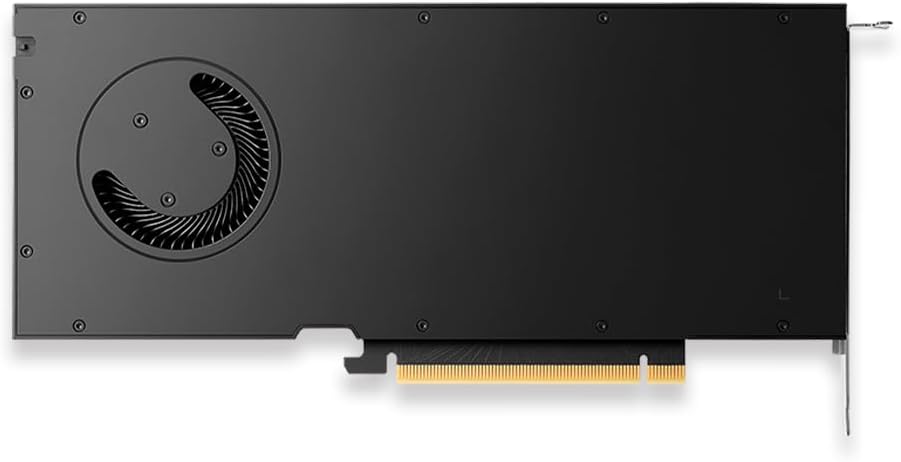
Слика 3: Задња страна view of the PNY RTX 4000 Ada Generation, highlighting the cooling fan for maintenance reference.
6.2. Складиштење
If storing the graphics card, place it in an anti-static bag and store it in a cool, dry environment away from direct sunlight and extreme temperatures.
КСНУМКС. Решавање проблема
Овај одељак се бави уобичајеним проблемима на које можете наићи.
- Нема излаза на екран:
- Уверите се да је монитор укључен и повезан са графичком картицом, а не са интегрисаном графичком картицом матичне плоче.
- Verify the graphics card is fully seated in the PCIe slot and the power cable is securely connected.
- Пробајте други кабл за дисплеј или монитор.
- Check your BIOS/UEFI settings to ensure the primary display output is set to PCIe graphics.
- Проблеми са инсталацијом драјвера:
- Uninstall any previous graphics drivers using a utility like Display Driver Uninstaller (DDU) in Safe Mode, then attempt a fresh installation of the latest drivers.
- Ensure you downloaded the correct drivers for your operating system and graphics card model.
- Нестабилност или падови система:
- Уверите се да ваша јединица за напајање (PSU) испуњава минималну снагуtage requirements for your system, including the graphics card.
- Monitor GPU temperatures using software utilities. Excessive heat can cause instability. Ensure proper case airflow.
- Verify that your operating system and motherboard BIOS are up to date.
8. Спецификације
| Феатуре | Детаљ |
|---|---|
| Бранд | ПНИ |
| Број модела | ВЦНРТКС4000АДА-ПБ |
| Грапхицс Цопроцессор | NVIDIA Quadro RTX 4000 Ada Generation |
| Архитектура | НВИДИА Ада Ловелаце |
| ЦУДА Цорес | 6,144 |
| РТ Цорес | 48 (3rd Generation) |
| Тенсор Цорес | 192 (4th Generation) |
| Величина графичке РАМ меморије | 20 GB GDDR6 ECC |
| Меморијски интерфејс | 160-битни |
| Пропусност меморије | 360 ГБ/с |
| Брзина ГПУ такта | 2220 MHz (појачање) |
| Брзина меморије | 2250 МХз |
| ФП32 Перформансе | Up to 26.7 TFLOPS |
| Ray Tracing Performance | 61.8 ТФЛОПС |
| AI Performance (FP8) | 327.6 ТФЛОПС |
| Видео излазни интерфејс | 4к ДисплаиПорт 1.4а |
| Максимална резолуција екрана | 3840x2160 (4K) per display, up to 4 displays; 8K on 2 displays |
| Потрошња енергије | 130В |
| Форм Фацтор | Сингле-слот |
| Димензије производа (ДкШкВ) | 14.65 к 8.55 к 0.1 инча |
| Тежина артикла | 1.85 фунти |
9. Информације о гаранцији
PNY products are covered by a manufacturer's warranty. The specific terms and duration of the warranty may vary by region and product type. Please refer to the official PNY website or your product's packaging for detailed warranty information.
For warranty claims or to register your product, visit: www.pny.com/support/warranty
10. Техничка подршка
If you encounter issues that cannot be resolved using the troubleshooting steps in this manual, or require further assistance, please contact PNY Technical Support.
- PNY Support Webсајт: www.pny.com/support
- Подршка website provides FAQs, driver downloads, and contact information for technical assistance.