
1. Увод
Thank you for choosing the PUTRIMS K12 Google TV Projector. This manual provides essential information for the safe and efficient use of your new projector. Please read it thoroughly before operation and keep it for future reference.

Figure 1.1: PUTRIMS K12 Projector
2. Безбедносне информације
- Не гледајте директно у сочиво пројектора када је укљученоamp је укључен.
- Обезбедите одговарајућу вентилацију како бисте спречили прегревање.
- Држите пројектор даље од воде или других течности.
- Користите само испоручени адаптер за напајање.
- Избегавајте постављање пројектора на нестабилне површине.
- Не покушавајте сами да растављате или поправљате пројектор. За помоћ контактирајте корисничку подршку.
3. Садржај пакета
Проверите да ли су све ставке присутне у вашем пакету:
- PUTRIMS K12 пројектор
- Ремоте Цонтрол
- Повер Цорд
- ХДМИ кабл
- Поклопац сочива пројектора
- Кориснички приручник (овај документ)
4. Производ је готовview
The PUTRIMS K12 projector is designed for a versatile home theater and business experience. It features a sleek design with essential ports for connectivity.
Слика 4.1: Предња страна view of the K12 Projector, showing the lens and auto-focus sensors.

Слика 4.2: Задња страна view of the K12 Projector, highlighting HDMI, USB, and audio ports.
Video 4.1: General product overview and feature demonstration of the PUTRIMS K12 projector.
5. Подешавање
5.1 Физичко подешавање
The K12 projector offers flexible installation options to suit various environments:
- Положај стола: Поставите пројектор на стабилну, равну површину.
- Монтажа статива: Use the M5 screw hole on the bottom to attach a tripod.
- Монтажа на плафон: Безбедно монтирајте пројектор на плафон помоћу компатибилног носача.
- Монтажа на зид: Attach the projector to a wall using a suitable bracket.

Figure 5.1: Diverse installation methods for the K12 Projector.
5.2 Почетно укључивање
- Повежите кабл за напајање са пројектором и утичницом.
- Притисните дугме за напајање на пројектору или даљинском управљачу да бисте га укључили.
- The projector will automatically perform auto-focus and keystone correction.
5.3 Мрежна веза (Wi-Fi)
To access online streaming services and updates, connect your projector to a WiFi network:
- Navigate to the 'Settings' menu on the projector.
- Select 'Network' or 'WiFi Settings'.
- Turn on WiFi and select your desired network from the list.
- Унесите лозинку ако се то од вас затражи и повежите се.
5.4 Блуетоотх веза
Connect external Bluetooth speakers or headphones for enhanced audio:
- Go to 'Settings' and select 'Bluetooth'.
- Turn on Bluetooth and put your external device into pairing mode.
- Изаберите свој уређај са листе за упаривање.
5.5 Пресликавање екрана
Share content from your mobile devices or computer wirelessly:
- For iOS devices (Airplay): Ensure your iOS device and the projector are connected to the same WiFi network. Open the 'iOS Cast' interface on the projector. On your iOS device, open Control Center, tap 'Screen Mirroring', and select 'K12-xxxx' from the list.
- For Android/Windows devices (Miracast): Ensure your device and the projector are connected to the same WiFi network. Open the 'Miracast' interface on the projector. On your Android/Windows device, enable screen mirroring/cast feature and select 'K12-xxxx' to connect.
6. Упутство за употребу
6.1 Функције Google TV-а
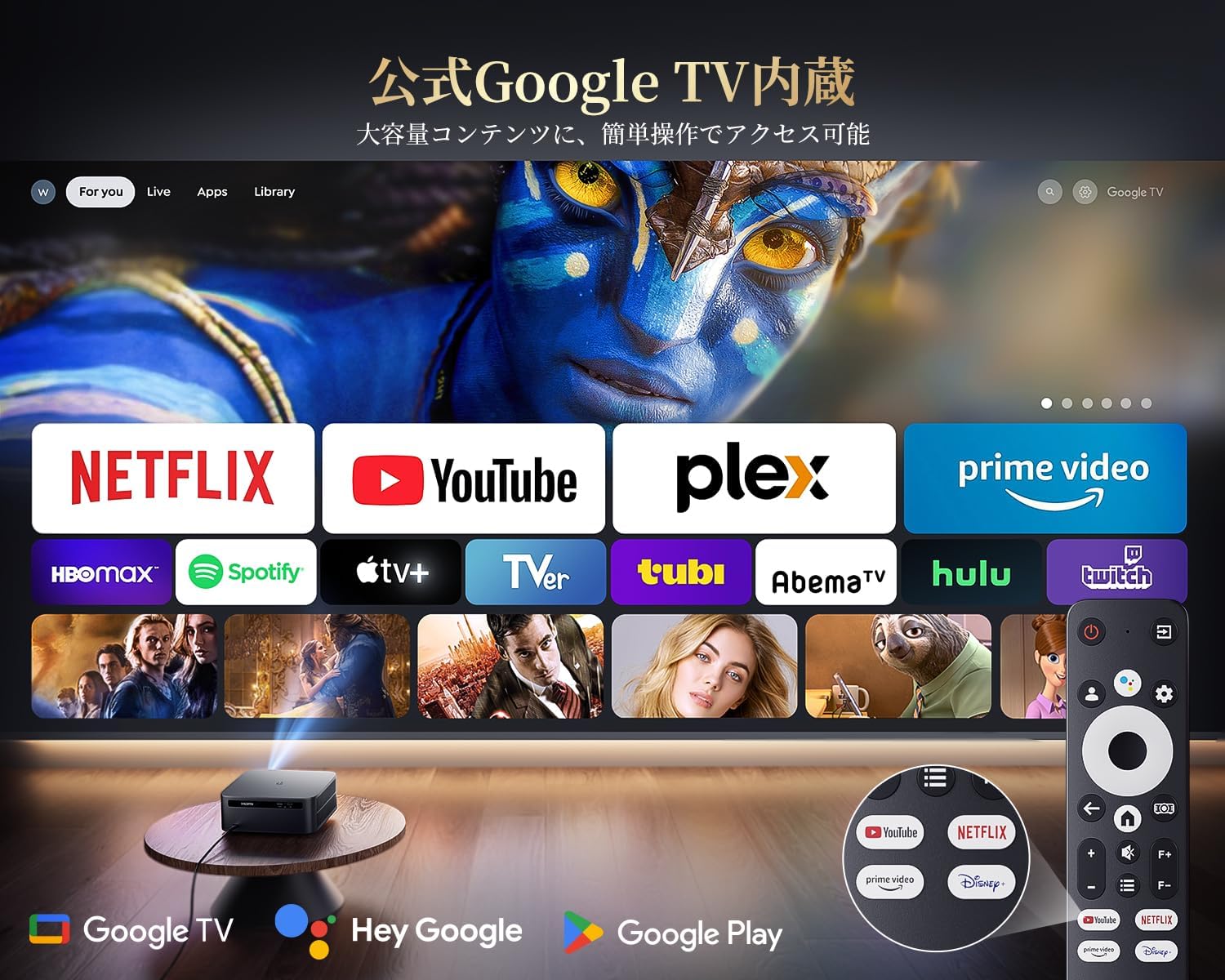
The PUTRIMS K12 comes with official Google TV, providing access to a vast library of content and applications.
- Апликације за стримовање: Directly access Netflix, Disney+, YouTube, Prime Video, Hulu, and many more with a single click.
- Гоогле Плаи продавница: Download and install over 10,000 applications and games.
- Редовна ажурирања: The projector receives periodic updates to enhance security and stability.

Figure 6.1: Google TV interface with popular streaming applications.
6.2 Управљање гласом
Utilize the Google Voice Assistant for convenient control of your projector and content.
- Press the voice control button on your remote.
- Speak commands such as "Open Netflix," "Play One Piece," "Tell me the weather," or "Increase volume."

Figure 6.2: Using the Google Voice Assistant with the remote control.
6.3 Подешавање слике
The K12 projector features advanced image adjustment capabilities for optimal viewинг.
- Ауто фокус: The projector automatically adjusts the focus for a clear image upon startup or movement.
- Ауто Кеистоне Цоррецтион: It automatically corrects horizontal and vertical trapezoidal distortions, ensuring a perfectly rectangular image even from an angle.
- Функција зумирања: Подесите величину платна од 50% до 100% без померања пројектора.
- Размера: Подржава односе ширине и висине 4:3 и 16:9.
- Осветљеност и контраст: Customize brightness and contrast settings to your preference.

Figure 6.3: Automatic focus and keystone correction in action.

Figure 6.4: Projection distances and corresponding screen sizes (100", 120", 150").
6.4 Повезивање екстерних уређаја
The K12 projector offers multiple connectivity options for various devices:
- ХДМИ АРЦ: Connect to soundbars, laptops, gaming consoles (Switch, PS5), or DVD players.
- УСБ: Play media directly from USB memory sticks.
- 3.5 мм аудио порт: Повежите се са екстерним аудио системима.

Figure 6.5: Seamless connection with various external devices.
7. Одржавање
7.1 Чишћење сочива
To maintain optimal image quality, regularly clean the projector lens.
- Уверите се да је пројектор искључен и искључен.
- Gently wipe the lens with a soft, lint-free cloth or a cotton swab.
- For stubborn smudges, use a lens cleaning solution specifically designed for optical surfaces.
- Avoid using abrasive materials or harsh chemicals that could damage the lens.
КСНУМКС. Решавање проблема
Ево решења за уобичајене проблеме на које можете наићи:
- No image/signal: Check all cable connections (HDMI, power). Ensure the correct input source is selected on the projector.
- Замућена слика: The projector features auto-focus. If the image remains blurry, ensure the lens is clean and there are no obstructions.
- Image not rectangular: The projector has auto-keystone correction. If issues persist, ensure the projector is placed on a stable surface and try repositioning it.
- Нема звука: Check volume settings on both the projector and connected devices. Ensure external speakers are properly connected via Bluetooth or audio cable. If using HDMI ARC, verify the connection and settings.
- WiFi/Bluetooth connection issues: Ensure the projector and your device are within range of the router/device. Restart both the projector and the router/device.
- App crashes or malfunctions (for unofficial Android TV versions): The PUTRIMS K12 has an official Google TV license, which ensures stability. If you experience issues, ensure your system is updated.
За додатну помоћ, погледајте одељак Гаранција и подршка.
9. Спецификације
| Феатуре | Опис |
|---|---|
| Бранд | ПУТРИМС |
| Модел | К12 |
| Осветљеност | КСНУМКС АНСИ Луменс |
| Резолуција | 1080P FHD (4K Support) |
| Оперативни систем | Official Google TV |
| Воице Цонтрол | Гоогле Воице Ассистант |
| Фоцус | Omnidirectional Auto Focus |
| Кеистоне Цоррецтион | Horizontal & Vertical Auto Keystone Correction |
| Зоом | 50%-100% |
| Максимална величина екрана | 300 инча |
| ВиФи | ВиФи 6 |
| Блуетоотх | Блуетоотх 5.3 |
| Аудио излаз | 20W HIFI Speaker, 3.5mm Audio Jack |
| Улазни портови | HDMI ARC, USB |
| Димензије | 40.5 к 30.2 к 17 цм |
| Тежина | 3.31 кг |
10. Гаранција и подршка
PUTRIMS is committed to providing excellent customer service. Your K12 projector comes with comprehensive support:
- Сервис након продаје: 24 hours a day, 365 days a year.
- техничка подршка: Professional technical assistance is available.
- гаранција: Free exchange or 100% refund guarantee for initial defects or natural failures under normal use.
If you have any questions or require assistance, please contact PUTRIMS customer support via the official email address provided in your product packaging or on the official webсајту.