
1. Увод
This manual provides detailed instructions for the setup, operation, and maintenance of your Dpofirs 5G Router with SIM Card Slot. This device offers high-speed 5G cellular network access, dual-band Wi-Fi (2.4G and 5.8G), and supports up to 32 users, making it suitable for indoor home and office environments.
2. Производ је готовview
Familiarize yourself with the components and features of your 5G router.
2.1 Садржај пакета
- 1 x Dpofirs 5G Router
- КСНУМКС к кабл за напајање
- 1 x Упутство за употребу (овај документ)
- КСНУМКС к Мрежни кабл
2.2 Router Components and Indicators
The router features various ports and indicator lights for easy monitoring and connectivity.
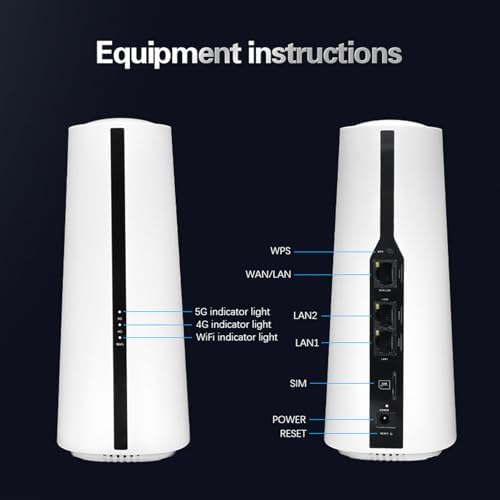
слика: Предње и задње view of the Dpofirs 5G Router. The front shows indicator lights for 5G, 4G, and WiFi. The back panel includes ports for WPS, WAN/LAN, LAN2, LAN1, SIM card slot, Power input, and a Reset button.
- 5G Indicator Light: Показује статус 5G мреже.
- 4G Indicator Light: Показује статус 4G мреже.
- WiFi Indicator Light: Означава Wi-Fi активност.
- ВПС дугме: За заштићено подешавање Wi-Fi мреже.
- ВАН/ЛАН порт: Connects to an external modem or acts as a LAN port.
- LAN1/LAN2 Ports: Connects to wired devices.
- Слот за СИМ картицу: Insert your 5G/4G SIM card here.
- Улазна снага: Повежите адаптер за напајање.
- Дугме за ресетовање: Press and hold to restore factory settings.
2.3 Димензије и тежина производа
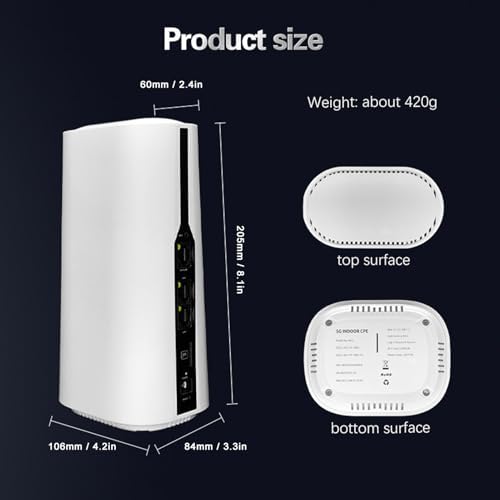
слика: Diagram showing the physical dimensions of the Dpofirs 5G Router. The router measures approximately 60mm (2.4in) at the top, 108mm (4.2in) at the base, 205mm (8.1in) in height, and 84mm (3.3in) in depth. Its weight is approximately 420g.
3. Упутства за подешавање
Follow these steps to set up your 5G router.
3.1 Уметање СИМ картице
- Уверите се да је рутер искључен.
- Locate the SIM card slot on the back of the router.
- Insert your activated 5G/4G SIM card into the slot until it clicks into place. Ensure the correct orientation as indicated on the device.
- Do not force the SIM card. If it does not fit, check the orientation or SIM card size.
3.2 Повезивање напајања
- Connect the provided power adapter to the Power Input port on the router.
- Plug the other end of the power adapter into a standard electrical outlet (100-240V).
- The router will power on automatically. Wait for the indicator lights to stabilize.
3.3 Initial Network Configuration (Optional)
For advanced settings or initial setup, you can access the router's web интерфејс.
- Connect a computer to one of the LAN ports using the provided network cable, or connect wirelessly to the default Wi-Fi network (SSID and password usually found on a sticker on the router's bottom).
- Отвори а web претраживач и унесите подразумевану ИП адресу (нпр. 192.168.1.1) у траку за адресу.
- Log in using the default username and password (refer to the sticker on the router or the quick start guide).
- Follow the on-screen prompts for initial setup, such as changing the default Wi-Fi name and password.
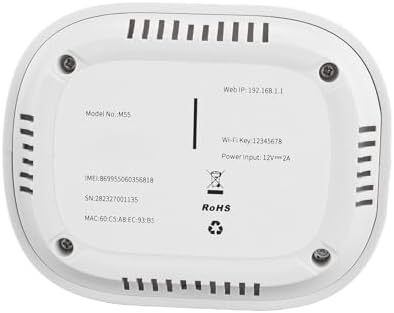
слика: The bottom surface of the Dpofirs 5G Router, displaying important information such as Model No.: M55, Web IP: 192.168.1.1, Wi-Fi Key: 12345678, and Power Input: 12V=2A. This information is crucial for initial setup and access.
4. Упутство за употребу
Once set up, your router provides internet access to multiple devices.
4.1 Повезивање уређаја
- Бежична веза: On your Wi-Fi enabled device (smartphone, laptop, tablet), search for available Wi-Fi networks. Select your router's SSID (network name) and enter the Wi-Fi password.
- Жична веза: Connect devices like desktop computers, gaming consoles, or smart TVs to the LAN1 or LAN2 ports using an Ethernet cable.
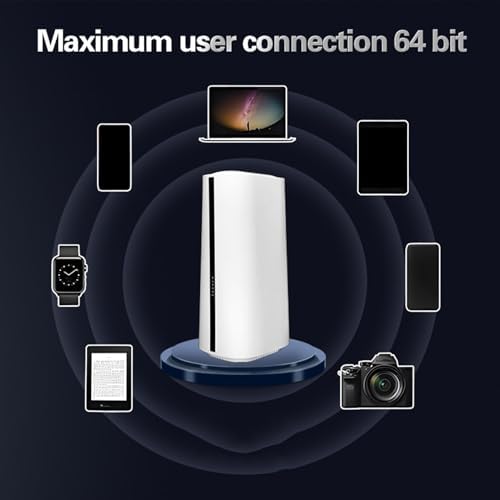
слика: Illustration demonstrating the Dpofirs 5G Router's capability to connect to multiple devices simultaneously. Devices shown include a laptop, smartphones, tablets, a smartwatch, and a camera, indicating support for up to 32 users.
4.2 Understanding Indicator Lights
- Solid Green (5G/4G): Connected to the respective cellular network.
- Blinking Green (5G/4G): Data activity on the respective cellular network.
- Solid Blue (WiFi): Ви-Фи је активан.
- Blinking Blue (WiFi): Wi-Fi data activity.
- Без светла: Network not connected or feature is off.
5. Одржавање
Правилно одржавање осигурава оптималне перформансе и дуготрајност вашег рутера.
5.1 Општа нега
- Keep the router in a cool, dry place, away from direct sunlight and heat sources.
- Осигурајте одговарајућу вентилацију око уређаја.
- Очистите спољашњост меком, сувом крпом. Не користите течна средства за чишћење.
- Избегавајте постављање тешких предмета на рутер.
5.2 Ажурирања фирмвера
Periodically check the router's web interface for available firmware updates. Firmware updates can improve performance, add new features, and enhance security. Follow the instructions provided within the web interface for safe updating.
5.3 Ресетовање рутера
If you encounter persistent issues or forget your login credentials, you may need to reset the router to factory default settings. To do this, with the router powered on, use a paperclip or similar pointed object to press and hold the Reset button for approximately 10 seconds until the indicator lights flash. The router will then restart with default settings.
КСНУМКС. Решавање проблема
Погледајте овај одељак за решења уобичајених проблема.
6.1 Нема интернет конекције
- Проверите СИМ картицу: Уверите се да је СИМ картица правилно уметнута и активирана са тарифним планом за пренос података.
- Јачина сигнала: Verify the 5G/4G indicator light. If it's off or blinking slowly, the signal might be weak. Try repositioning the router.
- Статус рутера: Check if the router is powered on and all necessary indicator lights are active.
- Поново покрени: Искључите и поново укључите рутер тако што ћете га искључити из струје на 30 секунди, а затим га поново укључити.
- АПН подешавања: Приступите рутеру web interface and verify that the Access Point Name (APN) settings are correct for your mobile carrier.
6.2 Проблеми са Wi-Fi везом
- Нетачна лозинка: Двапут проверите лозинку за Wi-Fi.
- Опсег сигнала: Уверите се да је ваш уређај унутар Wi-Fi домета рутера.
- сметње: Other electronic devices can cause interference. Try changing the Wi-Fi channel in the router's settings.
- Ограничење уређаја: The router supports up to 32 users. If too many devices are connected, performance may degrade.
6.3 Спора брзина интернета
- Јачина сигнала: A weak 5G/4G signal will result in slower speeds.
- Загушење мреже: During peak hours, cellular network speeds may decrease.
- Број корисника: More connected devices sharing bandwidth can reduce individual speeds.
- Постављање рутера: Place the router in a central location, away from obstructions.
7. Спецификације
Detailed technical specifications for the Dpofirs 5G Router.
| Феатуре | Детаљ |
|---|---|
| Назив модела | Dpofirsei2sngv1m5-12 |
| Бранд | Дпофирс |
| Технологија повезивања | Ethernet, 5G Cellular |
| Стандард бежичне комуникације | 802.11ац, 802.11н |
| Класа фреквенцијског опсега | Двопојасни (2.4 GHz, 5.8 GHz) |
| Брзина преноса података | До 1800 Мбпс |
| Број портова | 1 WAN/LAN, 2 LAN |
| Компатибилни уређаји | Personal Computer, Laptop, Smartphone, Tablet, Gaming Console |
| Сигурносни протокол | WPA2-PSK, WPA3 |
| Боја | Бела |
| Повер Инпут | 100-240В (утикач за САД) |
| Max Users Supported | 32 |
8. Гаранција и подршка
This product comes with a manufacturer's warranty and support resources.
8.1 Гаранција произвођача
The Dpofirs 5G Router is covered by a 90-дневна гаранција произвођача from the date of purchase. This warranty covers defects in materials and workmanship under normal use. It does not cover damage caused by misuse, accidents, unauthorized modifications, or external factors.
8.2 Корисничка подршка
For technical assistance, troubleshooting beyond this manual, or warranty claims, please contact Dpofirs customer support. Refer to the contact information provided with your purchase or visit the official Dpofirs webсајт за детаље подршке.
Напомена: Сачувајте рачун као доказ о куповини за потребе гаранције.