
1. Увод
This manual provides comprehensive instructions for the setup, operation, maintenance, and troubleshooting of your Lamzu Maya X Wireless Gaming Mouse. Please read this manual carefully to ensure proper use and to maximize the performance of your device.
2. Производ је готовview
2.1 Кључне карактеристике
- Ултра-лаган дизајн: Weighs approximately 47g for extended comfort during use.
- Symmetrical Shape: Accommodates various grip styles including palm, claw, and fingertip.
- Оптички прекидачи: Durable and responsive, rated for over 70 million clicks.
- Dust-Proof Encoder: 30-grid roller for precise and responsive scroll wheel actions.
- Pixart PAW 3950 Sensor: Supports up to 30,000 DPI and 750 IPS.
- Nordic 52840 MCU: Ensures power efficiency, fast response times, and accurate motion tracking.
- Висока стопа гласања: Up to 8,000 Hz with the optional 8K dongle.
2.2 Садржај пакета
- Lamzu Maya X Wireless Gaming Mouse
- PTFE Skates (x1 set)
- 8K Dongle (x1)
- MAYA X Dustproof Seal
- 1.8m Type-C Paracord Cable
- Баршунаста торба
- MAYA X Mouse Grip
2.3 Компоненте миша
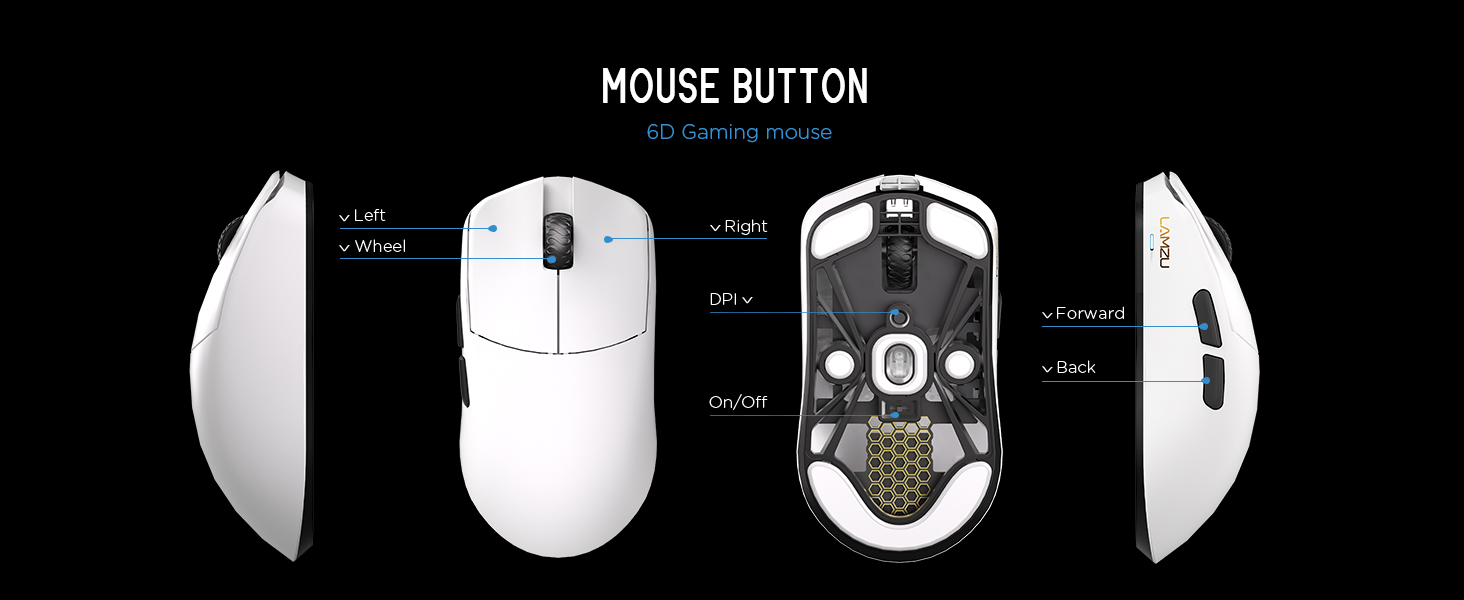
Слика 2.3.1: Diagram illustrating the various buttons and internal structure of the Lamzu Maya X mouse, including left click, right click, scroll wheel, DPI button, forward, back buttons, and the on/off switch.
- Лево дугме: Примарна функција клика.
- Десно дугме: Секундарна функција клика.
- Точак за померање: За скроловање и функцију клика средњим тастером миша.
- Дугме ДПИ: Adjusts Dots Per Inch sensitivity.
- Дугме за напред: Navigational function (e.g., browser forward).
- Дугме за назад: Navigational function (e.g., browser back).
- Прекидач за укључивање/искључивање: Укључује или искључује миш.
3. Подешавање
3.1 Initial Connection and Charging
- Напуните миша: Connect the provided Type-C paracord cable to the mouse and a USB port on your computer. The mouse will charge while connected.
- Укључено: Locate the On/Off switch on the underside of the mouse and slide it to the "On" position.
- Connect Wireless Dongle: Insert the 8K wireless dongle into an available USB port on your computer. The mouse should automatically pair.
- Wired Mode (Optional): To use the mouse in wired mode, connect the Type-C paracord cable directly to the mouse and your computer. The mouse will function as a wired device and charge simultaneously.
Слика 3.1.1: The Lamzu Maya X mouse connected via its Type-C paracord cable, illustrating both wired operation and charging capabilities.
3.2 Инсталација драјвера и софтвера
The Lamzu Maya X mouse utilizes a web-based driver for customization. To access the software and update firmware:
- Visit the official Lamzu webсајту.
- Navigate to the support or downloads section for the Maya X model.
- Преузмите web driver application. This application allows for DPI adjustment, polling rate settings, macro programming, and firmware updates.
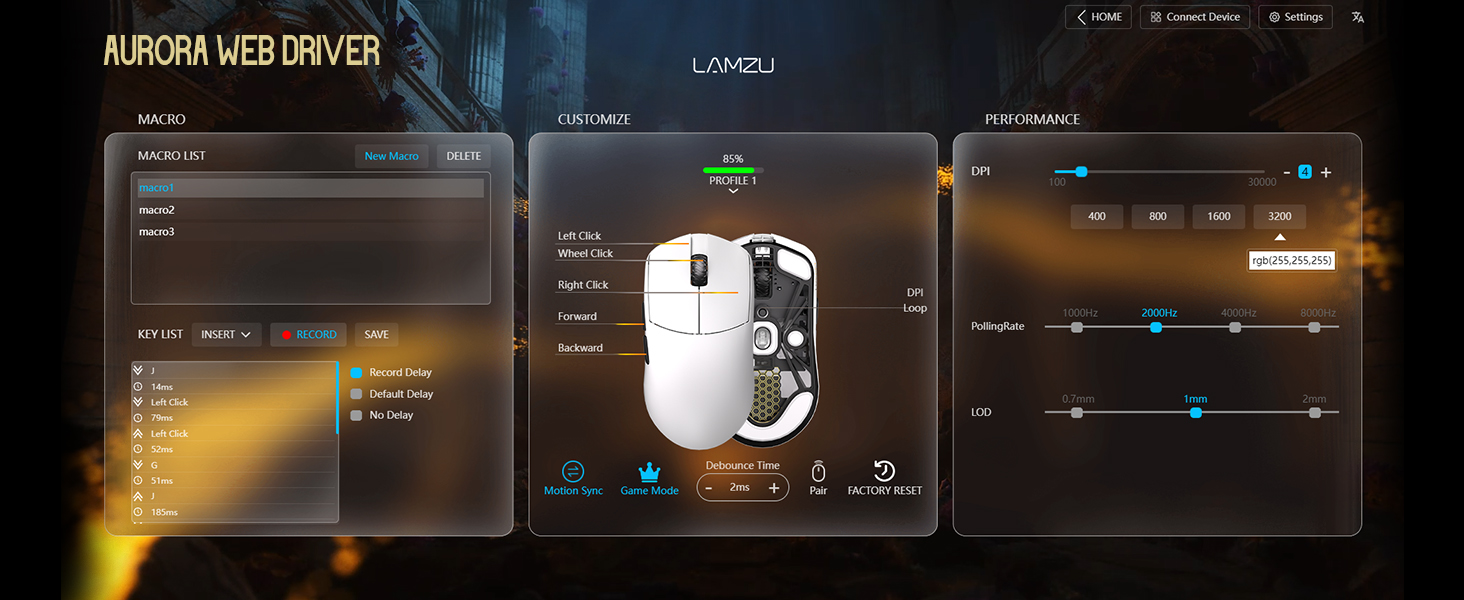
Слика 3.2.1: Screenshot of the Aurora Web Driver interface, displaying options for macro creation, button customization, DPI settings (up to 30000), polling rate selection (up to 8000Hz), and Lift-Off Distance (LOD).
4. Упутство за употребу
4.1 ДПИ подешавање
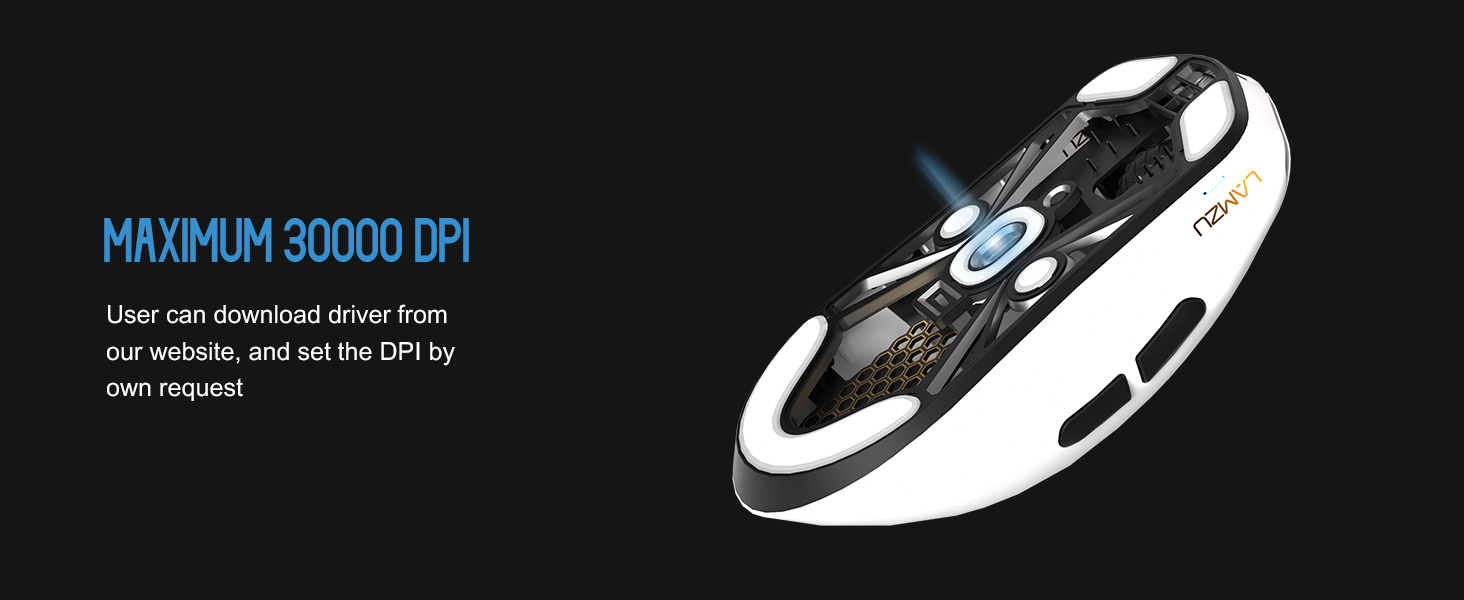
The DPI (Dots Per Inch) setting controls the mouse cursor's sensitivity. You can adjust the DPI using the dedicated DPI button on the mouse or through the Aurora Web Driver software. The Pixart PAW 3950 sensor supports up to 30,000 DPI.
Слика 4.1.1: Доња страна view of the Lamzu Maya X mouse, emphasizing its optical sensor and the capability to reach a maximum of 30,000 DPI, configurable via software.
4.2 Стопа анкетирања
The polling rate determines how often the mouse reports its position to the computer. The Maya X supports up to 8,000 Hz polling rate when using the included 8K dongle. Higher polling rates result in smoother cursor movement and reduced input lag.
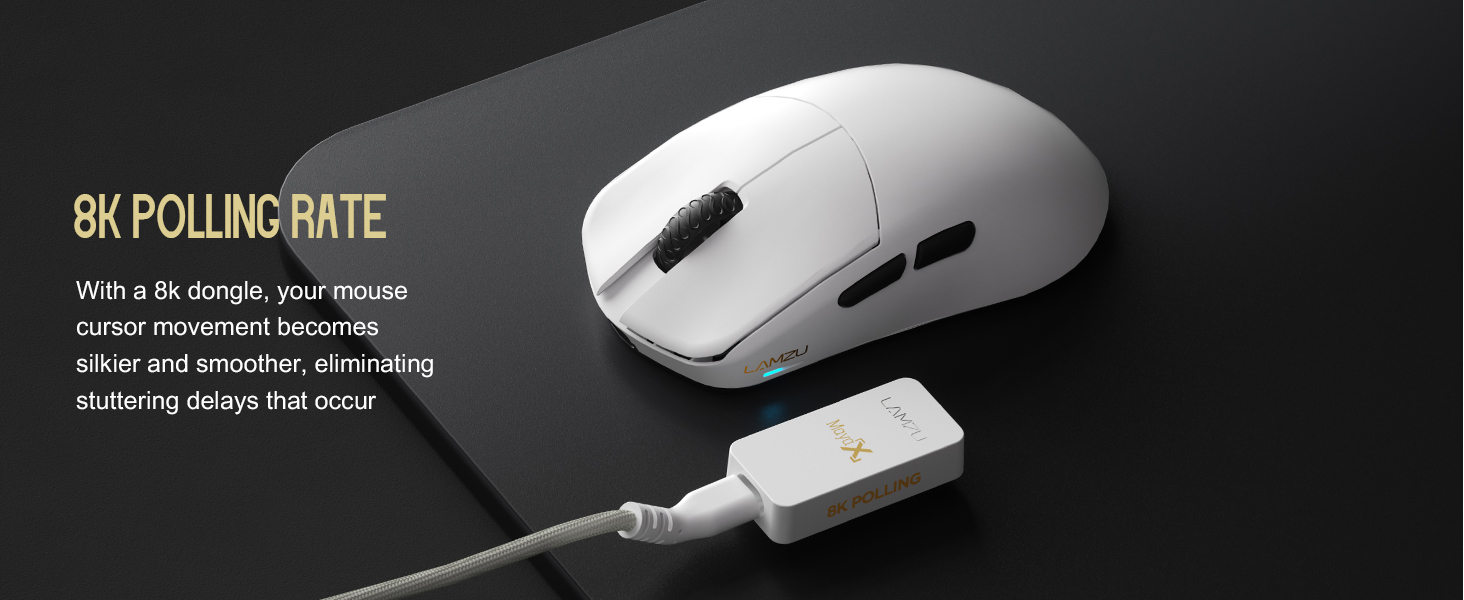
Слика 4.2.1: The Lamzu Maya X mouse positioned next to its 8K polling rate dongle, highlighting the benefit of smoother and more responsive cursor movement provided by high polling rates.
4.3 Grip Styles
The symmetrical design of the Maya X mouse is engineered to accommodate various common grip styles:
- Длански хват: The entire palm rests on the mouse.
- Канџасти хват: Fingers are arched, and the palm rests on the back of the mouse.
- Fingertip Grip: Only the fingertips make contact with the mouse.
Слика 4.3.1: A visual guide demonstrating the three primary mouse grip styles—Palm Grip, Claw Grip, and Fingertip Grip—and how the Maya X mouse is designed to be compatible with each.
4.4 Wired and Wireless Modes
The Maya X mouse supports both 2.4G wireless and wired (USB Type-C) connectivity. You can switch between modes by connecting or disconnecting the Type-C cable. In wired mode, the mouse operates at a 1K polling rate, while wireless mode with the 8K dongle supports up to 8K polling.
5. Одржавање
5.1 Чишћење
- Ensure the mouse is powered off before cleaning.
- Лагано користите меку крпу која не оставља длачице дampводом или благим раствором за чишћење обришите површину миша.
- Избегавајте употребу јаких хемикалија, абразива или растварача.
- Користите компримовани ваздух да бисте очистили прашину из пукотина и око дугмади.
- За оптички сензор, користите памучни штапић лагано дampened with isopropyl alcohol to gently clean the lens.
5.2 Одржавање батерије
- Да бисте продужили век трајања батерије, избегавајте често потпуно пражњење миша.
- Чувајте миш на собној температури када се не користи дуже време.
- Ако складиштите дуже време, напуните батерију на приближно 50% пре складиштења.
КСНУМКС. Решавање проблема
- Миш не реагује:
- Уверите се да је миш укључен.
- Проверите ниво батерије и по потреби је напуните.
- Verify the wireless dongle is securely plugged into a USB port.
- Покушајте да повежете миш у жичном режиму да бисте потврдили функционалност.
- Поново покрените рачунар.
- Повремено повезивање:
- Ensure the wireless dongle is not obstructed and is close to the mouse.
- Avoid placing the dongle near other wireless devices that may cause interference.
- Update mouse firmware via the Aurora Web Возач.
- Скокови или кашњење курсора:
- Clean the optical sensor (refer to Section 5.1).
- Ensure the mousepad surface is clean and uniform.
- Adjust the polling rate in the software.
- Check for any background applications consuming excessive system resources.
- Дугмад не раде:
- Check button assignments in the Aurora Web Возач.
- Уверите се да нема физичких препрека које спречавају притискање дугмади.
7. Спецификације
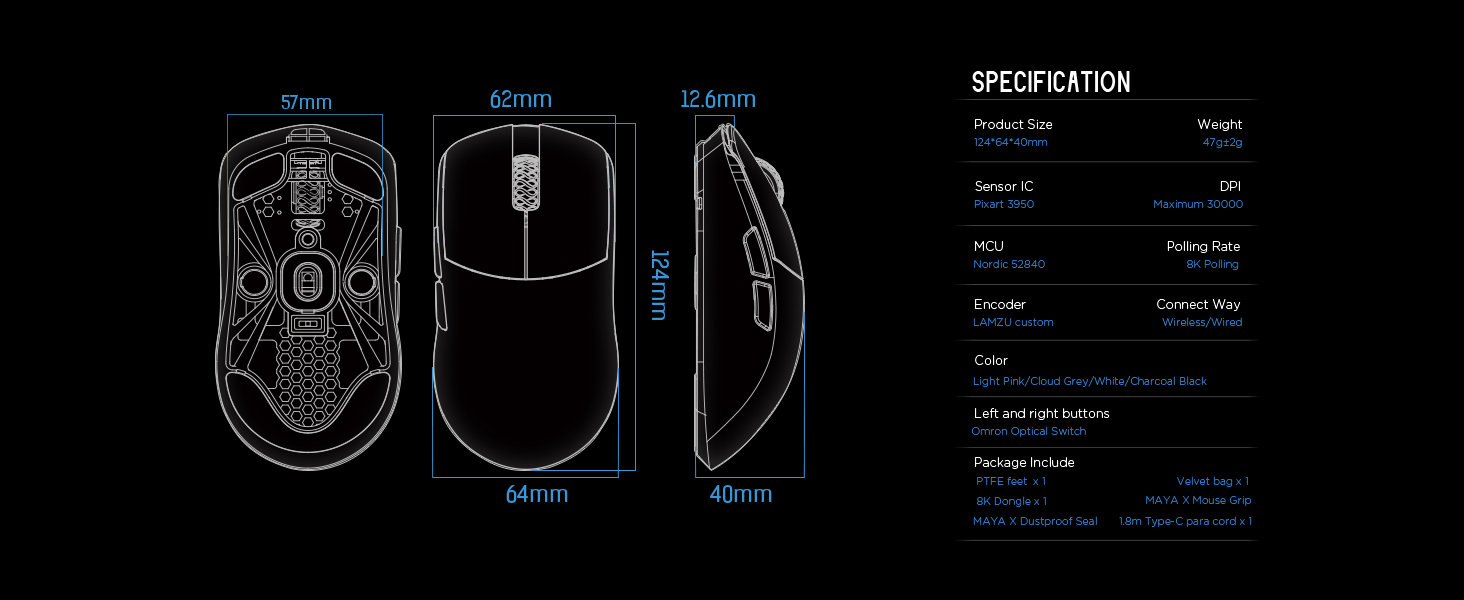
| Димензије производа | 4.88 к 2.52 к 0.04 инча (124 к 64 к 40 мм) |
| Тежина артикла | 1.66 унце (47 г) |
| Сенсор ИЦ | Пикарт ПАВ 3950 |
| Макимум ДПИ | 30,000 |
| МЦУ | Нордиц 52840 |
| Поллинг Рате | Up to 8,000 Hz (with 8K dongle) |
| Технологија повезивања | 2.4G Wireless, USB Type-C Wired |
| Прекидачи | Optical Switches (Left/Right buttons) |
| Енцодер | Dust-Proof Encoder |
| Батерија | 1 литијум-јонска батерија (укључена) |
| Произвођач | Lamzu |

Слика 7.1.1: A technical diagram detailing the dimensions (length, width, height) of the Lamzu Maya X mouse and a summary of its key specifications, including weight, sensor, MCU, DPI, and polling rate.
8. Гаранција и подршка
For warranty information and technical support, please refer to the official Lamzu website or contact their customer service directly. Details regarding product registration, warranty claims, and frequently asked questions can typically be found in the support section of the webсајту.
Службено Webсајт: ввв.ламзу.цом