
Lamzu Maya X
Lamzu Maya X Wireless Gaming Mouse User Manual
Model: Maya X
Увод
The Lamzu Maya X is an ultra-lightweight wireless gaming mouse designed for high-performance gaming. Featuring a symmetrical shape, optical switches, and a high-precision PAW3950 sensor, it offers exceptional responsiveness and comfort for various grip styles. This manual provides detailed instructions for setting up, operating, maintaining, and troubleshooting your Lamzu Maya X mouse.

Figure 1: Lamzu Maya X Wireless Gaming Mouse and 8K Polling Dongle.
Садржај пакета
Пре него што почнете, уверите се да су све ставке присутне у пакету:
- Lamzu Maya X Wireless Gaming Mouse
- 8K Polling Dongle
- 1.8m Type-C Paracord Cable (for wired connection and charging)
- PTFE Feet (extra set)
- Баршунаста торба
- MAYA X Mouse Grip Tape
Сетуп
1. Пуњење миша
The Lamzu Maya X mouse comes with a built-in Lithium Ion battery. For optimal performance, it is recommended to fully charge the mouse before first use.
- Connect the supplied 1.8m Type-C paracord cable to the USB-C port on the front of the mouse.
- Connect the other end of the cable to an available USB port on your computer or a USB wall adapter.
- The mouse's indicator light will show charging status. Once fully charged, the light will change or turn off.
The mouse can be used in wired mode while charging.
2. Повезивање миша
The Lamzu Maya X supports both 2.4G wireless and wired connectivity.
Wireless Connection (2.4G with 8K Polling Dongle)
- Locate the 8K Polling Dongle.
- Plug the 8K Polling Dongle into an available USB port on your computer. For best performance, use a USB port on the front of your computer or a USB hub placed close to the mouse to minimize interference.
- Укључите миш помоћу прекидача за укључивање/искључивање који се налази на дну миша.
- The mouse should automatically connect to the dongle. If connection is not established, refer to the troubleshooting section.

Figure 2: Wireless Connection with 8K Polling Dongle.
Жичана веза
- Connect the supplied 1.8m Type-C paracord cable to the USB-C port on the front of the mouse.
- Повежите други крај кабла са доступним УСБ портом на рачунару.
- The mouse will automatically switch to wired mode. In wired mode, the polling rate is 1000 Hz.

Figure 3: Dual Mode Connectivity (2.4G Wireless and Wired).
3. Инсталација драјвера и софтвера
The Lamzu Maya X mouse is plug-and-play for basic functionality. For advanced customization, including DPI settings, button remapping, macros, and polling rate adjustments, you can download the official Lamzu Aurora Web Driver from the Lamzu webсајту. Ово web-based software eliminates the need for local installation.
- Visit the official Lamzu webсајт (ввв.ламзу.цом) to access the Aurora Web Возач.
- Follow the on-screen instructions to connect your device and customize settings.
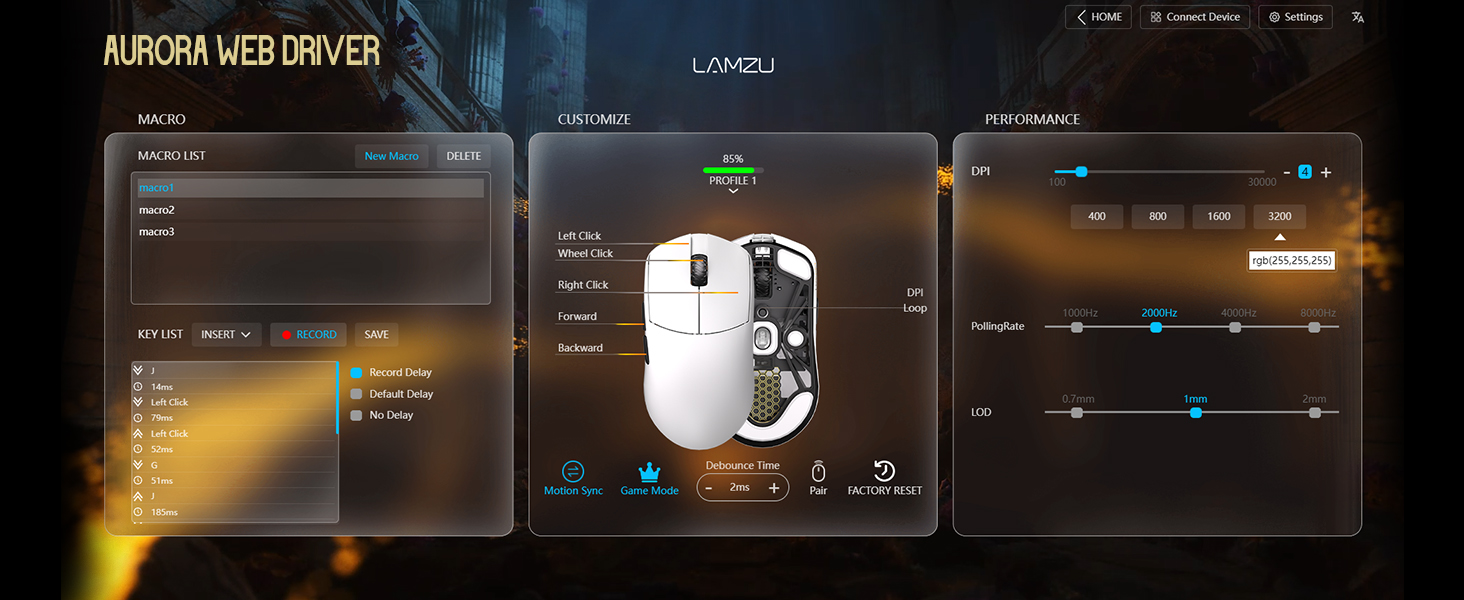
Figure 4: Lamzu Aurora Web Driver Interface.
Управљање мишем
Функције дугмета
The Lamzu Maya X is a 6-button gaming mouse. The default functions are as follows:
| Дугме | Подразумевана функција |
|---|---|
| Кликните левим кликом | Примарна функција клика |
| Десни клик | Секундарна функција клика |
| Точкић за скроловање (клик) | Middle click / Universal scroll |
| Точкић за померање (горе/доле) | Scroll content up/down |
| DPI Button (Bottom) | Cycle through preset DPI levels |
| Бочно дугме за напред | Navigate forward in web browsers/applications |
| Бацк Сиде Буттон | Navigate backward in web browsers/applications |
| On/Off Switch (Bottom) | Power on/off the mouse |
All buttons, except the On/Off switch, can be remapped using the Aurora Web Driver software.

Figure 5: Lamzu Maya X Button Layout.
Adjusting DPI (Dots Per Inch)
The Lamzu Maya X features a Pixart PAW 3950 sensor, supporting up to 30,000 DPI. You can adjust the DPI sensitivity to match your preference and gaming style.
- On-the-fly Adjustment: Press the DPI button located on the bottom of the mouse to cycle through pre-configured DPI stages. The LED indicator on the mouse may change color to indicate the current DPI stage.
- Software Adjustment: For precise control and custom DPI stages, use the Lamzu Aurora Web Driver. You can set specific DPI values and assign them to different profiles.
Поллинг Рате
The polling rate determines how often the mouse reports its position to the computer. A higher polling rate results in smoother and more responsive cursor movement.
- Wireless (2.4G): The Maya X supports up to 8,000 Hz polling rate when using the included 8K Polling Dongle. This can be configured via the Aurora Web Возач.
- Жични (USB-C): In wired mode, the mouse operates at a 1,000 Hz polling rate.
Grip Styles
The symmetrical shape of the Lamzu Maya X is designed to accommodate various grip styles, providing comfort and control for different hand sizes and preferences.
- Длански хват: The entire palm rests on the mouse, offering maximum stability.
- Канџасти хват: Fingers are arched, and the palm makes minimal contact with the rear of the mouse, allowing for quick, precise movements.
- Fingertip Grip: Only the fingertips touch the mouse, providing the highest degree of maneuverability.

Figure 6: Supported Grip Styles.
Одржавање
Proper maintenance ensures the longevity and optimal performance of your Lamzu Maya X mouse.
- Чишћење: Користите меку, суву крпу да обришете површину миша. За тврдокорну прљавштину, благо дamp Може се користити крпа, али водите рачуна да влага не уђе у миш. Избегавајте јаке хемикалије или абразивне материјале.
- Брига о сензорима: Одржавајте оптички сензор на дну миша чистим и без прашине или остатака. По потреби користите памучни штапић или компримовани ваздух.
- Mouse Feet (PTFE Skates): The PTFE feet are designed for smooth gliding. If they become worn or damaged, replace them with the extra set provided in the package.
- Складиштење: When not in use for extended periods, store the mouse in a cool, dry place, ideally in the provided velvet bag to protect it from dust and scratches.
- Одржавање батерије: Avoid fully discharging the battery frequently. For long-term storage, charge the mouse to about 50% to preserve battery health.
Решавање проблема
If you encounter issues with your Lamzu Maya X mouse, refer to the following common problems and solutions:
| Проблем | Могући узрок / решење |
|---|---|
| Миш не реагује (бежични) |
|
| Миш не реагује (жичани) |
|
| Покрет курсора је неправилан или скачкав |
|
| Buttons not responding or double-clicking |
|
| Батерија се брзо празни |
|
Спецификације
| Феатуре | Детаљ |
|---|---|
| Модел | Maya X |
| Димензије (Д к Ш к В) | 4.88 к 2.52 к 0.04 инча (124 к 64 к 40 мм) |
| Тежина | 1.66 унци (приближно 47 г) |
| Сензор | Оптички сензор Pixart PAW 3950 |
| Макимум ДПИ | 30,000 ДПИ |
| МЦУ | Нордиц 52840 |
| Поллинг Рате | Up to 8,000 Hz (Wireless with 8K dongle), 1,000 Hz (Wired) |
| Прекидачи | Omron Optical Switches (Left/Right buttons) |
| Енцодер | Dust-Proof Encoder with 30-grid roller |
| Повезивање | 2.4G бежично, USB-C жично |
| Тип батерије | 1 литијум-јонска батерија (укључена) |
| Боја | Црна (према варијанти производа) |
| Земља порекла | Кина |
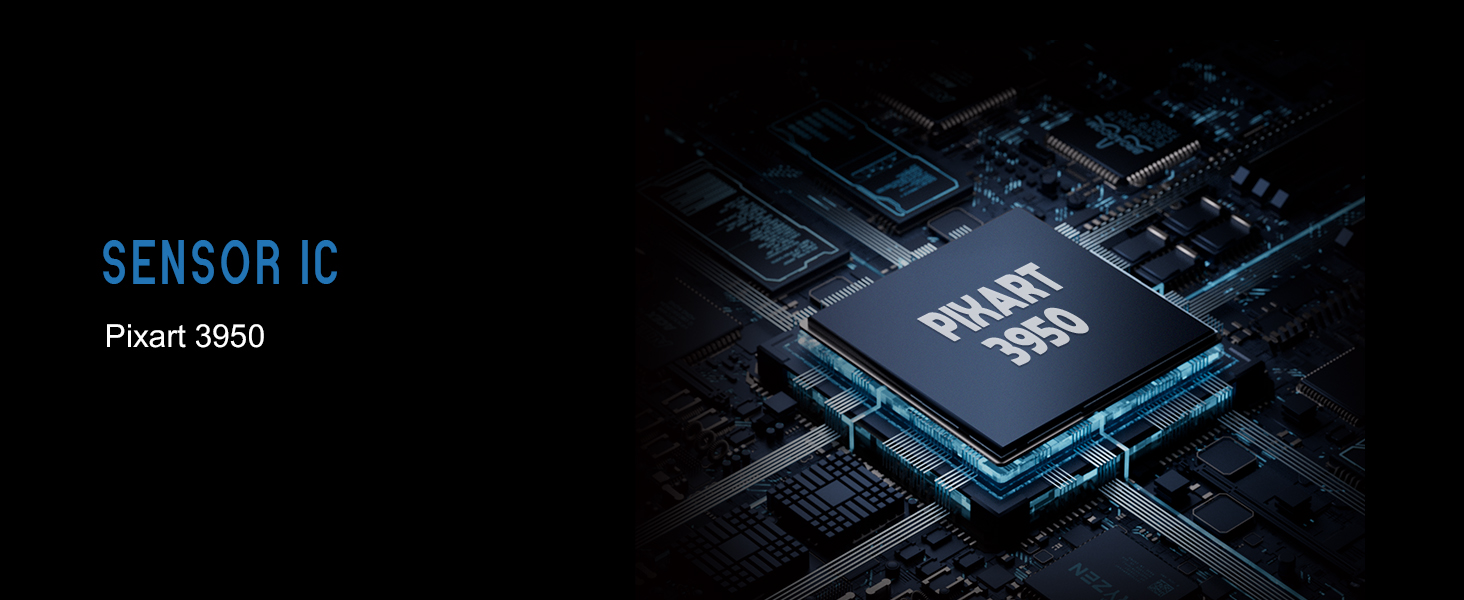
Figure 7: Lamzu Maya X Detailed Specifications.
Гаранција и подршка
Lamzu products are manufactured to the highest quality standards. For information regarding warranty coverage, technical support, or service inquiries, please visit the official Lamzu webсајту или се обратите њиховом одељењу за корисничку подршку.
- Службено Webсајт: ввв.ламзу.цом
- Служба за кориснике: Погледајте контакт информације наведене на званичној webсајту.
Сачувајте доказ о куповини за гаранцијске захтеве.
Ask a question about this manual
Ask about setup, troubleshooting, compatibility, parts, safety, or missing instructions. Manuals+ will review the question and use this page’s manual context to help answer it.