
1. Увод
Thank you for choosing the Leaven K610 Tri-Mode Mechanical Wireless Gaming Keyboard. This manual provides detailed instructions on how to set up, operate, and maintain your new keyboard. Designed for versatility and performance, the K610 offers seamless connectivity via Bluetooth 5.0, 2.4 GHz wireless, and wired Type-C connections, along with vibrant RGB lighting and a satisfying mechanical typing experience.
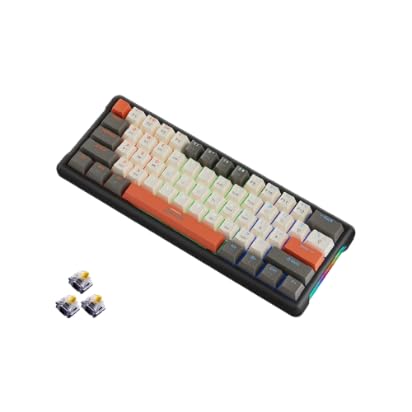
Image: Leaven K610 Tri-Mode Mechanical Wireless Gaming Keyboard, showcasing its compact design and included spare switches.
2. Карактеристике производа
- Тромодална повезаност: Supports Bluetooth 5.0, 2.4 GHz wireless, and wired (Type-C) connections for maximum compatibility and flexibility.
- Механички прекидачи са кључем: Provides tactile feedback and a responsive typing experience, ensuring accuracy and durability.
- Дизајн са могућношћу брзе замене: Allows for easy replacement of key switches without soldering, enabling customization and maintenance.
- Живахно RGB осветљење: Features 16.8 million colors with customizable backlighting to personalize your setup and enhance the gaming atmosphere.
- Компактан распоред са 61 тастера: A streamlined arrangement that saves desk space while retaining essential functions.
- Ергономски дизајн: Crafted for comfortable typing posture, reducing strain during extended use.
- Издржљива конструкција: Built with high-quality ABS material for long-lasting performance.
- Дуготрајна батерија: Ensures extended periods of uninterrupted wireless performance.

Слика: Експлодирана view diagram of the Leaven K610 keyboard, illustrating its internal components including ABS three-color keycaps, cover, RGB water cooling tube, pluggable mechanical switches, positioning plate, PCB board, and lower lid.
3. Садржај пакета
Молимо вас да проверите пакет за следеће ставке:
- Leaven K610 Tri-Mode Mechanical Wireless Gaming Keyboard
- УСБ Типе-Ц кабл
- 2.4 GHz USB Receiver (usually stored in the keyboard's battery compartment or a dedicated slot)
- Кориснички приручник (овај документ)
- Keycap Puller (may be included for hot-swappable switches)
- Switch Puller (may be included for hot-swappable switches)
- Spare Mechanical Switches (typically 2-3 pieces)
4. Водич за подешавање
4.1. Пуњење тастатуре
Before first use, it is recommended to fully charge the keyboard. Connect the supplied USB Type-C cable to the keyboard's Type-C port and the other end to a USB power source (e.g., computer USB port, USB wall adapter). The charging indicator light will show the charging status and turn off when fully charged.
4.2. Connecting via 2.4 GHz Wireless Mode
- Locate the 2.4 GHz USB receiver. It is usually stored in a slot on the keyboard itself.
- Прикључите УСБ пријемник од 2.4 GHz у слободан УСБ порт на рачунару.
- Switch the keyboard's mode switch (usually on the back or side) to the "2.4G" or wireless icon position.
- The keyboard should automatically connect. If not, press the designated pairing key combination (refer to keyboard markings, often Fn + R or a specific key with a 2.4G icon) to initiate pairing.
4.3. Повезивање путем Bluetooth режима
- Switch the keyboard's mode switch to the "BT" or Bluetooth icon position.
- The keyboard typically has multiple Bluetooth channels (e.g., BT1, BT2, BT3). Press and hold the Fn key along with the corresponding Bluetooth channel key (e.g., Fn + Q for BT1, Fn + W for BT2, Fn + E for BT3) for 3-5 seconds until the indicator light flashes rapidly, indicating pairing mode.
- On your device (PC, smartphone, tablet), open Bluetooth settings and search for new devices.
- Select "Leaven K610" or a similar name from the list of available devices.
- Follow any on-screen prompts to complete the pairing process. The indicator light on the keyboard will stop flashing and remain solid when connected.
- To switch between paired Bluetooth devices, simply press Fn + Q/W/E (for BT1/BT2/BT3) once.
4.4. Повезивање путем жичног режима
- Connect the supplied USB Type-C cable to the keyboard's Type-C port.
- Connect the other end of the USB Type-C cable to an available USB port on your computer.
- Switch the keyboard's mode switch to the "Wired" or cable icon position.
- The keyboard will be recognized as a standard USB keyboard and is ready for use.
5. Упутство за употребу
5.1. RGB контрола осветљења
The Leaven K610 features dynamic RGB lighting. Use the following key combinations to control the lighting effects:
- Фн + \ |: Cycle through different lighting effects/modes.
- Fn + [{: Смањите осветљеност.
- Fn + ]}: Повећајте осветљеност.
- Fn + ;:: Смањите брзину осветљења.
- Fn + '": Повећајте брзину осветљења.
- Фн + десни Схифт: Change lighting color (for static modes).

Слика: Крупни план са стране view of the Leaven K610 keyboard, highlighting the "Side Wing Water Cooling Pipe" which illuminates with RGB lighting, adding to the aesthetic appeal.
5.2. Function Key Combinations (Fn Key)
Due to its compact 61-key layout, many functions are accessed via the Fn (Function) key in combination with other keys. Refer to the keycap legends for specific functions. Common combinations include:
- Fn + A/S/D: Switch between Bluetooth channels (BT1/BT2/BT3).
- Фн + Р: Activate 2.4G pairing mode.
- Фн + Т: Пребаците се на жичани режим.
- Fn + Backspace: Delete (on some layouts).
- Фн + П: Принт Сцреен.
- Fn + L: Lock Windows key.
- Fn + U/I/O/P/J/K/L: Media controls (Play/Pause, Stop, Previous, Next, Mute, Volume Down, Volume Up).
- Fn + M/<, Fn + >./ Fn + ?/: Navigation keys (Home, End, Page Up, Page Down).
Note: Specific key combinations may vary slightly. Always refer to the legends printed on your keycaps.

Image: Diagram illustrating the 61-key compact arrangement of the Leaven K610 keyboard, emphasizing its minimalist design while retaining essential functionality.
6. Одржавање и њега
- Чишћење: Use a soft, dry cloth to wipe the keyboard surface. For deeper cleaning, use a can of compressed air to remove dust and debris from between keycaps. For stubborn stains, a slightly damp Може се користити крпа са благим сапуном, водећи рачуна да течност не уђе у тастатуру.
- Замена тастера и прекидача: If your keyboard comes with a keycap puller and switch puller, you can carefully remove keycaps and switches for cleaning or replacement. Always pull keycaps straight up to avoid damaging the switch stem. When replacing switches, align the pins correctly before gently pushing them into the hot-swap socket.
- Складиштење: Чувајте тастатуру на хладном и сувом месту, даље од директне сунчеве светлости и екстремних температура.
- Избегавајте течности: Do not expose the keyboard to water or other liquids. Liquid damage is not covered under warranty.

Слика: Крупни план view of a mechanical switch on the Leaven K610 keyboard, demonstrating the hot-swappable nature of the switches, allowing for easy replacement or customization.
КСНУМКС. Решавање проблема
- Тастатура не реагује:
- Уверите се да је тастатура напуњена.
- Check the mode switch (Wired/2.4G/BT) is in the correct position.
- For 2.4G, ensure the USB receiver is securely plugged in. Try a different USB port.
- For Bluetooth, ensure Bluetooth is enabled on your device and the keyboard is paired to the correct channel. Try re-pairing.
- For wired mode, ensure the Type-C cable is securely connected to both the keyboard and the computer. Try a different cable or USB port.
- Поново покрените рачунар/уређај.
- Тастери се не региструју или се куцају двапут:
- Clean under the keycap using compressed air.
- If hot-swappable, try removing and re-inserting the switch. If the issue persists, replace the switch with a spare one.
- RGB осветљење не ради:
- Уверите се да је тастатура укључена.
- Try cycling through lighting modes and adjusting brightness using Fn key combinations.
- Ensure the keyboard firmware is up to date (if applicable, check manufacturer's webсајт).
- Нестабилна Bluetooth веза:
- Ensure there are no strong interferences (e.g., other wireless devices, thick walls).
- Keep the keyboard within the recommended Bluetooth range.
- Try forgetting the device on your computer/smartphone and re-pairing.
8. Спецификације
| Параметар | Детаљ |
|---|---|
| Модел | К610 |
| Повезивање | Bluetooth 5.0, 2.4 GHz Wireless, USB Type-C Wired |
| Тип тастатуре | Mechanical, Hot-Swappable |
| Распоред тастера | 61-Key Compact Arrangement |
| Позадинско осветљење | RGB (16.8 милиона боја) |
| Материјал | акрилонитрил бутадиен стирен (АБС) |
| Извор напајања | Battery Powered and USB Cable |
| Компатибилни уређаји | Laptop, PC (Win XP/7/8/10, MAC and Above 10.2), Mobile Devices |
| Димензије производа | 30 к 11 к 2 цм |
| Тежина артикла | 400 г |
| Земља порекла | Кина |
9. Гаранција и подршка
This Leaven K610 keyboard comes with a 6-месечна гаранција from the date of purchase. This warranty covers manufacturing defects and issues arising from normal use. It does not cover damage caused by misuse, accidents, unauthorized modifications, or liquid damage.
For warranty claims or technical support, please contact your retailer or the manufacturer's authorized service center. Please retain your proof of purchase for warranty validation.