
1. Увод
The Ulefone Armor PAD 4 Ultra is a rugged 5G tablet PC designed for durability and high performance in challenging environments. It features a 10.36-inch 2K FHD+ display, a powerful MediaTek Dimensity 6300 processor, and a large 11800mAh battery. This manual provides essential information for setting up, operating, maintaining, and troubleshooting your device.

Image: The Ulefone Armor PAD 4 Ultra tablet showcasing its rugged design in an outdoor environment.
Key features include IP68/IP69K and MIL-STD-810H certifications for water, dust, and drop resistance, a 50MP rear camera, a 32MP front camera, and a versatile 1100 lumens LED light. The tablet runs on Android 14 and offers up to 16GB RAM and 256GB internal storage, expandable up to 2TB.
2. Водич за подешавање
2.1 Садржај пакета
Пре него што почнете, уверите се да су све ставке присутне у пакету:
- Ulefone Armor PAD 4 Ultra Tablet PC
- Повер Адаптер
- УСБ-Ц кабл
- Алат за избацивање СИМ картице
- Кориснички приручник (овај документ)
2.2 Inserting SIM/SD Card
- Пронађите лежиште за SIM/SD картицу са стране таблета.
- Користите приложени алат за избацивање СИМ картице да бисте отворили лежиште.
- Carefully place your Nano SIM card(s) and/or SD card into the designated slots. The tablet supports dual Nano SIM cards or one Nano SIM card and one SD card.
- Пажљиво гурните лежиште назад у таблет док не кликне на своје место.

Слика: Фронт view of the Ulefone Armor PAD 4 Ultra tablet, showing its display and rugged frame.
2.3 Почетно пуњење и укључивање
- Connect the USB-C cable to the tablet's charging port and the power adapter.
- Plug the power adapter into a wall outlet. Allow the tablet to charge for at least 30 minutes before initial use, or until the battery indicator shows sufficient charge. The 11800mAh battery supports 33W fast charging.
- Press and hold the Power button (usually located on the side) until the Ulefone logo appears on the screen.
- Пратите упутства на екрану да бисте завршили почетно подешавање, укључујући избор језика, Wi-Fi везу и подешавање Google налога.
2.4 Мрежна повезаност
The tablet supports 5G LTE dual SIM connectivity. Ensure your SIM card is active and your mobile data plan is configured. For Wi-Fi, navigate to Подешавања > Мрежа и интернет > Wi-Fi to connect to an available network.
3. Упутство за употребу
3.1 Основна навигација (Android 14)
The Ulefone Armor PAD 4 Ultra runs on Android 14. Navigate using gestures or the traditional three-button navigation bar (Back, Home, Recents). Swipe up from the bottom for the app drawer, swipe down from the top for notifications and quick settings.

Image: The tablet displaying the Android 14 interface, with an HDMI connection to an external display for presentations.
3.2 Употреба камере
The tablet is equipped with a 50MP rear camera and a 32MP front camera. Open the Camera app to capture photos and videos. Tap to focus, pinch to zoom, and use the on-screen controls for various modes and settings.

Слика: Детаљна view of the tablet's rear camera module, highlighting the 50MP sensor and the powerful LED light.
3.3 Versatile LED Light
The tablet features a powerful 1100 lumens LED light. This can be activated via a dedicated custom key or through the exclusive app. It functions as a flashlight, headlight, or portable campинг лигхт.
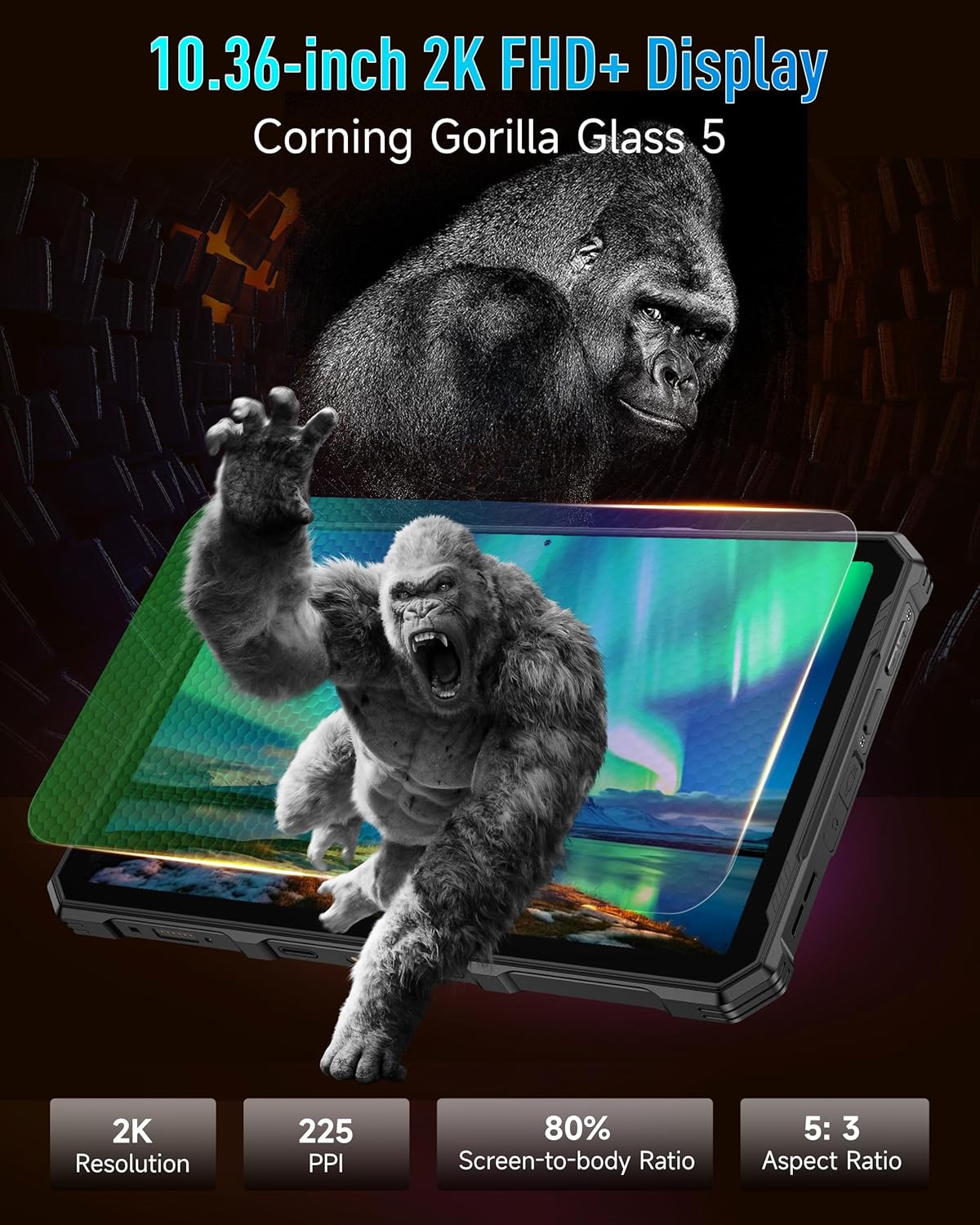
Image: The Ulefone Armor PAD 4 Ultra tablet illuminating a camping tent with its powerful LED light.
3.4 Custom Key Functionality
The tablet includes a customizable physical key. This key can be configured for single click, double click, or long press actions to quickly access specific functions or applications, such as activating the LED light or launching the camera.
3.5 Gloves Mode
For use in cold weather or industrial environments, activate Gloves Mode in Settings > Smart Assistant > Gloves Mode. This enhances touch sensitivity, allowing the screen to respond to gloved hands.
3.6 Face Unlock and Fingerprint ID
Enhance security and convenience by setting up Face Unlock or Fingerprint ID. Go to Settings > Security & privacy > Device unlock to configure these options.
3.7 Multi-use Digital Toolbox
The tablet comes with a suite of pre-installed tools in the Digital Toolbox, including a compass, sound meter, protractor, and more. These tools are designed to assist in various outdoor and professional tasks.

Image: A construction worker utilizing the Ulefone Armor PAD 4 Ultra tablet's digital toolbox for various measurements and utilities.
3.8 Headset-free FM Radio
Enjoy FM radio without needing to connect headphones. Simply open the FM Radio app and tune into your favorite stations.
3.9 ХДМИ порт
The tablet features an HDMI port for connecting to external displays, such as monitors or projectors. This allows for screen mirroring or extended display functionality, useful for presentations or media consumption.
4. Одржавање
4.1 Чишћење уређаја
Due to its rugged design, the Armor PAD 4 Ultra can be cleaned with water and mild soap. Ensure all port covers are securely closed before exposing the device to water. Wipe with a soft, lint-free cloth. Avoid using harsh chemicals or abrasive materials.
4.2 Одржавање батерије
Да бисте продужили век трајања батерије:
- Избегавајте екстремне температуре.
- Користите оригинални пуњач и кабл за оптимално пуњење.
- Немојте често потпуно празнити батерију.
- If storing the device for an extended period, charge it to about 50% and power it off.
4.3 Ажурирања софтвера
Редовно проверавајте и инсталирајте ажурирања софтвера како бисте осигурали оптималне перформансе, безбедност и приступ новим функцијама. Идите на Подешавања > Систем > Ажурирање система.
4.4 Ruggedness Features
The tablet is IP68/IP69K and MIL-STD-810H certified, meaning it is resistant to water, dust, and drops. While designed to be durable, avoid intentionally subjecting it to extreme conditions beyond its specifications. Ensure all port covers are sealed to maintain water and dust resistance.

Image: The Ulefone Armor PAD 4 Ultra tablet submerged in water, covered in dust, and dropped, demonstrating its IP68/IP69K and MIL-STD-810H certifications.
КСНУМКС. Решавање проблема
5.1 Уређај се не укључује
- Ensure the battery is charged. Connect the tablet to its charger and wait a few minutes before attempting to power it on.
- Притисните и држите дугме за напајање најмање 10-15 секунди да бисте извршили присилно поновно покретање.
5.2 Проблеми са мрежном повезивањем
- Ви-Фи: Check if Wi-Fi is enabled in Settings. Restart your router. Forget the network and reconnect.
- Мобилни подаци: Ensure your SIM card is correctly inserted and activated. Check your data plan status with your carrier. Restart the tablet.
5.3 Екран не реагује
- Поново покрените уређај држањем дугмета за напајање.
- If the screen is frozen, perform a forced restart.
5.4 Рушење или замрзавање апликација
- Обришите кеш меморију и податке проблематичне апликације (Подешавања > Апликације > [Назив апликације] > Меморија и кеш).
- Деинсталирајте и поново инсталирајте апликацију.
- Уверите се да је софтвер вашег таблета ажуриран.
5.5 Ресетовање на фабричка подешавања
If issues persist, a factory reset may be necessary. This will erase all data on your tablet, so back up important information first. Go to Подешавања > Систем > Опције ресетовања > Обриши све податке (ресетовање на фабричка подешавања).
6. Спецификације
| Феатуре | Детаљ |
|---|---|
| Бранд | Улефон |
| Број модела | Ulefone Armor Pad 4 Ultra |
| Величина екрана | 10.36 инча |
| Нативе Ресолутион | 2000x1200 pixels (2K FHD+) |
| Аспецт Ратио | 5:3 |
| Процесор | MediaTek Dimensity 6300 (2400 MHz) |
| РАМ | Up to 16GB (8GB physical + 8GB virtual) |
| Интерна меморија | 256GB (2TB Expandable) |
| Оперативни систем | Андроид 14 |
| Задња камера | 50МП |
| Предња камера | 32МП |
| Капацитет батерије | 11800мАх |
| Пуњење | 33В брзо пуњење |
| Руггнесс | IP68/IP69K, MIL-STD-810H Certified |
| Повезивање | 5G LTE, Wi-Fi (2.4G/5G), Bluetooth 5.2, NFC, GPS |
| Посебне карактеристике | 1100 Lumens LED Light, Custom Key, Gloves Mode, HDMI Port, Multi-use Digital Toolbox |
| Тежина артикла | 16 унци |
7. Гаранција и подршка
7.1 Информације о гаранцији
The Ulefone Armor PAD 4 Ultra comes with a 2-годишња глобална гаранција. This warranty covers manufacturing defects and malfunctions under normal use. Please retain your proof of purchase for warranty claims. The warranty does not cover damage caused by misuse, accidents, unauthorized repairs, or normal wear and tear.
7.2 Корисничка подршка
For technical assistance, warranty claims, or any other inquiries, please contact Ulefone customer support. Refer to the official Ulefone webсајт или вашу документацију о куповини за најновије контакт информације.
Your satisfaction is a priority. Should you encounter any technical issues, the dedicated support team is available to assist you.