
PORLEI TM552
PORLEI Wired Trackball Mouse User Manual
Модел: ТМ552
Увод
Thank you for choosing the PORLEI Wired Trackball Mouse. This manual provides essential information for setting up, operating, and maintaining your new trackball mouse. Designed for ergonomic comfort and precision, this device aims to enhance your productivity and reduce strain during extended use.

Figure 1: PORLEI Wired Trackball Mouse (Red A-Red variant)
Шта је у кутији
- 1 x PORLEI Wired Trackball Mouse
- 1 к Упутство за употребу
Производ је завршенview
Familiarize yourself with the components and features of your PORLEI Wired Trackball Mouse.

Figure 2: Mouse Components and Button Layout
- Десни тастер миша: Стандардна функционалност десног клика.
- Дугмад за напред/назад: Навигација web странице или фасцикле. Note: These buttons are not compatible with Mac OS.
- Леви тастер миша: Стандардна функционалност левог клика.
- Прецизни точак за скроловање: За вертикално скроловање.
- Removable Ball: The 44mm trackball can be removed for cleaning.
- Дугме ДПИ: Located on the bottom of the mouse, used to adjust cursor sensitivity.
Сетуп
The PORLEI Wired Trackball Mouse is designed for simple plug-and-play operation.
- Повежите УСБ кабл: Locate an available USB-A port on your computer (PC, laptop, desktop). Insert the 1.8m USB cable of the trackball mouse firmly into the USB port.
- Препознавање система: Your operating system (Windows, Mac OS, etc.) will automatically detect and install the necessary drivers. No manual driver installation is required.
- Спреман за употребу: Once the system recognizes the device, the mouse is ready for immediate use.

Figure 3: Plug-and-Play Setup and DPI Adjustment
Упутство за употребу
Using the Trackball
The primary method of cursor control is through the 44mm index finger trackball. Use your index finger to roll the ball in any direction to move the cursor on the screen.

Figure 4: Ergonomic Design for Comfortable Use
Подешавање ДПИ (брзине курсора)
The mouse features 5 distinct DPI settings, allowing you to customize cursor sensitivity. To change the DPI:
- Locate the DPI button on the bottom of the mouse.
- Press the DPI button to cycle through the available settings (200 DPI, 400 DPI, 800 DPI, 1200 DPI, 1600 DPI).
- Select the DPI setting that best suits your preference and task.
Функције дугмета
- Леви клик: Стандардни избор и активација.
- Десни клик: Access contextual menus.
- Точак за померање: Премотајте нагоре или надоле да бисте се кретали кроз документе и web pages. Press the scroll wheel for middle-click functionality (if supported by your software).
- Дугмад за напред/назад: Use for quick navigation in web претраживачи или file истраживачи.
Одржавање
Regular maintenance ensures optimal performance and longevity of your trackball mouse.
Чишћење куглице
Dust and debris can accumulate around the trackball, affecting its smooth operation. Clean the trackball periodically:
- Уклоните куглу за праћење: Gently push the trackball from the underside of the mouse or carefully pry it out from the top.
- Очистите лопту: Wipe the trackball with a soft, lint-free cloth. If necessary, dampen the cloth slightly with water or a mild, non-abrasive cleaner. Ensure the ball is completely dry before reinserting.
- Очистите утичницу: Use a cotton swab or a soft brush to remove any dust or debris from inside the trackball socket and around the optical sensor.
- Поново уметните куглу за праћење: Place the clean trackball back into its socket, ensuring it sits securely and rolls freely.
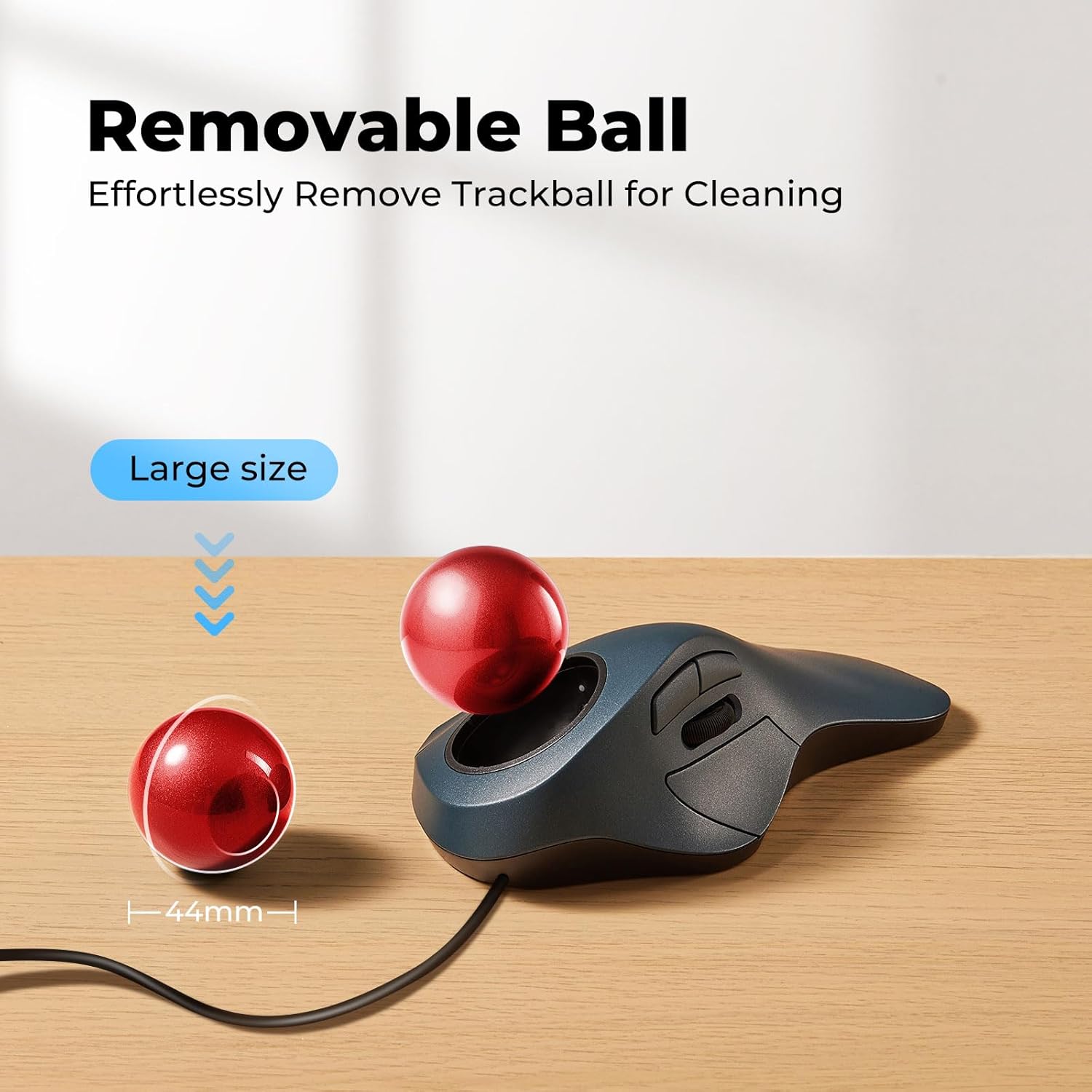
Figure 5: Removing the Trackball for Cleaning
Генерал Цлеанинг
Обришите спољашњост миша меком крпомamp тканина. Избегавајте употребу јаких хемикалија или абразивних материјала.
Решавање проблема
If you encounter issues with your PORLEI Wired Trackball Mouse, refer to the following common solutions:
- Миш не реагује:
- Уверите се да је USB кабл безбедно прикључен у исправан USB порт на рачунару.
- Покушајте да прикључите миш на други УСБ порт.
- Поново покрените рачунар.
- Кретање курсора је неправилно или скачкасто:
- Clean the trackball and its socket as described in the Maintenance section. Dust or debris can interfere with the optical sensor.
- Ensure the surface the mouse is on is stable and clean, although the trackball design minimizes surface dependency.
- Дугмад не функционишу:
- Проверите да ли је миш правилно повезан.
- For Forward/Backward buttons, remember they are not compatible with Mac OS.
- Test the mouse on another computer if possible to rule out system-specific issues.
- DPI Adjustment Not Working:
- Ensure you are pressing the correct DPI button located on the bottom of the mouse.
Ако ови кораци не реше проблем, погледајте одељак Гаранција и подршка за додатну помоћ.
Спецификације
| Феатуре | Детаљ |
|---|---|
| Бранд | ПОРЛЕИ |
| Број модела | ТМ552 |
| Технологија повезивања | УСБ Виред |
| Откривање покрета | Трацкбалл |
| ДПИ подешавања | 200, 400, 800, 1200, 1600 |
| Цабле Ленгтх | 1.8 метара |
| Боја | A-Red |
| Тежина артикла | 9.6 унце (приближно 272 грама) |
| Димензије пакета | 7.01 к 4.37 к 2.52 инча |
| Компатибилност | Windows, Mac OS, Laptops, Desktops |
| Посебне карактеристике | Ergonomic Design, USB Wired, Removable Trackball |
| Земља порекла | Кина |
Гаранција и подршка
PORLEI products are manufactured with quality and reliability in mind. For specific warranty information and support inquiries, please refer to the documentation included with your purchase or contact PORLEI customer service directly.
For the most up-to-date support information, please visit the official PORLEI website or contact their customer service department using the contact details provided on the product packaging or their official store page.
Note: This manual does not constitute a warranty. Warranty terms and conditions are subject to change and may vary by region.
Ask a question about this manual
Ask about setup, troubleshooting, compatibility, parts, safety, or missing instructions. Manuals+ will review the question and use this page’s manual context to help answer it.